You can turn an old smartphone into a shared home phone with Wi-Fi and an internet calling app such as Google Voice.
The app, account, internet connection, and power must all work.
An active SIM in the old phone is not needed for a Wi-Fi app call (Google Voice internet calling, checked October 2, 2026).
Use it as a household convenience line, not as your only way to reach emergency services.
Google Voice estimates about 0.2 MB of data per minute (Google Voice call settings, checked October 2, 2026).
Actual data use depends on network quality and speed, according to the same Google help page.
The phone still needs working Wi-Fi and an app version it can run.
First, separate app calling from carrier Wi-Fi Calling
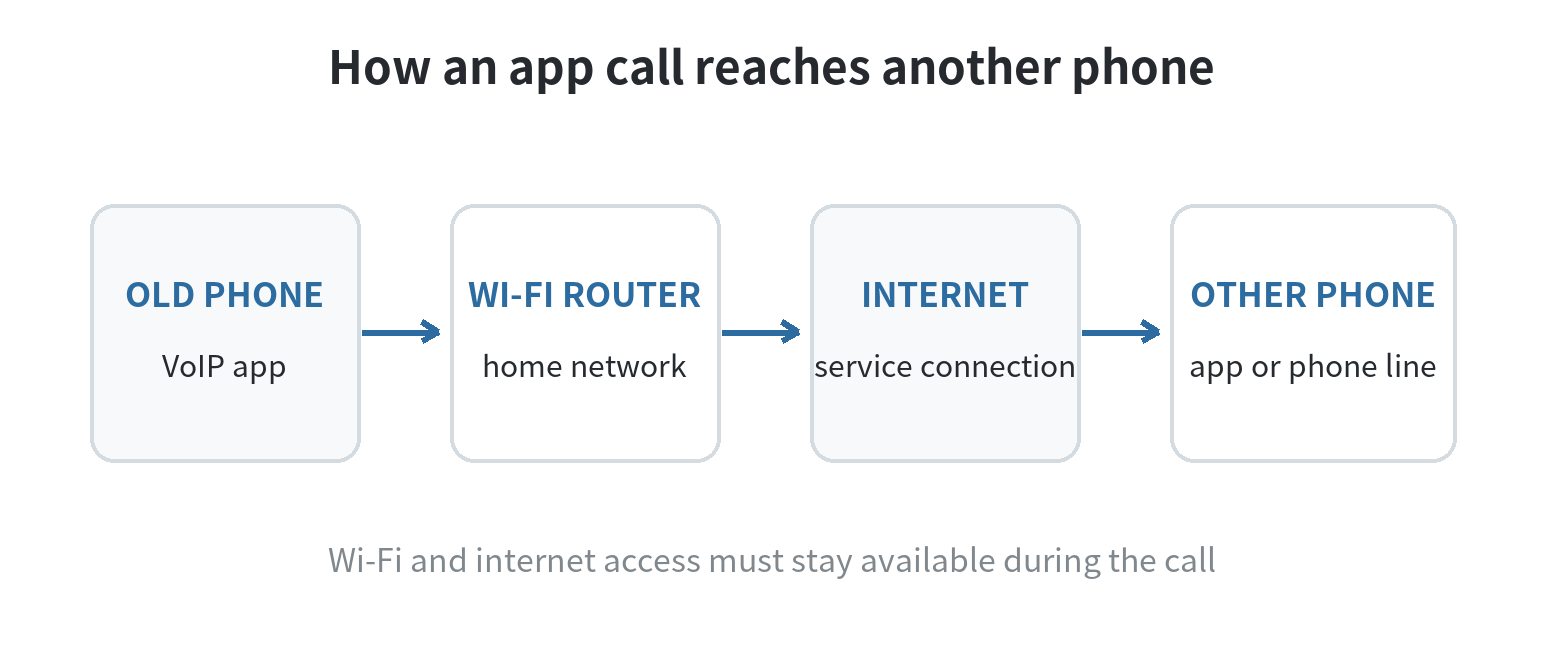
An app-based VoIP call travels from the phone through Wi-Fi and the internet to the calling service.
Google Voice can place calls to regular phone numbers as well as other users (Google Voice account types, checked October 2, 2026).
The old phone can make app calls without an active SIM because the call starts inside the app.
Carrier Wi-Fi Calling is a different feature. It routes a carrier phone call over Wi-Fi.
Google says carrier support is required and shows Wi-Fi Calling under a carrier SIM (Google Phone app Wi-Fi Calling help, checked October 2, 2026).
An old phone without an active line cannot assume it has this feature.
For a Wi-Fi home phone, place calls from the internet calling app, not the regular Phone app.
This distinction also helps when troubleshooting.
If the app cannot connect, check Wi-Fi and internet access first.
If calls open in the regular Phone app, return to the VoIP app and start them there.
Google says calls started in the device Phone app can use mobile-plan minutes (Google Voice internet calling, checked October 2, 2026).
Check the old phone before setting up a number
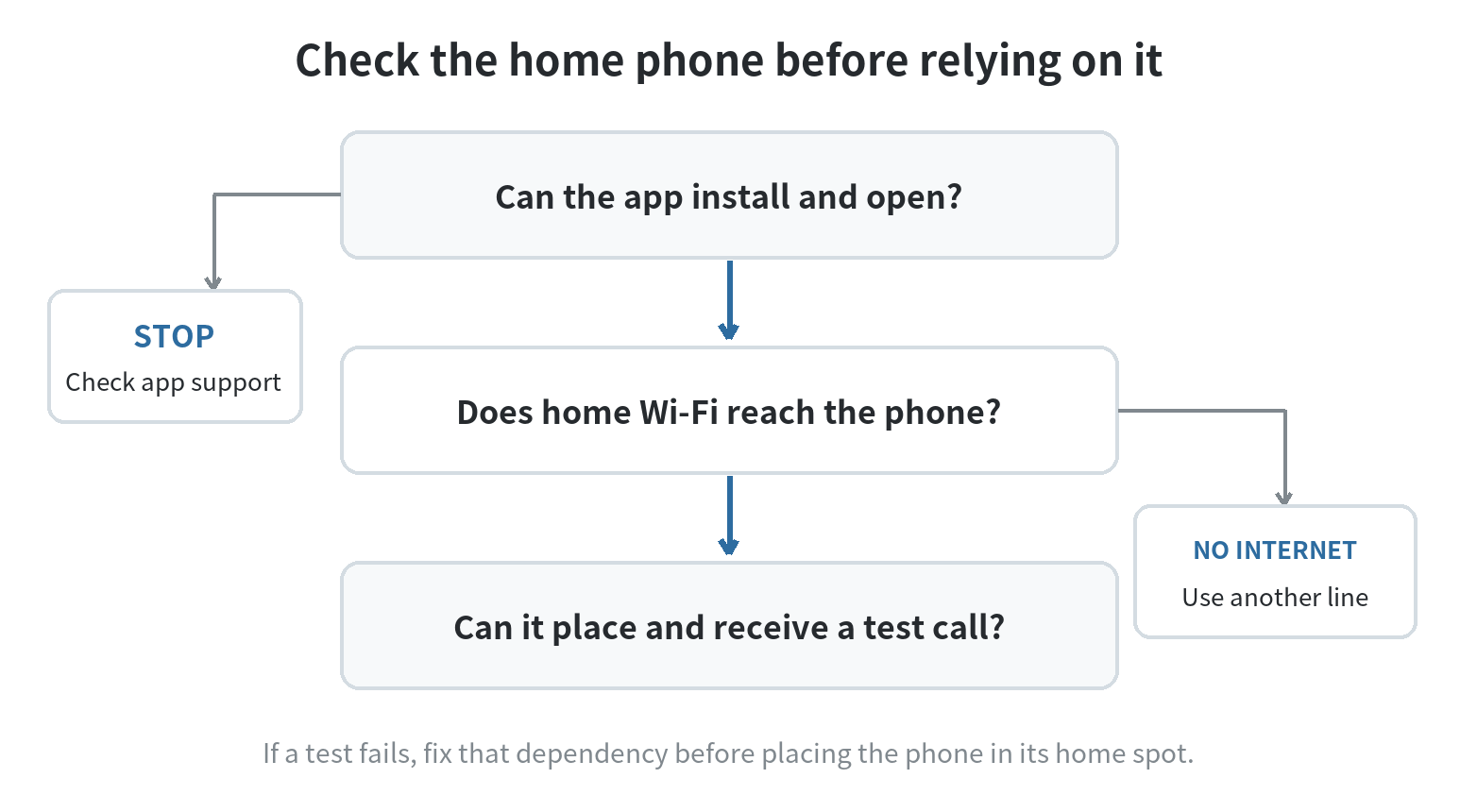
Charge the phone, connect it to home Wi-Fi, and see whether it can install and open the calling app.
Open the app store on that phone and confirm the calling app is available and opens.
Check that the screen, microphone, speaker, and charging port work.
Back up needed files before removing the previous owner’s accounts and personal data.
Add a screen lock and install available system updates.
Leave free storage for the calling app and its updates.
Choose a spot where the phone can stay plugged in without blocking its speaker.
Keep the handset uncovered so the ringtone stays audible.
If its battery is swollen or the phone becomes unusually hot while charging, stop using it as a dedicated handset.
Arrange repair or recycling for a damaged battery.
A phone left in a drawer will not ring when someone calls.
Set up the app as a shared household line
Google describes Basic Voice as a no-charge plan for personal use in the United States.
Google lists a phone number for forwarding calls as a requirement (Google Voice account types, checked October 2, 2026).
Review the current setup steps before choosing this option.
The number used for account setup may differ from the new household Voice number.
- Install the calling app from the phone’s official app store. Sign in to the account that will own the household line.
- Complete number setup and any verification the app requests. Keep account recovery information with the responsible adult.
- Choose who should answer and add household contacts. Set a ringtone that can be heard where the phone will sit.
- Allow microphone access for calls. Allow notifications if requested so incoming-call alerts can appear.
- Contacts access can be optional; enter names and numbers in the app if you prefer not to share the phone’s contact list.
- Place a call from inside the VoIP app. Ask another household member to call the new number back.
Google Voice can ring linked devices and numbers when call forwarding is set up.
Its setup guide explains how to link a phone (Google Voice calls and linked phones, checked October 2, 2026).
Decide whether the old phone should ring alongside a personal phone or act as the in-home answer point.
Tell household members which number to expect and where the handset will be.
If you want an intercom between rooms, see how two old phones can work as a home intercom.
If a child will use the handset, the Wi-Fi-only first-phone checklist covers contacts and supervision.
Test the whole routine from its usual spot
Do not stop when the app opens successfully.
Place an outgoing call and receive a return call.
Answer once with the screen locked and adjust the ring volume.
Play a voicemail if the service offers one.
Test from the room where the handset will live.
A call that works beside the router may fail at a kitchen counter or upstairs landing.
Restart the phone and router separately, then check whether the calling app reconnects.
Put the screen to sleep and have someone call again.
If alerts stop, check the app’s notification permission and the phone’s battery settings.
Menus vary by operating system, so search settings for the app name on this device.
Do not rely on steps written for a different phone model.
Keep the charger connected, but do not put the phone where the ringtone is muffled.
If the router or internet service goes down, app-based calling stops until the connection returns.
A cellular signal alone does not provide a call connection without active service.
Google says Voice can use a carrier connection when Wi-Fi calling is unavailable (Google Voice internet calling, checked October 2, 2026).
Know the emergency-calling limit
Google lists emergency calling only for certain managed or paid Voice account types.
Google’s account comparison says its no-charge Basic plan does not include 911 support (Google Voice account types, checked October 2, 2026).
Google says power, internet, or Voice outages can make emergency calls unavailable (Google Voice emergency guidance, checked October 2, 2026).
FCC rules require interconnected VoIP providers to notify subscribers about circumstances that can limit E911.
The FCC lists broadband failure and loss of electrical power as examples (FCC Order 18-132, checked October 2, 2026).
Keep another way to reach emergency services available, such as a charged mobile phone with service.
Do not label the Wi-Fi handset as the household’s emergency phone.
For another person using the handset, put a regular phone number or trusted adult’s number somewhere visible.
Explain which app to open for ordinary calls.
If you need a dependable emergency connection, choose a separate service that explicitly supports it.
Follow that provider’s instructions for registering an emergency address.
FAQ
Can someone call the old phone from a regular phone without the same app?
Yes. Give them the Google Voice number; Google says calls to that number can ring linked phones (Google Voice linked-phone help, checked October 2, 2026).
The old handset still needs the app, Wi-Fi, and internet access to answer.
What should I do if I change my home Wi-Fi password?
Reconnect the old phone to the updated Wi-Fi network, then repeat an outgoing and incoming test call.
Keep another phone available until the app works from the handset’s usual place.
Will Google Voice switch to cellular service if Wi-Fi drops?
It may use a carrier connection if Wi-Fi calling is unavailable, according to Google (Google Voice internet calling).
A phone without active cellular service cannot rely on that fallback; restore internet access or use another line.
Last updated: 2026-10