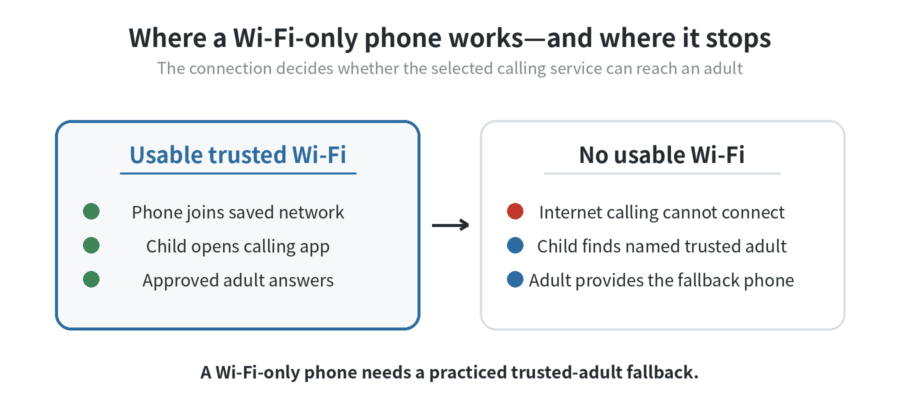
Yes—an old phone can work as a child’s first communication device without a SIM when it is set up as a Wi-Fi-only phone. It can reach approved people only while it has usable Wi-Fi and the selected calling service works on that device and account. Do not rely on it for emergency communication when Wi-Fi is unavailable; give the child a backup plan: find a named trusted adult and ask to use that adult’s phone.
Start with one small job
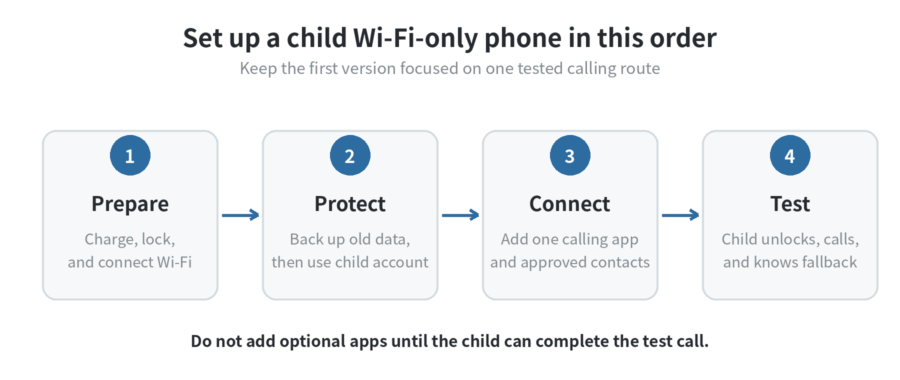
Make the first version a communication device, not an all-purpose phone. Pick one calling service, add a short list of adults who have agreed to answer, and keep the home screen simple enough for the child to use without help.
Explain the rule in plain language: “This phone calls these people when Wi-Fi is on.” Put the calling app and contact photos where the child can find them. Leave games and optional apps off until the call routine works.
Write down the calling service before changing settings: the first adult to call, a second adult, the regular places with trusted Wi-Fi, and the fallback adult at each place. Give each adult a chance to accept an incoming test call. This small list makes it easier to spot a missing account, a contact who does not use the chosen service, or a device that is not ready.
An Android phone can receive internet services and updates over Wi-Fi without mobile data. That makes Wi-Fi the dependency to test first, rather than an afterthought.
Prepare the old phone without losing the previous owner’s data
Charge the phone, connect it to home Wi-Fi, and confirm that its screen lock works. Then make a test call from the room where the child will use it. A device that cannot hold a charge, stay connected, or run the chosen service is not a good hand-me-down for this job.
Back up the previous owner’s photos, messages, and files before signing out, removing accounts, or erasing the device. Confirm the owner can sign back in elsewhere and can clear any activation lock before a reset. Google’s child-account instructions say a parent must verify during child sign-in. They also say that removing that child’s Google Account from a device removes associated email, contacts, and settings from that device. Read Google’s child-account guidance before changing a child’s Android account.
After that cleanup, use an account intended for the child rather than leaving a parent’s everyday account on the phone. Install the updates the phone still supports, then install only the service you plan to test. Check the phone’s operating-system version, the service’s current requirements, the account type, and availability in your region before you hand it over.
Choose one internet calling service
Choose a calling service that every intended adult can use and will answer. FaceTime can be a sensible calling service when the child and every intended contact can use it; use Apple’s FaceTime setup instructions with the child’s account, then make a call to each contact.
For a mixed-device family, select one supported internet calling service across those devices. Google says Meet calls work over Wi-Fi and mobile data; on this phone, the useful part is the Wi-Fi connection. Do not promise a call will work once that connection ends.
Carrier Wi-Fi calling is a separate feature, not the same thing as an internet calling app. Google’s Phone app guidance says it needs carrier support and shows the setting under a carrier SIM. Check those requirements here. It is often tied to a SIM or carrier account, so do not treat it as a no-SIM calling service until the carrier confirms it will work.
Build an approved contact routine
Add a parent, another caregiver, and relatives who have agreed to answer. Use recognizable names and photos. Ask the child to make one outgoing call, answer one incoming call, end a call, and find the calling app after the screen has locked.
Test the exact routine, not just the app’s installation. Put the phone where it will normally live, walk to another part of the home, and have the child call the intended adult. Repeat that test at a relative’s home after a parent has helped connect the phone to a trusted, saved Wi-Fi network.
For Android, saved networks can reconnect when the device is nearby and Wi-Fi is on, according to Google’s Wi-Fi instructions. Confirm that behavior on this old phone before the child relies on it. Do not make an unfamiliar public network the routine connection.
Turn on controls that match the device
On a supported iPhone, Apple says Screen Time Communication Limits can manage how a child communicates with others. Its parental-controls guide also describes controls for allowed apps and features. Check what the old phone’s installed software actually offers before making it the child’s rule set.
On Android, use Family Link with the child’s supervised Google Account when the device supports it. Google lists Google Play controls, Chrome website restrictions, screen-time limits, app limits, app blocking, and app permissions among the managed settings. Google’s child-account guide says managed child accounts can sign in on Android 5.1 and later, while Android 5.0 and lower cannot use that managed sign-in.
Family Link can block or allow individual apps on eligible Android devices. Google’s app-management instructions say those controls require Android 6.0 or later, and note that some system apps cannot be blocked. Keep the first screen focused on the single calling app and the approved contacts.
Do one final handoff test
Lock the phone, place it on its normal charger, and ask the child to unlock it, reconnect if needed, and call an approved adult. Then ask what to do if the call does not connect: find a named trusted adult and ask to use that person’s phone. Put that instruction on a small card with the device.
Recheck the calling service after an operating-system or app update, and revise the contact list when family arrangements change. For another focused reuse project, see this site’s guide to an old phone as a dedicated music player. This old-phone reuse overview can help you choose a different single-purpose role.
FAQ
Can an old iPhone make FaceTime calls without a SIM card?
It can when the old iPhone, the child’s account, and every intended contact support the service and the phone has usable internet access. Set it up with Apple’s FaceTime instructions, then test each contact before the handoff.
Can a Wi-Fi-only phone for a child work outside the house?
Yes, but only where it joins a usable Wi-Fi network and the selected calling service connects. Test a regular location with the child first, and keep the trusted-adult fallback for places without Wi-Fi.
How do I stop extra apps on an old Android phone?
Use the child’s supervised Google Account and Family Link on a supported device, then block or allow individual apps. Google’s instructions list Android 6.0 or later as the requirement for those app controls.
Last updated: 2026-09