You can use two old phones as a home intercom or a Wi-Fi walkie-talkie if both can run the same voice app and connect to the internet, as Zello’s connection guide (checked September 2026) describes for its app. A SIM card is not required for Zello Friends & Family on Wi-Fi: its account guide (checked September 2026) makes a phone number optional, and its connection guide accepts Wi-Fi. The phones must stay connected and powered. Google Meet’s requirements (checked September 2026) also call for an internet connection. This setup is push-to-talk over the internet, so it will not work during a Wi-Fi or internet outage.
Choose push-to-talk for room-to-room voice
For a walkie-talkie feel, use Zello Friends & Family on both phones. Zello’s push-to-talk guide (checked September 2026) describes selecting a contact or channel, holding the push-to-talk button while speaking, and releasing it to stop transmitting. Microsoft’s Walkie Talkie support page (checked September 2026) documents the same hold-and-release pattern for internet-based talk.
For a private household setup, add each other as contacts or create a private group conversation. Zello’s Android guide (checked September 2026) explains that private group conversations are limited to selected contacts. Avoid a public channel for family talk: Zello’s channel guide (checked September 2026) says public channels are open to anyone. Confirm that each account is the Friends & Family version, since Zello documents Work as a separate product.
A video-call app gives you a continuously open conversation rather than short push-to-talk turns. Both phones join the same meeting, as Google Meet’s requirements (checked September 2026) describe. Its audio guide (checked September 2026) warns that mismatched microphones and speakers can create echo.
Check both phones before setup
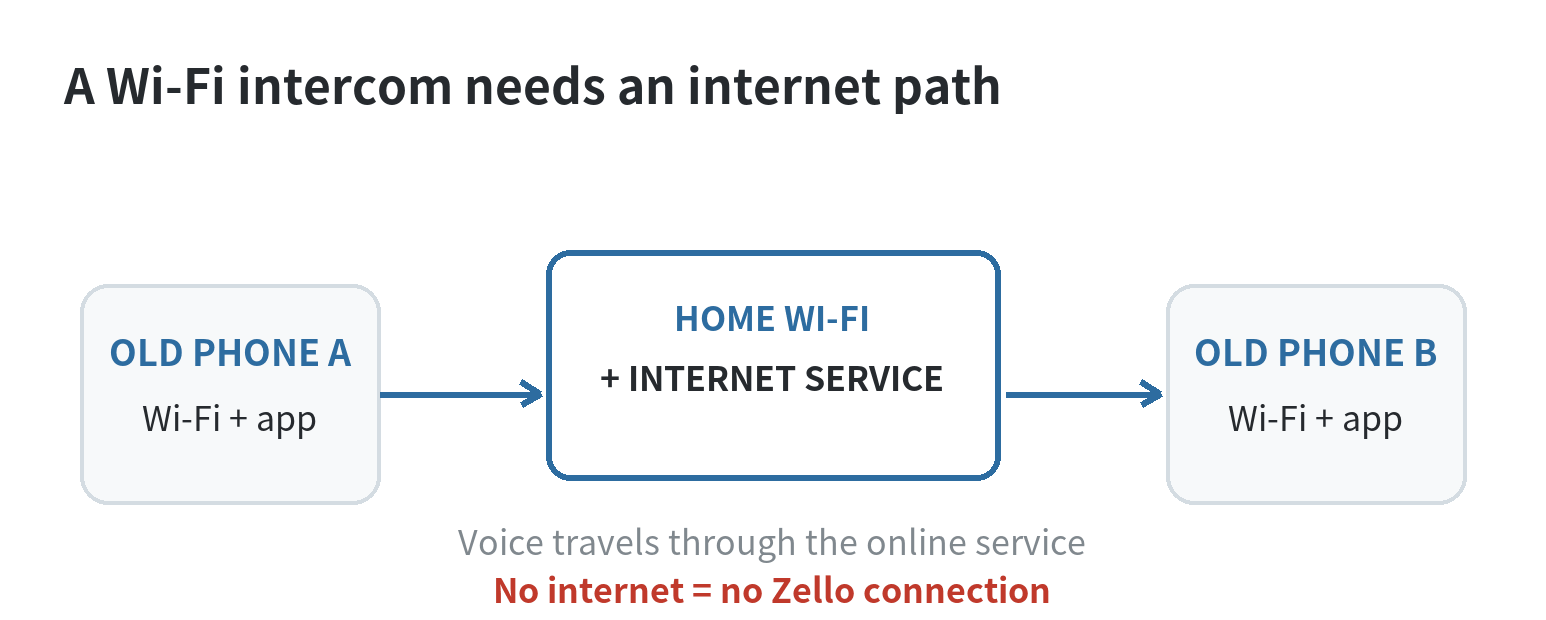
Power on each phone, unlock it, and connect it to the home Wi-Fi network. Open its app store and check whether Zello is offered for that device. Old phones can fall outside an app’s current operating-system support, so check the store’s compatibility message instead of assuming an app can be installed because the phone still turns on.
Test the microphone, speaker, touchscreen, and charging port. Zello’s Android user guide (checked September 2026) says to allow microphone access and check that the speaker and volume are on if you cannot hear a message. Plan for a charging spot if the phone cannot hold enough charge for the time you want to use it.
Keep both phones on Wi-Fi and check that each can open a webpage before testing the intercom. Zello states (checked September 2026) that it will not work without internet access. Google Meet also requires an internet connection for meetings, so this is an app-based voice link rather than a direct radio connection.
Set up a private push-to-talk link
- Install Zello Friends & Family on both phones if each store lists the app as compatible. Create separate accounts and keep the usernames available to the people using the phones. Zello’s Android guide (checked September 2026) lists a phone number as optional during account setup, so Wi-Fi access can provide the connection without a mobile plan.
- Allow microphone access when the app requests it. If the app’s status or message controls are unavailable, check the phone’s internet connection and the app’s microphone permission. Zello’s Android guide (checked September 2026) includes this microphone check.
- Add the other account as a contact or make a private group conversation for the household. Confirm that each phone shows the intended contact or group before sending a test message. Zello’s guide to group conversations (checked September 2026) explains the private group option.
- On the sending phone, open the contact or group, press and hold the push-to-talk control, speak after the ready signal, then release the control. Listen on the other phone and reply from that device. The Zello push-to-talk instructions (checked September 2026) describe this hold-and-release action.
- Test the setup with the screens locked and the app in the background. Check notification permission and the app’s background settings if an incoming message does not play. Zello’s Android guide (checked September 2026) lists background operation and push notifications among the controls affecting incoming messages.
Label each phone by its room and leave the contact or group ready to open. Keep the receiving phone’s speaker volume comfortable, and place the phones apart during testing.
For a one-way household setup, leave the fixed phone in the room where it will be used and keep its speaker clear of cushions, drawers, or other objects. Walk to the farthest room where you expect to use the second phone and send a voice test in each direction. If the message breaks up there, move closer to the router or try a different spot; Microsoft’s network guide (checked September 2026) notes that Wi-Fi dead spots can affect call quality.
Decide how the phones will be used when nobody is holding them. Leave the receiving app available with alert volume audible if you expect messages to play right away. If the old phone is shared, place it where a user can reach and unlock it. A short spoken label can help identify who is calling from another room.
Know what the setup can and cannot do
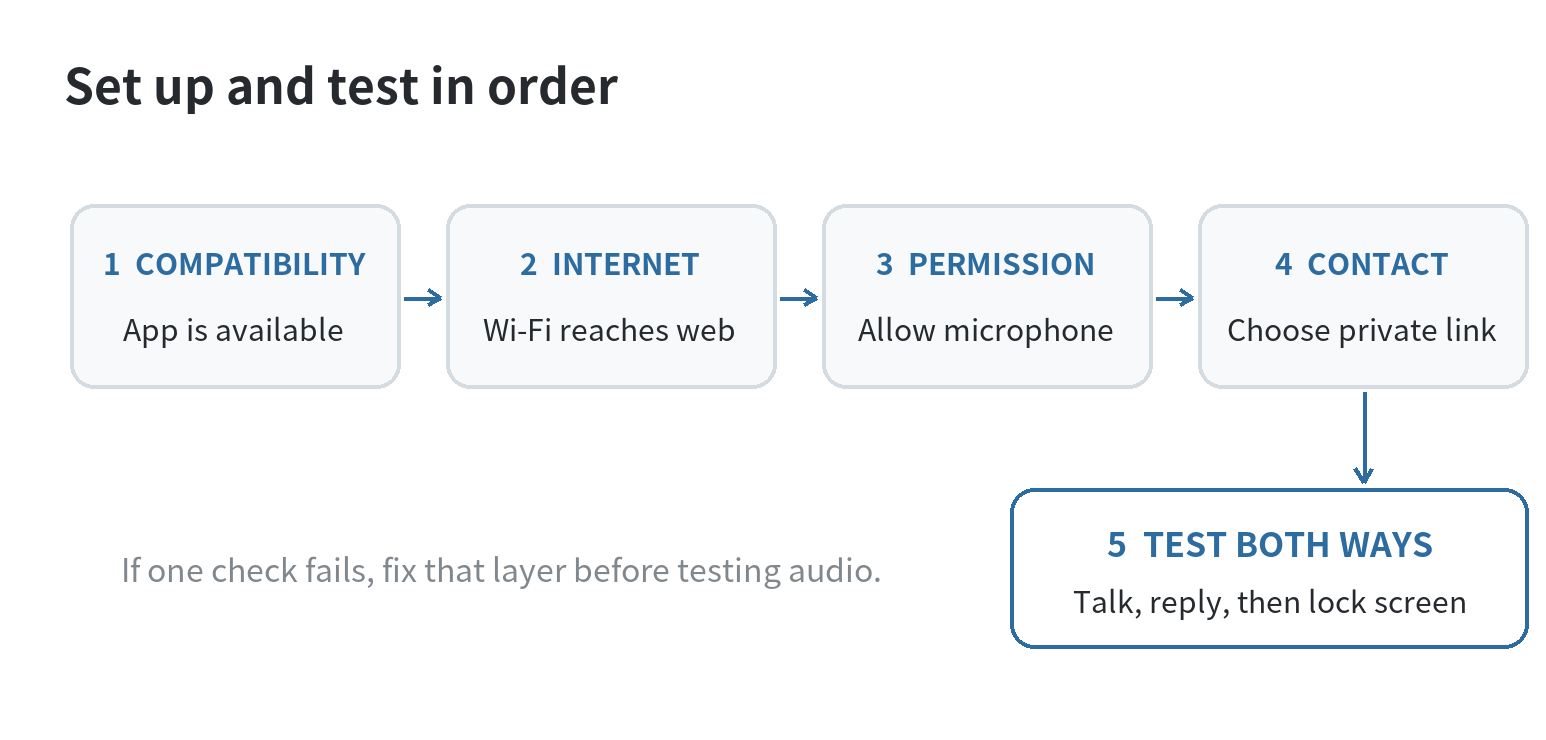
This is an internet intercom, not a direct radio link. The phones do not communicate just because they are in the same house; the app connects through its online service. If the internet fails, Zello says the connection will not work. A cellular plan is optional when both devices have working Wi-Fi, but Wi-Fi alone without internet is not enough.
Battery condition and software support set practical limits. Leave a dedicated phone on a stable surface with airflow around it. Keep its operating system and app within the versions the app store supports; if installation is blocked, this method is not available on that phone as configured.
For other old-phone projects, see our guides to turning an old phone into a car media player and making an old smartphone an offline music player. Those projects cover other ways to give a spare device one clear job.
FAQ
Can more family phones join the same private home intercom group?
Yes. Zello’s Android guide (checked September 2026) says a private conversation can include selected contacts and that group members can invite additional participants.
Can one old phone use Wi-Fi while the other uses cellular data?
Yes, as long as each phone has working internet access. Zello’s connection guide (checked September 2026) lists Wi-Fi and cellular internet as connection options, so the phones do not need to use the same kind of connection.
What happens to intercom messages when a phone is set to Busy or Offline?
Busy status saves incoming messages for later, while Offline status does not receive or save new ones. Zello’s status guide (checked September 2026) describes both behaviors; leave the phone Available if you want incoming voice to play in real time.
Last updated: 2026-09