How to Use an Old Phone as a Permanent Car Media Player With Android Auto or Bluetooth
You can reuse an old phone as a car media player in two practical ways: connect it to a compatible car display with Android Auto,
or pair it with the car’s Bluetooth for audio.
For downloaded music without a SIM, Bluetooth is the simpler route.
Google’s Android Auto Help, checked September 25, 2026, lists a compatible car and an active data plan as requirements;
Apple’s CarPlay setup is for iPhone, not Android.
Choose Android Auto or Bluetooth
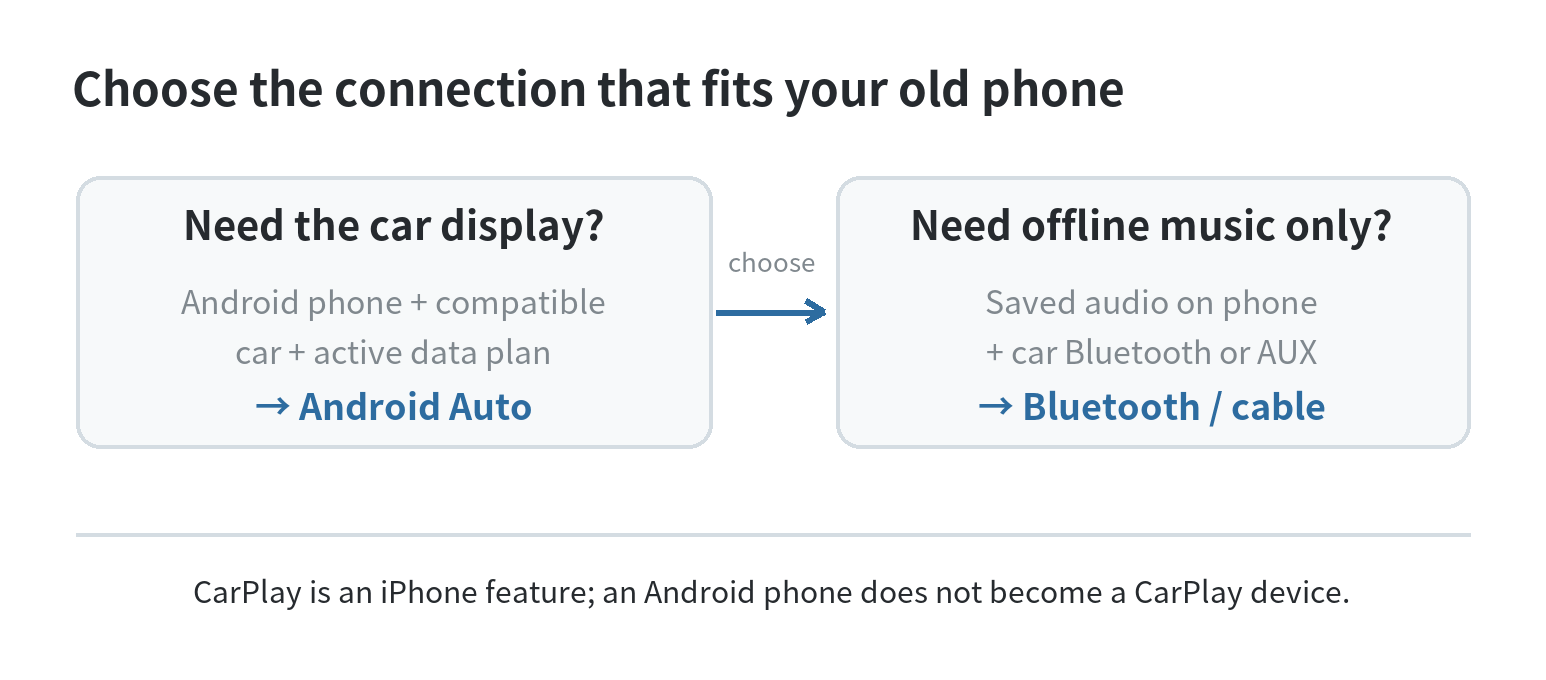
Android Auto projects supported phone apps onto a compatible car display.
Google says wired connections need an Android phone running Android 9 or later, a compatible car or stereo, and a quality USB cable.
Wireless projection needs a compatible phone with an active data plan, 5 GHz Wi-Fi support, and a compatible car or stereo;
Google lists Android 11 or later for wireless projection; its page does not list older-phone exceptions to that requirement.
Check your car and exact phone against Google’s compatibility guidance before setting the old device aside for this role.
If you do not plan to keep a data plan active on that phone,
use it as a Bluetooth player instead of expecting Android Auto to work as an offline shortcut.
That makes Android Auto a poor fit for an offline-only phone with no cellular plan, even if the tracks are saved locally.
You can still use Bluetooth to send the old phone’s audio to the car stereo without using Android Auto.
If you want the car’s larger app interface, the old phone must meet the Android Auto requirements and the vehicle must support it.
CarPlay is Apple’s system for connecting an iPhone to a compatible vehicle display.
Apple’s support page, checked September 25, 2026, explains that CarPlay works with iPhone; it does not turn an Android phone into a CarPlay source.
For an older iPhone, follow Apple’s compatibility and setup instructions for that specific device and car.
If your immediate question is about connecting your regular phone to a dashboard system, see the site’s
guide to car Bluetooth, CarPlay, and Android Auto connection problems.
A second phone can stay dedicated to saved playlists, while your everyday phone remains available for calls, navigation, and messages.
Prepare the old phone before installing it
First, confirm that the phone boots, its charging port works, and the battery is not swollen or physically damaged.
Google’s Pixel 6 safety guide warns that a damaged enclosure or screen can lead to overheating or injury.
If the old phone is damaged, check its model-specific service instructions before mounting or charging it.
A phone that must stay plugged in for the whole drive deserves a short test at home before it becomes part of the car setup.
Back up any photos, messages, or files you still want.
Then remove unneeded apps and notifications, install a music app that works with the phone’s operating system, and make a small test playlist.
Older phones may no longer support current versions of an app, so try opening the app and playing a track before moving on.
If offline listening matters, confirm the files or downloads actually play with Wi-Fi and mobile data turned off.
For local music on Android, copy audio files from a computer over USB and use the phone’s file manager or a music player that can index the folder.
Google’s Android Help says files may appear in the Files app, though the app name and steps can vary by manufacturer.
Streaming-app downloads are different: they stay within the app, and offline playback depends on that app’s account and download rules.
A phone that will stay plugged in also needs a battery that can accept a charge safely.
The site’s guide to smartphone battery drain while idle covers background settings that can affect battery use.
Pair the phone with the car
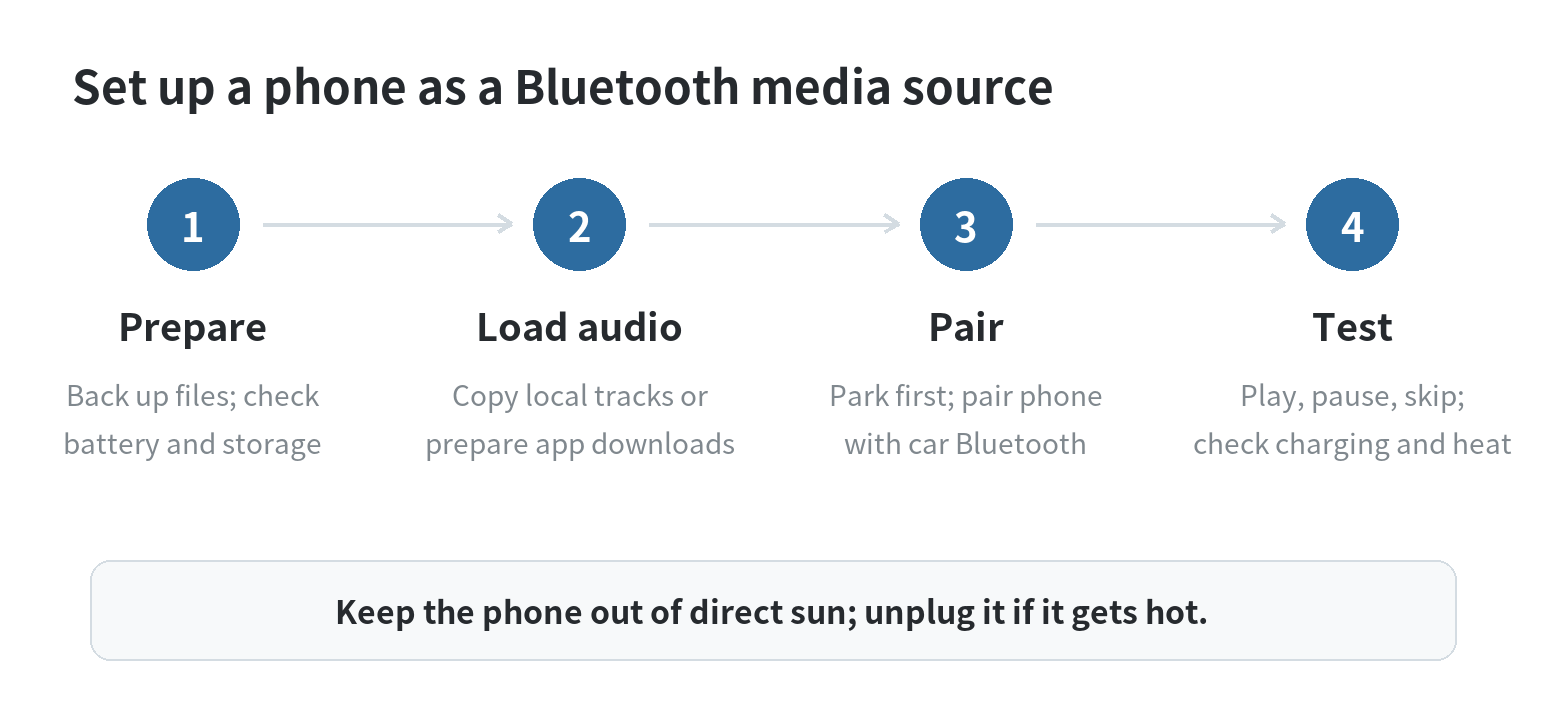
- Park the car and put its audio system in Bluetooth pairing mode. The exact labels vary by vehicle, so use the car’s owner’s manual to find its pairing controls.
- On the old phone, open Bluetooth settings, enable Bluetooth, and select the car when it appears. Approve the pairing request on both screens if prompted.
- Start a saved track on the phone. Set the car’s audio source to Bluetooth if playback does not switch automatically, then use the car’s volume control to set a comfortable level.
- Test pause, resume, track skipping, and reconnecting after switching the car off and on. Do this while parked. If the car does not support Bluetooth audio, check its manual for another supported audio input. A USB port may be for charging or data, so confirm that it supports audio before relying on it.
Keep the music controls within easy reach before moving. Set a playlist or queue while parked, then leave the phone alone while driving.
A dashboard mount may make the screen visible, but it does not make handheld interaction safe or lawful;
follow local rules and use the car’s controls or voice features where supported.
Plan for internet, power, and heat
Bluetooth carries sound from the phone to the stereo; it does not provide internet access.
Streaming needs a network connection, which may come from Wi-Fi in range or cellular service through a data plan.
Downloaded tracks and local files can play without a SIM if the music app permits offline playback.
Do not assume Android Auto will work offline: Google lists an active data plan in its setup requirements.
Use a suitable car charger and cable if the battery cannot cover the drive,
but avoid treating continuous charging as a fix for an aging or damaged battery.
Google’s Pixel 6 safety guide, checked September 25, 2026, says not to expose that phone to temperatures above 113°F (45°C),
including on a car dashboard, and warns that heat can damage the phone or overheat its battery.
Apple’s temperature guidance likewise warns that parked-car temperatures can exceed its stated storage range.
Exact limits differ by model, so check the safety guide for your phone.
Mount the device where it is secure, does not block the driver’s view, and is outside direct sunlight.
Do not leave it in a parked vehicle on a hot day.
If it becomes unusually hot, disconnect the charger, stop using it, and let it cool in a safer place.
A permanent setup still needs to come out of the car when temperature conditions exceed the phone maker’s limits.
FAQ
Can an old Android phone play music in a car without a SIM card?
Yes, for Bluetooth playback of local files or eligible downloads.
A SIM is not needed for Bluetooth itself, but streaming needs internet access and Android Auto’s published requirements include an active data plan.
Will Android Auto work if the car only has Bluetooth?
No.
Android Auto needs a compatible car display or stereo; Bluetooth-only audio can play sound but does not provide Android Auto’s projected interface.
Can I leave the old phone plugged in and mounted all summer?
No. Heat limits vary by model, and phone makers warn against leaving devices in hot parked cars.
Remove the phone when parked and follow its model-specific safety guidance.
Last updated: September 2026.
Last updated: 2026-09