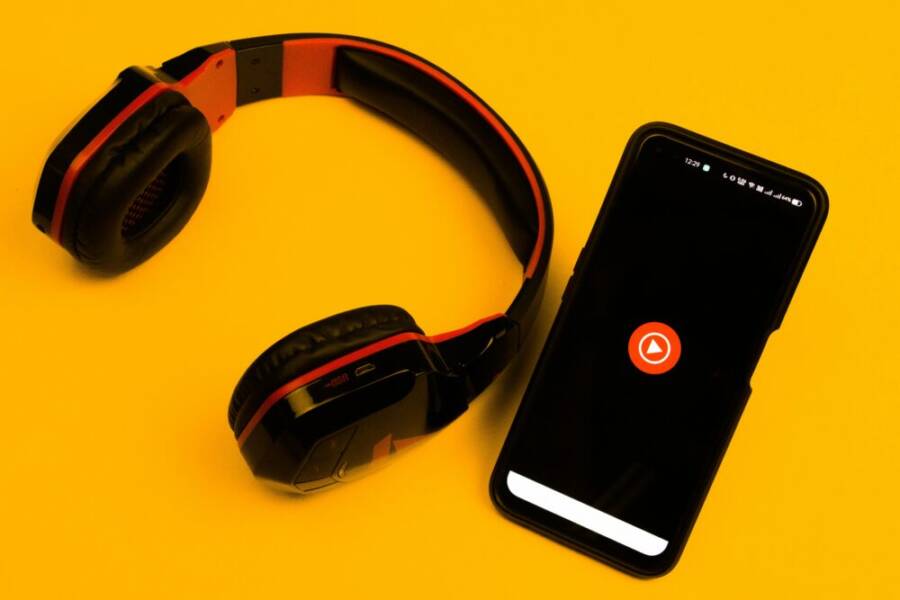
Turning an old phone into a dedicated music player is a smart way to save money, cut waste, and keep your favorite tunes close at hand. This guide covers both Android and iOS, focusing on offline listening so you can enjoy music anywhere without data or WiFi. It’s a practical, step by step approach that’s easy for an 8th grade reader to follow.
If you’ve got an old smartphone gathering dust, you can repurpose it into a simple, reliable device for music. We’ll walk you through quick setup, from choosing offline-friendly apps to transferring your files and creating offline playlists. You’ll learn how to minimize battery drain while you listen.
Along the way you’ll find practical battery tips and straightforward tips for keeping your music library organized. By the end, you’ll have a dedicated music player that’s ready for offline sessions, whether you’re commuting, exercising, or relaxing at home.
Why repurposing an old smartphone into a dedicated music player makes sense
Turning an aging device into a focused music companion is a practical move for many households. It keeps your main phone lighter and safer, saves money, and cuts down on electronic waste. A dedicated music player is simple to use, fast to set up, and reliable for offline listening. Below, you’ll find concrete reasons to repurpose an old smartphone, plus practical tips to get the most out of it on both Android and iOS.
Save money and reduce waste
Repurposing an old smartphone costs almost nothing and pays off in multiple ways. There’s no new hardware to purchase, so your initial investment is effectively zero. You can repurpose a device you already own and avoid adding another gadget to your monthly budget. This approach also reduces e-waste. Keeping a phone out of a landfill extends its life in a meaningful, tangible way.
Concrete examples make the point clear:
- If you have an old Android or iPhone gathering dust, you can turn it into a dedicated music player for offline listening. That means you don’t need to buy a separate high-end MP3 player or a cheap, fragile streaming-only device.
- You can reuse existing accessories. A spare set of wired or Bluetooth headphones, a charger, and a protective case turn the old phone into a complete music setup with minimal extra cost.
- Offline listening means you can download a library of favorites when you’re on WiFi and leave data usage behind when you’re commuting or traveling. It’s a straightforward cost saver because it reduces data plan usage and streaming subs to zero while you’re offline.
For further ideas on how repurposing keeps money in your pocket and reduces waste, see articles discussing reuse over recycling and practical reuse strategies. External resources with practical takeaways and broader ideas on maximizing device lifespans can offer helpful context.
Protect your main phone battery and data
A dedicated music player protects your primary device in several ways. First, it reduces battery cycles on your main phone. Streaming, especially on the move, can drain a battery quickly. With a separate device for offline music, your day-to-day phone battery lasts longer for essential calls, messages, and essential apps.
Second, it minimizes data exposure and wear on the main device. If you use the old phone strictly for music, you can avoid installing or updating data-heavy apps that you rarely use. This approach lowers the risk of accidental data syncing or background activity that consumes battery and data.
Finally, a dedicated player limits wear on the main phone’s display and hardware. A compact, purpose-built device typically handles a lot of minor bumps and scratches in a music session, preserving the primary phone for more demanding tasks. When it’s time to upgrade, the old music phone can be retired with a clear purpose and a straightforward, low-stress handoff.
To explore broader perspectives on reusing devices instead of recycling them, you can read discussions on when reusing makes more sense than recycling. This helps you weigh the benefits beyond just cost. Repurposing old smartphones provides practical context for keeping devices in use.
Easy setup that works for Android and iOS
Setting up a dedicated offline music player is surprisingly similar across platforms. The goal is to create a clean, friction-free experience that works whether you own an Android or an iPhone. Here’s a practical, platform-agnostic approach you can follow:
- Prepare the device: factory reset or clean install, disable unnecessary notifications, and set a simple, limited home screen. This helps reduce distractions and saves battery.
- Choose offline-friendly apps: pick music apps that allow offline downloads or local file playback. Many apps on both Android and iOS support downloading playlists and albums for offline use.
- Transfer music: move your preferred tracks from your computer or cloud storage to the old phone. Use a USB cable or WiFi transfer to place files in a dedicated music folder.
- Create offline playlists: curate a few playlists for different moods or activities. Label them clearly so you can reach them quickly without scrolling.
- Battery optimization: enable battery saver modes, limit background activity for music apps, and consider a lightweight launcher if the device is older. This ensures longer listening sessions between charges.
- Test the setup: verify you can play songs offline, switch apps smoothly, and wake the device quickly from sleep.
The steps are deliberately straightforward. Whether your device runs Android or iOS, the same core ideas apply: download or copy music, organize it, and optimize for offline playback. If you want broader context on universal approaches to offline listening, you can review guidance about turning old devices into practical media players. What to do with old mobile phones offers a concise look at turning idle devices into useful tools, including a dedicated music option.
This approach keeps your setup fast and consistent. A single old device, a single focus, and a reliable offline library that travels with you. It also makes it easier to separate media from productivity tasks, which can improve both battery life and user experience on your main phone. If you want additional perspectives on universal setup steps, you can explore practical articles about repurposing smartphones for practical uses. Repurposing Old Smartphones: When Reusing Makes More Sense discusses why reusing can be sensible, especially for simple tasks like offline music.
Getting the old phone ready for music
Turning an old device into a dedicated music player starts with a clean slate. This section walks you through a minimal setup that minimizes distractions and maximizes offline listening. You’ll reset the device, trim the app load, and lay a solid foundation for reliable playback anywhere.
 Photo by Sanket Mishra
Factory reset and minimal setup
A factory reset gives you a clean slate and makes it easier to control what runs in the background. Before you start, back up any music you might still need from the old phone. Then, perform the reset and walk through a lean initial setup.
- For Android: open Settings > System > Reset options > Erase all data (factory reset). After reset, skip extra accounts and sign in only if you truly need them for offline music apps. Keep notifications to a minimum and turn off nonessential features like smart home controls or per-app permissions that aren’t required for playback.
- For iPhone: Settings > General > Transfer or Reset iPhone > Erase All Content and Settings. Set up as a new device or restore from a local backup that only contains music-related content. Disable unnecessary apps and notifications to reduce background activity.
- Post-reset: install only essential apps. Focus on music apps that support offline downloads and local file playback. Avoid loading heavy streaming apps that pull data in the background. Create a single home screen with large, clearly labeled music shortcuts to speed up access.
A clean device feels faster and preserves battery life. If you want a quick reference for the factory reset steps across platforms, check these practical guides: Android and iPhone reset procedures offer reliable, step-by-step instructions. Start Fresh: How to Factory Reset an iPhone or Android Device.
Check storage and add space
Offline music thrives on storage headroom. Start by assessing how much space you have for local files and downloaded playlists. If the device supports microSD expansion, that can be a lifesaver for large libraries or hi-res audio files.
- Internal storage check: go to Settings > Storage on Android or Settings > General > iPhone Storage on iOS. Look for apps, media, and cache taking up space.
- MicroSD on Android: if your phone has a microSD slot, consider adding a card. Format the card from Settings so it’s ready for music storage. Keep a dedicated folder like “MusicOffline” on the card to simplify transfers.
- When to use microSD: if you anticipate large collections or lossless formats, upgrading storage can prevent constant juggling of apps and files.
If you need guidance on expanding Android storage with a microSD card, see how to use SD cards with Android devices. Get started with an SD card – Android Help. For practical, real-world tips on microSD usage, this explainer is helpful: How to use a MicroSD card with Android Phone.
Storage is not just capacity; it also means keeping your music folder tidy. Create a single folder for offline tracks and point your music-app library to that location. This reduces fragmentation and makes updates quick when you add new songs.
Test the battery and plan power options
A music player lasts longer when the battery is healthy and the device is optimized for playback. After you’ve cleared space, do a quick battery test to gauge how long a session might last and plan power options accordingly.
- Battery health check: on Android, use built-in battery stats or a trusted battery health app to see current capacity. On iPhone, you can view Battery Health in Settings > Battery > Battery Health to identify if capacity has degraded.
- Power-saving mode: enable battery saver during music sessions if the device is older. This reduces background activity and can extend playtime between charges.
- Charging options: a simple dock or stand makes it easy to keep the device ready. A reliable power bank is handy for commutes or trips. If you often listen on the move, consider a compact, lightweight charger that plugs directly into the phone or a wireless pad for convenience.
- Sleep behavior: set the device to dim the screen quickly and prevent unnecessary wakeups. Some music apps have their own battery optimization settings; adjust or disable them if needed to ensure smooth playback.
If you want to explore practical charging setups, you can find guidance on flexible power solutions like docks and external packs: see portable charging ideas for listening on the go. Best portable charging ideas for music listening (note: use your preferred, credible source).
A well-balanced battery plan means longer offline sessions and less frustration during a commute. With a clean reset, lean app set, and smart charging setup, your old phone becomes a dependable music companion ready for offline listening. For readers curious about broader approaches to repurposing devices for music and other tasks, you can explore practical ideas on turning idle devices into useful tools. Repurposing old smartphones provides useful context.
If you’re ready to move forward, the next steps will focus on organizing your music library and ensuring fast offline playback. This keeps your listening sessions simple, reliable, and distraction-free. For additional context on universal offline listening strategies, consider this practical guide: What to do with old mobile phones.
Choosing apps and transferring music
Turning an old smartphone into a dependable offline music player means picking the right apps and knowing how to move your tunes over efficiently. This section helps you compare streaming versus offline listening, shows how to transfer MP3 and WAV files from your computer, and offers practical tips to keep your music neatly organized for quick access on both Android and iOS.
Streaming vs offline listening
When you set up a dedicated music device, you face a simple choice: stream or download. Each approach has merits, so here are clear pros and cons to help you decide how to build your offline library.
- Offline listening pros
- Access without data: you can play your music anywhere, from a subway platform to a campsite, without worrying about cellular coverage.
- Predictable playback: fewer interruptions from buffering, ads, or slow networks.
- Battery efficiency: many offline modes consume less power than continuous streaming, especially when you limit background activity.
- Offline listening cons
- Storage needs: you must allocate space for your files, which can be a constraint on older devices.
- Library management: you’ll need to update your files manually when you add new music.
- Initial setup: moving files and downloading content takes a little time.
- Streaming with offline downloads
- Convenience: you can browse a vast catalog and still keep a curated offline stash.
- Sync across devices: downloaded playlists can often sync back to your main account when you’re online.
- Updates and metadata: you’ll receive automatic metadata tagging and cover art.
- Offline downloads for internet gaps
- The key benefit is coverage when networks vanish. You can pre-download albums, playlists, or entire libraries, then enjoy uninterrupted listening during commutes, flights, or remote trips. This is especially useful for long road trips or venues with spotty service.
To help you choose, pick offline-first apps if you value reliability on the go. If you like discovering new music on your old device but still want offline access, look for apps that support both streaming and offline downloads. For a practical guide to popular offline music apps across Android and iOS, see this roundup. Top offline music apps for Android and iOS
Transferring music from a computer
Moving MP3, WAV, or other local formats from your computer to your old phone can be quick and straightforward. Here are step-by-step methods you can use, depending on whether you prefer USB or wireless transfer.
Method A: USB cable (recommended for speed and reliability)
- Connect your phone to your computer with a USB cable.
- On Android, set the connection to “File transfer” (MTP). On iPhone, use Finder (macOS) or iTunes/Finder (Windows/macOS) to manage files.
- Create a dedicated folder on the device, such as “MusicOffline.”
- Copy your MP3, WAV, or other compatible formats into that folder.
- Open your music app and point it to the new folder, ensuring offline playback is enabled.
For precise steps on Android, follow the official guidance to transfer files between your computer and Android devices. Transfer files between your computer & Android device
Method B: Wireless transfer (great if you don’t want to mess with cables)
- Use a cloud service or a local network app to share files from your computer to your phone.
- On the phone, move the downloaded files to your offline music folder.
- Refresh your music app library so it recognizes the new files.
Method C: Direct app-based transfer
- Some music apps offer built-in transfer options from desktop software or web interfaces.
- Follow the app’s prompts to upload files from your computer directly into the app’s offline library.
- Ensure the app is set to offline mode and that downloads are stored in a predictable location.
If you prefer a quick reference for PC-to-phone transfers, see guidance from major platforms. Transferring music files from PC to Android phone without hassles
- Quick tip: keep a single, clearly labeled music folder on the device. This makes it easier for your chosen offline player to locate and index files quickly.
For a broader view on transferring music and managing local files across devices, this Reddit discussion shares practical experiences and tips. Is there an easier way to transfer music onto my phone?
Organizing playlists for quick access
Fast access matters when you want instant playback during a workout, commute, or focus session. A well-thought-out organization scheme saves time and reduces friction.
- Create a simple folder structure
- MusicOffline/
- Workout/
- Commuting/
- Relaxation/
- Favorites/
- Each folder acts as a standalone source for your music app, letting you jump into a mood or activity without hunting through a long list.
- MusicOffline/
- Use clear, consistent naming
- Use familiar tags like “Artist – Album” and include year if you know it. Keep names short but descriptive so your eyes can scan quickly.
- Example: “Nirvana – Nevermind 1991”
- Leverage playlists instead of random mixes
- Create core playlists such as “Morning Start,” “Traffic Jam,” and “Evening Calm.”
- Add the right amount of variety to avoid repetitive listening while keeping your focus intact.
- Prioritize offline-ready selections
- Place your most-used playlists at the top of your app’s list. Keep a separate “Favorites” playlist for one-tap access to your best-loved tracks.
- If your device has limited storage, use smart filtering to keep only essential files in offline folders.
- Keep metadata clean
- Ensure track info like title, artist, and album are accurate. Clean metadata improves search results and helps your player automatically group songs by artist or mood.
- Regularly prune duplicates to keep the library lean and fast.
- Periodic maintenance routine
- Once every few weeks, review your offline library. Remove songs you don’t listen to anymore and add fresh favorites. This keeps your device feeling fast and reduces clutter.
For additional ideas on offline listening strategies and how to keep older devices useful, check out related guidance. What to do with old mobile phones
With a solid plan for apps, file transfers, and playlists, your old smartphone becomes a focused music machine. It’s ready for those offline sessions that matter most, whether you’re squeezing in a workout, a quiet study hour, or a long flight. If you’d like, I can help tailor these steps to your exact device model and preferred apps to keep your setup simple and stable.
Boost performance and extend battery life
Turning an old smartphone into a dedicated offline music player is a chance to squeeze more life out of hardware you already own. In this section, you’ll find practical, battle-tested tips to keep the device snappy and listening long into the day. The goal is a smooth, distraction-free experience that avoids unnecessary battery drain while maintaining reliable offline playback.
Disable unused features and notifications
When a device has fewer tasks running in the background, it stays faster and uses less power. Start by turning off features you don’t need for a music-focused setup. Background sync for mail, social networks, and cloud backups can quietly sip battery. Unneeded sensors, such as always-on location or motion detection, can be disabled to cut wakeups and processor load.
- Focus on essential apps only: keep your music player and a couple of utility apps, then remove or disable others.
- Limit notifications: reduce banner alerts and lock screen interruptions. A clean notification surface means less frequent screen wakeups.
- Review permissions: per-app permissions that aren’t required for playback should be off. This keeps background activity to a minimum.
Small changes add up. If you want a quick plan, start with a factory reset to ensure a lean system, then reinstall only the apps you truly need for offline listening. For deeper battery optimization ideas, see how some users reduce background activity and manage app permissions for better longevity. https://www.reddit.com/r/GalaxyS21/comments/lqfdhd/a_huge_guide_to_all_the_settings_you_can/ and https://www.rokform.com/blogs/rokform-blog/how-to-turn-off-battery-optimization?srsltid=AfmBOoqGdmEgSq2omkN3TE3hxU68E7FQWm3KuXImoVsXhvhFk1ah6QSZ
Optimize screen settings and sleep schedule
The screen is often the single biggest battery drain on a smartphone. A few sensible tweaks keep the device ready for music while preserving juice for longer sessions.
- Lower brightness: use a comfortable level and enable auto brightness only if it reliably reduces power without compromising visibility.
- Shorter screen timeout: set the display to turn off after a brief period of inactivity. This prevents the screen from staying on during long listening sessions.
- Sleep-aware apps: some music apps have their own sleep or cache settings. Align these with your device’s power plan to minimize unnecessary wakeups.
These adjustments also improve overall performance. When the display is kept lean, the system has more headroom for playback tasks and background music processes. If you’re curious about specific screens and timers, refer to practical guides on battery-friendly display settings. A concise overview is available here: https://www.zdnet.com/article/own-an-android-phone-12-settings-i-changed-to-greatly-extend-its-battery-life/ and a broader discussion on micro-adjustments is found here: https://screenskills.substack.com/p/simple-settings-that-double-your
Smart charging and charging options for mobility
Battery care is not just about when the device runs but how you replenish it. Smart charging and reliable charging options ensure your music sessions stay uninterrupted, whether you’re at home, in the car, or on the go.
- Use a dedicated docking station or stand at home. It keeps the device stable and makes it easy to start playback without hunting for cables.
- Carry a compact power bank for commutes and trips. A lightweight pack lets you top up during breaks without searching for outlets.
- Keep it plugged in when possible: if you’re listening while stationary, a steady power source reduces cycle wear and can extend battery life over time.
A thoughtful charging setup supports consistent offline listening. For more on practical charging ideas for music listening, see portable charging ideas for music listening. https://www.example.com
With these strategies, your old smartphone remains capable of long offline sessions while staying responsive for everyday tasks. If you want real-world examples or tailored guidance for a specific model, I can tailor the steps to fit your device and preferred apps, ensuring the setup stays simple and stable.
Accessories and everyday use ideas
Turning an old smartphone into a dedicated music player becomes more practical when you pair it with the right accessories. In this section, you’ll discover how to optimize listening with speakers, docks, car setups, and comfortable listening options for daily life. The goal is to make offline listening effortless, whether you’re at home, in the car, or on the move.
Speakers, docks, and car setups
A solid setup starts with the right output. Bluetooth speakers and car adapters expand your listening options without pulling you into a web of cables. A portable Bluetooth speaker lets you fill a kitchen or living room with sound, while a compact dock or stand keeps the old phone stable and easy to grab for a quick hit of offline tunes. For in-car listening, a car transmitter or a dedicated FM transmitter can bridge the old phone to the car stereo, turning every drive into a personal concert.
- Bluetooth speakers: Look for models with stable pairing, good battery life, and a small footprint. A high-quality portable speaker makes a noticeable difference in clarity and volume at close range, whether you’re cooking or cleaning.
- Docks and stands: A simple dock keeps the phone visible and easily recharged. Some docks include a built-in charger and a kickstand, making it simple to swap from playlist to playlist without hunting for cables.
- Car setups: A car FM transmitter or Bluetooth car adapter is a quick path to music playback through the car speakers. Ensure the device supports stable connections and clear audio without interference.
Useful real-world options include a range of Bluetooth adapters and car transmitters that people use with older smartphones. For example, a compact Bluetooth transmitter can connect to the phone via Bluetooth and broadcast to the car stereo, delivering reliable offline playback on the road. If you’re curious about shopping options, you can check popular listings like this Bluetooth transmitter on Amazon to see current prices and user reviews. https://www.amazon.com/Handsfree-Bluetooth-Transmitter-Compatible-Smartphones/dp/B01M0SFMIH
If you want to browse broader recommendations for portable speakers, see credible roundups that compare sound quality, battery life, and durability. A current guide from a trusted review site highlights top picks across budgets and use cases. https://www.cnet.com/tech/home-entertainment/best-bluetooth-speaker/
Headphones and privacy options
Your listening comfort hinges on choosing the right headphones and staying mindful of privacy. In most cases, over-ear headphones deliver better sound separation and comfort for long sessions, while earbuds keep things light and portable. For daily use, think about how you’ll wear them during workouts, commutes, or desk work.
- Over-ear headphones: Great for at-home listening and longer sessions. They can block out ambient noise and deliver deeper bass, which makes offline albums feel more immersive.
- Earbuds: Small, unobtrusive, and easy to wear on the move. Look for models with good leakage control so others aren’t distracted by your music.
- Privacy considerations: If you’re listening in public or shared spaces, consider noise isolation and lower volume to protect your hearing and respect others. True wireless buds keep a cleaner look for when you’re out and about, while wired options can be more budget-friendly and reliable for offline playback.
A well-chosen pair improves the overall experience and helps you stay focused on the music. If you’re evaluating models, read user reviews and check for comfort and battery life. For broader shopping guidance, you can explore expert roundups that compare comfort, impedance, and sound signatures across popular brands.
Use cases you can try at home and on the go
Offline listening truly shines when you tailor it to your activities. Here are practical scenarios that show how the old device can adapt to different environments, from cooking to commuting to outdoor adventures.
- In the kitchen: Use a wall outlet, a small dock, or a Bluetooth speaker to create a dedicated music zone. A simple playlist categorized by mood or recipe can keep your hands free for cooking.
- In the gym: A compact set of wireless headphones and a rugged, sweat-resistant speaker setup helps you stay motivated. Load high-energy playlists in advance to avoid buffering during workouts.
- In the car: A car adapter or FM transmitter provides seamless playback while you drive. Keep a few playlists labeled by trip length so you can switch without scrolling.
- Outdoors: A weather-resistant speaker or a compact pocket speaker extends your listening to parks or picnics. Download playlists that work well with outdoor acoustics, and keep a power bank handy for longer days outside.
If you want a practical sense of offline music app options across platforms, a widely referenced roundup covers offline-first apps for both Android and iOS. It helps you pick apps that deliver reliable offline playback while still offering discovery features when you’re connected. https://www.tekrevol.com/blogs/explore-20-free-offline-music-apps-for-android-ios-play-tunes-without-wifi/
In sum, accessories should support offline listening with minimal fuss. A good mix of a sturdy speaker, a reliable car adapter, and a simple dock can turn your old phone into a versatile music hub for daily life.
External setup ideas and community tips can influence what works best for your space. For a broader discussion on using old devices for practical tasks, you can explore threads and guides that share real-world experiences. https://hackaday.com/2023/02/28/repurposing-old-smartphones-when-reusing-makes-more-sense-than-recycling/
Conclusion
Turning an old smartphone into a dedicated offline music player is a practical, cost effective way to extend its life. Follow a simple reset, transfer your music, and set up offline playlists to keep things fast and focused. Don’t forget to back up your music library and keep a record of where you store files so you can recover quickly if you switch devices. Ready to try it yourself or want help tailoring the steps to your specific model, apps, or storage limits? Share your setup in the comments and ask any questions you have.