
You can turn an old phone into a guitar tuner and metronome by installing compatible apps, allowing microphone access, and testing both tools before practice.
The phone needs a working microphone, a speaker or headphones you can hear, enough charge, and an operating system supported by the app.
Start with the phone charged and an internet connection. Check current compatibility and install the app before practice.
Choose an app the old phone can run
Look for a tuner that listens through the built-in microphone and a metronome with an audible click. One app may include both.
The “GuitarTuna: Tune & Play Guitar” app listing describes tuning with the built-in microphone and a metronome. The “Tuner & Metronome by Soundcorset” listing says its tuner needs microphone access and includes a metronome.
Those feature descriptions were checked in September 2026. App features and device requirements change, so read the current listing on the old phone.
Check the operating-system requirement, available storage, and whether the features you need require an account or network connection.
Do not assume an app that opens can still receive updates or support every feature on an older operating system.
If the tuner asks for microphone permission, allow it while using the app. Android and iPhone let you manage this access in Settings.
The Android Help page “Change app permissions on your Android phone” lists microphone access under app permissions. The iPhone guide “Control access to hardware features on iPhone” places it under Privacy & Security and Microphone.
Both official guides were checked in September 2026. For help finding the controls, see our guide to fixing microphone permission for one app.
Menu labels can differ by operating-system version. Use Settings search if the names do not match your phone.
Prepare the phone as a practice tool
Reduce interruptions before setting the phone beside the guitar. Turn on Do Not Disturb if you want to silence alerts during practice.
Stop media playback that could compete with the tuner or metronome for audio. Choose whether you will hear the beat through the phone speaker or headphones.
In a quiet room, the speaker may be enough. Headphones can help when the click is hard to hear over your playing.
Confirm that headphones do not mute the speaker if another person needs to follow the beat. Test volume before you start playing.
Set the phone on a stable table or music stand where a strap, cable, or moving arm will not knock it down.
Keep its microphone and speaker uncovered. A case edge, cloth, or sheet music can block either opening if placed over it.
Apple Support and Pixel Help explain that rechargeable phone batteries lose capacity as they age; checked September 2026.
Charge the phone before practice, especially if its battery no longer lasts as long as it once did. Keep the charging cable clear.
If the device becomes unusually hot, stop using it and let it cool before charging or continuing.
Google Pixel Help and Apple Support advise moving a hot device to a cooler place; both pages were checked in September 2026.
If the old phone has no SIM, install over Wi-Fi and test the tuner and metronome with Wi-Fi off. If a tool stops, keep Wi-Fi available.
If both tests pass offline, you can practice without a network connection.
If battery saver changes app behavior, our phone battery-saver guide explains where to review those settings.
Change a setting only when you can identify what it controls on that phone.
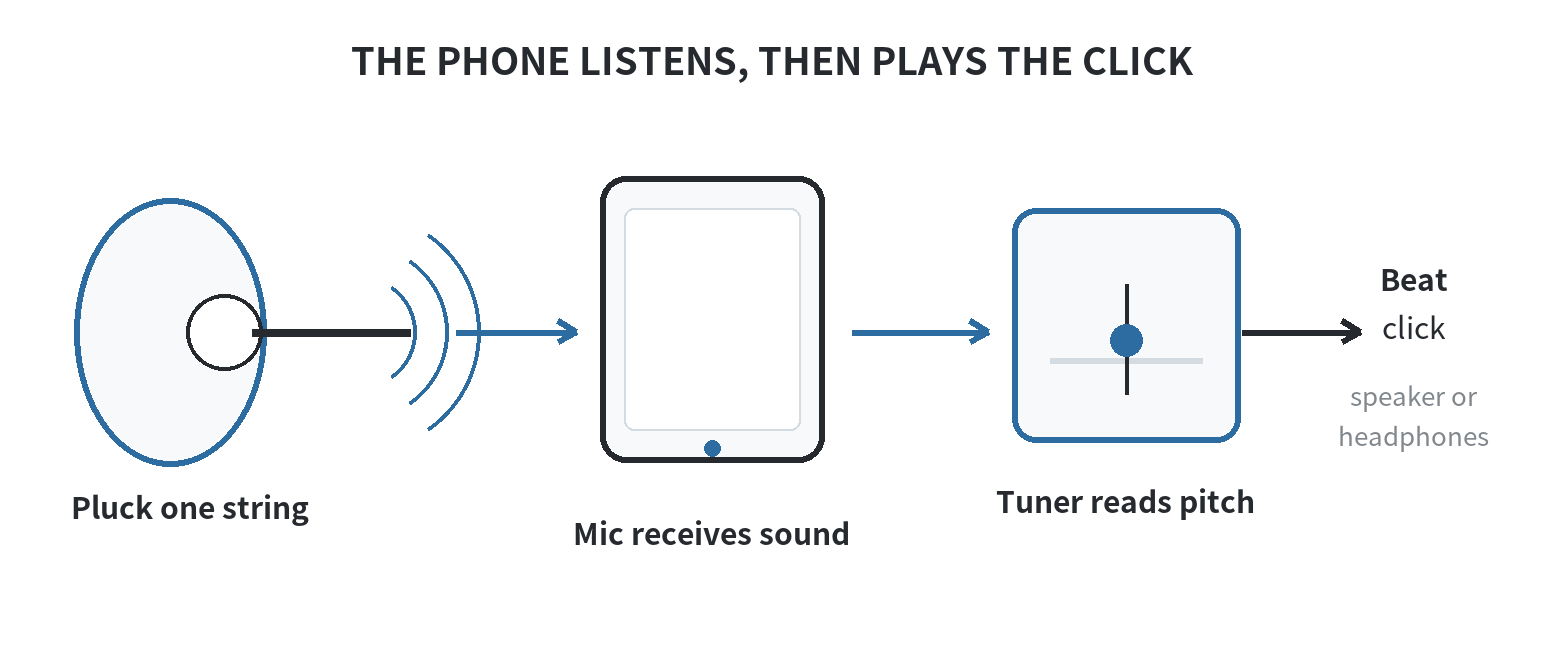
Tune one string at a time
Place the phone near the guitar’s sound hole or strings, with the microphone uncovered. Move away from a television, fan, or conversation.
Give the tuner one clear note at a time: move away from competing sounds, mute strings you are not playing, and let the plucked string ring so its reading is easier to follow.
Open the tuner and pluck one string with a clear, steady stroke. Let the note ring while you watch the pitch indicator.
If the reading jumps between notes, mute the other strings with your hand and try again in a quieter spot.
Match the string name shown in the app to the string you plucked before turning a tuning peg. Adjust in small movements.
Pluck again and wait for the reading to settle. Work through the strings individually instead of strumming a chord into the tuner.
Standard tuning from the lowest-pitched string to the highest is E, A, D, G, B, E. Fender’s “Standard Tuning: How EADGBE Came to Be” and Yamaha Music’s “Summer School: Alternate Guitar Tunings” describe this sequence.
Their official tuning guides were checked in September 2026. If you use another tuning, select it in the app before adjusting the strings.
Otherwise, a correctly tuned alternate setup can appear wrong against a standard reference. Strum a chord afterward and listen for an out-of-place string.
Recheck uncertain strings individually. A tuner gives a reference reading, while listening helps catch a string that was plucked incorrectly.
Set a useful metronome pace
Stop the tuner before starting the metronome. Choose a pace that lets you play the passage evenly, then count along first.
Begin with one strum or note on each click. Keep the pulse steady before adding another part of the pattern.
If the click feels rushed, lower the tempo and repeat the phrase. If it feels slow, raise it and listen again.
Choose a pace where your hands can stay aligned with the beat, rather than aiming for the largest number in the app.
For a song with changing emphasis, use time-signature or accent options if available. Set the strong beat to match your count.
If the interface is unclear, use a plain click on every beat. An unfamiliar accent pattern can make a simple count harder to follow.
Place the phone close enough to hear the click over your guitar, but not where its speaker vibrates against the instrument.
If the speaker is too quiet, try headphones or an external speaker you already own. Check the volume before playing.
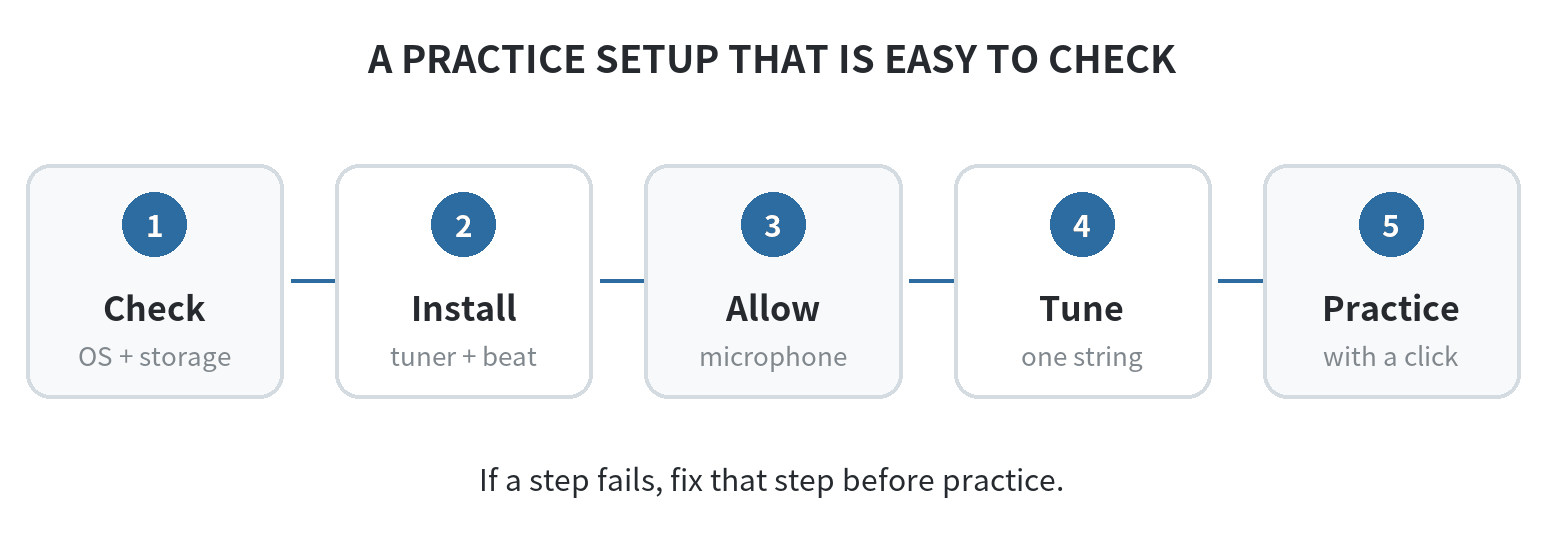
Keep the setup simple and repeatable
Keep the tuner and metronome easy to reopen, and leave the phone on a stable surface. A short routine is easy to repeat.
Tune each string, choose a practice tempo, play a passage, and stop the click when you finish.
If the tuner gives an unstable reading, reduce nearby noise, uncover the microphone, and pluck only one string.
If the metronome is silent, check the app’s sound setting, media volume, connected headphones, and Do Not Disturb.
A weak battery, unsupported app version, damaged microphone, or speaker that cannot be heard in the room can limit this setup.
You can keep the phone as a practice screen if one tool works better than the other.
For music between practice sessions, see our separate guide to setting up an old phone as a music player.
Stop that audio while tuning so the phone microphone can hear the guitar clearly.
Frequently Asked Questions
Can I use a tuner app with an electric guitar unplugged?
Yes, if the phone microphone can hear the strings acoustically. Play a string clearly and keep the phone close.
If the phone barely picks up the string, place it near an amp speaker and use the tuner app’s microphone mode; lower the amp volume if the reading jumps.
Will the metronome keep playing when I lock the old phone?
Test that behavior with the installed app. Start the click, lock the screen, and listen.
If it stops, keep the app open with the screen on during practice.
Can I tune an electric guitar without plugging it into an amp?
Yes, if the phone microphone can hear the strings acoustically. Keep the phone near the guitar and pluck one string clearly.
How do I remove microphone access after tuning?
Return to the app’s microphone permission in Settings and turn access off. Google’s Android Help and Apple’s iPhone guide explain how to review or change app access.
Last updated: September 2026.
Last updated: 2026-09