An old phone can serve as a kids’ road-trip video player if its operating system still supports a video app, the app lets you download the titles you want, and those downloads play with Wi-Fi turned off. Set it up at home: update what the phone supports, download a small playlist, test it offline, then restrict the screen to the video app and pack a charger.
Check the phone before loading videos
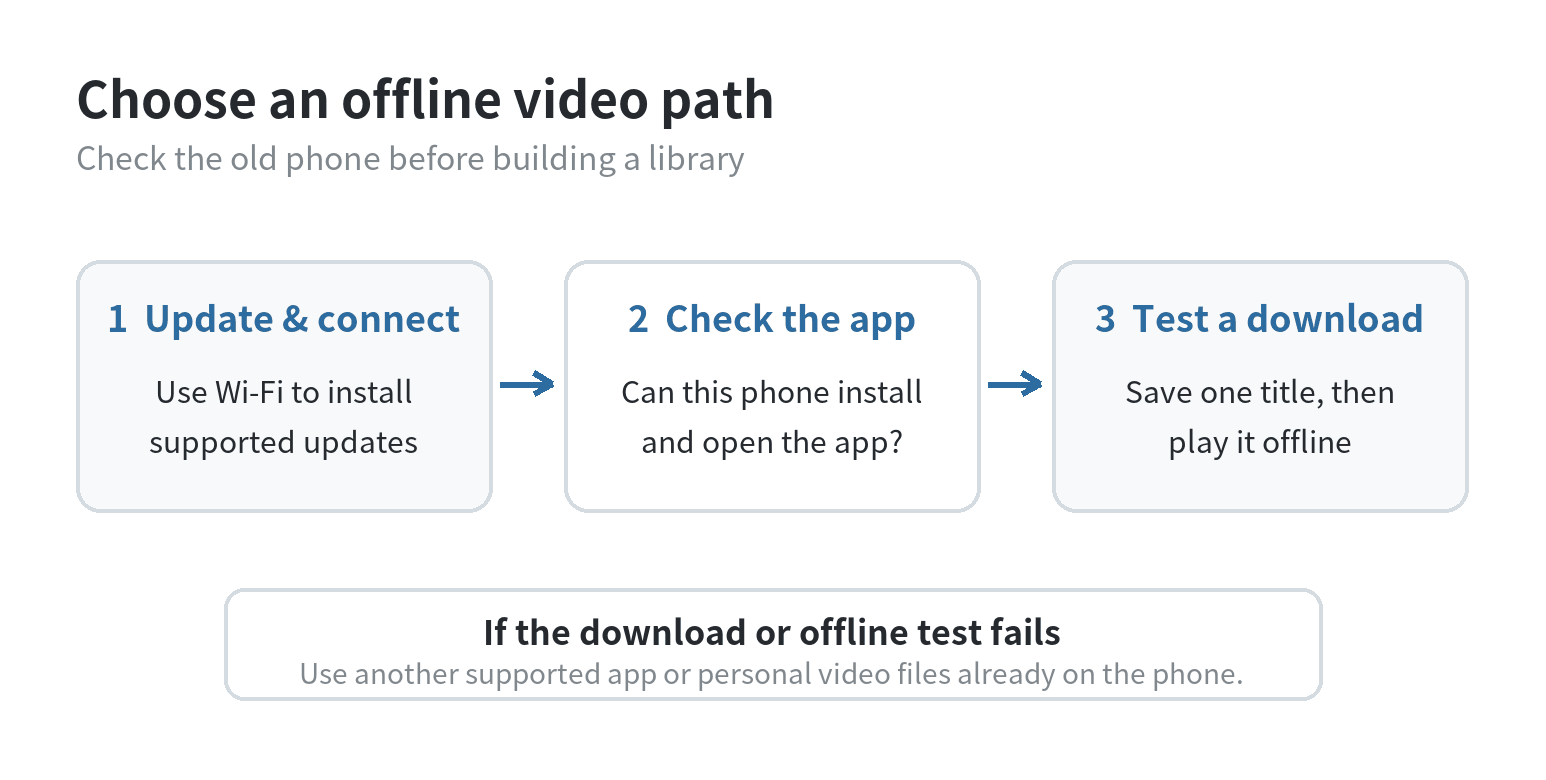
Start with the basics: charge the phone, connect it to trusted Wi-Fi, and check its available storage. Install any system update the manufacturer still offers, then see whether the video app installs and signs in. A phone’s age can affect app compatibility, so check the app before planning the playlist.
For example, Netflix says its latest Android app requires Android 9 or later. The company also notes that some Android devices cannot use its download feature, even when the app runs. Check the phone’s exact Android version and test its own download function before planning around it.
Make room before downloading. Remove only files you have backed up or no longer need, and leave free space for the app. If storage is tight, choose fewer or shorter videos instead of starting a large download that may stop partway through.
Choose a video source that works offline
Streaming services set their own download rules. Netflix offers downloads for select titles, and some Android devices cannot use that feature. Disney+ requires an eligible Premium plan and a supported mobile device; its download guidance says saved titles need an active subscription and an internet connection at least once every 30 days. Check the title’s download option and keep the service signed in.
YouTube Kids offline viewing has location and account conditions. Premium members can download on mobile where both YouTube Premium and YouTube Kids are available, and saved videos need an internet connection every 30 days to remain available. Review its regional download rules before relying on that app.
Netflix downloads can expire after a period, and some titles limit how many times they can be downloaded in a year. Check their status shortly before departure and renew titles that need it while online.
If a service does not offer a download button for the title, do not count on streaming it through a weak road connection. Use another supported service or videos you already own and have stored on the phone. Keep the choice simple: one video app, one short playlist, and no last-minute downloads in the car.
Download and test the playlist at home
While connected to Wi-Fi, sign in to the video app, choose the child’s profile if the service offers one, and pick the titles. Netflix notes that downloads with higher maturity ratings may not be available offline in a Kids profile, so confirm the titles appear in the profile the child will use. Use the app’s download control and keep the phone plugged in while a large set downloads. When a title is saved, switch off Wi-Fi and mobile data, reopen the app, and play a few minutes. This checks the actual phone, account, app version, and title together. Netflix’s offline-download guidance explains the profile limit.
Check more than the opening screen: scrub forward, pause and resume, rotate the phone if needed, and try the headphones or speaker. Confirm captions and audio settings while still online. Then reconnect to Wi-Fi so the app can finish downloading or refresh account access.
If the app offers download quality settings, choose one that fits the phone’s storage and screen. Delete the test title if space is tight, and leave room for the app to work.
Make the phone easy for a child to use
Put the video app where the child can find it, and turn on a device lock for the parent’s settings. Close personal messages, payment details, and private photos. For a phone the child will use regularly, set up a child account and the platform’s controls if the device supports them.
On iPhone, Apple’s Guided Access can temporarily restrict the device to one app. Set it up under Settings and Accessibility, open the video app, then triple-click the side button—or the Home button on an older model—to start a session. Apple lets the adult configure a passcode and choose whether buttons, touch areas, or a time limit are available. Practice ending the session before handing the phone over.
On Android, Google Family Link can manage a supervised child account’s screen time on supported devices. Google says app limits are available on Android 7 and later, while system apps cannot receive app limits. Family Link can be useful if the device is part of the child’s regular setup. Read Google’s screen-time instructions for the child’s device and account.
For a different setup, see our guide to setting up an old phone as a child’s first phone without a SIM. That article focuses on communication and Wi-Fi limits; this player setup keeps the job to offline video.
Plan power, sound, and placement
Aging rechargeable batteries can lose capacity and runtime, as Apple and Google explain in their battery guidance. Start with a full charge and pack a compatible cable and car charger. Route cables away from the child’s feet and the driver’s controls. Set up any holder while parked, and keep the phone out of the driver’s view.
Decide how the child will hear the video: use the built-in speaker or headphones. Pair Bluetooth headphones at home and test their controls with the video playing. Pack any charging cable they need, and keep volume controls within an adult’s reach.
Local videos already saved on the phone can play offline; streaming, sign-in, and app updates need internet access. Set up on Wi-Fi, then test the selected titles without a network. For broader trip-phone preparation, see our road-trip phone checklist, which covers the family’s main phone rather than a dedicated kids’ player.
Run a final departure check
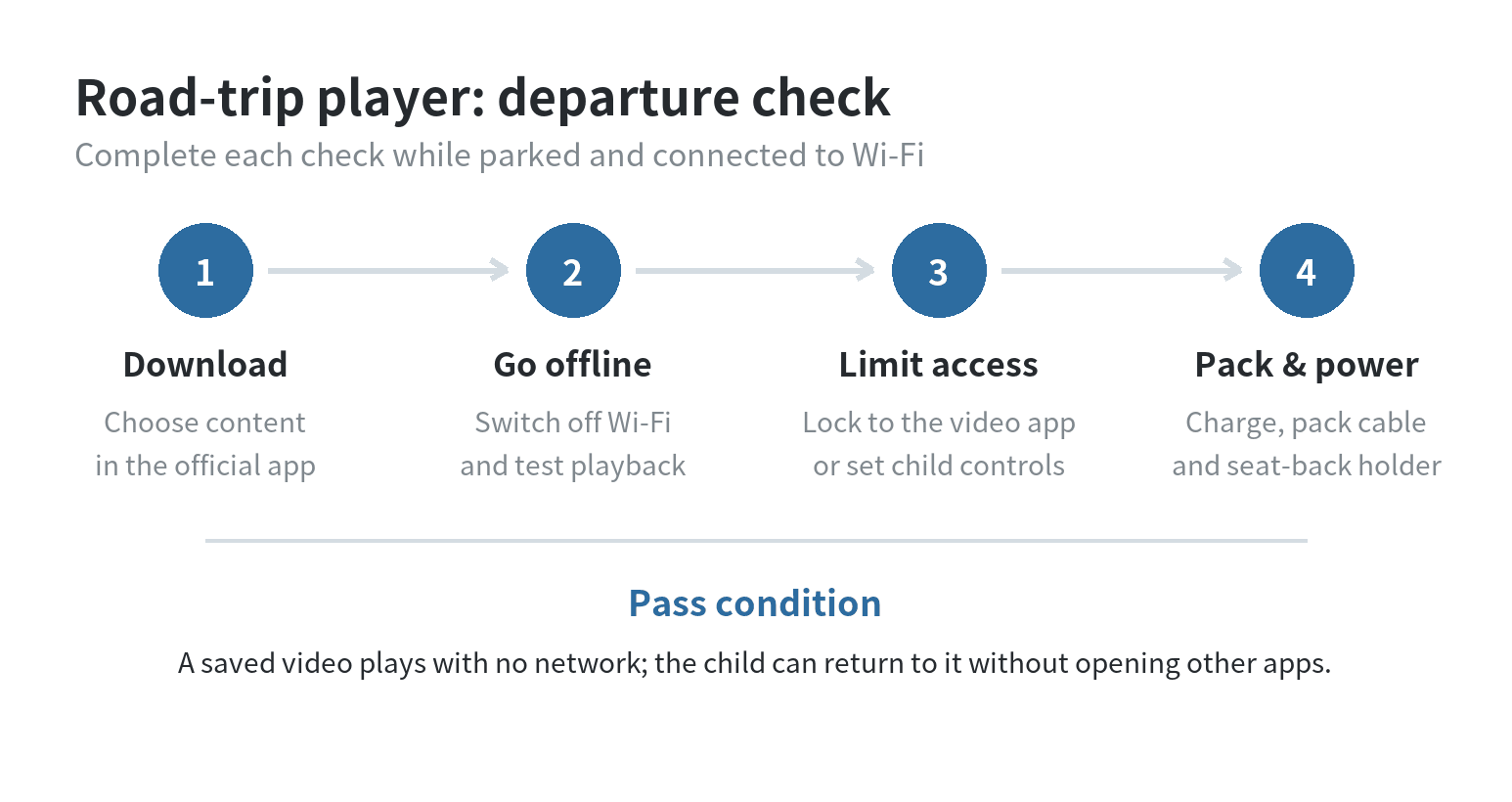
Before loading the car, turn on airplane mode and play a saved title. Confirm the video plays, the sound works, and the phone stays in the video app. If anything fails, reconnect to Wi-Fi and fix it at home or choose another source.
Charge the phone and pack its cable and headphones. If it cannot run a supported streaming app, try personal videos already stored on it and test them offline too. A short, working playlist is more useful than an untested queue.
Last updated: 2026-09.
FAQ
Will signing out remove videos saved for a road trip?
It can. Disney+ says signing out removes its downloaded content, and Netflix says canceling a subscription removes all downloads from devices. Check the current Disney+ download guidance and Netflix offline-download help before changing accounts or signing out.
Can downloaded streaming videos be copied to a second phone?
Plan to download them on the phone the child will use. Netflix says downloaded titles are available on the device used to download them, and Disney+ manages downloads inside its supported mobile app. Keep the player signed in and test its own saved copy before you leave.
Can the old phone also be a child’s first phone?
It can be configured for communication too, but that adds account, contact, and connectivity decisions. Follow our separate guide to a child’s first phone without a SIM for that setup.