An old phone can handle two jobs at the gym: run a simple interval timer and hold a session log. Set it up before you leave home, keep the screen and sound easy to check, then record each set in a short note. The timer handles elapsed time; the log preserves what you actually did.
Give the phone one clear job
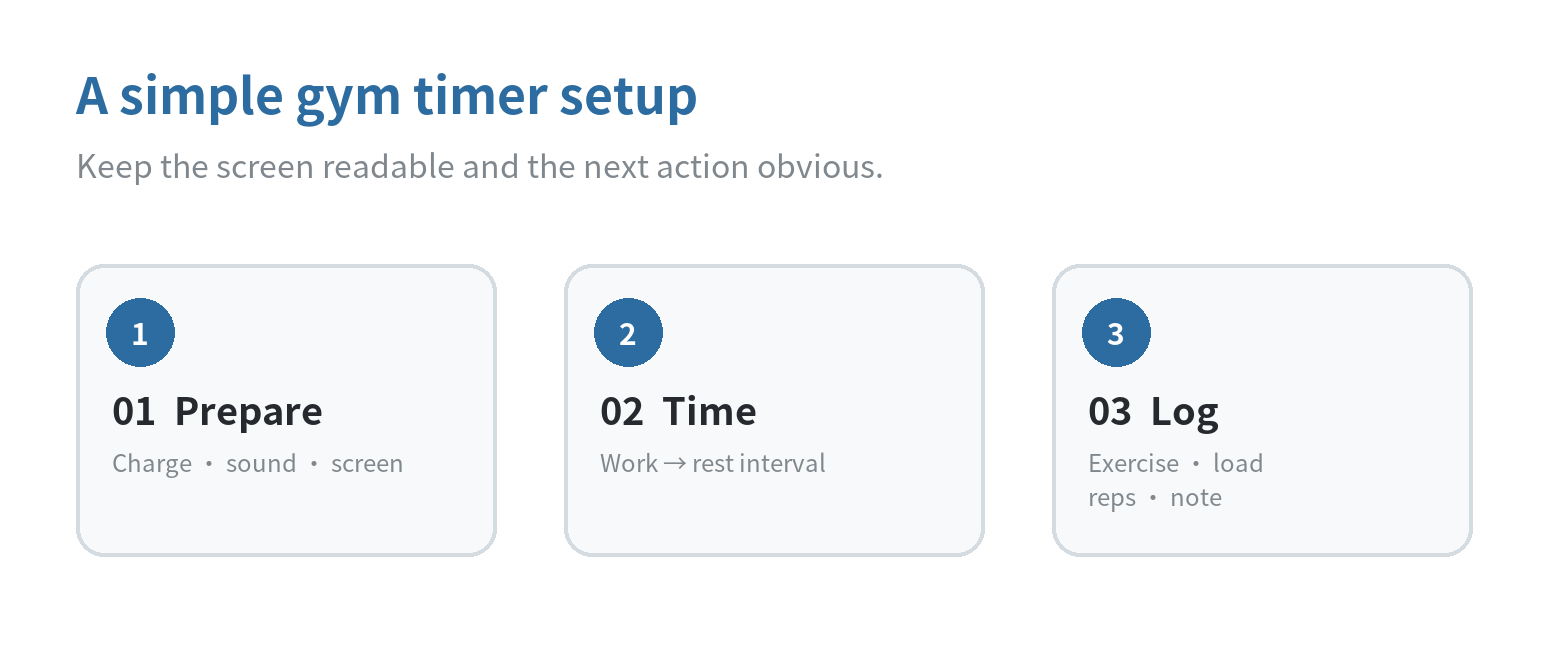
A dedicated gym phone is easiest to use when it does not compete with your everyday phone. Remove unnecessary notifications, choose a timer sound you can recognize, and put the Clock and notes apps where you can reach them. You do not need to sign in to new services just to time a session.
Before relying on it, check that the phone starts, the charging port works, and its battery lasts through the session you have planned. Charge it before leaving. If the battery is unreliable, keep the phone in a stable place near an outlet while you prepare, rather than expecting a weak battery to behave like a dedicated timer.
Set the screen brightness so the countdown is readable under the gym’s lighting. Increase the timer volume enough to hear it in that room, then run a short test while music or other background sound is playing. If the timer’s vibration setting is available, test that too. Google Clock’s help page describes timer sound, gradual volume, and vibration settings, while noting that vibration is not available on every device.
Choose a timer that matches the session
For a straightforward session, use the phone’s built-in Clock app. On iPhone, Apple says a custom timer can be labeled, assigned an end sound, and reused from Recent; the timer continues while another app is open or the phone sleeps. On Android, Google Clock provides timer sound settings and an optional vibration setting on supported devices. Labels and screen layouts vary, so confirm the controls on your own phone before your first session.
A countdown works well when the next change happens after a set duration: start, work, rest, repeat. A stopwatch is better when you want to measure elapsed time without choosing an end point first. Apple’s Clock guide describes recording laps or splits on its stopwatch. If your phone offers a stopwatch but no convenient interval sequence, use it for elapsed time and set a separate timer for rest.
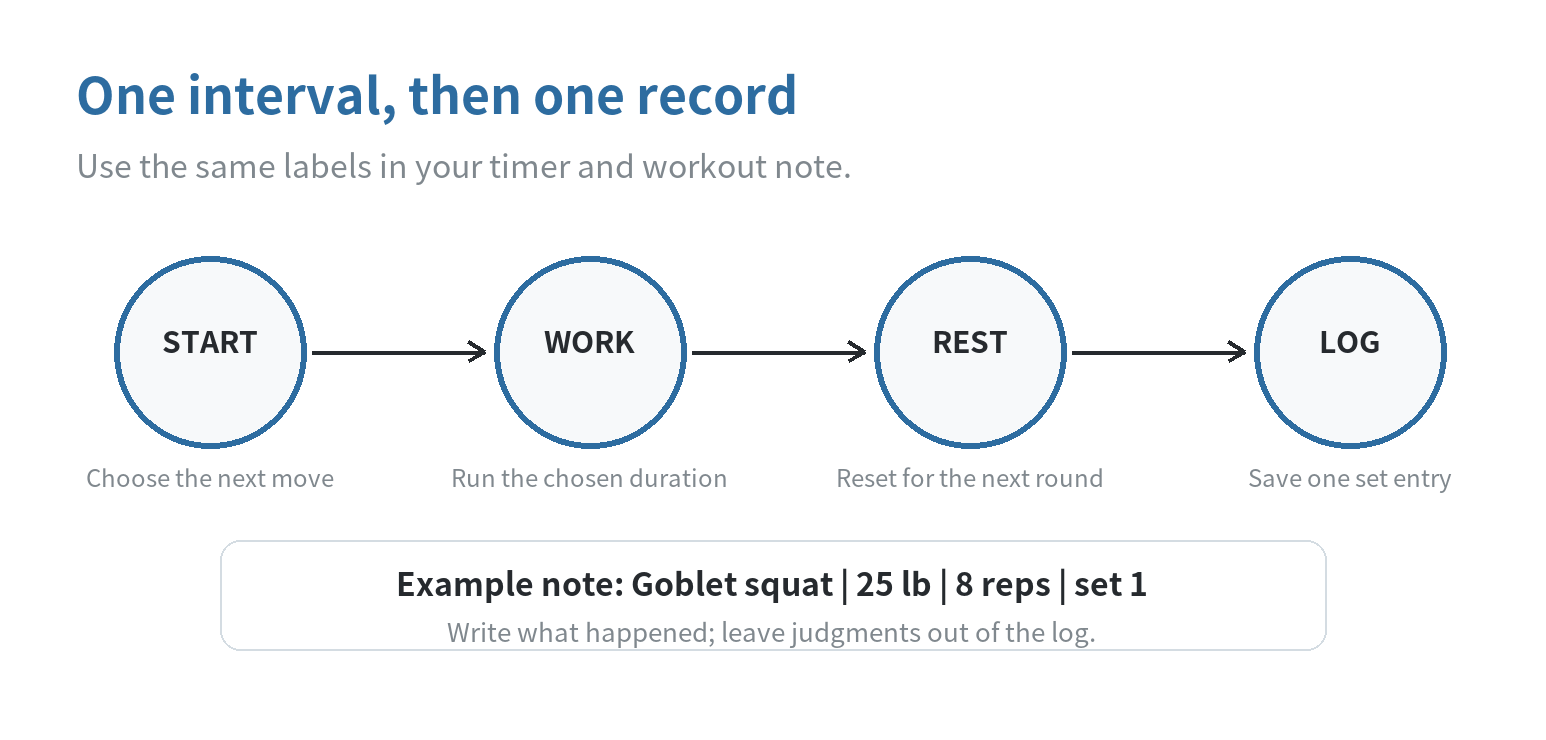
Build the sequence around the session you already intend to do. For example, write down “row, rest, press, rest” in order and decide the duration for each interval before starting. Do not rely on memory to reconstruct a complicated sequence while the phone is locked or across the room.
Set the phone where you can use it safely
Place the phone on a bench, shelf, or other stable surface outside the path of moving equipment. Keep it away from places where a dropped weight, water bottle, or cable could hit it. Do not balance it on a treadmill, stack it on loose plates, or leave a charging cable stretched across a walkway.
Use a position that lets you glance at the timer without walking into another person’s space. A phone stand can help if the surface is flat and the device cannot slide. Keep the screen awake only as long as you need to read the countdown; if the display dims, check the timer’s sound and vibration instead of holding the screen on throughout the session.
Set the phone up before equipment is in use. A worn charging cable, loose case, or cracked screen can make the device awkward to handle; remove a loose case and leave any damaged cable at home. The workout setup should not depend on balancing the phone against a moving machine or plugging it in mid-session.
Keep your main attention on the movement and the people around you. Start a timer before a set, put the phone down, and check it once the interval ends. The phone should not require repeated taps while equipment is moving.
Make a log you can scan later
Use one note per session or one dated note with a clear separator between sessions. Keep the entry compact: exercise, load if used, repetitions or duration, set number, and an optional note about setup. For example: “Goblet squat | 25 lb | 8 reps | set 1.”
Google Keep’s help center explains how to create a titled text note or list on Android. A built-in Notes app works just as well if you prefer it. Pick a method that opens quickly and lets you find earlier entries; avoid changing systems every workout unless the current one is getting in your way.
Use neutral descriptions that help you recognize the session: “bench height changed,” “used neutral grip,” or “stopped after set 2.” A workout log is a record, not a scorecard. Do not infer a health outcome from a single entry, and do not treat a number in the log as a reason to continue if you need to stop.
Keep the timer and notes easy to reach
Try the complete sequence at home: open the timer, start it, switch to the note, return to the timer, and confirm the alert is audible. Apple documents that its timer continues when another app is open or the iPhone sleeps. Android behavior can depend on the phone’s Clock app and settings, so test your own device rather than assuming the same behavior.
If the timer is hard to hear, select a different tone or raise the timer volume in Clock settings. If a phone’s battery saver or app restrictions interrupt a third-party timer, test again with the settings you plan to use. The built-in Clock app avoids making the session depend on a newly installed interval app.
You can keep the gym phone separate from the phone you use for calls and messages. If you are repurposing another device for a different task, the site’s old-phone voice recorder guide covers a separate setup, and its dedicated alarm clock guide explains another focused use.
Use a repeatable session template
Keep a short template in your notes app so you do not rebuild the page each time:
- Date and session label
- Exercise name and equipment setting
- Load, repetitions, or elapsed time
- Set number and rest note, if useful
Copy the headings into a new note, then fill only the fields that matter to that session. If you track bodyweight or another personal measurement, consider whether you want that information stored on a device that may be shared or left in a gym bag. A simple local note is enough for a basic log; syncing or account features are optional.
At the end, check that the note is saved and the timer is stopped. If you share a device or note with someone, avoid putting private information in the title or lock-screen preview. You can also use a paper backup for a session when the device is out of battery, then enter the notes later.
FAQ
Can I use the same old phone for the timer and workout log?
Yes. Keep the Clock app and your note app on the same device, then test switching between them before the session. Save the note after writing so the set details stay with the workout log.
Should I use a countdown or stopwatch for rest periods?
Use a countdown when you have chosen a rest duration and want an alert at the end. Use a stopwatch when you want to see elapsed time or record a lap without setting an end point.
How can I keep workout notes private on a shared phone?
Use a lock screen passcode and avoid sharing the note or account. If the device will be handed to someone else, remove personal notes first or use a separate account for the gym log.
What should I do if the timer alert is too quiet at the gym?
Test a different alert sound and the Clock app’s timer volume before the next session. On supported Android devices, Google Clock also offers timer vibration; Apple lets you choose a timer end sound.