An old tablet can work as a drawing surface for a computer when a compatible app sends the computer’s display to the tablet and returns pen input. Start by matching the tablet, computer, operating systems, and stylus; then test the connection in the art app you actually plan to use. A second-screen app cannot add a digitizer or pressure sensing that the tablet and pen do not have.
Identify the tablet before choosing an app
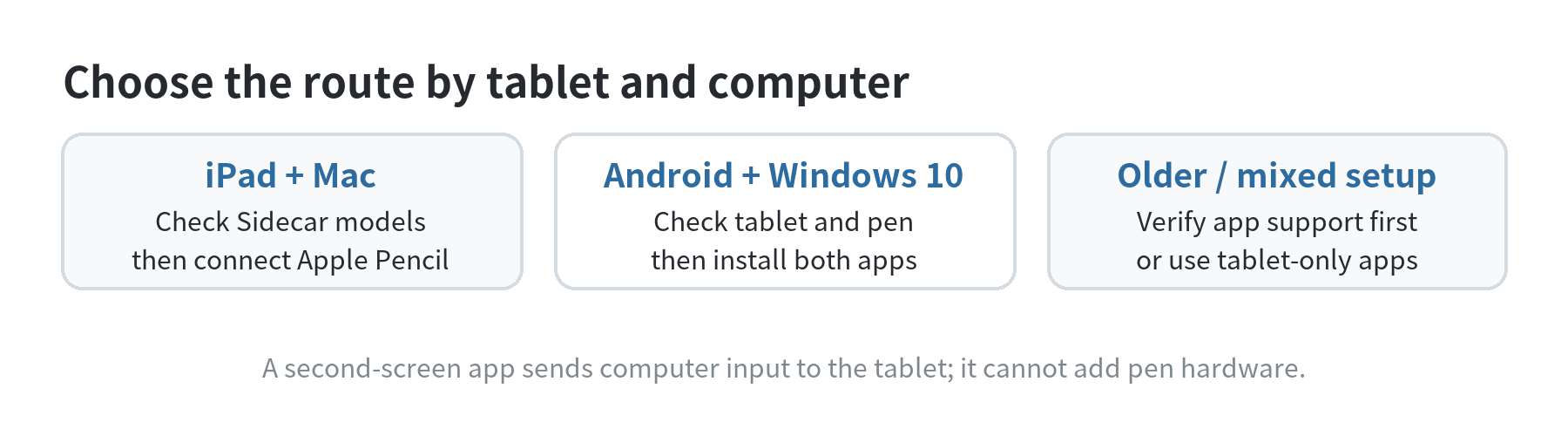
Write down the tablet’s model, operating system, and stylus model. “iPad” or “Android tablet” is not enough: support depends on the generation, installed system, host computer, and connection app. Find the model in the device settings or the maker’s support page, then compare it with the app’s current compatibility page.
Decide what you want the tablet to do. Mirroring shows the same computer image on both screens. Extending creates a second desktop area, so you can move the art canvas or tool panels onto the tablet. A drawing-tablet setup needs the tablet to display the computer’s art program and send touch or pen input back to that program. A tablet-only drawing app is a different workflow: the artwork starts and stays on the tablet unless you export it.
Also check whether the tablet can run the companion app and whether the computer can install its host driver. If either device is too old for the current app version, pick a different supported path or draw directly in a tablet app. Do not assume a cable, USB-C port, or Bluetooth pairing makes two devices compatible.
For an iPad connected to a Mac, check Sidecar first
Apple’s Sidecar lets a supported iPad extend or mirror a Mac desktop, and Apple says you can use Apple Pencil to draw, edit photos, and manipulate objects on the iPad while viewing the Mac session. It is the simplest route when both devices meet Apple’s listed requirements and the Pencil pairs with that iPad.
Apple lists Sidecar for Macs running macOS Catalina 10.15 or later, with specific Mac model cutoffs, and iPads running iPadOS 13 or later. The supported iPad families begin with all iPad Pro models, iPad (6th generation), iPad mini (5th generation), and iPad Air (3rd generation). Apple also requires the same Apple Account with two-factor authentication. For wireless use, Wi-Fi, Bluetooth, and Handoff must be on; a USB connection requires the iPad to trust the Mac.
Open the Mac’s Displays settings and select the iPad as an extended or mirrored display. Move the art program’s window to the iPad, then draw with the Pencil. For longer sessions, Apple says a direct USB connection can keep the iPad charged. If Sidecar does not appear, check the exact model and system version before troubleshooting the network.
Check Pencil compatibility separately. Apple’s Pencil compatibility list distinguishes Pencil models and iPad generations; a Pencil that pairs with one iPad may not pair with another. Sidecar passing pen input through the display does not tell you whether the Pencil, art app, and brush settings will produce the stroke behavior you expect.
For Android and Windows, verify the exact app pairing
SuperDisplay is one route for an Android tablet or phone used with a Windows computer. Its official site describes the Android device as a portable USB display for a Windows 10 PC and says it supports pressure-sensitive styluses such as the Samsung S Pen. The Google Play listing likewise describes pressure support and a Windows driver. Install the Android app and its Windows companion, then connect by USB or Wi-Fi as the product instructions allow.
There is an important operating-system detail: Microsoft says Windows 10 support ended on October 14, 2025. That makes this pairing a legacy option for someone who already has a compatible setup, not a reason to move a computer to Windows 10. Before using any Android-to-computer app, read its current requirements for both the tablet and host, and check whether it supports the computer’s installed Windows version.
Do not generalize one app’s support to every Android tablet, stylus, or drawing program. The app can transport input, but pressure depends on the tablet digitizer, the stylus, the connection software, and the art program recognizing pressure. Samsung’s S Pen support information describes pressure features for compatible S Pens; that does not confirm that a specific tablet, app pairing, and brush will pass pressure through correctly.
Make a short test before moving a project
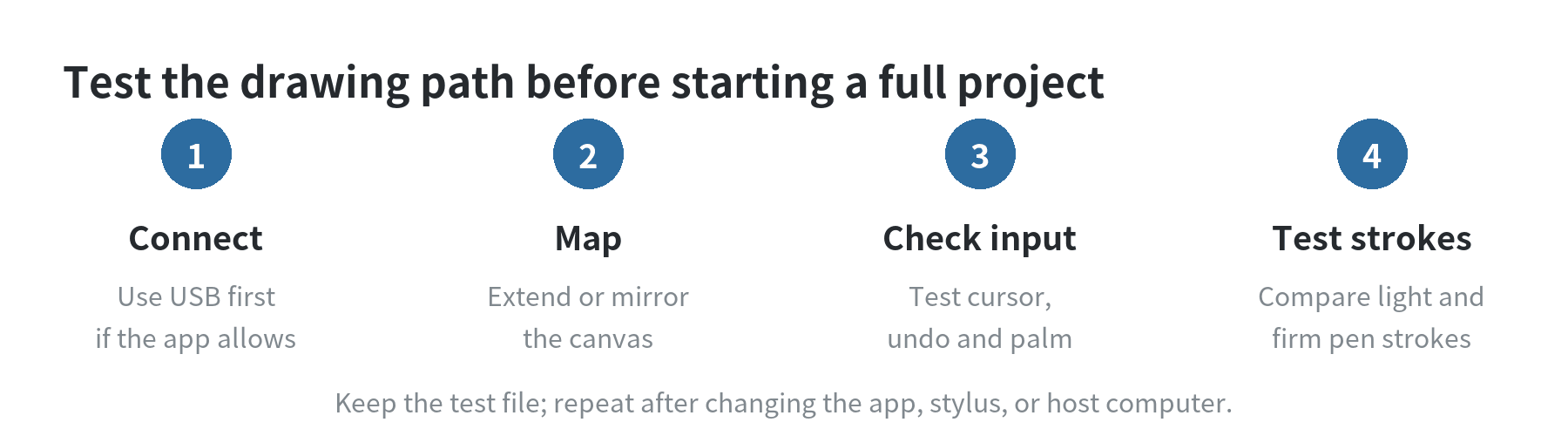
Connect the devices and open the drawing program on the computer. Use a blank test file so that connection or mapping changes do not affect finished work. If the software offers wired and wireless modes, try a cable first to simplify the connection; switch to wireless after basic input works.
- Set the display mode. Choose extend if you want the canvas on the tablet and tools on the computer. Choose mirror if you want both screens to show the same desktop. Arrange the displays so the pointer crosses in the direction the tablet sits on your desk.
- Check mapping and orientation. Move the pointer to each corner, tap a few interface controls, and rotate the tablet only if the app supports that orientation. If the cursor lands away from the pen tip, review the host display arrangement and the app’s calibration or mapping controls.
- Check basic input. Make a line, select a tool, undo, and test any button or eraser feature your stylus has. Confirm that palm contact does not trigger an unwanted mark or move the canvas during your normal grip.
- Check pressure in the art app. Draw several strokes from light to firm pressure with a pressure-enabled brush. If the line width stays fixed, check the app’s brush dynamics and input settings, then confirm the tablet and stylus support pressure in that connection mode. A pointer that moves correctly can still arrive without pressure data.
Fix the common failure at the right layer
If the tablet never appears, check that the host and tablet apps are both installed, the devices meet the app’s requirements, and the selected cable supports data rather than charging only. For wireless connections, check that the devices can see each other on the allowed network. Restarting both apps is a reasonable first reset, but it will not make an unsupported model compatible.
If the desktop appears but pen input does not, confirm that the tablet session is active and the drawing app has focus. Test finger or mouse input separately from the stylus. If finger input works but the stylus does not, check stylus pairing, battery if applicable, and whether the stylus is compatible with that tablet. If the cursor works but pressure does not, review the brush’s pressure settings and consult the app maker’s compatibility notes.
If strokes lag or skip, reduce the amount of other network traffic or try a wired connection supported by the app. A smaller canvas or lower display resolution can also make the session easier to manage, though the exact controls vary by app. Save the test file and note which connection mode worked; that record helps if an app or system update changes the setup.
When a tablet-only drawing app is the better fit
Use a drawing app on the tablet itself if the computer pairing is unsupported or adds more friction than the drawing task warrants. Check that the app runs on the tablet’s operating system and that the stylus works with it. This approach removes the computer display link from the drawing path, but files may need to be exported or synchronized separately if you want to continue on the computer.
For a small sketch, tracing, or markup, basic touch input may be enough. For brush control, test a pressure-sensitive stylus in the exact app before building a workflow around it. The useful result is a setup that passes your own test strokes and saves files where you can find them.
Frequently asked questions
Can any old tablet become a drawing tablet?
No. The tablet needs a compatible app and host connection, and pressure-based drawing also depends on supported pen hardware and software. Older tablets may still work as standalone drawing devices if an art app runs on them.
Will an ordinary touchscreen stylus give pressure sensitivity?
Not by itself. A basic capacitive stylus acts more like a finger. Pressure-sensitive input requires compatible pen hardware and a software path that carries pressure to the drawing app.
Does mirroring make the tablet a separate drawing display?
Mirroring duplicates the computer image. Extending gives the tablet a separate desktop area. Either mode can be useful, but select the one that matches where you want the canvas and tool panels to appear.