An old iPad can serve as a family calendar dashboard if its calendar app works on it and the household uses one shared schedule.
Set it up to answer quick questions: what is happening today, who is handling dinner, and what needs attention.
Use it as a coordination screen, rather than a recipe-reading station.
Give the screen one clear job
A wall display helps when someone can glance at it while passing through the kitchen.
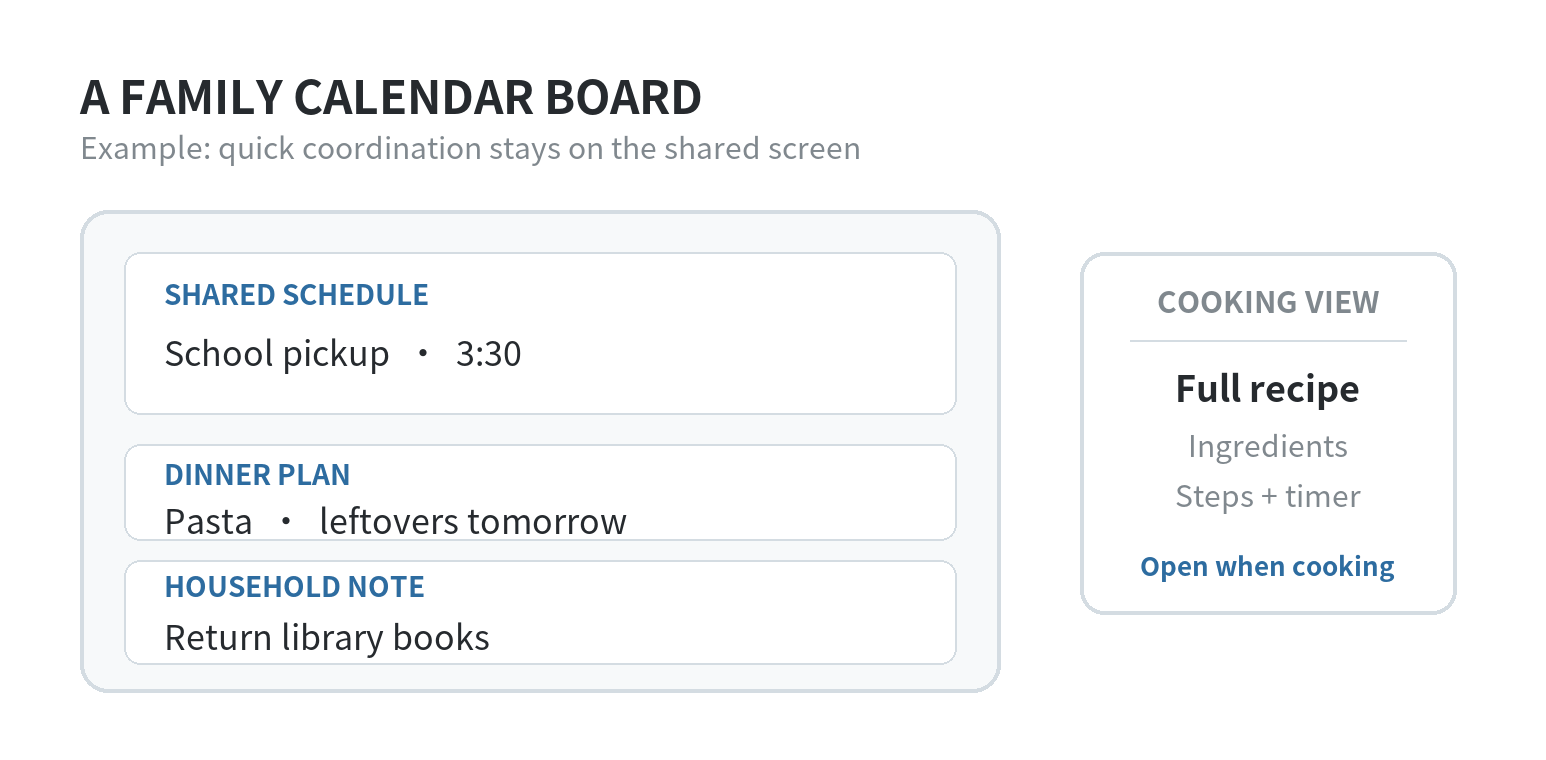
Keep its main view focused on appointments, pickups, meal plans, and household reminders.
A calendar event can say “tacos” or “leftovers.”
Keep full recipes, ingredient lists, and cooking timers in a separate cooking workflow.
The existing old-phone recipe display guide covers keeping cooking instructions visible.
If your main problem is getting everyone to enter events into one shared schedule, see the site’s shared family calendar guide first.
The wall iPad is the viewing point, not a replacement for that shared calendar.
Check the iPad before arranging the space
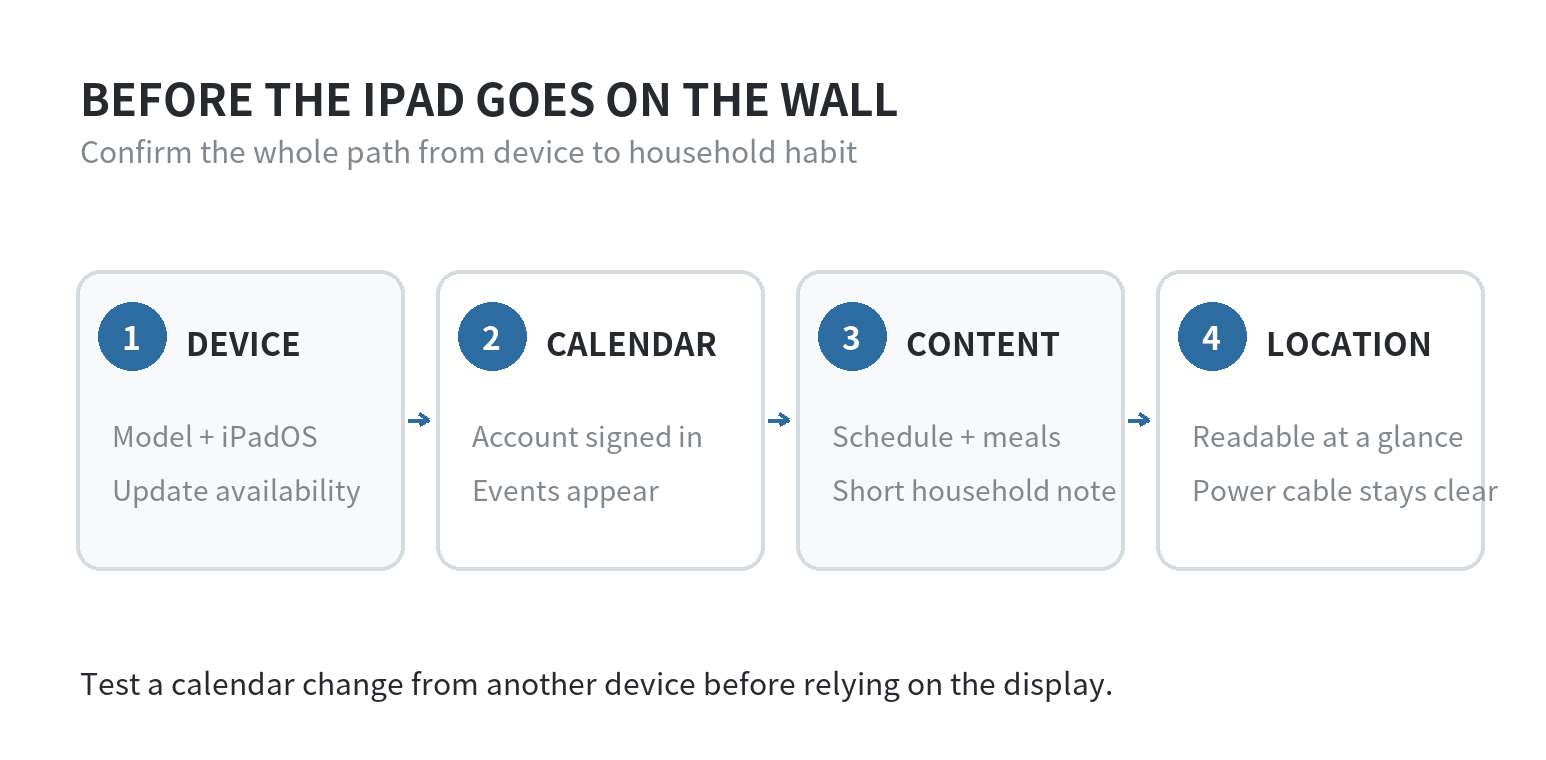
Start in Settings > General > About and note the model name and iPadOS version.
Apple’s iPad User Guide says the About screen shows both.
Then open Settings > General > Software Update to see whether that iPad has an update available.
Apple’s compatibility list identifies which models can run its current iPadOS release.
A familiar app name alone does not confirm that an old model can install the app version you need.
Make a short test list before you choose a mount or stand:
- Can the iPad open the calendar app you plan to use?
- Can it display the household calendar after you sign in?
- Can a family member add or edit an event from their own device?
- Is the screen readable from the spot where people will pass it?
Apple’s iCloud Calendar guide says an iPad can show iCloud calendars when the same Apple Account is signed in and Calendar is enabled for iCloud.
Apple’s iPad guide also describes sharing a calendar with invited iCloud users and choosing whether they can edit it.
Google’s Calendar Help says Google Calendar events can sync with the iPad’s built-in Calendar app.
Pick the account the household already checks.
Test an event change from a second device before treating the display as ready.
Choose what belongs on the board
Begin with one shared calendar and add only the views that solve a coordination question.
A household might use calendars for school, appointments, and activities, then add a short dinner plan and a household note.
Apple Calendar lets users view selected iCloud calendars.
Google Calendar’s instructions explain how to sync a Google calendar into Apple Calendar.
Controls depend on the calendar service and iPadOS version.
Use the provider’s current directions for account setup.
Keep entries brief enough to scan.
Put the event name, time, location, and responsible person in an entry when those details help someone act.
Use a reminder for a task that needs doing, not as a second copy of the family schedule.
A clear “today” view is easier to scan than a screen packed with calendars, notes, and open apps.
For dinner, a short label such as “pasta” or “leftovers” can help with planning.
If the cook needs steps, ingredients, or a timer, switch to the recipe app or saved page on a personal device.
The iPad can point to the meal plan without displaying the whole cooking process.
Build a simple update routine
Decide who owns the shared calendar and how the household will add changes.
One person can create the shared calendar, invite family members, and set editing access.
Apple’s sharing instructions let the owner change a participant’s ability to edit.
If not everyone should edit, ask them to send changes to the calendar owner instead of adding a second unofficial schedule.
Write events as handoff notes, not just labels.
For a pickup, include the responsible person and the meeting place.
For an appointment, include who is driving if that changes the plan.
If plans move, update the shared calendar that the household treats as its source.
Then check that the new time appears on the kitchen iPad and another family member’s device.
This catches a stale sign-in or an event entered into a personal calendar by mistake.
For a draft plan that is not confirmed, keep it in a separate note until the household agrees.
That way a tentative idea is less likely to look like a settled pickup or dinner plan.
A small weekly reset can keep the display useful.
Review the coming days, add agreed events, remove outdated reminders, and confirm who is responsible for meals or pickups.
Treat this as a household choice, not an automatic feature of the iPad.
Put the review at a time that already fits the household, such as after planning meals or checking school messages.
Use the iPad as a shared reference, while keeping the calendar accessible on each person’s own device.
Google’s help page notes that email event notifications and creating new Google calendars do not work through Apple Calendar.
If a feature matters to your household, check it in the calendar provider’s own app or documentation.
Do not assume the wall display mirrors every control.
If a calendar stops appearing
Check the account connection before changing the mount or replacing the iPad.
For iCloud, Apple says to confirm that the same Apple Account is signed in and Calendar is enabled in iCloud settings.
Then open Calendar and select the iCloud calendars you want to view in its sidebar.
For Google Calendar in Apple Calendar, Google’s instructions use the iPad’s Calendar account settings to add a Google account.
Make sure Calendars is enabled for that account.
Google says the events will then sync with the Google Account.
If the iPad cannot complete the provider’s steps, check its compatibility information before choosing a permanent location.
Place it where a glance is enough
Set the iPad where people naturally pause, such as a kitchen counter edge or a nearby wall.
Angle the screen toward the room.
Keep it away from cooking splashes and places where it can be knocked onto the floor.
A stand makes it easier to move the device for charging or cleaning the surface.
A wall mount keeps the counter clear but takes more commitment to reposition.
Check visibility from the doorway and from the place where someone plans meals.
Increase text size or simplify the calendar view if event names are hard to read at that distance.
If the iPad needs to remain connected to power, route the cable so it does not cross a walkway or hang where it can be pulled.
The calendar display does not need to stay awake all day to be useful.
Wake it when the household checks the schedule, then let it return to its normal screen behavior.
Keep the device’s passcode and account access in mind.
A shared screen can expose appointments, locations, or family names to visitors.
Choose which calendars appear on it.
Do not leave private work or personal accounts visible just because they are signed in on the same iPad.
FAQ
Can family members view a shared iCloud calendar without editing it?
Yes. Apple lets the calendar owner give an invited person read-only access.
That works when the invitee has an Apple Account and uses iCloud for a private calendar.
Will Google Calendar email alerts appear in Apple Calendar on the iPad?
No. Google lists email event notifications among the features that do not work through Apple Calendar.
Check Google Calendar’s current help information for the alert options available to your account.
Can you open an iCloud calendar in a browser on an iPad?
Yes. Apple says iCloud Calendar can be opened in a browser on a tablet or computer.
Check that the browser on an older iPad can sign in and display the calendar before relying on this route.
Can someone without an Apple Account join a private iCloud family calendar?
No. Apple says invitees to a private iCloud calendar need an Apple Account and must use iCloud.
Choose a calendar service that all invited family members can access.