Use the old phone as a separate camera feed, then bring that feed into OBS as its own source. The computer can place it beside your main camera or let you switch between views, so the phone does not need to run the livestream itself. The setup depends on a camera app or connection method that OBS can see, plus a stable mount and a sound plan.
Choose how the phone reaches the computer
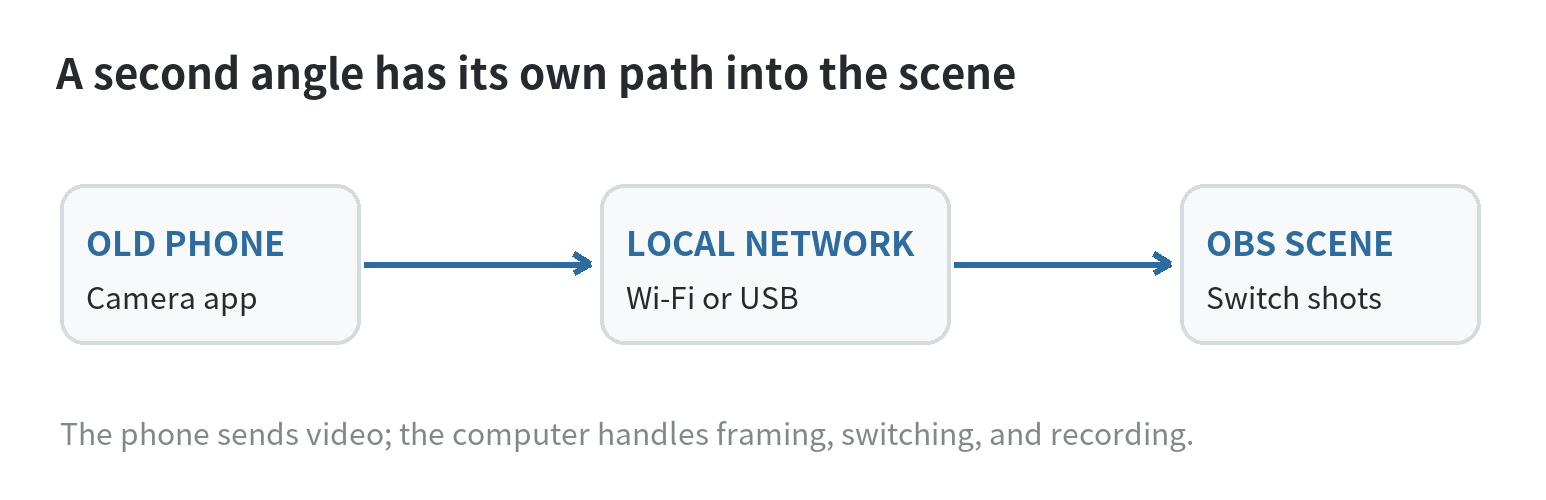
A phone can act as a second angle in two different ways. The simplest for a live show is a camera app that sends video to the computer, where OBS handles the scene and recording. For a recording you will edit later, you can also record a separate clip on the phone and sync it during editing. This article focuses on the live feed route.
DroidCam’s OBS setup guide describes adding its phone feed as a source in OBS, with the phone and computer connected over Wi-Fi or USB. OBS’s Video Capture Sources guide explains that video devices are added as sources and selected in their properties. The labels and available connection options depend on the app and operating system version, so follow the current instructions for the specific app you use.
Before setting up the phone, confirm that the computer can run the streaming or recording software you plan to use. If the old phone cannot install a compatible camera app, the separate-clip method may fit better: record the alternate angle on the phone, transfer the file, then line it up with the main recording during editing.
Build a second shot, not a duplicate view
Pick a placement that shows something the main camera cannot. A front-facing presenter shot paired with a side view of a desk, instrument, cooking surface, or hands-on demonstration gives you a reason to switch. If both cameras show nearly the same framing, the extra feed adds setup work without changing what viewers see.
Set the old phone on a stable stand and frame the subject before opening OBS. Keep the lens clear of fingers, cases, and nearby objects. Check the background edges, reflections, and anything that enters the frame when you move. For an overhead view, secure the phone so it cannot slide or fall; do not rely on a loose stack of books or a charging cable to hold it in place.
Then open the camera feed in OBS and add it as a distinct source in the scene. OBS organizes video through scenes and sources; its Sources guide describes adding a source from the Sources dock. Give each source a recognizable name, such as “Main” and “Desk angle,” so the correct view is easy to identify while you are presenting. Resize and position the second feed in the preview, and check that it does not cover captions or other material you need viewers to see.
For a simple two-angle stream, create one scene with the main camera and a second scene with the alternate camera, or keep both sources in one scene and toggle their visibility. Choose the arrangement that is easiest to operate without looking away from your presentation. Make the camera change during a rehearsal so you can see whether the switch feels natural.
Keep picture, sound, and timing predictable
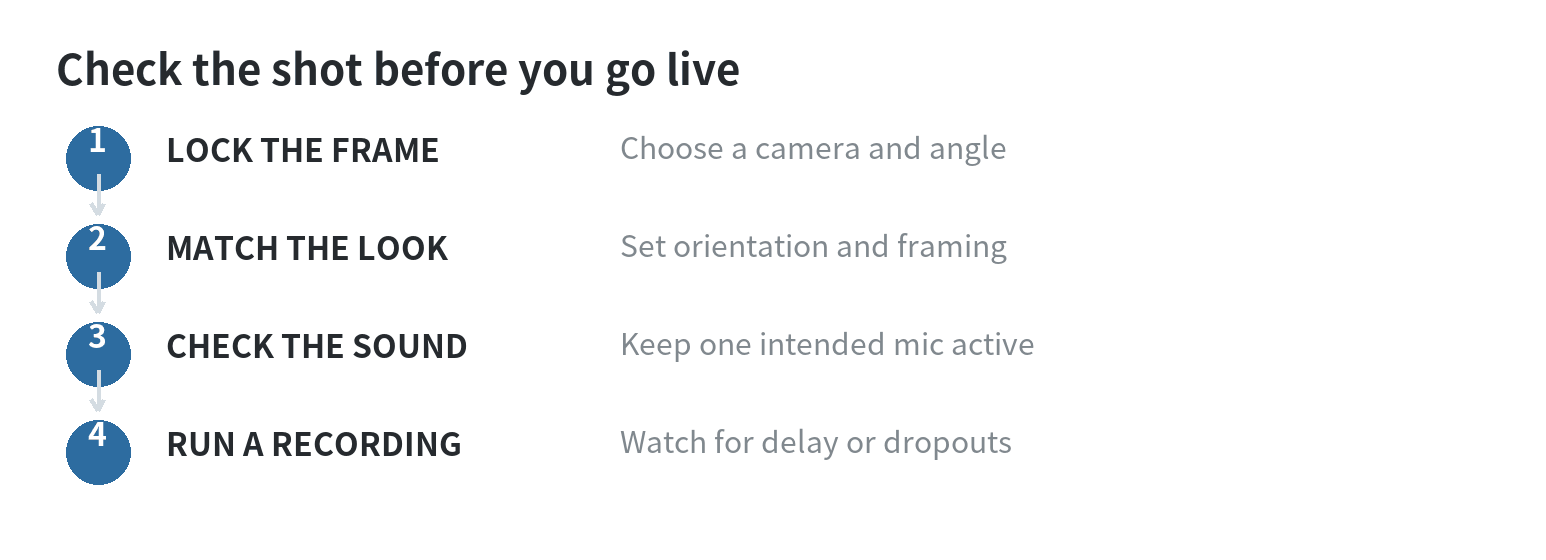
Use one intended microphone for the program audio. A phone camera app may also offer microphone access; DroidCam’s help pages state that microphone permission is needed for audio capture and that audio can be enabled for its OBS source. If both the phone and the main setup send room sound, the mix can contain two versions of the same voice with a slight delay. Select the microphone you intend to use and check the audio meters before recording.
Match the phone’s orientation to the main shot. A vertical phone feed placed inside a horizontal scene may leave empty space or require cropping. Decide whether that space should show a background, a second small view, or a tighter crop, then check that the subject remains in frame while moving. Do not assume that every lens or frame-rate option on an older phone is available to third-party apps. DroidCam’s compatibility notes say that some Android phones restrict camera features to native apps or local recording.
Wireless connections avoid a cable across the room, but they depend on the local network. A wired connection can reduce reliance on Wi-Fi, where the app and phone support it, though it may constrain where the phone can sit. Put the phone where it will be used, connect it, and look at the actual feed before deciding. If the picture freezes or arrives late, check the app’s connection details and try a shorter or wired path if supported.
Power is part of the camera setup. An older battery may not last through a long session, and a charging cable can tug on a poorly placed phone. Route the cable away from feet and controls, leave the phone ventilated, and check that the connector remains secure. Keep the phone unlocked or configure its screen behavior according to the app’s instructions; background operation can vary by device and operating system.
Rehearse the switch before the audience arrives
Record a short private test that includes the opening shot, at least one camera change, and a moment when you speak while moving. Watch the resulting file instead of judging only the live preview. Check whether the two angles have noticeably different color or brightness, whether the phone feed is delayed, and whether the sound changes when the camera changes.
If the phone view looks too warm or dim beside the main camera, adjust the room lighting or camera exposure controls if the app provides them. Avoid changing several settings at once; make one adjustment, record another short sample, and compare the two files. If the shot is meant to show a detail, move the phone closer or reframe it rather than relying on a digital zoom that may soften the image.
Keep a fallback scene ready. If the phone disconnects, switch to the main camera and continue, then reconnect the second feed when there is a pause. For a recording, the fallback is simpler: keep the main camera recording, then use the separate phone clip only if it is complete and can be synchronized.
When a separate recording is the better fit
A phone recording can be easier when you do not need to switch angles live, when the old device cannot send a compatible feed, or when Wi-Fi is unreliable in the filming location. Start both recordings, make a visible or audible sync cue such as one clap, and keep the phone still during the take. In editing, align the cue in both files, then cut to the phone angle where it adds useful detail.
Separate recording creates a file-transfer and storage step, and the two cameras may not start at precisely the same moment. Check available storage before the session and make a short test that includes the sync cue. For a full walkthrough of the phone-as-webcam approach, see using a phone as a webcam for OBS; for a dedicated setup, see turning an old phone into a dedicated webcam.
A useful second angle has a clear job: show a different side of the presenter, a close view of the work, or a wider view of the room. Once the feed is visible in OBS, a steady mount, a single planned microphone, and one test recording are enough to reveal whether the old phone belongs in the live setup.
FAQ
Can an old phone work as a second camera without a capture card?
Yes, if a compatible camera app can send the phone feed to the computer and the streaming software can add that feed as a source. A capture card is one way to connect some cameras, but it is not required for every phone-to-computer workflow.
Should the second phone use Wi-Fi or USB?
Use the connection your camera app supports and test it from the phone’s actual filming position. Wi-Fi gives placement flexibility; USB provides a wired path but can limit distance and cable routing.
Why does the phone view look different from the main camera?
The phones may use different lenses, exposure, color processing, or framing. Compare a short recording, then adjust lighting, framing, and any camera controls available in the app.
Can the old phone record the second angle instead of streaming it?
Yes. Record locally, make a sync cue that appears or sounds in both recordings, and align the files in your editor. This avoids relying on a live phone feed but adds a file-transfer and editing step.