For most bedside setups, an old phone can work as a dedicated alarm clock if it charges reliably, plays through its speaker, and passes an alarm test.
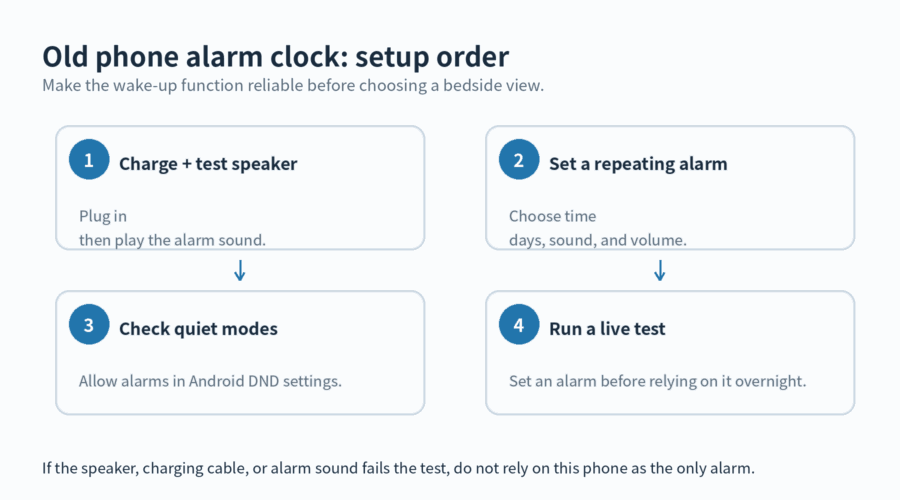
Set the alarm and its quiet-mode permission first. Choose a bedside display only after the complete setup passes one test.
Start with a quick hardware check
Use the phone you already have, its charging cable, and a stable spot near an outlet.
Plug it in and make sure the cable does not disconnect when the phone is left still.
Then open the Clock app and play the alarm sound at a volume you can hear from your bed.
Do not rely on it alone if it restarts, has a loose cable, crackling speaker, or silent test.
Check the charging connection where the phone will actually sit.
A cable that works while you hold the phone can lose contact when its plug is bent against a bedside table or the phone is resting on its case.
Keep the phone connected long enough to see that the battery indicator is charging.
Then gently place it in its final position without pulling the cable, and confirm that this position still shows charging.
Keep enough slack in the cable for the plug to sit straight.
A cable draped across a drawer or trapped under a table leg can tug the plug when the furniture moves.
Check the outlet and adapter too. A loose adapter can interrupt power after the charging symbol first appears.
Listen for the alarm from the place where you sleep, not from beside the phone.
A sound that seems loud in your hand can be softened by distance, a closed door, or soft furnishings around the bed.
If the speaker sounds rough during the test, use another alarm device for the next wake-up.
Tidying the bedside arrangement does not show that a speaker problem has been ruled out.
If you are clearing the phone for a fresh start, save anything you need first.
An iPhone factory reset is optional for an alarm-clock-only setup.
Apple says it erases data stored on the phone, including saved app data and settings; it does not erase data stored in iCloud.
Set up the Clock app, charging, sound, and time again after the reset.
Set the alarm before arranging the bedside display
On an iPhone, open Clock, choose Alarms, and add an alarm.
Set the wake-up time, sound, and repeating days, then check the alarm’s label before saving it.
Use the phone’s alert-volume control and save the chosen sound.
On Android, open the phone’s alarm app and add or edit an alarm. Its name and menus can vary by device.
Google’s Clock instructions cover alarm time, repeating days, sound, vibration, and alarm volume.
Google also warns that alarms set less than five minutes apart can cancel the first alarm.
Leave more space between backup alarms on the same device.
Google lists alarm ringing duration, snooze length, alarm volume, and volume-button action in Android Clock settings. Review them while awake.
For either platform, make the repeating days match your routine.
Open the alarm detail, read its label and repeat setting together, then save the change.
Keep the wake-up alarm enabled and read its details as a small checklist: time, days, sound, and volume.
This catches a weekday-only alarm before a holiday morning and a muted sound before you rely on it.
The display can wait; the saved alarm is the setting that does the waking.
Keep quiet modes from blocking the wake-up plan
On an iPhone, select the Silent mode or Focus state you plan to use overnight.
Leave it active until the final alarm test so the test matches the morning setup.
In the currently active Android mode or Do Not Disturb settings, confirm that alarms are allowed.
Google notes that labels and settings vary by device, so look for the alarm exception rather than a fixed menu path.
Also inspect the alarm itself.
Google says a silent ringtone with vibration turned off can leave an alarm without an audible or vibrating alert.
Its Clock help flags low alarm volume as a reason an alarm can be missed.
Set a sound and raise the alarm-volume control, not just the media-volume buttons.
After a software update or bedtime-mode change, recheck the alarm exception before the next test.
Use the display as a convenience, not the alarm itself
A large clock face does not make the alarm more dependable. The display is optional, so dim it or let it turn off if light at night is distracting.
Use the final test with the screen in the state you intend to leave overnight.
If the phone offers a clock or bedside display while charging, treat it as a convenience.
Use that model’s own setting name to choose the brightness and timeout; manufacturers do not use one shared menu.
For Android, start with the alarm app supplied on the phone.
Its name, menus, and display features can differ by manufacturer.
A persistent bedside display is optional. Add one only after the alarm setup is complete.
A simple screen arrangement is easier to live with.
Put the time where you can read it without picking up the phone, but do not move the device under bedding or behind furniture.
Keep the speaker facing open space and the controls reachable for the morning.
Keep drinks, loose papers, and charging adapters from crowding the phone.
The useful arrangement is plain: the cable reaches, the speaker is clear, and you can see whether the charging symbol is present before you turn in.
Choose a surface that will not wobble when you silence the alarm.
This also keeps the phone from sliding behind the table, where the sound is muffled and the cable can be pulled loose.
Use this short platform checklist
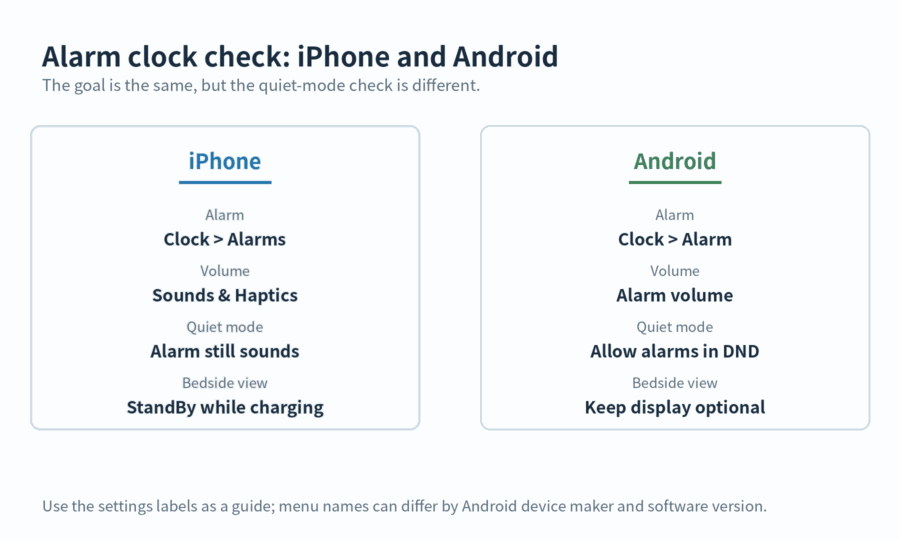
| Check | iPhone | Android |
|---|---|---|
| Create the alarm | Clock > Alarms | Open the phone’s alarm app |
| Set wake-up loudness | Use the alert-volume control | Use the alarm-volume setting |
| Review quiet mode | Run a live test with the overnight mode active | Allow alarms in the active mode or Do Not Disturb |
| Choose bedside view | If the phone offers a charging clock or bedside display, use that model’s setting name | |
Place it like a small appliance
Put the phone on a flat surface where the cable reaches without stretching.
Keep the speaker uncovered; a pillow, book, or mattress edge can make an alarm hard to hear.
Give the phone a permanent home rather than moving it between rooms.
A familiar spot makes it easier to notice a loose plug, a blocked speaker, or an accidental change to the alarm.
It also keeps the cable route and speaker direction consistent from one night to the next.
Run an alarm test before bedtime
Set an alarm for a few minutes from now.
Leave the phone connected to power in its overnight position.
Lock the screen or leave it in the chosen display state, and turn on the quiet mode you will use.
Listen from the pillow. Confirm that the alarm appears, makes sound, and can be dismissed.
If it is too soft, change the alarm sound or alarm-volume setting and repeat the complete test.
After the phone has stayed connected for a while, confirm the saved wake-up time and repeat days.
Leave working settings alone until morning.
If you adjust the time, reopen the saved alarm and check its sound and repeat days before saving.
When the alarm rings, dismiss it once and check that the next planned alarm still appears as expected.
Use the test as a rehearsal for the real morning.
It checks the charging connection, quiet-mode permission, sound, screen state, and dismissal step together.
That is more useful than checking only a sound preview.
Write down the sound name, volume choice, and location that worked.
That record helps you restore the setup after a reset, an update, or an accidental settings change.
FAQ
How should I test an iPhone alarm with Silent mode active?
Use the Silent mode or Focus state you plan to leave on overnight, then follow the single bedtime test above.
Why did my Android alarm not make a sound?
Review the alarm’s sound, alarm volume, and Do Not Disturb permission first.
Google lists a silent alarm sound, low alarm volume, and Do Not Disturb settings among the issues to review.
Can I use the old phone with the screen off at night?
Yes. The bedside display is optional; let the screen sleep if its light is distracting.
Should I set more than one alarm on the same Android phone?
Do not place them too close together. Google advises a five-minute gap because the first of two closely spaced Android alarms may be canceled.
Last updated: 2026-09