An old phone can serve as a dedicated travel translator if it can run a supported translation app and you download the languages before leaving Wi-Fi. Set it up at home, test it with the phone disconnected from the internet, and keep a second way to communicate for situations where a translation needs careful confirmation.
Check the phone before loading language packs
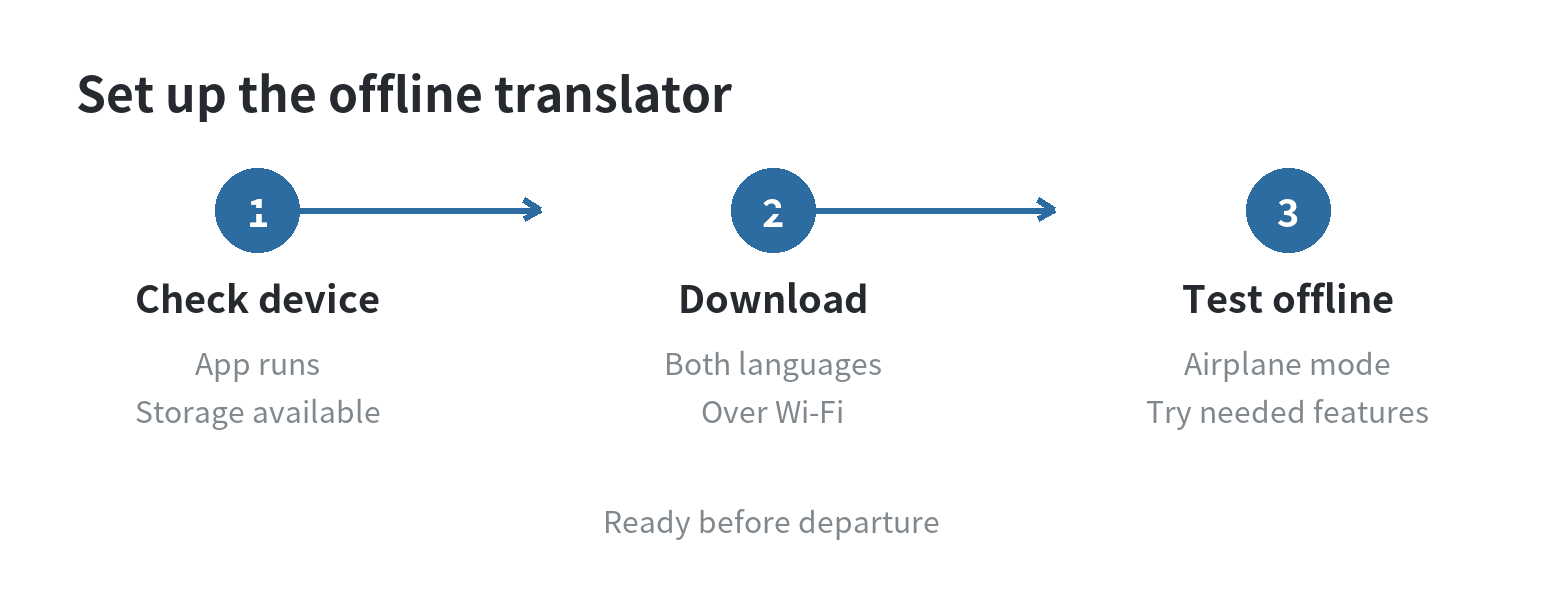
Start with the basics: the phone must turn on reliably, hold a charge, connect to Wi-Fi, and have enough free storage for the app and its downloaded language files. An older device with a weak battery may still work as a translator, but plan how you will keep it charged during a day out.
Update the operating system and the translation app while the phone has internet access. If the app store no longer offers an update compatible with the device, use the version already installed only if its offline options are visible and testable. Do not assume that a language offered on a newer phone is also downloadable on an older one.
Remove unused downloads, videos, and duplicate photos if storage is tight. Keep the space you need for offline maps, tickets, or travel documents in mind too. Translation files use device storage, and the exact size depends on the language and app; check the download prompt rather than budgeting around a guessed number.
Choose one app and confirm the language pair
Pick the app that supports both the language you will enter and the language you need to read or hear. Google Translate’s help page says a language that cannot be downloaded is marked as unavailable offline. Apple’s iPhone Translate settings let you download languages for on-device or offline translation. Check the actual language list on the old phone: support can vary by language and feature.
For a trip from English to Japanese, for example, confirm English and Japanese are available for offline use in the app. If you expect to switch directions, verify that both languages are downloaded. An offline pack is not the same as an online connection; it provides only the app’s supported on-device translation functions.
Download both sides while connected to Wi-Fi
On Android, Google’s instructions are to open Translate, choose a language, and tap its download control. Google recommends Wi-Fi for the download and indicates when a language is not available offline. Return to the language list afterward and check that each intended language is marked as downloaded.
On iPhone, Apple’s current instructions place language downloads under Settings, Apps, Translate, Languages. Download the languages you plan to use. In Translate settings, On-Device Translation can be set to Automatic or Always; Apple says Automatic uses the device when the languages are downloaded, while Always keeps translation on the device using downloaded languages.
Menu wording may differ with the operating system version and app release. Follow the labels shown on your phone and verify the resulting downloaded-language list. If a pack is missing, try again over Wi-Fi before travel and check available storage. Avoid deleting the app or resetting the phone after setup unless you are prepared to download and test the language files again.
Test offline behavior before you pack
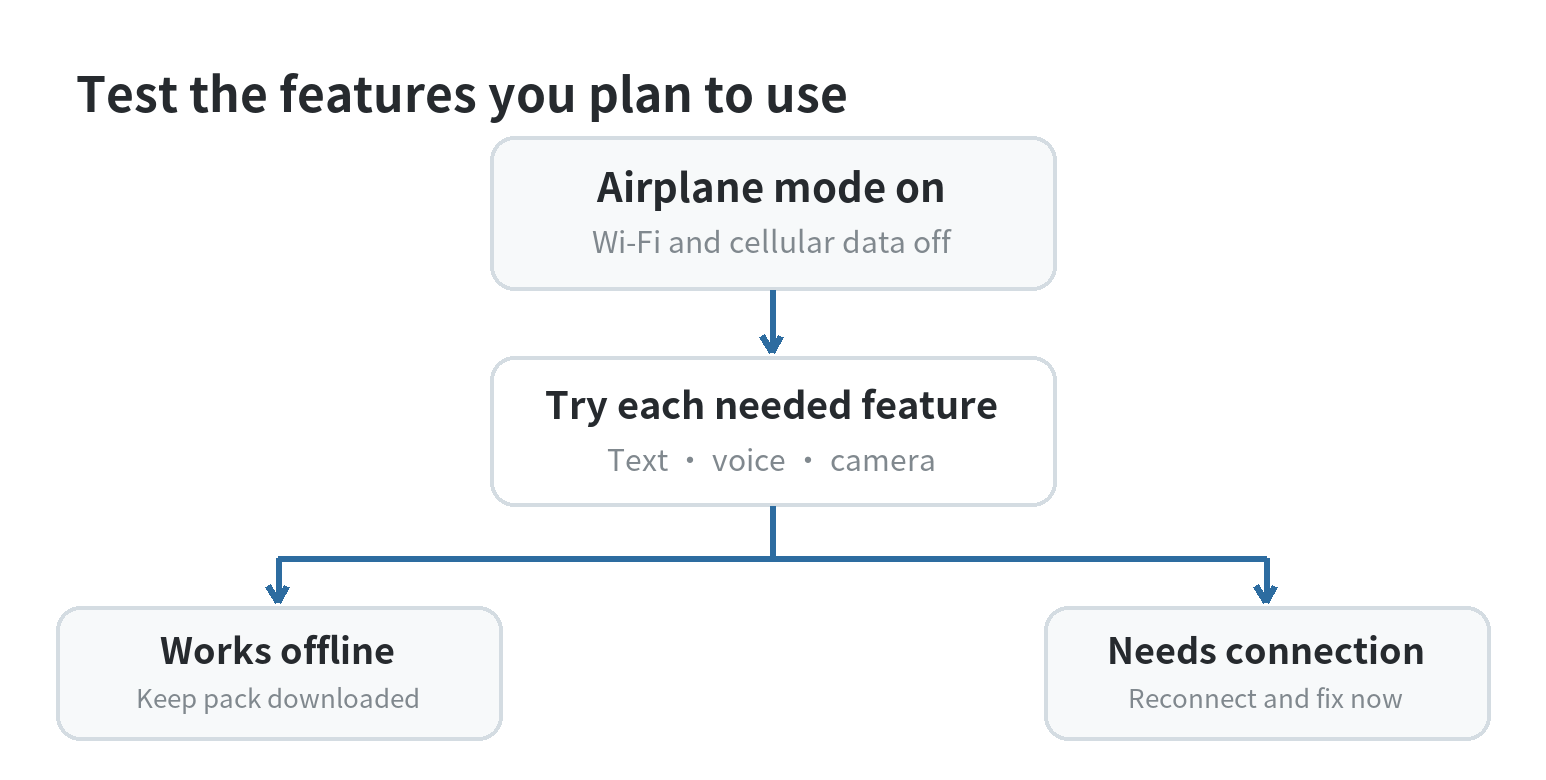
Turn on airplane mode, then make sure Wi-Fi and cellular data remain off. Open the translator and enter a short phrase in each direction. If your intended use includes spoken input or audio playback, test those functions separately; text translation working offline does not prove every voice feature will.
Try a phrase with a place name, a food preference, and a simple question you expect to ask. Listen to the audio if you plan to show or play translations to another person. The goal is to learn where the offline controls are and confirm that the phone can reach the feature you need without a connection.
If the app reports that a language is unavailable, or asks to connect before translating, reconnect to Wi-Fi and revisit its downloaded-language settings. If the problem remains, choose another supported language pair or keep a different communication method ready. Do not count on installing a missing pack after departure.
Make the old phone easy to use on the move
Keep the translator accessible without turning the old phone into your only travel device. Charge it fully before leaving, bring a suitable charging cable, and consider a power bank if the battery drains quickly. Store the phone somewhere you can reach without exposing it unnecessarily in a crowded area.
Save a small set of typed phrases in the app’s favorites or in an offline note: your lodging address, a request to write something down, and a sentence asking someone to repeat or slow down. Keep private details such as room access codes out of a shared screen. A large on-screen translation can be easier to show than trying to pronounce an unfamiliar sentence.
Check that screen brightness is usable outdoors and that the phone is not set to shut down the app aggressively to save power. If the device has a case that blocks the microphone or makes buttons hard to reach, adjust it before traveling. These small checks reduce fumbling when you need to look up a phrase quickly.
Know when to switch to another communication method
Machine translation can miss context, tone, names, and specialized wording. Apple’s Translate guidance notes that offline translations may not be as accurate as online translations. For anything important, keep the message short, use plain words, and ask the other person to confirm the meaning in their own words or in writing.
Do not rely on a translation app as the only channel for an urgent or high-consequence conversation. Ask for a qualified interpreter or another appropriate source of help when precision matters. For routine travel questions, pointing to a map, displaying a written address, or using a universally understood sign can support the conversation without depending on a long translated sentence.
Before departure, leave the phone in airplane mode for a final check. Confirm the intended languages are still listed as downloaded, test the type of translation you plan to use, and charge the device. Once it passes that check, the old phone can stay focused on one job: providing offline translation when your primary phone is busy, disconnected, or being kept safely put away.
Frequently asked questions
Do I need to download both languages?
Yes. Google’s offline translation instructions say to download both languages in a pair. Apple’s iPhone guidance likewise requires the input and output languages for offline translation.
Can the old phone translate without a SIM card?
A SIM is not required for an already downloaded language pack to work offline. The phone still needs Wi-Fi or another internet connection when you initially download the app and language files.
Will the camera work offline?
It depends on the app, language, and device. Google says some downloaded languages may be used with the camera, while Apple documents camera translation separately from its language download settings. Test camera translation with the phone offline if you need it, and keep typed text as a fallback.
Can I use it for every kind of conversation?
No translation app guarantees a correct interpretation of every phrase. Keep wording simple and use another communication method when a misunderstanding could matter.