An old phone can become a dependable lecture or meeting recorder if you set it up as a single-purpose device, test the recording app, and make a backup routine before the event. Keep it charged, give its microphone a clear path to the speaker, and check your local rules and get consent before recording.
Make the phone a recorder before you leave home
Start with a phone that still powers on, holds a charge, and can save and play audio. Remove old recordings, downloads, and apps you no longer need so the device has room for new files. Keep the charging cable with the phone. Apple says an iPhone battery holds less charge as it chemically ages; that battery guidance was checked October 11, 2026.
Give the device one obvious job. Put the recorder app on the home screen, silence alerts, and remove the SIM if you no longer use the phone for calls. A SIM is not required to save a local voice memo, but test the app with Wi-Fi off before relying on it. Keep the phone disconnected during the session if you want to control when files are transferred.
Do not assume that airplane mode, a dark screen, or a disconnected account guarantees that recording will continue. Phone models and apps behave differently. Test the specific setup you plan to use, including its screen lock, power settings, storage, and connection state.
Choose the recorder already on the phone
Use the built-in voice recorder first. Fewer moving parts make it easier to prepare the phone and find the audio afterward. On iPhone, Apple’s iPhone User Guide says Voice Memos can start, pause, resume, and save a recording; it also describes exporting a recording to Files. Apple’s instructions were checked October 11, 2026.
On a supported Pixel, Google’s Pixel Phone Help says Recorder can record while the screen is asleep, show a recording notification, and save a named recording. The same page says Recorder is available on Pixel 3 and later phones and allows up to 18 hours in one recording. Google’s instructions were checked October 11, 2026. If your Android phone is not a Pixel, use its installed recorder or a trusted app already on the device, then verify its offline and screen-lock behavior yourself.
For a dedicated recorder, you do not need automatic transcription, cloud sharing, or editing tools. A clear audio file that opens and plays is enough. If the app offers recording quality choices, pick one setting, make a sample, and keep that setting so your process stays familiar.
Run a short test before the real session
Use a nearby voice at normal speaking volume. Start a sample, lock the screen, wait briefly, stop, and play it back through the phone speaker or headphones. Listen for a cut-off start, muffled sound, handling noise, or a silent file. A timer or recording indicator helps confirm that the app is still active, but playback is the check that tells you usable audio was saved.
Repeat the test from the place where you expect to sit. A phone that sounds clear on a quiet desk may pick up a different balance of voices in a classroom. If the test is too quiet, move the phone closer to the speaker or choose a place with fewer obstacles between the microphone and the speaker. Avoid covering the phone with papers, putting it inside a bag, or resting it against a vibrating object.
Try the test with the screen locked and with the network setting you plan to use. If an incoming alert, another app, or a power-saving setting interrupts the sample, change the setup and test again. Keep the recorder open and avoid switching to apps that play audio while recording.
Place the phone where speech reaches its microphone
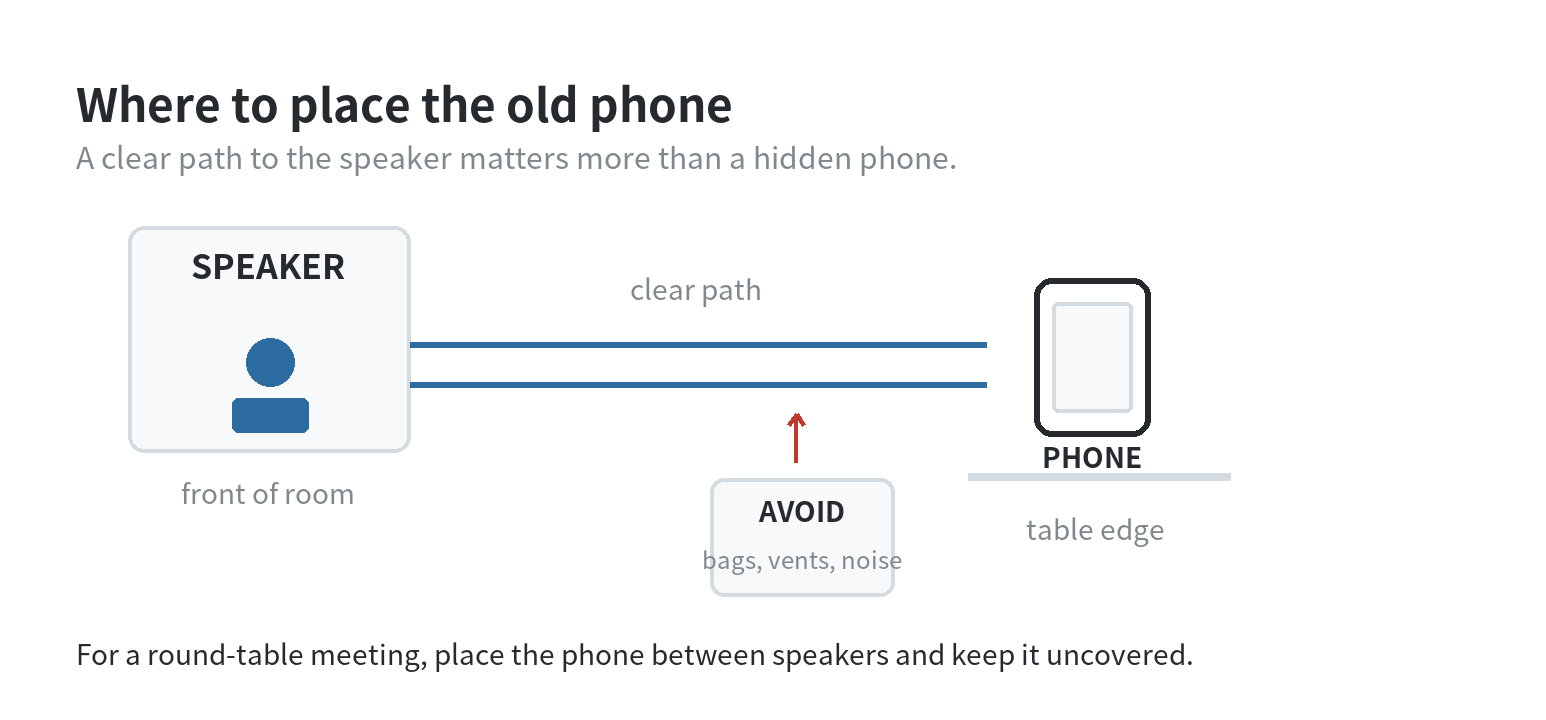
For a lecture, place the phone on a stable surface with its microphone unobstructed and pointed toward the speaker’s area. If you sit far from the front, ask whether you can place it closer before class begins. Do not leave it in a hidden spot where clothing, a notebook, or a table edge blocks the microphone.
For a meeting around a table, place the phone near the middle or near the people who speak most, depending on the room layout. Move it away from a laptop fan, a water bottle being handled, a keyboard, or a vent. If speakers sit far apart, test the position from the far seat too. A quick sample can show whether a location favors one voice and loses another.
Tell participants that you want to record and get consent before starting. Recording-consent requirements vary with location and setting. The U.S. Code, state statutes, and the Texas State Law Library’s recording guide cover recording rules at different levels; those sources were checked October 11, 2026. Check your local rules and get consent.
Plan for power, storage, and a usable file
Charge the phone before the session and bring its cable or a charged battery pack if power is available. Close unrelated apps and turn off sounds that could interrupt the recording. Keep the phone on a stable surface rather than holding it; touching or moving the case can add noise to the audio.
Check available storage before a long event. Delete only files you have already copied and confirmed. If space is tight, export older recordings first rather than starting a session with almost no room. Do not guess how much space a particular app will need: record a sample, check its file size, and compare that with the available storage.
Name each file with a consistent pattern such as “Course name – topic – date” or “Team meeting – project – date.” Add a short note after the session if the title alone will not help you find it later. Keep names descriptive but avoid putting sensitive details in a filename that may appear in a shared folder.
Apple’s iPhone User Guide says Voice Memos recordings can be exported to Files and are normally exported as M4A audio files. Google’s Pixel Phone Help explains that recordings stay on the phone unless you turn on backup, share them, or copy them elsewhere. Both sets of instructions were checked October 11, 2026. After a session, open the exported or copied file and play it before deleting the original. If you use cloud storage, review the sharing setting so a private recording does not become accessible through a public link.
Use a simple routine at every lecture or meeting
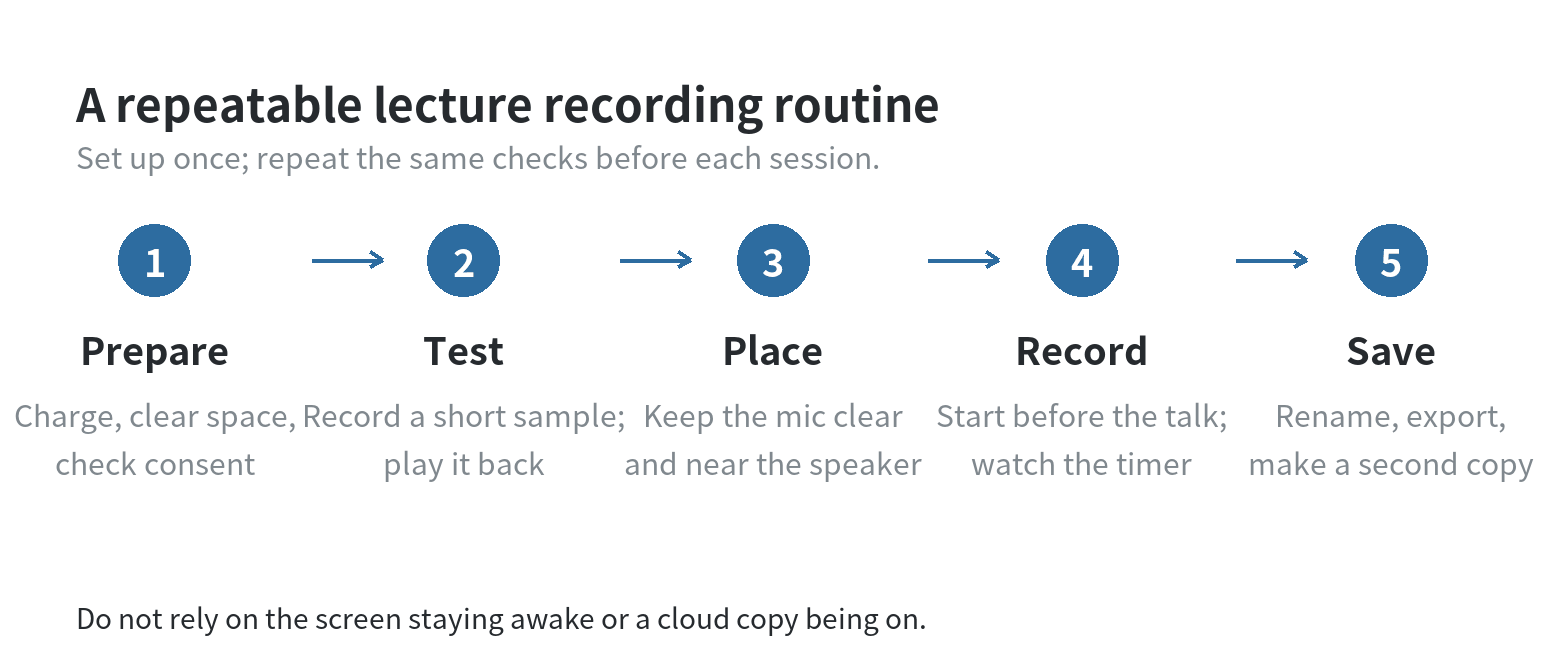
Before the event, charge the phone, confirm storage, open the recorder, and ask for consent. Make a short test if the location or setup has changed. At the start, place the phone, begin recording, and check the timer or indicator. At the end, stop and save the file, rename it, and make a second copy when the recording matters.
Do not rely on an old phone as the only copy of an important lecture or meeting. A worn battery, an app interruption, or a full storage drive can leave you with an incomplete file. A backup you have actually opened and played is more useful than an automatic sync setting you have never checked. For other single-purpose setups, see our guides to using an old phone as a backup device and using one as a dedicated camera.
FAQ
Can an old phone record without a SIM card?
Yes, a SIM card is not needed for an audio file saved on the phone. Confirm that your chosen recorder works offline by making and playing a test recording before relying on it.
Will recording continue if the screen turns off?
It depends on the phone and recording app. Google says Pixel Recorder continues while the screen sleeps; test other phone and app combinations with a locked-screen sample.
How should I share a lecture recording with classmates?
Use a private file share with the instructor’s or group’s permission, and check who can open the link before sending it. Remove access when the class no longer needs the file.
Last updated: 2026-10