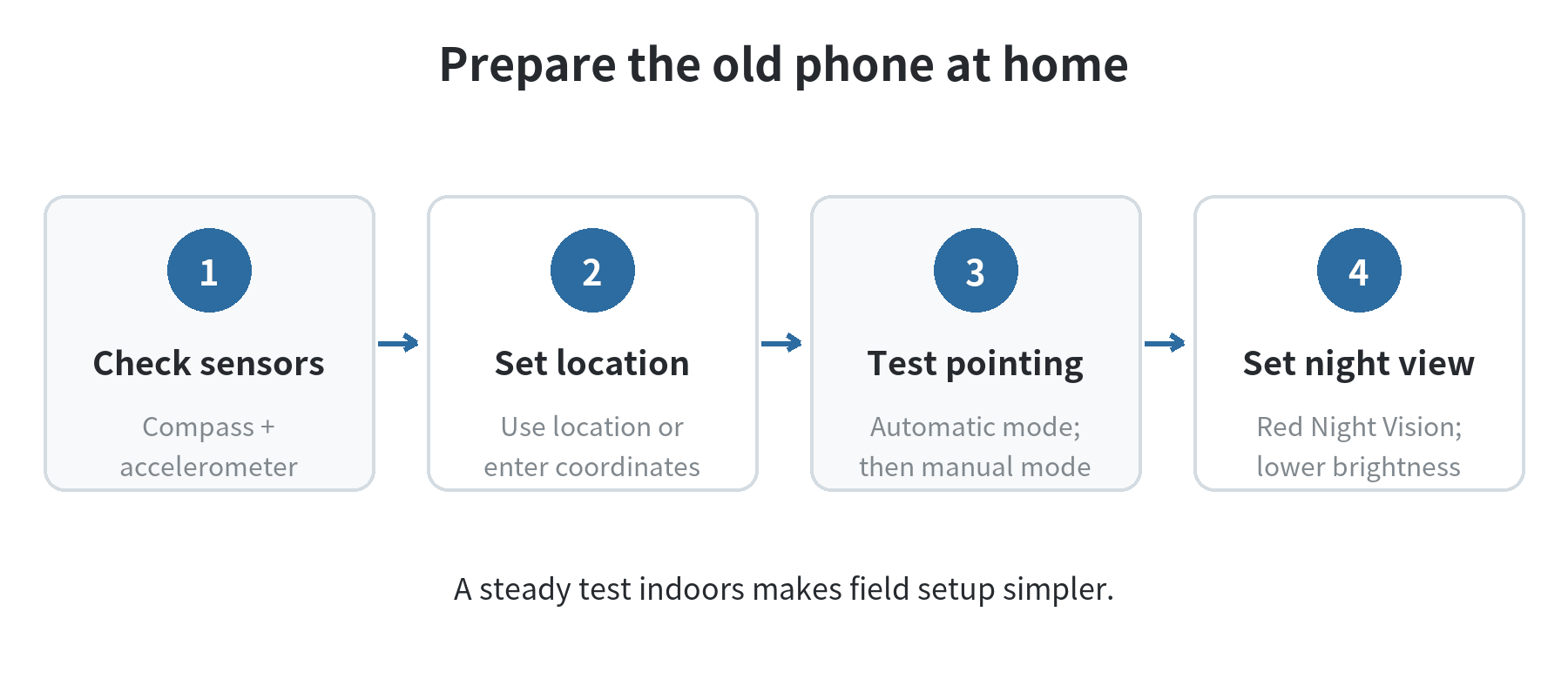
An old Android phone can work as a handheld stargazing sky map if it still runs the app and has the sensors needed to point the map at the sky. Set it up at home: install Sky Map, confirm its compass and motion sensors work, set your location, then turn on Night Vision before you go outside.
Sky Map’s help guide says the app uses a compass, accelerometer, and gyroscope to follow the direction you point. A gyroscope is helpful, but the guide lists a magnetic field sensor (compass) and accelerometer as the minimum for sensor-based pointing. Without them, you can still explore the map manually.
Check the phone before planning a night out
Start with the basics: the phone should power on reliably, hold a charge long enough for the outing, and run a current compatible version of the app. Sky Map’s official help page notes that not every phone can run it. Its diagnostics screen can show whether the needed sensors are available.
Open Sky Map indoors and tap the screen to reveal its controls. Look for the diagnostics option in the overflow menu, then check for compass and accelerometer readings. Android’s developer documentation explains that device orientation is determined from the accelerometer together with the geomagnetic field sensor. A gyroscope can make movement smoother, but it is not listed as the minimum requirement.
If a sensor is missing, the app can fall back to manual mode. That still lets you drag the map, zoom, and rotate it with gestures, but the map cannot automatically follow the direction the phone faces. This can be enough for previewing a constellation indoors or checking a chart while seated.
Set the location and try both map modes
Allow location access if you want Sky Map to use the phone’s location services. The app’s help guide says it needs an approximate location to draw the right sky. If you decline access, you can enter a place name, which needs an internet connection to look up, or enter latitude and longitude directly. The latter option does not need internet access.
Test Automatic Mode by moving the phone slowly and watching whether the map follows. Switch to Manual Mode with the sensor or compass control to pan around without pointing the handset. Search for a familiar object, such as the Moon or a bright planet, and use the app’s direction cue as a starting point. Sky Map describes the view as a geometric, unobstructed horizon, so a building, tree line, or hill can still block an object that appears above the app’s horizon line.
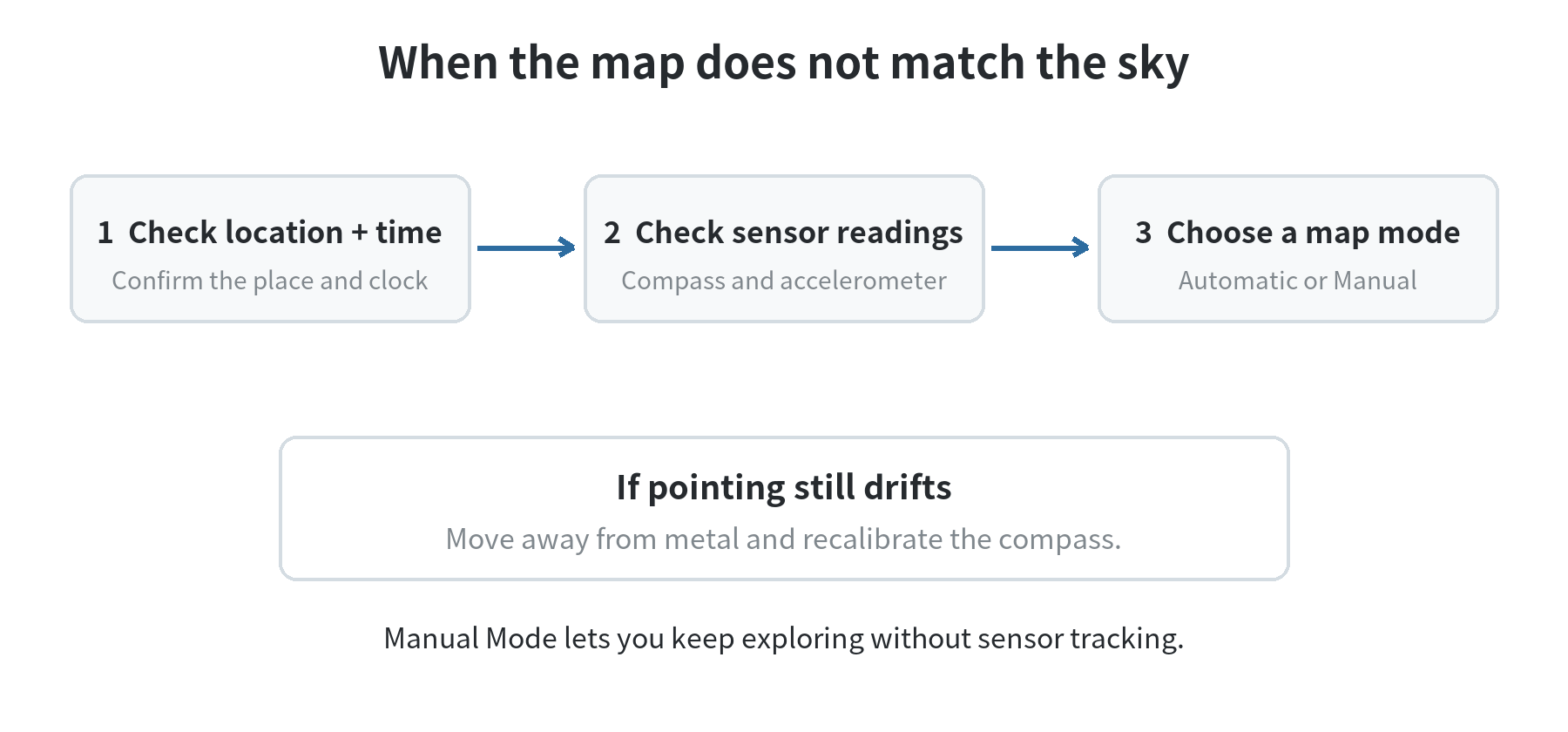
Try this test before the observing session rather than while standing in the dark. If the map drifts or points the wrong way, Sky Map recommends checking its diagnostics for location, time, and sensor status. The developers also suggest moving away from metal objects and calibrating the compass with a slow figure-eight motion. A case or nearby metal can affect the compass reading.
Turn on the red night display before you go outside
In Sky Map, tap the eye-shaped Night Vision control on the action bar. The app’s help guide says this switches the screen to deep red tones, dims it, and reduces button backlights. The Screen Dimming option under Settings → Appearance provides another brightness adjustment. Turn the Night Vision control again to return to the normal display.
Set this up before you arrive, then lower the phone’s brightness to the least level at which you can still read the map. NASA’s Night Sky Network recommends red lights for observing because bright white light can temporarily reduce night vision. Keep the screen pointed down or covered when you are not checking it; the red setting does not make every screen element invisible to people nearby.
If the app’s controls look different on your older version, open its help section and search for Night Vision. Avoid relying on a system-wide color filter as the only plan: it may tint the screen but leave bright interface elements or navigation controls unchanged. Check the whole display in a dark room before heading out.
Make the phone useful without a data connection
Sky Map can use location services, but its help guide also allows manual coordinates without an internet connection. Set the location while connected if you want the app to look up a place name, then test the exact configuration you plan to use. Do not assume a saved map, a location lookup, or another app’s offline behavior will work the same way.
Turn on airplane mode at home as a simple check if you plan to observe where reception is weak. Reopen the map, confirm it has the right location and time, and see whether the screen still follows your movement. If you need to correct the location in the field, latitude and longitude entry is the option Sky Map documents for offline use.
Keep a paper note with the observing location’s coordinates and a small power bank if the old battery is uncertain. These are practical backups, not requirements of the app. If the phone has a removable SIM, leaving it out is optional; Sky Map’s official app listing says location can be refused and a place or coordinates entered manually. For another dedicated-use setup, see the site’s guide to using an old phone as an alarm clock or its old-phone e-reader setup.
Read the map without letting it replace the sky
Use the app to identify a direction or label, then lower the phone and look at the sky directly. The display gives you a map based on the phone’s location, time, and orientation; it does not show whether an object is hidden behind a roof or tree. If the map and what you see do not line up, check the location and time first, then the compass reading.
A loose or inconsistent heading is a reason to switch temporarily to Manual Mode, not to keep waving the phone around. You can orient the map using the cardinal directions and compare a named bright object with the open sky. Sky Map’s help page lists the horizon and cardinal direction labels as display layers, so turn those on if they make the chart easier to interpret.
What to pack for a simple observing session
Charge the phone before leaving, set its screen timeout long enough to read the map, and bring a charging cable if you expect to use the display repeatedly. Keep the brightness low and Night Vision ready. A small red flashlight can help you handle other gear without lighting the area with the phone screen.
Before walking to a viewing spot, close the app or lock the screen and use a separate light to watch the ground. Put the phone somewhere easy to reach, but secure it against drops. Once you are settled, open the map, confirm its location, and use Automatic Mode only when the compass response looks steady. Manual Mode remains available when the phone is missing a sensor or the heading is unreliable.
The useful setup is the one you can operate in the dark: a location the app can use, a map mode that matches the phone’s sensors, a dim red display, and a backup way to check directions. Test those pieces together at home so the old phone is ready to help you look up, rather than becoming another bright screen to troubleshoot outdoors.
FAQ
Can I use Sky Map to preview a past night’s sky?
Yes. Sky Map’s Time Travel feature lets you choose a past date and time, then view the corresponding sky map. Use it to get familiar with where a constellation or planet appeared before an observing session.
Can I attach the old phone to a telescope?
Yes, if the phone can run Sky Map and its sensors are working. Sky Map’s help guide describes Pointer Mode under Settings → Sensor Settings; it follows the phone’s long edge, which can be useful when the handset is mounted beside a telescope tube.
Can I make the sky map labels larger on an older phone?
Yes. Sky Map’s help guide says label font size can be adjusted under Settings → Appearance. Try the setting at home so the labels remain readable without raising screen brightness outdoors.