An old phone can work as a dedicated e-reader if it can run a reading app, connect long enough to download your books, and hold a charge through a reading session. Install the app for the library you already use, save books for offline access, and simplify the screen. Google Play Books Help, checked September 2026, confirms offline reading for downloaded titles. For Kindle, download a book while online and verify it opens before leaving Wi-Fi. A SIM card is not needed for books already stored locally; use Wi-Fi for setup, sign-in, syncing, and new downloads.
Check the phone before setting it up
Start with the basics: power it on, unlock it, test the touchscreen, and connect to Wi-Fi. Open the device’s app store and search for the reader you plan to use. If the store says the app is incompatible, check the reader’s official system requirements against the phone’s operating-system version, or use the phone’s built-in file viewer for local PDFs.
Check free storage before saving a library. Keep the titles you plan to read on this phone and remove finished downloads inside the reader app. Google Play Books Help documents a Remove download control, so you can clear a saved copy while keeping the book in your library (checked September 2026).
Make sure the phone can stay powered for a reading session. A worn battery may need a nearby outlet. Keep the charging port free of strain and place the phone where its cable will not pull it off a stand. Try the phone in the place where you plan to read so you can check that the screen and charging position work together.
Use the app that matches your library
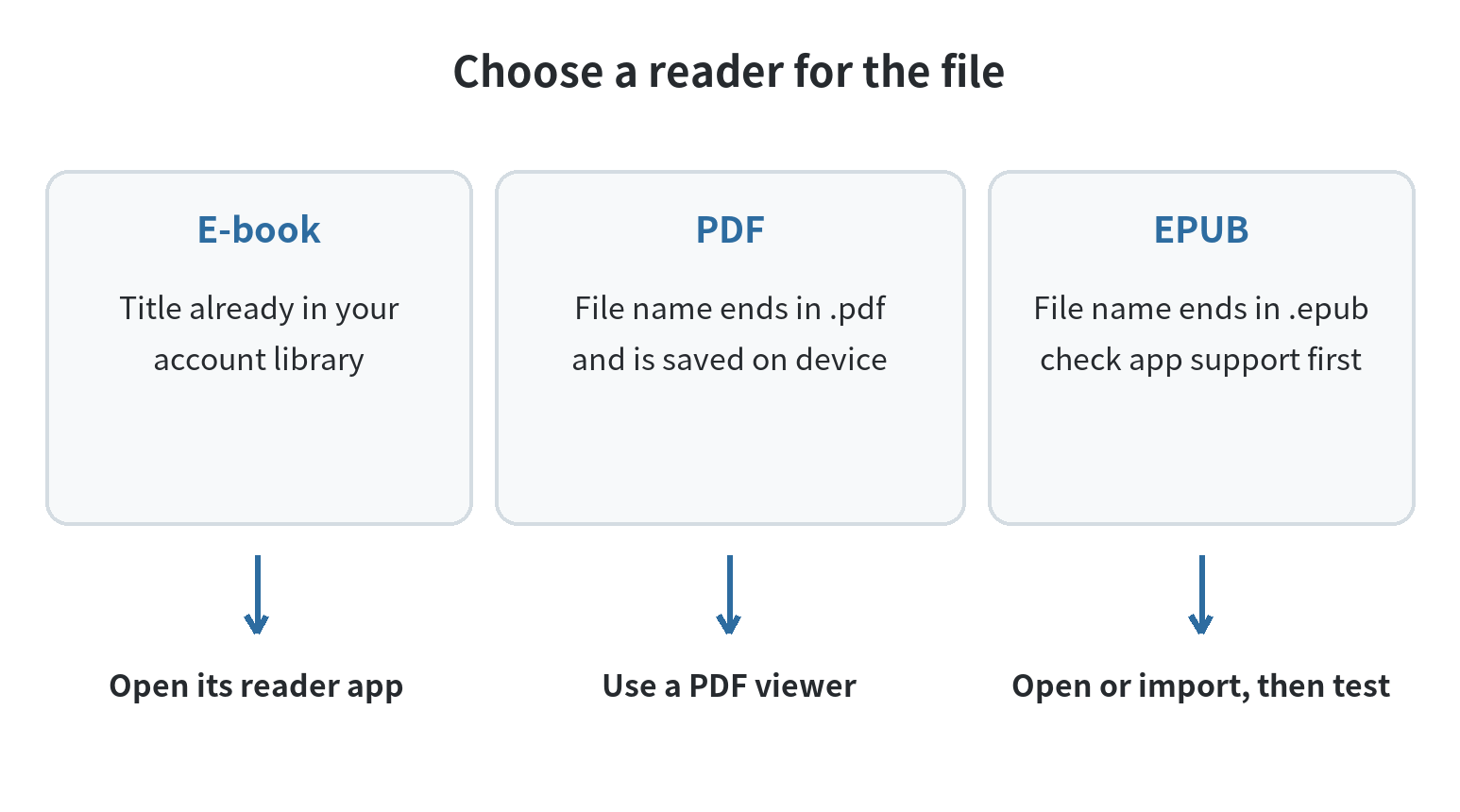
Use the reading app connected to the books you already own or borrow. Kindle’s help instructions, checked September 2026, say to open the app, go to Library, and tap a book cover; a progress bar appears during the download, and the book opens when it is complete. Kobo Books documentation says an unsaved title begins downloading when you tap it, then you tap it again to read. Google Play Books Help describes a Library-to-Download flow and a Downloaded mark for a saved book.
Sign in with the account that contains the title; a book in one service’s library does not automatically appear in another app. Before going offline, open the reader’s library and download each title you want to take with you. Wait for each download indicator to finish, then open the title once while the phone is still connected.
Kobo’s Android sync instructions, checked September 2026, say to connect to the internet before syncing. Google Play Books Help provides a Wi-Fi-only download setting under Profile, Play Books Settings, then Uploads & downloads. Use Wi-Fi at home to prepare books, and leave the Wi-Fi-only option on if you want downloads to wait for a wireless connection.
Choose a separate reader for PDFs
Open a PDF saved on the phone with a PDF viewer instead of looking for it in a book library. If tapping the file opens a different app, use the phone’s Share or Open with control and select the viewer you prefer. For a document stored online, download it from the service where you keep it before leaving Wi-Fi; a file that is only listed in cloud storage is not yet a local copy.
Google Play Books Help, checked September 2026, says PDF and EPUB files can be uploaded to its library. If you want a personal document beside books in the same library, check the app’s import instructions and try one file while online. If a file is protected or refuses to import, open it in the app or service that supplied it; file support and account restrictions can differ.
Download first, then test offline
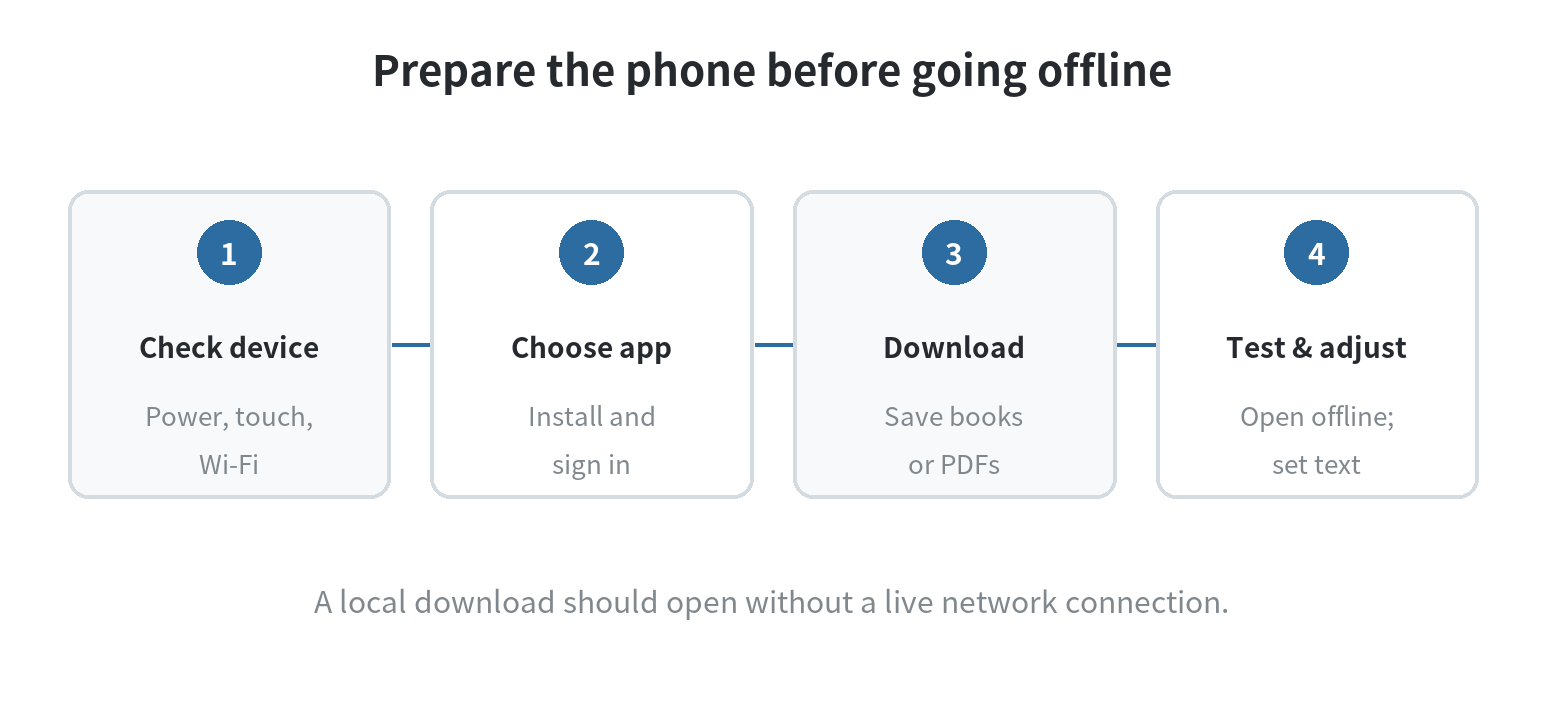
Connect to Wi-Fi, sign in, and download the titles you need. Kindle uses the book cover in Library; Kobo Books starts the download when you open an unsaved title; Google Play Books has a Download control beside a library book. Wait until the download has finished before leaving the network, then check that the title appears as saved in the app.
Then switch off Wi-Fi briefly and reopen one downloaded title. This check shows whether the app has a local copy instead of only displaying the account library. Turn Wi-Fi back on after the check if you want the phone to sync notes or update its library.
Open each PDF once before leaving Wi-Fi. Find the document in the phone’s file list and check that the viewer can display it. If the PDF is stored online, save it to the device first and reopen the local copy. This short check helps catch a missing download before you are away from a connection.
Make the screen comfortable to read
Set brightness for the room, then adjust text size, margins, and page color inside the reading app. Kindle’s official app information, checked September 2026, lists text size, font, layout, margins, and background color as adjustable options. For a PDF, zoom in or turn the phone sideways if the page is hard to read at its original size. Try those adjustments on a sample page before deciding whether the document works well on the small display.
System display controls are separate from app settings. Apple Support, checked September 2026, documents Night Shift under Settings, Display & Brightness, then Night Shift; it shifts display colors warmer and can be scheduled. Google Pixel Help, checked September 2026, puts Night Light under Settings, Display & touch, then Night Light. Android menu names differ by manufacturer, and older versions may not offer the same controls.
Dark Mode or a warmer color setting is a preference, not a requirement. Try the options with a page of text and keep the combination that is easiest for you to read in that room. If white backgrounds feel too bright at night, lower brightness or use the app’s page color control; if a scanned PDF looks dim, increase brightness or zoom rather than changing every system color filter.
Keep the dedicated setup simple
Move the reader app to the home screen and remove shortcuts you do not need from the first screen. Turn off nonessential notifications if they interrupt reading, but leave account and download access available until you have checked the books you need. There is no need to erase the phone or add a phone plan just to read files stored on it.
Expect limits from the device, not only the app. A small display shows less of a PDF page at once, limited storage caps the number of books saved, and limited battery runtime may require charging during a reading session. If the phone loses Wi-Fi, you can still open content already downloaded, but account syncing and new downloads must wait for a connection. See our guides to using an old phone as a smart-home control panel and setting one up for retro games for other ways to reuse a spare phone.
Last updated: 2026-09
FAQ
Can I use an old phone as an e-reader without a SIM card?
Yes. A SIM is not required to open books already downloaded to the phone. Use Wi-Fi for app installation, account sign-in, syncing, and any new downloads.
Why will a reading app not install on my old phone?
The app may no longer support the phone’s operating-system version. Check the app store’s compatibility message and the app maker’s current system requirements; use a built-in PDF viewer for local PDF files if the book app is unavailable.
Can I move a PDF into Kindle or Kobo Books?
It depends on the file and the app’s supported import options. For a PDF that will not import, open it directly in a PDF viewer instead of converting or renaming the file.