An old phone can become a focused retro gaming console if it still powers on, can install the game software you plan to use, and has enough battery for a play session. Start by clearing personal data, set it up on Wi-Fi, add only the apps and game files you are allowed to use, then test one game before adding anything else. A SIM card is optional for this job.
Decide whether the phone is worth setting up
Turn the phone on, connect it to power, and open its settings. Check that the touchscreen responds, the charge port works, and Wi-Fi can connect. If it cannot stay on long enough to finish setup, it will be frustrating as a dedicated console. A device with a working screen and reliable Wi-Fi may be enough for a touch-control setup; a controller is an optional upgrade.
Use the phone’s current system version and its official app store as the compatibility check. Search for the software you want to use and read the device requirements shown on that phone. Google says Play Protect certification is one compatibility check for older Android phones; check the app’s requirements and available storage as well. Google’s supported-device guidance explains where to find the model and build number when you need to identify it.
Clear the old phone before making it a single-purpose device
Back up photos, messages, and anything else you want to keep before erasing the phone. On Android, a factory reset removes the data on the device and uninstalls apps; Google also says you need the account credentials already associated with the phone and a network connection to sign in after the reset. Follow Google’s factory-reset instructions rather than guessing at a manufacturer-specific menu.
On an iPhone, sign out of the Apple Account and use Erase All Content and Settings. Apple says that erasing the device removes its content and turns off Find My and Activation Lock. Use Apple’s current erase guide instead of an old screenshot so the steps match the phone in front of you.
Set up a lean gaming home screen
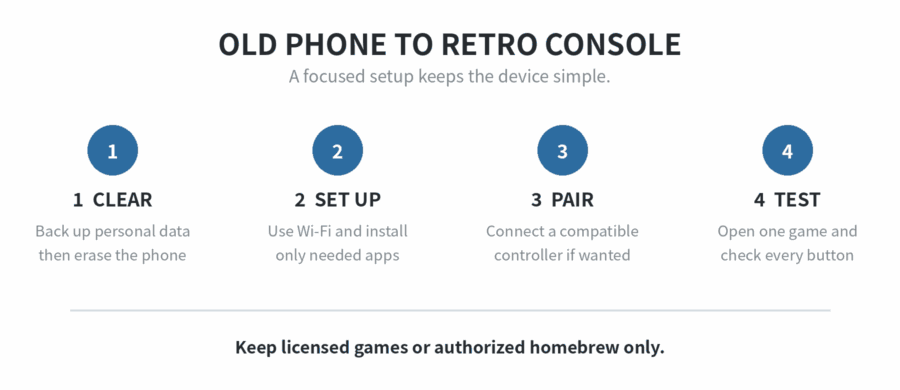
During setup, connect to Wi-Fi, install system updates offered for that device, and add only the game app or emulator you intend to use. Keep the home screen simple: one folder for games, one shortcut for settings, and no work, banking, or social apps. This makes the old phone feel like a console instead of a second copy of your main phone.
Give the device a screen lock if it will leave your home. Then turn off alerts that do not help gaming. If you want offline play, download authorized content while connected, switch Wi-Fi off, and launch one game. That test separates a true offline setup from one that only looked ready while it still had a connection.
Build a small first library instead of filling the phone immediately. Add a game, open it, make sure its controls work, close it, and open it again. Then add the next title. This gives you a clear point to troubleshoot if the phone slows down or storage becomes tight. Keep any files you are allowed to use in a single, plainly named folder so you can recognize what belongs to the console later.
Make the screen easy to read from where you play. Put the games you actually use on the first home-screen page, increase text size if the labels are hard to see, and choose a screen timeout long enough for a brief pause. Pause a game, let the display time out, then wake the phone and check whether the game resumes as you expect. Do not remove the settings shortcut: it is the fast way to reconnect Wi-Fi, check Bluetooth, or adjust brightness when the setup changes.
Choose touch controls or a physical controller
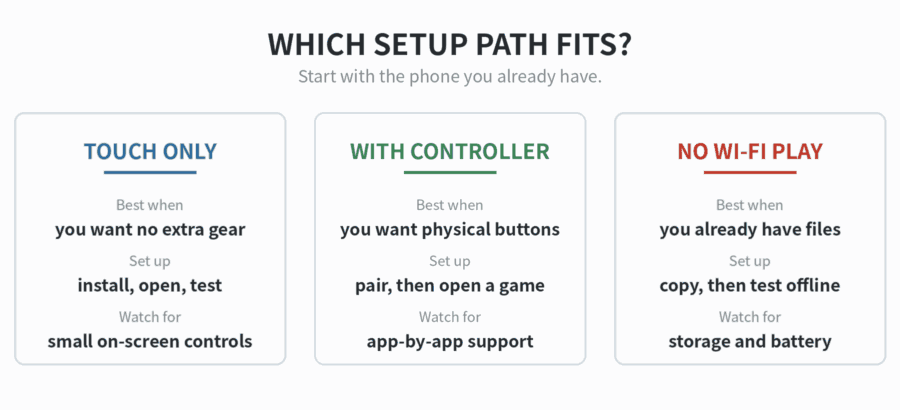
Start with touch controls when you want the fastest setup. They require no extra hardware, and they show immediately whether the phone can run the app smoothly. Use a game with a simple menu first, then check movement, action buttons, sound, and saving.
Use a compatible physical controller when you want buttons you can feel without covering the screen. Apple says an iPhone can connect a compatible controller by Bluetooth or by wire, and its controller settings can customize buttons for supported games. Apple’s controller guide shows the pairing route. Android likewise supports wired or Bluetooth controller connections, with pairing through Connected devices. Google’s Android controller instructions show the current steps.
Pair the controller first, then open the game. A controller connection does not mean every app maps every button the same way. Test the directional controls, primary action buttons, pause, and any menu button inside the game you actually plan to play. If a game does not respond, return to its own settings or use touch controls rather than assuming the phone is broken.
If you play at a desk or television, decide where the phone will rest before you begin. A stable stand keeps the charging port and screen accessible. For a portable setup, keep the controller, cable, and phone together so the console can be picked up as one small kit. Avoid adding adapters or accessories until the basic touch-control or Bluetooth setup has passed its first test.
Keep game files and emulators copyright-compliant
An emulator is not permission to download copyrighted games. Google’s intellectual-property policy says its app platform does not allow apps that infringe copyright or encourage infringement. Read the Google intellectual-property policy before relying on a listing or a file source as proof that content is permitted.
The U.S. Copyright Office’s current regulatory exceptions cover narrow situations involving lawfully acquired games, local gameplay after server access has ended, and preservation activity by eligible libraries, archives, or museums. They are not a general instruction for personal downloads. 37 C.F.R. § 201.40 sets out those limits. For this guide, use homebrew, public-domain titles, official re-releases, or files you have explicit permission to use.
Finish with a short reliability check
Charge the phone, restart it, and launch the same game again. Check whether it opens without Wi-Fi if offline play matters to you, whether the controller reconnects, and whether the phone becomes uncomfortably warm. Keep a charging cable where you play and remove apps you do not use. A dedicated console stays easier to manage when its only job is to play a small, legal library.
For another focused reuse project, see our guide on turning an old smartphone into a dedicated music player. If the phone is headed to a younger player, the separate guide to setting up an old phone as a child’s first phone without a SIM covers a different use case.
FAQ
Can I turn an old phone into a retro gaming console without a SIM card?
Yes. Use Wi-Fi for setup and downloads, then test whether your chosen game works offline before treating the phone as a portable console. Google’s reset guidance says a network connection is needed to sign in after a reset. Read the Android setup requirement.
Do I need a controller for an old-phone retro console?
No. Touch controls are enough to start, while a compatible wired or Bluetooth controller can make physical-button games more comfortable. Both Apple and Android document controller connections, but each game still needs testing. Apple and Google provide the pairing steps.
Can I download any old game after installing an emulator?
No. Use games and files you are authorized to use, such as homebrew, public-domain titles, official re-releases, or content supplied with permission. Google’s app-platform policy prohibits copyright infringement, and the U.S. Copyright Office’s game-related exemptions are limited. Google policy.
Last updated: 2026-09