An old phone can serve as a dedicated authenticator if its software remains secure, the app runs, and you can keep the device charged.
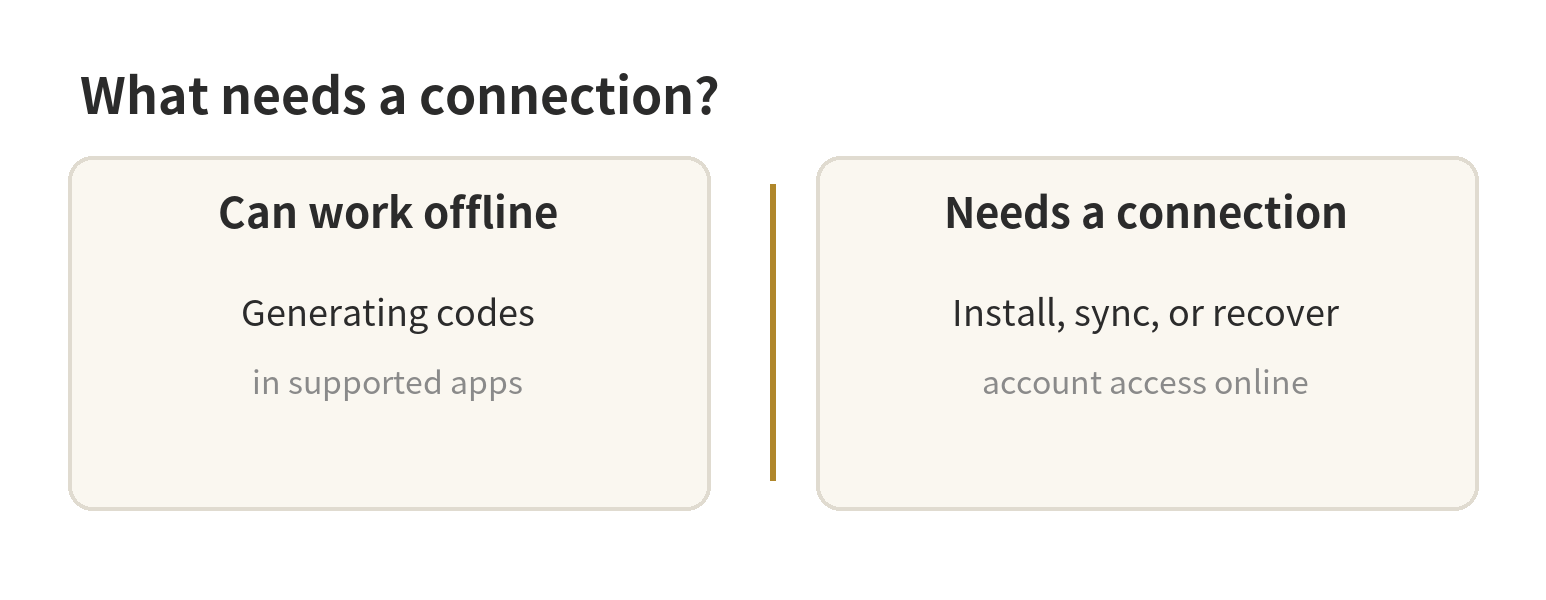
Saved time-based codes work offline; connect for setup, downloads, sync, or online recovery.
You do not need cellular service for every code. Google Account Help (checked September 26, 2026) says Google Authenticator can generate codes
offline.
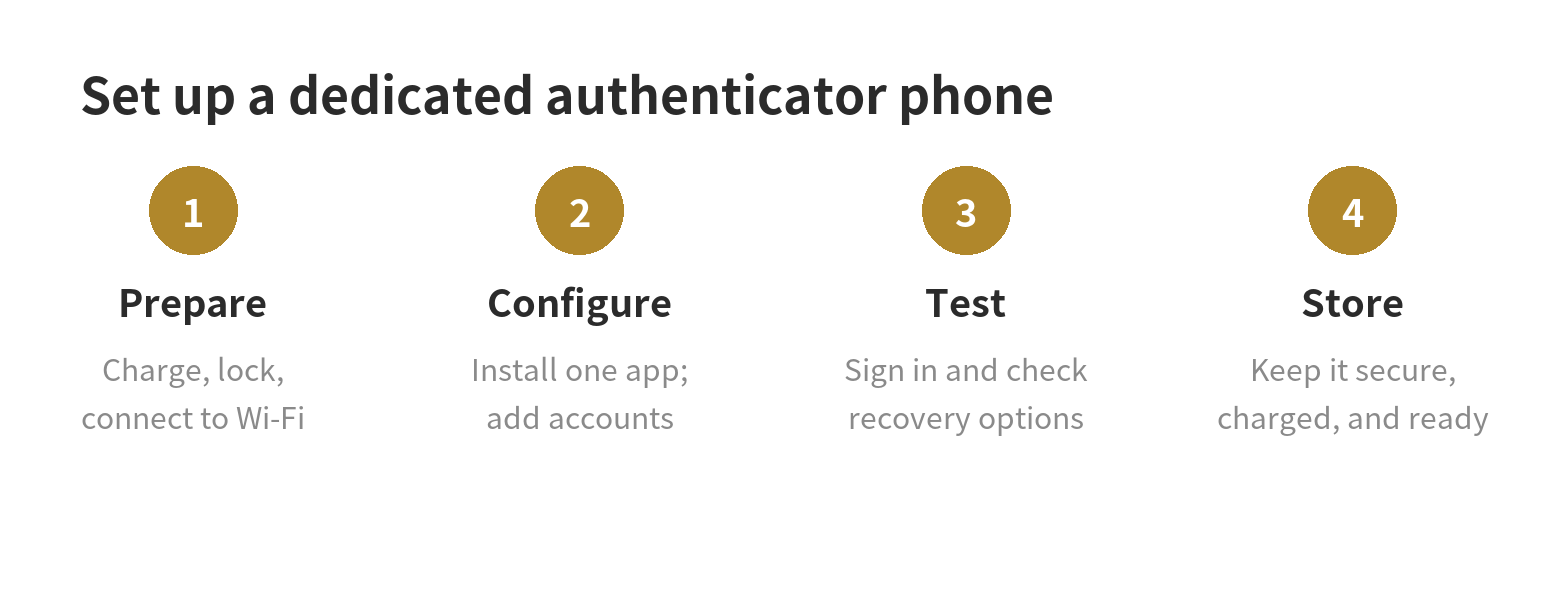
The practical setup is to prepare recovery options first, install one authenticator, move only the accounts you need, test them, and keep the spare
phone protected and charged.
Decide what the spare phone will do
An authenticator app generates time-based sign-in codes.
It holds sensitive account access, so use a screen lock and keep it somewhere you control.
Before moving accounts, check that the phone charges, its screen works, and its operating system can run the app.
Also confirm that the phone still receives security updates from its manufacturer. If support has ended, do not store account codes on it.
If the phone cannot stay powered or run a supported app, choose another device.
A code that you cannot retrieve when signing in is not a useful backup.
Decide whether this device will stay at home or travel with you.
A phone stored at home can generate its saved codes without Wi-Fi. A carried phone needs a plan for charging and physical security.
A SIM is not required for Google Authenticator codes. Use Wi-Fi or mobile data for app downloads, sync, and online recovery.
Prepare recovery before moving codes
Do not begin by removing the authenticator from your main phone.
Sign in to each important account and check its available backup methods first.
Google Account Help (checked September 26, 2026) lists backup codes, Authenticator app verification codes, security keys, and a recovery email as possible
recovery methods.
Save the methods the service offers somewhere you can reach without the old phone.
This matters because authenticator entries do not all move the same way.
Google Account Help (checked September 26, 2026) says Google Authenticator can sync codes when you sign in to a Google Account or transfer them with a
QR code.
Microsoft Support (checked September 26, 2026) says its restore process differs by account type; some work or school accounts require a new sign-in.
Follow the app instructions rather than assuming one phone-wide backup covers everything.
Check whether the app syncs the same code entries to both phones. Syncing copies entries; it does not enroll a device with the account
service.
If a service registers devices individually, add the spare phone in its security settings.
Keep the primary phone available until you confirm the new setup and its recovery methods.
Install and set up the authenticator
First confirm the phone still receives security updates, then set a screen lock and install the authenticator from its official app store.
Use trusted Wi-Fi for downloads or online setup; saved codes generate offline.
Open the app and choose whether to sign in for its supported sync feature or keep codes on the device, if that option is available.
The choice affects how you move codes and what happens if the phone is lost, so read the app’s own explanation before confirming.
Then add accounts through each service’s security settings.
Scan its QR code or enter its setup key, then type the displayed test code into the service.
Google Account Help (checked September 26, 2026) documents QR-code export and import for moving Google Authenticator entries.
Keep setup keys secret; anyone who copies one may generate that account’s codes.
For existing accounts, use the service’s transfer or change-authenticator flow.
With Google Authenticator, Google documents exporting accounts from the old app and importing them by scanning the generated QR code on the new
device.
Keep that QR code private and complete the confirmation step while both devices are present.
If the app offers account sync instead, confirm the expected account is signed in and the entries appear before relying on it.
Test the setup while the main phone still works
Use the new phone to sign in to each account you moved, not just to look at the code list.
Confirm that the account accepts a fresh code and that the entry label makes sense.
If a code fails, check the device’s automatic date and time, select the matching account entry, and verify that the service enrolled this phone.
Google Account Help (checked September 26, 2026) says a device’s time needs to be correct for its local time zone for codes to work.
Also test the backup route without deleting anything.
Confirm you can reach the account’s recovery email, stored backup codes, or another enrolled method.
Google Account Help (checked September 26, 2026) advises adding other verification options to reduce lockout risk.
Once each account works on the old phone and its recovery path is accessible,
decide whether you want the main phone to keep a copy or remove its enrollment through that service’s settings.
Keep its screen lock on and enable the app’s privacy feature if available.
Store backup codes separately; keep the primary phone until sign-in and recovery work.
Keep it ready without making it a weak link
Store the phone securely and check that it still charges and starts.
Connect when needed for downloads or updates, sync, or online recovery.
Saved time-based codes can generate offline. Google Account Help (checked September 26, 2026) confirms code generation without internet or mobile
service.
If the phone is lost, use the account’s backup sign-in method, then remove the missing device or replace its authenticator enrollment.
Google Account Help (checked September 26, 2026) gives different removal steps for synced codes and codes stored only on the device.
For related old-phone projects, see our guides to using an old phone as a digital photo
frame and setting one up as an alarm clock.
They use the same starting check: make sure the device still powers on and does the specific job you need.
FAQ
Can an old phone generate authenticator codes with no SIM card?
Yes. Google says Google Authenticator can generate saved time-based codes without mobile service or an internet connection.
Connect for downloads, sync, or online recovery.
Should I erase my old phone after moving the authenticator?
No, keep it available until you have tested sign-in and confirmed your backup methods.
Erasing it too early can remove the codes or account session you need to finish the change.
What should I do if the old phone is lost?
Use a backup sign-in method, then remove the missing phone’s authenticator enrollment from each affected account.
If you cannot sign in, follow that service’s account-recovery process.
Can I restore every authenticator account from one backup?
No, backup behavior depends on the app and account type.
Microsoft, for example, says its work and school accounts may need a fresh sign-in after restore, so check the app’s restore instructions and retest
each account.
Last updated: 2026-09