Yes—if it still joins your Wi-Fi and can run the smart-home app you already use, an old phone can become a dedicated wall control panel. Put the signed-in app where it is easy to reach, use a charging setup with an undamaged cable and no strain on the connector, and simplify its screen so lights, climate, and scenes are easy to reach.
Check the phone before you mount it
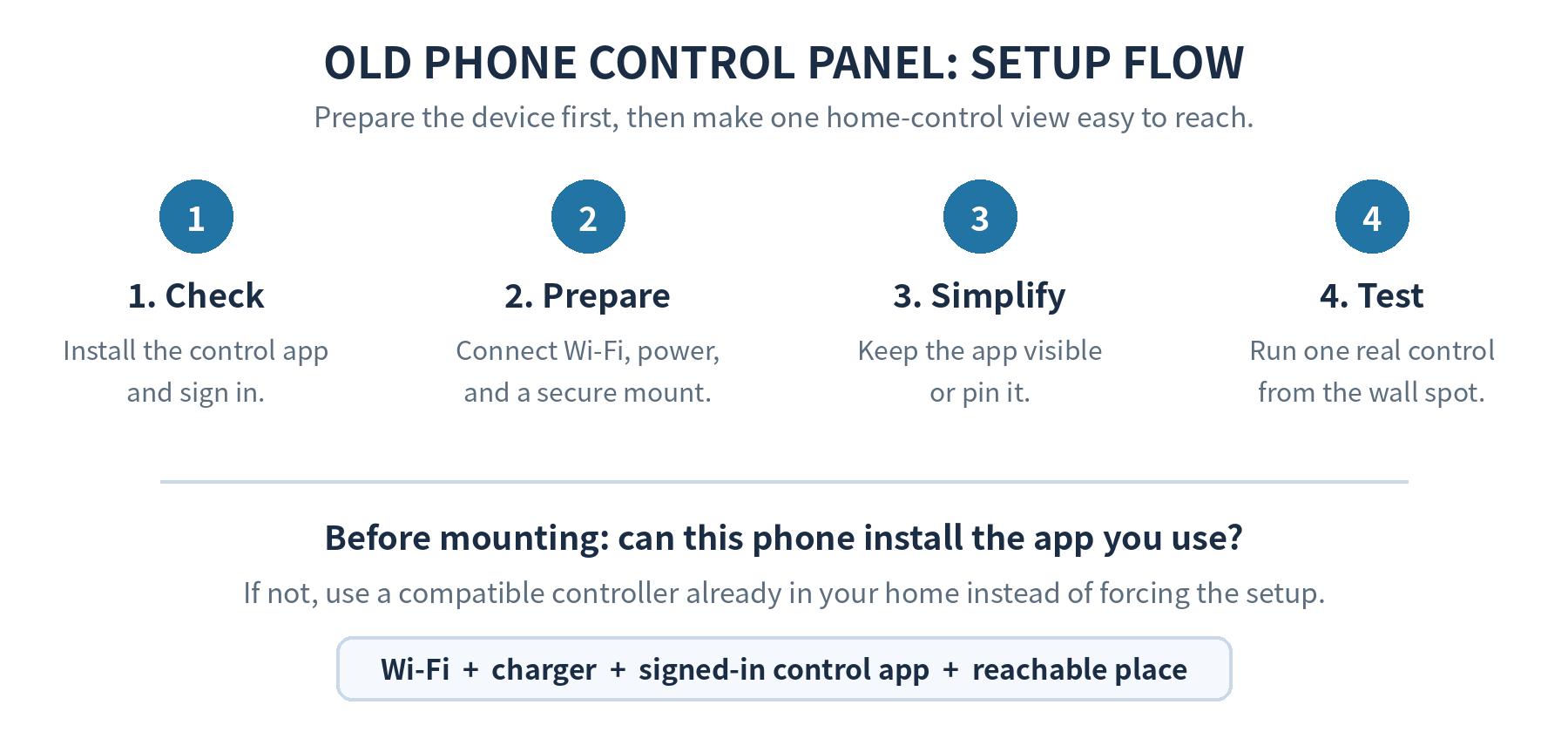
Start with the control app, not the mount. Open the app on the old phone, sign in, and confirm that it shows the same home and controls as your daily phone. As checked in 2026-09, Google Home requires Android 9.0 or later, or iOS 17.0 or later, plus a Google Account and home Wi-Fi. If the old phone cannot install the app or complete sign-in, it is not a good panel for that platform.
Then stand in the intended location and run a real command. Turn one light on, adjust one device, and check that the app refreshes. This catches a weak Wi-Fi spot before you attach anything to a wall. Keep your primary phone available while you set up the old one, so you can compare the control list and recover account access if needed.
Make this compatibility check a short checklist: the app installs, the account opens, the home appears, and a command works from the chosen wall. Update the phone’s operating system and the control app before you judge the result. Google specifically says to keep the Google Home app, Nest app, and device operating system up to date because an out-of-date version can cause trouble when you use the apps. That does not make every retired phone compatible; it gives a supported phone its cleanest starting point.
Give the phone one job
Remove distractions from the home screen. Put the control app in the dock or as the only prominent icon, then turn off notifications that would cover a thermostat or light control. Do not make the panel your photo archive, messaging phone, or spare work device. A dedicated role makes it obvious what the screen is for when another person in the home walks up to it.
Keep the panel attached to an outlet with a charger that reaches without pulling on the phone. Choose a stand or wall mount that holds the phone securely, leaves the charging port usable, and leaves open space around the phone, cable, and power adapter. Leave enough room to take the phone down for an update or a restart.
Inspect the phone, cable, and charger regularly. Stop charging and stop using the setup if the battery or phone appears swollen, the phone becomes unusually hot, the cable or charger is damaged, or the mount blocks ventilation. Apple warns that suspected phone or battery damage calls for discontinuing use, and that damaged cables or chargers can cause fire, electric shock, injury, or property damage.
Make the control screen hard to lose
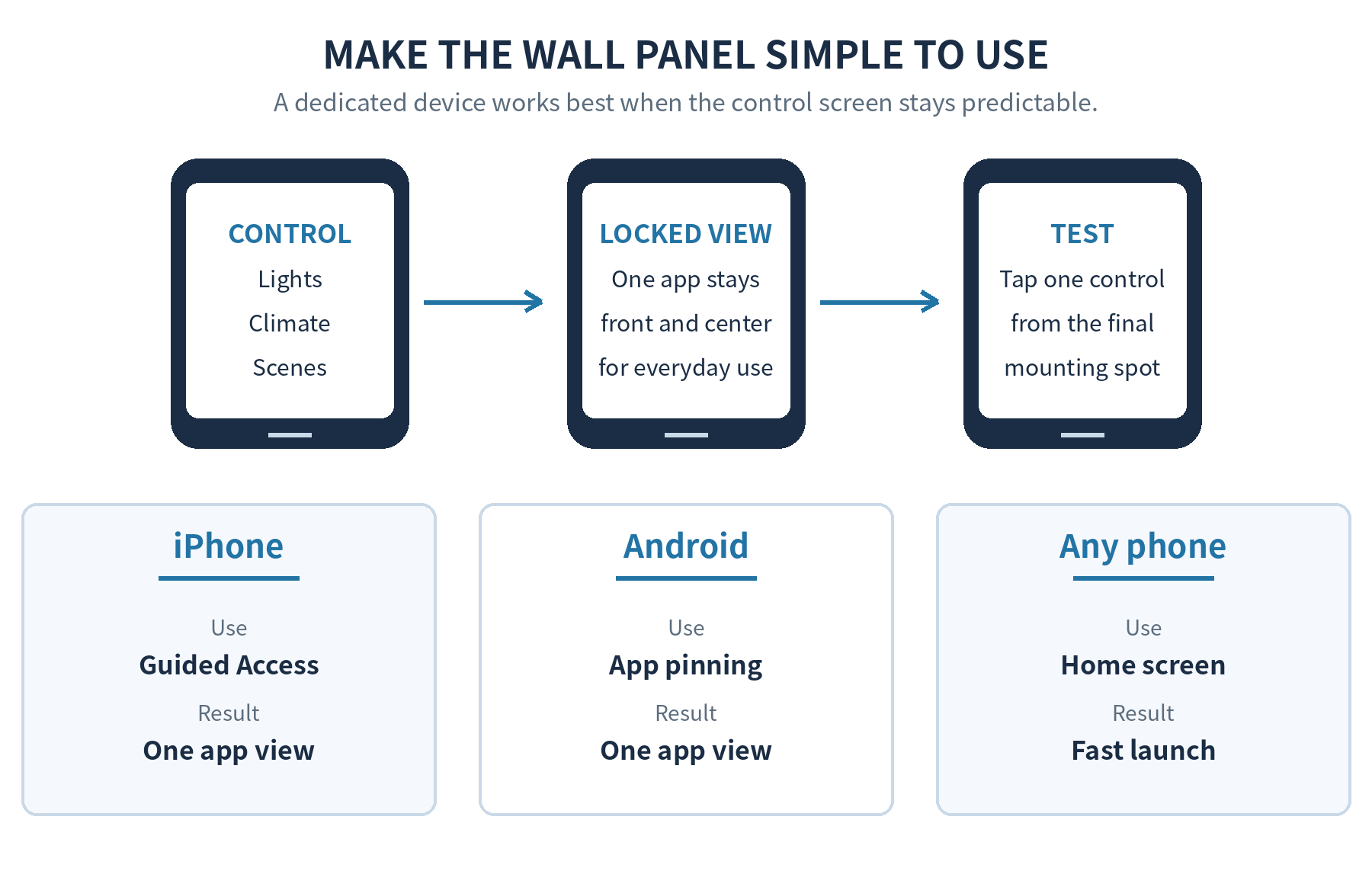
On an iPhone, Guided Access can temporarily restrict the device to a single app. Apple’s instructions say you can start it from the app and choose which hardware buttons, touch areas, keyboard, motion, and time limit remain available. Set up Guided Access in Settings > Accessibility, set its passcode, open the control app, then start a session. Keep that passcode somewhere you can retrieve it; you need it to end a session when the app needs attention.
On Android, App pinning can keep an app’s screen visible until you unpin it. Google’s Android Help places the setting under Security or Security & location, then Advanced, then App pinning, while also noting that the path can differ by device maker. Enable the option that requires your screen lock to unpin, open the smart-home app, and pin it from the overview screen.
Choose what belongs on the first screen
Place the controls you use at the mounting spot on the first screen: a nearby room’s lights, a scene for arrival or bedtime, and the climate control you actually adjust. Keep controls for unlocking doors, opening doors, disarming an alarm, or changing account permissions off a panel that other people can reach. If the app supports favorites, arrange them by the room around the panel rather than by every device you own.
A small panel is also a useful way to separate routine controls from administration. Use the old phone for quick actions, but use your primary device for adding devices, changing passwords, editing household access, or reviewing account alerts. The wall screen then shows routine controls while account and access-management tasks remain on the primary device.
Handle the screen and battery deliberately
Let the screen sleep between uses unless the app itself has a supported always-on display mode. Android’s developer guidance says that keeping a screen on drains battery quickly and recommends doing it only for as short a time as possible. That is a good reason to use a short screen timeout for a control panel rather than forcing the display to stay awake all day.
After the first day, check the device at the wall: open the control app, verify charging, and make sure the screen still wakes. If the app has signed out, reconnect it before relying on the panel. For connection-specific problems, this site’s guide to a phone that cannot hold a stable Wi-Fi camera connection gives a focused starting point. An old phone can also serve a different dedicated role; see the site’s guide to turning an old smartphone into a security camera if you need a fixed view instead of a control screen.
Test the panel the way your household will use it
Walk up to the mounted phone with the screen asleep. Wake it, open or unlock the control view, and run one light or scene. Repeat after the phone has been idle. If that sequence takes too long, reduce the home-screen clutter, revise the mount height, or stop using app pinning until you have a reliable way to exit it.
Write down the recovery steps before the panel becomes part of a daily routine: where the charging cable connects, how to leave the pinned or Guided Access view, and which primary phone holds the account. Test those steps once while the panel is working. A control screen that is easy to recover is more useful than one that looks permanent but leaves everyone waiting for the person who remembers its passcode.
The finished panel does not need every smart-home feature. It needs an app that opens under its signed-in account, Wi-Fi that completes a light command from the mounted location, a usable charging port, and an undamaged cable with no pull on the connector. Put the lights, scene, or climate control used at that spot on the app’s opening screen. Once those pieces work together, the old phone becomes a practical shared remote rather than another device in a drawer.
FAQ
Can an old phone control a smart home without a SIM card?
For Google Home, the requirements checked in 2026-09 list a Google Account, home Wi-Fi, and a compatible mobile device; they do not list a SIM card. Connect the old phone to that network and test the control app from its final location.
What should I do if the old phone cannot install my smart-home app?
Use a device that meets the app’s current operating-system requirement instead. As checked in 2026-09, the Google Home minimum is Android 9.0 or iOS 17.0; another platform can set a different minimum, so check its official support page before choosing the phone.
How do I get out of a locked control app on an old iPhone?
End the Guided Access session with the passcode or the configured Face ID or Touch ID method. Apple explains that you can end it by triple-clicking the side or Home button and authenticating.
Last updated: 2026-09