An old phone can be a handheld cloud gaming screen when it runs a supported service, has internet access, and pairs with a compatible controller.
The game runs on a remote service and streams to your phone, so check the phone’s software support and your network before spending time on setup.
Start on home Wi-Fi and try one game before building a permanent setup.
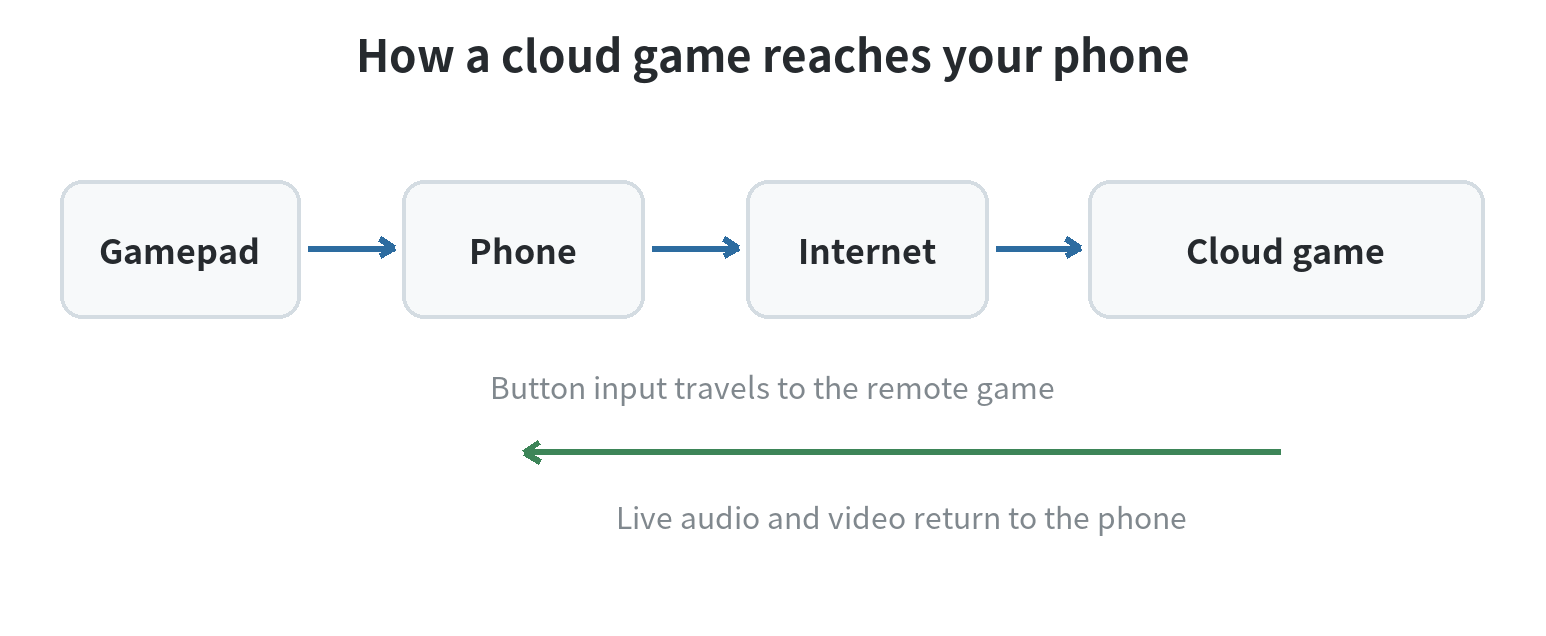
Cloud gaming runs on remote hardware: the phone receives its stream and sends button inputs back to the service.
Our retro gaming phone guide covers the local-play route.
Check whether the phone can run the service
Find the phone’s model and operating system version in Settings, then check the service’s current mobile requirements.
A phone can turn on and browse the web yet still be too old for a particular app, browser feature, or controller connection.
Check compatibility on the phone itself: open the supported app store or browser and confirm the service’s official page loads and lets you sign in.
If the app will not install, compare its listed requirement with the phone’s software version before troubleshooting the network.
Try a browser only when the service lists that browser and device as supported.
Avoid unofficial app downloads on a phone you still use for personal accounts.
As checked October 10, 2026, NVIDIA’s GeForce NOW FAQ lists Android phone support.
Xbox’s mobile gaming page also lists cloud play on supported Android and Apple devices. Each service has its own device requirements.
Each service sets its own device requirements. Supported devices, games, and regions can change.
Choose a game you are allowed to access before judging the setup.
NVIDIA says GeForce NOW streams supported games tied to connected game-store accounts, and its library varies by title.
Xbox says cloud gaming requires a subscription and that game availability varies by region, plan, and platform.
Check the game’s listing inside the service instead of assuming a game you own or play elsewhere is available to stream.
Use Wi-Fi first, then test the connection
Wi-Fi is enough for the phone’s internet connection; an active SIM is not needed when the phone can join a working Wi-Fi network.
Google Android Help explains that a phone can get internet services over Wi-Fi without using mobile data.
If you later use cellular data, check the plan first: NVIDIA warns that streaming over mobile data can use data quickly.
For a test session, sit near the router, pause large downloads on other devices, and launch a game briefly.
Watch for delayed button response, a blurry picture, frozen frames, or a disconnect.
If the service offers a network test, run it where you plan to play.
NVIDIA’s system requirements, checked October 10, 2026, describe its supported network setup and link to a network test.
Use the service’s current network check where you plan to play.
A speed test measures throughput, but cloud play also depends on a steady route and low delay between your phone and the service.
If the stream stutters, move closer to the router and test again before changing settings.
A speed test measures throughput, but cloud play also depends on a steady route and low delay between your phone and the service.
A strong speed-test result in another room does not prove the connection is steady where you sit.
NVIDIA recommends a wired Ethernet connection or a compatible Wi-Fi router for GeForce NOW.
Wi-Fi bands and fifth-generation cellular service are different things.
If your router lists more than one Wi-Fi network, test the connection you expect to use while playing.
A phone without cellular service can still use Wi-Fi for setup and cloud play.
Our Wi-Fi-only old phone guide explains the same distinction between internet access and an active phone line.
A SIM can be useful away from Wi-Fi, but it is not a requirement for a home handheld setup.
Pair a controller and check the game’s input
Touch controls work for games designed for them. A physical gamepad suits controller-based titles.
Check the service’s controller list before choosing one.
NVIDIA recommends a Bluetooth gamepad for Android. Some games require one or a keyboard and mouse; Xbox offers touch controls for selected games.
On Android, put the controller in pairing mode, open Settings, choose Connected devices, then Pair new device, and select the controller.
Google Android Help documents this Bluetooth pairing path and also describes wired controllers when the phone and cable support the connection.
On iPhone, Apple Support’s current instructions use Settings, Bluetooth, then the controller name; a wired controller may need a compatible adapter.
Menu labels vary by phone version.
After pairing, open the cloud service and test the game you plan to play.
Confirm that the left stick moves, the face buttons register, and the triggers work in a menu or safe starting area.
Pairing only confirms that the phone sees the controller; it does not confirm that a particular game supports that input.
If the game opens with touch controls or ignores a button, check its own control and compatibility information.
Make the phone comfortable to hold
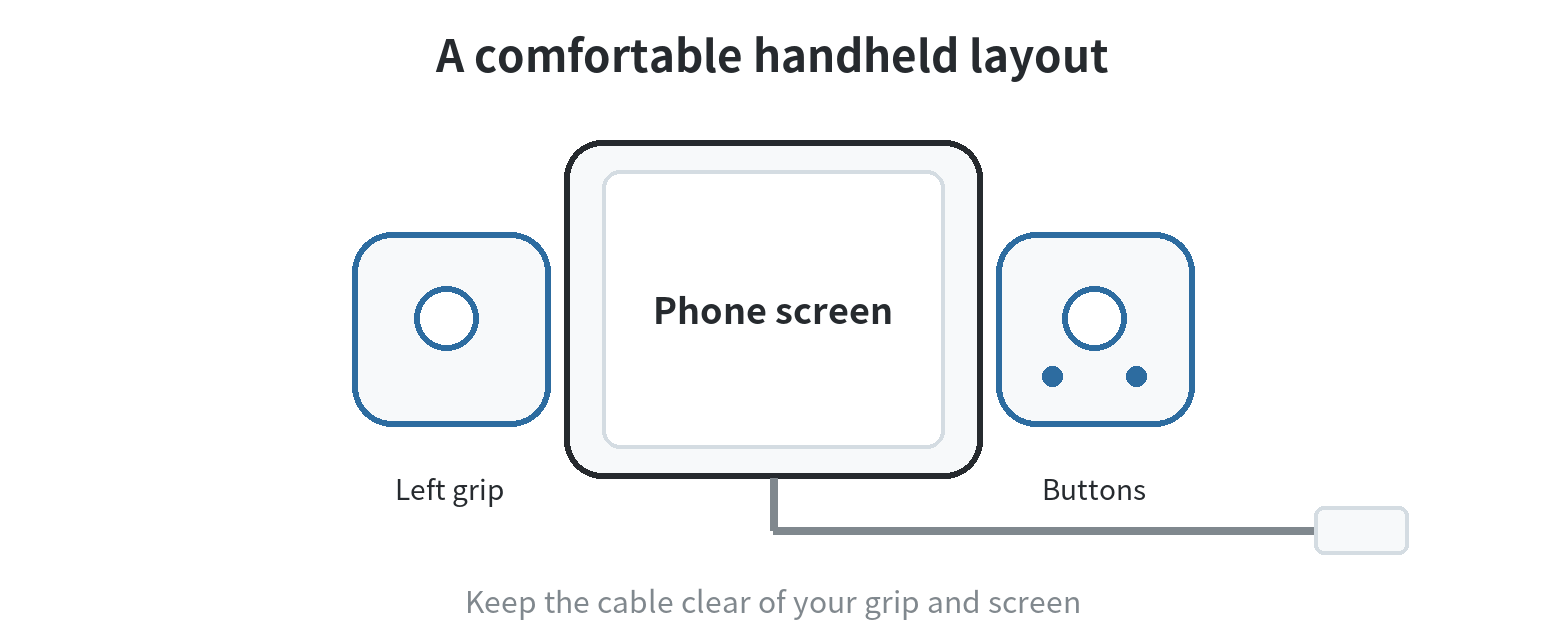
Use landscape when supported. Check that the grip leaves the screen, volume keys, and charging port clear.
A clip-style controller combines the phone and gamepad in one handheld unit.
A separate controller lets you prop the phone farther away, but needs more space.
Use the setup for a short session before settling on a grip.
An older phone may have a dim screen, a loose charging port, or a battery that drains quickly.
Keep the phone on a stable surface when charging, route the cable so it does not pull the connector, and stop if the device becomes unusually hot.
A case can make a clip fit poorly; remove it only if the phone stays secure and the device instructions permit it.
Turn on Do Not Disturb if message banners cover the game, and lower brightness only as far as you can comfortably see.
Keep the service app or browser easy to reach on the home screen.
If the screen locks or the app reloads, return to the service and check whether the session is active.
Separate the game stream from the phone’s limits
Cloud gaming does not make an old phone’s screen larger or its battery newer.
NVIDIA describes the game launching remotely and streaming back to the device.
The phone needs to display the stream, send inputs, and hold a network connection.
A phone with a weak battery can need a nearby outlet; one with an unsupported operating system may not open the service at all.
Service access has limits too.
The stream stops if your connection drops or the service is unavailable in your region.
Xbox’s cloud gaming page and NVIDIA’s availability FAQ both describe regional or catalog limits.
Recheck those service pages when you set up the phone, especially if you travel or return to the setup after a long break.
If the phone passes compatibility checks, holds Wi-Fi, and the game recognizes the controller, save the service shortcut to the home screen.
If one part fails, diagnose that part first: app or browser support, network stability, controller pairing, then the selected game’s input support.
FAQ
Can I use the old phone without a SIM card?
Yes, if it can join Wi-Fi and run the service.
Google Android Help says Wi-Fi can provide internet services without mobile data, so cellular service is not needed for a home cloud gaming setup.
Can I play a cloud game when the phone is offline?
No.
The phone needs an internet connection while the game is streaming because it sends your inputs out and receives the live game stream.
Why does a controller pair but fail inside one game?
Bluetooth pairing connects the controller to the phone, but the game must also support that controller input.
Check the game’s control information and the cloud service’s compatibility list.
Can I use touch controls instead of a gamepad?
Yes, when the service and individual game offer touch controls.
Xbox identifies touch-enabled games in its cloud library; controller-based games may still need a physical gamepad.
Last updated: October 2026
Last updated: 2026-10