
You’ve grabbed that perfect theme to spice up your phone’s look, but it just won’t stick. Icons stay the same, colors fail to shift, or the whole home screen looks off. This glitch hits Android and iOS users alike, often from simple app conflicts or cache buildup.
Themes give your smartphone a fresh vibe. On Android, they swap home screens, icons, and colors with launchers like Nova or Action. iOS keeps it simpler through wallpapers, widgets, and Shortcuts for custom tweaks.
Don’t worry; fixes are straightforward. We’ll break down common causes first, then share basic restarts and clears. Follow our Android steps or iOS guide next, plus tips to dodge future snags.
These easy moves work for anyone, no tech skills needed. Stick around, and your phone will rock that new theme in minutes.
Common Causes Behind Themes Not Applying
Your phone ignores that new theme for good reasons. Spot these issues early, and you fix them fast. Most stem from software hiccups or simple mismatches that block changes to icons, wallpapers, or layouts.

Photo by Ron Lach
Software Glitches and Outdated Apps
Apps crash or freeze, and themes pay the price. A buggy launcher app often fails to load new designs, leaving your home screen stuck. Think of it as a painter with a jammed brush; no matter the colors you pick, nothing sticks.
Old launcher versions cause this too. Developers release updates to match new Android builds or fix theme bugs. If yours lags behind, themes glitch out. Samsung users see this with One UI tweaks, while stock Android folks hit snags in Nova or similar apps.
Watch for these signs your software acts up:
- Screens flicker when you apply a theme.
- Icons shift then snap back to default.
- Your smartphone restarts mid-theme install.
- Apps force close right after selection.
Clear the app cache first if crashes hit. Go to settings, find your launcher, and wipe storage. Restart your phone after. Outdated apps? Head to the Play Store or App Store. Update everything, especially launchers and theme stores. Test a simple theme post-update. It often resolves the block without deeper digs.
Incompatible Themes or Low Phone Storage
Pick the wrong theme, and it bounces right off. Themes built for MIUI on Xiaomi phones won’t mesh with One UI on Samsung or stock Android. iOS users face this with tweaks from third-party apps not tuned to your version. Always match the theme to your phone’s skin.
Low storage piles on the problem. Your smartphone needs space to unpack theme files like icons and fonts. Full memory halts the process, much like stuffing a suitcase too tight. Themes fail silently, or you get error pops.
Run these quick checks to confirm:
- Verify theme compatibility in the store description. Look for your exact Android skin or iOS version.
- Check free space in settings under storage. Aim for at least 1GB open.
- Test lighter themes first to rule out file size issues.
Free up room by deleting old apps or photos. Tools like Files by Google help spot big files fast. For incompatibility, search your phone model plus theme name. Samsung Galaxy owners can check this troubleshooting page for common theme install fails. Swap to a matched theme, and watch it apply smooth. These steps pinpoint the block in under five minutes.
Basic Troubleshooting Steps That Fix Most Theme Issues
When themes refuse to apply on your phone, the fix is usually simple. Start with the basics that clear temporary glitches and test whether the problem stems from the device or the app you’re using. These steps work for both Android and iOS, and they’re quick enough to do during a coffee break. If you follow them in order, you’ll likely get your theme applied and back to a personalized home screen in minutes.
 Photo by Kelvin Valerio
Restart Your Phone and Clear Space
Resetting the device can clear out minor memory glitches that stop themes from sticking. A simple restart flushes background processes and gives the system a fresh start. After the phone comes back up, check if the theme applies normally.
Next, free up space. When storage runs tight, the system may struggle to unpack new theme assets like icons and fonts. Delete unused apps, large videos, or old photos to reclaim breathing room. This isn’t about losing data you’ll miss; it’s about giving your phone the room to work.
How to proceed:
- Restart your phone: hold the power button, choose restart, and wait for the device to come back online.
- Clear space: review your storage in Settings, remove unneeded items, and empty the trash.
If you notice crashes or slow behavior after applying a theme, clear the launcher’s cache as a quick test. On Android, navigate to Settings > Apps, find your launcher, and wipe cache or storage. Then restart the device and try applying the theme again. For more details on clearing cache and cookies on Android, see trusted guides like How to Clear Cache and Cookies on Android.
Boot into Safe Mode to Test
Safe Mode disables third party apps temporarily, which helps isolate whether a theme issue comes from a conflicting app. If the theme applies correctly in Safe Mode, a conflicting app or service is the likely culprit. Reboot back to normal mode and systematically remove recently installed apps or updates until the problem disappears.
How to enter Safe Mode:
- Android: press and hold the power button, then long press Restart until the option to reboot into Safe Mode appears. Confirm and wait for the device to restart in Safe Mode.
- iOS: Safe Mode equivalents exist through certain reboot sequences or diagnostic tools, depending on the device model and iOS version. If your device doesn’t offer a straightforward Safe Mode, you can achieve a similar effect by disabling nonessential apps or performing a clean boot from the settings.
What to do next:
- Use your phone normally in Safe Mode and attempt to apply the theme.
- If the theme works in Safe Mode, start a controlled process of re-enabling apps one by one, testing after each to catch the conflict.
- If the issue persists in Safe Mode, the problem is more likely with the theme itself or the system skin, not a third-party app.
Useful resources on Safe Mode and app conflicts provide step-by-step guidance for various devices. For Android users, official support pages cover how to Find problem apps by rebooting to Safe Mode and verify whether the problem goes away after disabling third-party apps. You can review these guides at Google’s Android support pages.
If you feel the need to dig deeper, additional insights from reputable sources explain how Safe Mode helps pinpoint issues and how to exit Safe Mode when you’re done. These steps help ensure you don’t get stuck in diagnostic mode longer than necessary.
What’s next after Safe Mode? If the theme still won’t apply, consider testing a lighter or stock theme, updating the launcher, or performing a fresh install of the theme app. For more context on basic Android troubleshooting, you can consult the official Android help center and manufacturer support pages.
As you work through these steps, keep an eye on the behavior of the launcher and the theme store. If you see consistent failures across multiple themes, there may be a broader compatibility issue with your phone model or OS version. In that case, checking for system updates or reaching out to the device maker’s support can save time. For quick checks on compatibility, visit theme store descriptions to confirm device and skin compatibility before trying again.
Android-Specific Fixes for Stubborn Theme Problems
If you’re targeting a specific Android look but the theme refuses to apply, this section focuses on practical, Android-centered fixes. We’ll cover clear cache and data for theme apps, resetting the home screen and reapplying the theme, and updating or reinstalling the theme app. Each step is designed to be quick and straightforward, so you can restore your preferred vibe without a ton of technical fuss. For readers juggling multiple launches or custom skins, these tips adapt to most Android setups, including devices from Samsung, Google Pixel, OnePlus, and Xiaomi.
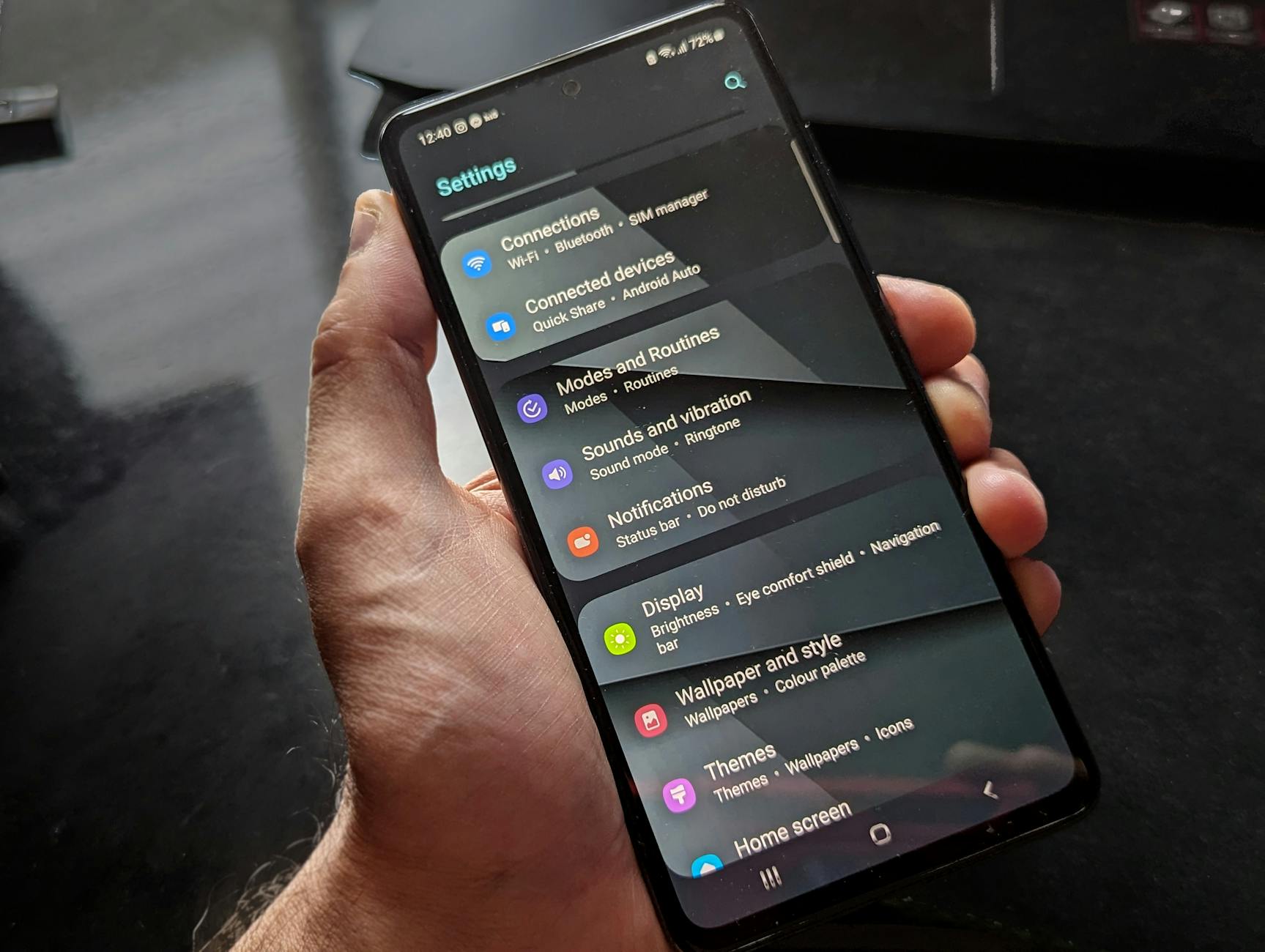 Photo by Watford London Media
Clear Cache and Data for Theme Apps
Sometimes the fix is as simple as clearing the app cache and data for the launcher or theme app. This clears temporary files that might be blocking the theme from loading correctly. Think of it as giving the app a fresh slate.
Detailed steps:
- Open Settings and go to Apps.
- Select the launcher or theme app you use.
- Tap Storage and choose Clear cache. If issues persist, also select Clear data (note that this may reset your preferences and customizations, so back up if possible).
- Restart your phone and try applying the theme again.
A few practical notes:
- If the theme still won’t apply, try clearing the launcher’s cache first, then clear data as a last resort.
- After clearing data, you’ll need to reconfigure your home screen and re-download any themes or icon packs.
If you’re curious about broader cache guidance, see trusted resources like how to clear cache and cookies on Android. And if you’re using a Samsung device with One UI, a quick cache wipe can resolve many theme hiccups. For more precise steps, you can consult Samsung’s troubleshooting page on theme install issues.
Pro tip: keep a backup of your preferred layout before clearing data, so you can restore quickly if needed.
Reset Home Screen and Reapply Theme
Resetting the home screen layout often clears stubborn quirks that stop themes from sticking. This is particularly useful if icons or widgets have become misaligned after a previous update or app conflict.
What to do:
- On Android, head to Settings > Themes or Home settings.
- Choose Reset and confirm. This restores the home screen to the default layout.
- Re-download and reapply your theme. If you’re using a custom ROM, some skins require a specific sequence or reapplication after a reset, so follow on-screen prompts carefully.
Tips for custom ROM users:
- Some ROMs store theme data in separate partitions. After a reset, you might need to reselect the launcher and theme in your ROM’s theme manager.
- If the theme store prompts for a permissions check, grant only what’s necessary to avoid new conflicts.
Why this helps: resets remove lingering references to old icons or layouts that block new themes from loading. After the reset, the system treats the theme as a fresh change, increasing the odds of a clean application.
If you want to see practical examples, explore guides on resetting Android home screen layouts. Pixel community and Android help pages also offer step-by-step resets for various devices, which can be especially helpful if you’re on a Google Pixel or a device with near-stock Android.
Update or Reinstall Your Theme App
Theme apps don’t always play nice with the latest system updates. An update to the launcher or theme store can fix compatibility issues or add support for newer Android versions. If an update isn’t available or it still misbehaves, a reinstall often resolves the root cause.
What to do:
- Open the Google Play Store (or Galaxy Store on Samsung devices) and check for updates to your launcher and theme apps.
- If updates aren’t helping, uninstall the theme app and reinstall it. After reinstalling, reapply the theme and test the result.
- If you still encounter issues, test with a lighter theme first. This helps confirm whether the problem is with the app itself or your device’s compatibility.
Important notes:
- Always ensure you’re signed into the right account when reinstalling paid or synced theme packs.
- If an app fails to install, try clearing the Play Store cache or updating Google Play services.
For a deeper look at reinstalling apps and ensuring compatibility, you can review guides from official support resources and reputable tutorials. If you’re using a stock Android device, these steps are typically enough to get themes loading again. When you’re on a Samsung device, ensuring the launcher is up to date often matters more due to skin-specific integrations.
Helpful resources:
- Reinstalling apps and re-enabling them on Android: guidance from Google Play Help
- Pixel and other stock Android devices: home screen reset and reapplication guidance
Additional tips:
- Always check the theme description for compatibility notes with your device and skin.
- If the theme still won’t apply, try a different theme from the same creator to determine if the issue is theme-specific or device-related.
External resources for quick reference on Android app reuse and compatibility can be useful as you troubleshoot. For example, you can read practical guidance on reapplying home screens or returning to a default layout before trying a fresh theme.
If you want to keep your options open, consider testing a widely supported or stock-like theme and then gradually reintroducing your preferred style. This staggered approach helps you confirm where the snag lies, whether it’s the theme’s assets, the launcher, or the device skin.
Images and further reading
- See how a fresh theme load looks after a reset on common Android devices in practical guides available on major help sites. For a hands-on walkthrough on resetting the home screen, consult the Android community guides.
Links you may find useful:
- Samsung themes not working troubleshooting: Samsung support page
- How to reset Android home screen layout: LifeWire guide
- Reinstall and re-enable apps on Android: Google Play Help
- How to reset the home screen on Pixel devices: Google support
If you want more context on compatibility checks before trying again, review the theme store descriptions for device and skin compatibility. This small step saves time and prevents repeated attempts with incompatible themes.
Additional image to illustrate the concept:
- Hand holding smartphone displaying settings screen with various options evident. Credit: Watford London Media
This Android-specific approach keeps things simple while addressing the most common roadblocks to applying themes. If you follow these steps in order, you’ll likely see your preferred look take over your home screen again.
iOS Fixes When Themes and Wallpapers Won’t Stick
If your iOS device won’t apply a new wallpaper, widget arrangement, or theme tweak, you’re not alone. The issue often hides in small settings conflicts or a hiccup in the wallpaper or home screen system. In this section, we focus on practical steps you can take on an iPhone to get those visuals to stick again. Think of your smartphone as a small computer: a quick reset and a careful check of settings can unwind stubborn glitches and restore your desired look.
Reset Home Screen Layout
Resetting the home screen layout can clear lingering references that block new wallpapers or widget setups from sticking. It’s a simple, non-destructive fix that often resolves stubborn misalignments after system or app updates. After the reset, you’ll re-apply your wallpaper and arrange icons anew, which helps ensure changes take hold.
What to do:
- Open Settings > General > Transfer or Reset iPhone > Reset > Reset Home Screen Layout.
- Return to your wallpaper settings and re-apply the image you want for the Home Screen and Lock Screen.
- Reorganize your apps and widgets as needed. If you rely on Focus modes or automation, re-check those configurations after the reset.
Why this helps: the reset removes old references to layout positions and widget placements that can prevent new themes from taking effect. It’s like giving your home screen a fresh canvas, so the next change has room to settle in.
A quick reference for wallpaper changes on iOS:
- You can change or set a new wallpaper by going to Settings > Wallpaper > Add New Wallpaper, then choose or customize as desired. This process pairs well with a clean slate after a layout reset. For more details, Apple’s official guide explains how to change wallpapers and customize your Home Screen and Lock Screen.
Change your iPhone wallpaper
Update iOS and Check Restrictions
Keeping iOS up to date is not just about new features; it can fix underlying issues that block themes and wallpapers from sticking. If Screen Time restrictions or other controls are in place, they might prevent changes to the wallpaper or home screen elements. Checking for updates and adjusting restrictions can clear the way for your visuals to apply correctly.
What to do:
- Go to Settings > General > Software Update. Install any available updates.
- If you use Screen Time, review restrictions that affect changes to wallpaper and home screen customization. In some cases, you may need to temporarily disable or adjust these limits to apply a new theme or wallpaper.
- After updating, attempt the wallpaper or home screen change again. If you have multiple widgets or automated routines, re-check them to ensure nothing reverts the look.
Why this matters: updates fix bugs that can prevent appearance changes from applying, and adjusting restrictions helps ensure future changes won’t be blocked again. A smartphone should feel responsive, not like it’s guarding its own visuals.
Helpful context:
- Apple’s support articles show how to change settings and restrictions in various apps and stores on iPhone, which can influence what you can customize. If you’re managing a family plan or shared device, this matters because some restrictions may be applied at the profile level.
Change settings and restrictions in the App Store on iPhone
Tips for a smoother update path:
- After updating, reboot the device to ensure all new system services start cleanly.
- If you’re using a Focus mode, verify it isn’t set to lock certain wallpapers or home screen changes during the active period.
- If a wallpaper keeps reverting, try a lighter or simpler image first to confirm the update is applying correctly before reintroducing your preferred wallpaper.
Notes on wallpaper behavior:
- If a wallpaper appears only on the Lock Screen and not the Home Screen, double-check the wallpaper pairing and whether you’ve selected the correct option to apply to both screens. Apple’s guide explains wallpaper pairing and customization steps in detail.
Change your iPhone wallpaper
By keeping iOS current and reviewing any restrictions that might block changes, you remove two of the most common culprits behind themes and wallpapers not sticking. If the problem persists after updates and restriction checks, you’ll move on to deeper troubleshooting steps that pin down the root cause.
Additional reading and official references:
- Apple support on wallpaper customization and pairing: Change your iPhone wallpaper
- General guidance on adjusting settings and restrictions on iPhone: Change settings and restrictions in the App Store on iPhone
If you’re troubleshooting on a specific iPhone model or iOS version, you’ll find device-specific notes in Apple’s support articles. This next set of steps can help you confirm whether the issue is tied to the hardware, the OS, or a particular app involved in changing the home screen appearance.
Links you may find useful:
- Reset iPhone settings to their defaults: Reset iPhone settings to their defaults
- How to move apps and widgets on the iPhone Home Screen: Move apps and widgets on the iPhone Home Screen
Smartphone maintenance tip:
- When making visual changes, give your device a moment after you apply a new wallpaper or layout. Sometimes the system catches up in a few seconds, and the new look settles in without further adjustment.
Advanced Tips and Prevention for Reliable Themes
Setting a fresh theme on your phone should feel exciting, not frustrating. These advanced tips focus on building a reliable workflow that reduces hiccups, helps you pinpoint the root cause quickly, and keeps your home screen consistent across updates. Think of this as a preventative playbook: you’ll not only fix issues faster but also sidestep common traps that wreck theme quality in the first place.
Keep launcher and theme store updates tight
Regular updates are your first line of defense against stubborn themes. When launchers or theme stores lag behind your device’s OS, changes may fail to apply or break mid-install. Set apps to update automatically if you can, and periodically check for updates after major OS releases. If an update arrives and your theme still won’t apply, a fresh install often resolves the issue because it resets the integration points between the skin and the launcher.
Practical steps to maintain compatibility:
- Update your launcher and theme packs from the official store.
- Reapply the theme after updating to confirm the assets load correctly.
- If problems persist, temporarily test a lighter theme to verify whether the issue is with the asset set or the launcher itself.
Pro tip: keep a couple of backup themes handy that match your device skin. If a new theme blocks the layout, switching to a known-good option is fast and low risk. For a deeper look at troubleshooting launcher issues, Samsung’s support page is a solid reference point. https://www.samsung.com/us/support/troubleshooting/TSG01213612/
Verify compatibility before you install
A mismatch between the theme and your phone’s skin is a silent blocker. Themes built for a different UI layer simply won’t apply. Always read the store listing for skin compatibility, Android version, and launcher requirements before you download. If you’re unsure, test with a lightweight, widely supported theme first.
Key checks to perform:
- Confirm the theme supports your Android skin or iOS version.
- Check if the theme requires a specific launcher and whether it’s installed.
- Look for any notes about root or custom ROM requirements if you’re using a non-stock device.
If you want a quick reset option to test compatibility, you can use a trusted guide to reset the home screen layout on Android. It clears legacy references and makes the system ready for a clean application. https://www.lifewire.com/how-to-reset-android-home-screen-layout-4688629
Manage storage to prevent unpacking failures
Theme files need space to install. Low storage can cause partial or failed theme unpacking, resulting in missing icons or unresponsive changes. Regularly audit storage and keep a buffer for new assets. A practical rule is to maintain at least 1 GB of free space for smooth theme handling, especially after large OS updates.
Tidy-up tips:
- Move or delete large videos and rarely used apps.
- Use cloud storage for photos and offload only what you need locally.
- After freeing space, reattempt applying the theme and observe any improvements.
If you’re curious about broader Android storage maintenance, a quick cache wipe can help when issues feel memory related. For a general cache guide, see how to clear cache and cookies on Android. https://www.android.com/articles/clear-cache-and-cookies/
Isolate conflicts with Safe Mode and a clean test
Safe Mode is a powerful way to verify whether a third-party app is clashing with theme changes. If the theme sticks in Safe Mode, a conflicting app or service is the likely culprit. Return to normal mode and remove recently installed apps or updates until the problem clears.
What to do:
- Enter Safe Mode on Android to disable third-party apps temporarily.
- On iPhone, there isn’t a direct Safe Mode, but you can simulate a clean test by disabling nonessential apps, then applying the theme.
- If the theme works in Safe Mode, reintroduce apps one by one, testing after each install.
For Android users, official guidance on Safe Mode and problem apps is helpful. If the issue remains after a Safe Mode test, the problem is usually with the theme or the system skin. https://support.google.com/android/thread/235161742/theme-problems?hl=en
Reset and reapply: a reliable two-step sequence
Resetting the home screen layout is a surprisingly effective reset for stubborn quirks. It clears old references that block new themes from sticking. After the reset, re-download and reapply the theme. If you’re on a device with a customized ROM, follow any ROM-specific prompts after the reset.
Two-step workflow:
- Reset home screen or launcher settings to default.
- Reapply the theme, ensuring any launcher permissions are granted and the theme store is in a good state.
This approach is often enough to fix persistent misalignments without diving into deeper software, and it aligns well with how most devices handle theme data after a reset. For a practical walkthrough of resets, you can reference life guides that cover Android home screen layout resets.
Reinstall and re-enable: clean installs for stubborn themes
If a theme refuses to load after updates or clean tests, a reinstall can fix underlying mismatches between the theme assets and the launcher. Follow these steps:
- Uninstall the theme app and launcher if needed, then reinstall them from the official store.
- Reapply the theme and test. If problems recur, try a lighter theme first to verify whether the issue is theme-specific.
- Ensure you’re signed into the correct account if the theme packs are tied to purchases or cloud sync.
For broader guidance on reinstalling apps and maintaining compatibility, Google Play Help offers solid steps for Android users. https://play.google.com/help
Build a reliable theme workflow to prevent future issues
A proactive workflow saves time and reduces repeats. Create a simple routine you follow before every theme change:
- Check compatibility and launcher requirements.
- Clear a quick cache or restart the launcher.
- Test with a lightweight theme first to confirm the process works.
- Have a proven backup theme ready in case the new one stalls.
Documenting your process helps you reproduce success quickly. A short, repeatable checklist can become your secret weapon for consistent visuals every time you customize.
When to escalate to official support
If you’ve systematically tested fixes and the theme still won’t apply, it’s time to escalate. Collect key details like model, OS version, launcher version, the exact theme name, and the steps you performed. Share this with the device maker’s support team or the theme developer. This data helps support teams pinpoint systemic issues or compatibility gaps that aren’t obvious from user-level troubleshooting.
For iOS users facing recurring wallpaper or home screen glitches, Apple’s guidance on wallpaper customization and pairing is a solid reference. https://support.apple.com/en-us/102638
Additional reading and practical references:
- How to customize lock and home screen on iOS 26 (step-by-step guide) for nuanced tweaks: https://tenorshare.com/ios-26/customize-lock-home-screen-ios-26.html
- Apple community discussions on wallpaper stability and focus modes: https://discussions.apple.com/thread/255508649
By combining these practices, you’ll build a resilient baseline for theme reliability. It’s not just about fixing the current issue; it’s about preventing recurring snags and keeping your visuals consistent across updates, skins, and devices.
Conclusion
Fixing themes not applying on your phone is mostly about checking the right causes and moving through the basics one step at a time. Start with the simplest fixes, like clearing the launcher cache or restarting the phone, then move to more targeted checks such as compatibility and storage. The goal is a smooth, frustration free restore of your preferred look on the smartphone you use every day.
Use this checklist as your guide: review potential software glitches, confirm theme compatibility with your phone skin, free up space, and test in Safe Mode or with a fresh theme. If a fix works, you’ve found the root cause without chasing dead ends. If not, escalate with app re installs or official support for a quick, solid path forward.
A steady routine pays off. Keep launcher and theme store apps updated, verify device compatibility before you install, and keep a backup theme ready. This approach minimizes repeat problems and keeps your visuals consistent across updates. For best results, tackle one section at a time and note what helps in your setup.
If you found a fix that helped you, share it in the comments so others can try it too. Subscribe for more practical tips on optimizing your smartphone, from customization to everyday maintenance. Thanks for reading, and may your next theme feel like it was made for your device.