An old tablet can work as a small-business check-in kiosk if it still runs the check-in page reliably, stays powered, and can be restricted to that one task. Set it up at the counter, test the entire visitor flow, and keep sensitive customer information off a device that anyone can reach.
Start with the check-in task, not the tablet
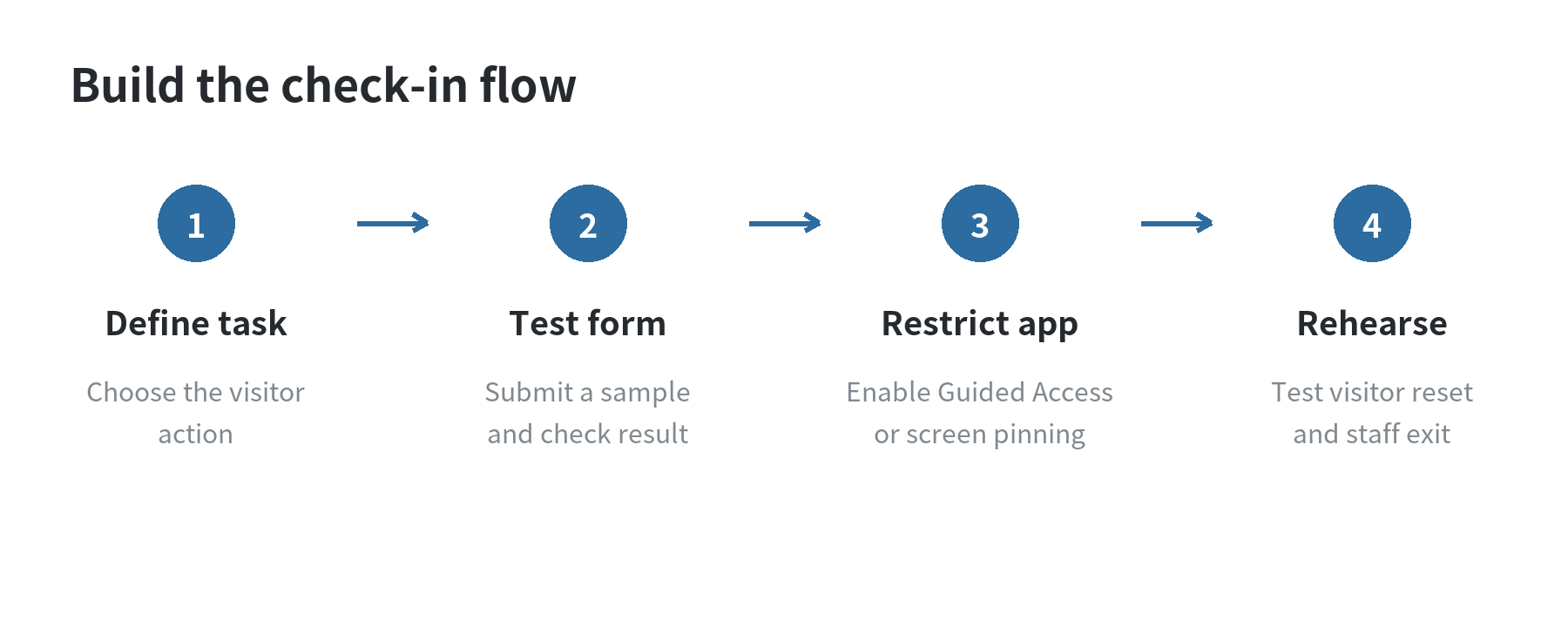
Decide what a visitor actually needs to do: enter a name, confirm an appointment, sign a form, or tell staff they have arrived. Use the simplest workflow your business already supports. A browser-based form may be enough; a dedicated app may fit a process that already depends on one. The tablet does not make a form or service available by itself.
Before setting up the device, open the check-in screen on it and complete a sample submission. Confirm that text is readable at arm’s length, buttons are easy to tap, the on-screen keyboard does not hide the next step, and the final screen tells the visitor what to do. If the page needs a staff login or exposes other account information, do not leave that account open for public use.
Check the tablet’s battery, charging port, Wi-Fi connection, touch response, speakers if the process uses sound, and operating-system support. Install available system and app updates before putting the device in service. If the page freezes, reloads unpredictably, or cannot connect where the stand will sit, resolve that first; locking the screen to one app will not fix an unreliable workflow.
Prepare a public-facing device
Use a separate device account or browser profile for the kiosk when the operating system and workflow allow it. Remove personal email, saved payment details, private photos, and unrelated apps from the visible screen. Turn off message previews and other notifications that could appear while a visitor is checking in. Keep the owner’s account credentials and recovery details out of the customer’s reach.
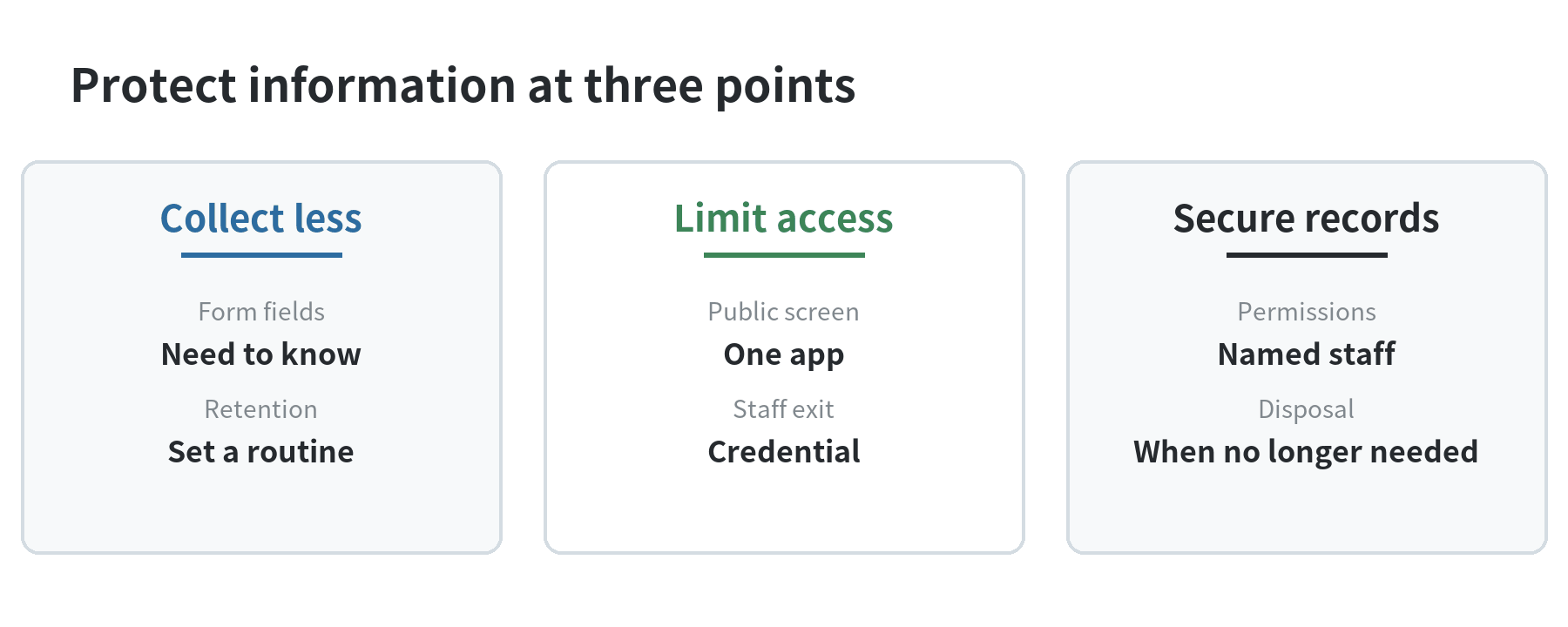
The Federal Trade Commission’s small-business data-security guide advises businesses to keep only the information they need, protect what they retain, and dispose of information when it is no longer needed. Apply that idea to the check-in form: collect only fields staff use, set a retention routine for the responses, and restrict who can open the resulting records. The National Institute of Standards and Technology describes data minimization as limiting personal-information handling to what is relevant and necessary and retaining it only as long as needed.
A screen lock or single-app mode limits casual navigation; it does not make a public device a secure records system. Avoid collecting Social Security numbers, payment-card details, passwords, or other high-risk information through a tablet that visitors share. If the form stores personal information, review the service’s access controls and retention settings before using it.
Choose the right single-app control
On an iPad, Apple calls its built-in single-app feature Guided Access. Apple’s iPad User Guide says to enable it under Settings, Accessibility, and Guided Access; then open the check-in app and start a session with the accessibility shortcut. A passcode can be set for ending the session. During setup, you can also disable parts of the screen, hardware buttons, touch, or the software keyboard when those controls are unnecessary.
For Android tablets, look for screen pinning or app pinning. Google’s Android Help explains that pinning keeps one app on screen until someone unpins it; you can require the device PIN, pattern, or password to exit. The setting’s location and the gesture for pinning depend on the tablet’s Android version and navigation mode. If the help steps do not match your screen, check the tablet maker’s instructions rather than guessing at a menu.
These consumer features keep a visitor in one app, but they are not a complete managed-kiosk system. If staff need remote control, a fixed app allowlist, or centrally enforced settings across multiple devices, check whether the organization’s device-management setup supports a dedicated kiosk configuration.
Test the visitor path and the staff exit
Run a complete rehearsal from the visitor’s side. Start from the screen they will see, enter test information, submit it, and verify that the confirmation appears. Check that the next person can reach a clean starting screen without seeing the previous visitor’s answers. If the form leaves responses visible, change its settings or choose another workflow before opening the kiosk to the public.
Then practice ending the restricted session with the staff passcode. Apple’s support instructions describe using the iPad’s top or Home button shortcut and authenticating to pause or end Guided Access. Android’s instructions describe the unpin gesture and, when enabled, entering the device’s screen-lock credential. Keep those exit steps available to staff, but do not display the credential beside the tablet.
Check charging and placement during the same rehearsal. Route the cable so it does not cross a walking path, use a stable stand, and leave enough room for visitors to type without blocking staff. Set the display’s auto-lock behavior so the form does not disappear during a normal check-in, while ensuring the device returns to a controlled state after a quiet period if the workflow supports that. Apple’s Guided Access settings include a display auto-lock control; Android settings vary by manufacturer.
Make a short opening and closing routine
Give the person opening the business a brief checklist: confirm the tablet is charged, connected, on the correct form, and locked into the intended app; submit a test entry and remove it from the live record if the service permits. At closing, end the public session or return it to the approved start screen, review whether any paper notes or test records need secure disposal, and store the tablet where customers cannot take it.
Assign one staff role to update the form and device, and another person or manager to know how to restore access if the kiosk stops responding. When the form changes, repeat the visitor rehearsal. A one-app lock can hide navigation controls, so staff should know the device-specific exit gesture before they need it.
If the old tablet can no longer receive needed updates, hold a stable connection, or display the form legibly, retire it from public check-in. Use a supported device for any workflow that handles customer records. The useful test is not the tablet’s age by itself; it is whether the device, form, and staff routine still work together without exposing information or interrupting the line.
FAQ
Can a check-in kiosk work without Wi-Fi?
Only if the check-in workflow supports offline entry and later synchronization. Test that behavior with the service provider before relying on it; a web form that requires a live connection cannot submit while offline.
Should visitors enter payment information on the kiosk?
A shared check-in tablet is a poor place to collect payment-card details unless the business has chosen a payment workflow designed for that use. Keep payment collection in the provider’s approved checkout process and do not store card details in a general check-in form.
What if the tablet does not show Guided Access or app pinning?
Check the operating-system version and the tablet maker’s support instructions. Feature names and menu paths can differ across devices; if the tablet lacks a supported single-app option, do not leave unrelated personal apps accessible at the counter.