In a meeting or late at night, a phone can suddenly blast a piercing alert that sets everyone on edge. It happens to both Android and iPhone users, and it often feels like a glitch you can’t control. You’re not imagining it; settings and apps can push unexpected tones just when you least expect them.
This post breaks down why these sudden alerts occur and what you can do about them. You’ll learn practical steps that work on any smartphone, from checking app permissions to adjusting system sounds. By the end, you’ll know how to reduce or stop the noise without turning your phone into a silent brick.
Three common causes show up again and again: misconfigured app alerts, sound focus or Do Not Disturb quirks, and occasional software glitches. Sometimes a good old reset of notification preferences fixes things, other times you’ll need a quick update or a targeted change in a single app. We’ll keep the fixes simple, with clear steps you can follow screen by screen.
You’ll get a straightforward roadmap plus platform tips so you can tackle the issue no matter which device you own. This guide is written for people who want effective, easy to follow instructions without jargon. And yes, you’ll find practical checks you can perform in minutes.
If you’re ready to take back control of your ringtone, this guide will show you how. Ready to silence your phone?
Spot the Common Causes of Random Loud Notifications
Random loud notification sounds can feel like a prank your phone plays on you. To fix them, you first need a clear map of what is driving the blasts. In this section, you’ll learn to identify the usual suspects and how to approach each one. Think of it as a quick triage for your smartphone. By the end, you’ll have a practical plan to silence those surprise ringtones without losing important alerts.
Check Notification Volume vs Media Volume Mix-Up
Sometimes the problem isn’t a rogue app at all. It’s a misconfiguration between the notification volume and the media volume. When media volume is low but notification volume stays high, sudden alerts can feel like they’re blasting out of nowhere, especially if a media app happens to be playing in the background.
To check and adjust the sliders on any phone:
- Open Settings and locate Sounds or Sound & Vibration.
- Find separate sliders for Notification Volume and Media Volume.
- Adjust them so they aren’t pulling in opposing directions. A quick rule of thumb is to keep both in the same general range or set media a touch lower if you rely on loud alerts.
- Test by triggering a known notification (send a test from another device or use a timer) and then play a video or music to verify the balance.
Why this leads to blasts: when the system temporarily lowers media volume but keeps alerts loud, a notification can still cut through unexpectedly, especially if a video or game starts playing at the same moment. This mismatch is common after software updates or when feature tweaks reset one slider but not the other.
What to capture with screenshots:
- A screenshot of the notification volume slider at a typical level.
- A screenshot of the media volume slider showing its level during playback.
- A quick screenshot of the Sounds settings page showing both sliders side by side.
Helpful link: if you want a deeper dive into independent adjustment methods on Android and iPhone, see this guidance on how to adjust notification volume independently on Android and iPhone.
Hunt Down Apps with Aggressive Alerts
Rogue apps can wake you up with sounds you don’t expect. Signs that an app is sending aggressive alerts include a sudden spike in notification tones after a new install, or sounds you don’t recognize from any familiar apps.
How to spot rogue apps and permission issues:
- Scan recent app installations or updates. If the blasts started after a new app appeared, review that app first.
- Check notification permissions per app. Some apps request high-priority alerts or allow critical alerts that bypass Do Not Disturb.
- Look for apps with special permissions such as “draw over other apps” or “display over other apps.” These can enable sound tricks or overlays that affect how notifications pop.
- Review permission changes in Settings > Privacy or Settings > Apps. On iPhone, go to Settings > Privacy > Apps; on Android, Settings > Apps & notifications > See all apps, then select each app and review its notification settings.
A quick review method:
- List recently updated or installed apps and check their notification channels.
- Disable or customize notifications from any app that seems suspicious or unneeded.
- Reboot after changes to apply new permission states cleanly.
Why it matters: some apps may request aggressive alert settings to stand out, especially games, chat apps with “priority” modes, or third-party utility tools. If an app is doing this without your knowledge, you’ll notice sounds even when you aren’t actively using the app.
Where to investigate further: for real-world discussions about apps causing random sounds, see user threads where people report iPhone and Android apps triggering unexpected alerts. These can help you spot patterns and confirm you’re not chasing a phantom issue.
Rule Out Software Glitches or Outdated Apps
Software glitches, temporary bugs, and outdated apps often cause unpredictable notification behavior. A few common scenarios include failed updates, corrupted notification services, or background processes that don’t terminate cleanly.
What to check and do:
- Update all apps. Outdated apps can push legacy notification logic that clashes with current OS behavior.
- Check the OS update status. If the device recently updated, a temporary bug could be the culprit. If a newer patch is available, install it.
- Restart the device. A simple reboot can reinitialize notification services and clear stuck processes.
- If problems persist, consider a soft reset of the notification settings by returning them to default and then reapplying your preferred preferences.
Practical reminder: a restart often resolves transient issues in both Android and iPhone ecosystems. It clears memory, reinitializes services, and can stop a stuck alert from reappearing.
Tips from real-world users:
- If you’ve seen posts about iPhone or Android users experiencing beeps or chimes after updates, try a full device restart and recheck all notification channels.
- For stubborn issues, a full cache cleanup for apps that handle notifications can help, especially on Android where apps store many quick settings in memory.
Helpful link: a referenced guide discusses common beeping and beeps-related issues on iPhone and how to address them, including alarm-related sounds that can masquerade as random alerts.
Spot Spam or Third-Party Sound Tricks
Promotional pushes and sound mixer apps can create unexpected tones that feel random. In some cases, a legitimate app uses a special alert that isn’t a typical notification, or it might alter system sounds through accessibility features or sound mixer tools.
Examples of what to look for:
- Marketing or promo apps that push frequent alerts to drive engagement.
- Sound mixer or audio enhancement apps that can create custom alert tones or overlay sounds during playback.
- Utilities that claim to optimize performance but end up altering how and when sounds play.
How to approach this:
- Review installed audio and sound-related apps. Disable or uninstall ones you don’t recognize or don’t use regularly.
- Inspect any accessibility tools that might trigger sounds, especially apps that promise to improve focus or reduce noise.
- Test by temporarily disabling or removing third-party sound tools, then monitor whether the random blasts stop.
Examples you may encounter:
- A promotional app that pushes daily alerts to entice users to open the app.
- A sound-mixer app that overlays audio on system notifications, causing unexpected chimes even when no alert is expected.
In practice, this means keeping a lean roster of sound-related tools and confirming that every installed app has a clear, useful purpose. If you notice a pattern tied to a particular app or category, that’s a strong signal to remove or adjust it.
Organically integrated resources:
- For Android users, a common discussion thread covers how to stop alert sounds that show up without visible notifications and how to manage apps with aggressive alert policies.
- iPhone users sometimes report random notification sounds tied to specific apps or to system-level sounds after updates, which prompts a review of app permissions and notification channels.
What you gain: a quieter phone with fewer false alarms and fewer interruptions during focused work or conversations.
Additional tips and best practices
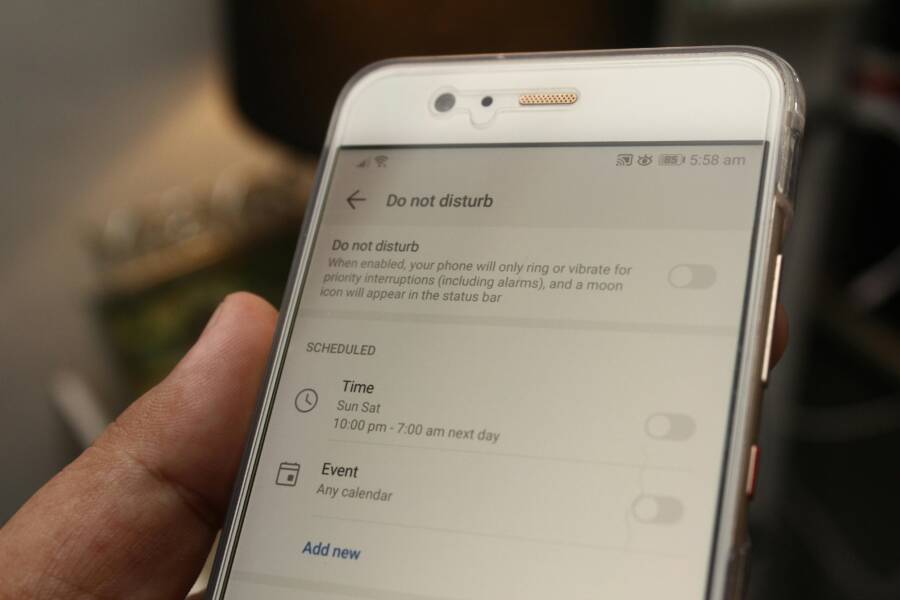
- Use Do Not Disturb or Focus modes when you need uninterrupted time. Schedule quiet hours if your day includes meetings or focused work blocks.
- Create per-app notification channels. This helps you fine-tune how each app can alert you and reduces the chance of unexpected blasts.
- Regularly review your notification preferences. Set a quarterly reminder to audit new apps and permission changes.
- Keep your device and your apps updated. Patches often address known issues that cause spurious sounds.
External resources you might find useful:
- A guide explaining how to manage notification volume on iPhone and Android helps you balance alerts with media playback. This can be a helpful companion as you tune your settings.
- A discussion thread about Android users experiencing frequent alert sounds can offer practical troubleshooting steps that align with what you’re doing on your device.
If you’re facing these issues now, start with the simplest checks—volume balance, recent app installations, and a quick reboot. If the blasts persist, work through rogue apps, then confirm there are no underlying software glitches. By following this structured approach, you’ll regain control over your notification sounds and enjoy a calmer smartphone experience.
Try These Quick Fixes on Any Phone First
When random loud notification sounds strike, the fastest path to calm is a short, practical checklist you can run on any device. These quick fixes work across Android and iPhone models and don’t require fancy tools. Think of them as the first aid kit for noisy alerts. If one fix doesn’t solve the problem, move to the next. The goal is to restore predictable, controlled notifications without turning your phone into a mute brick.
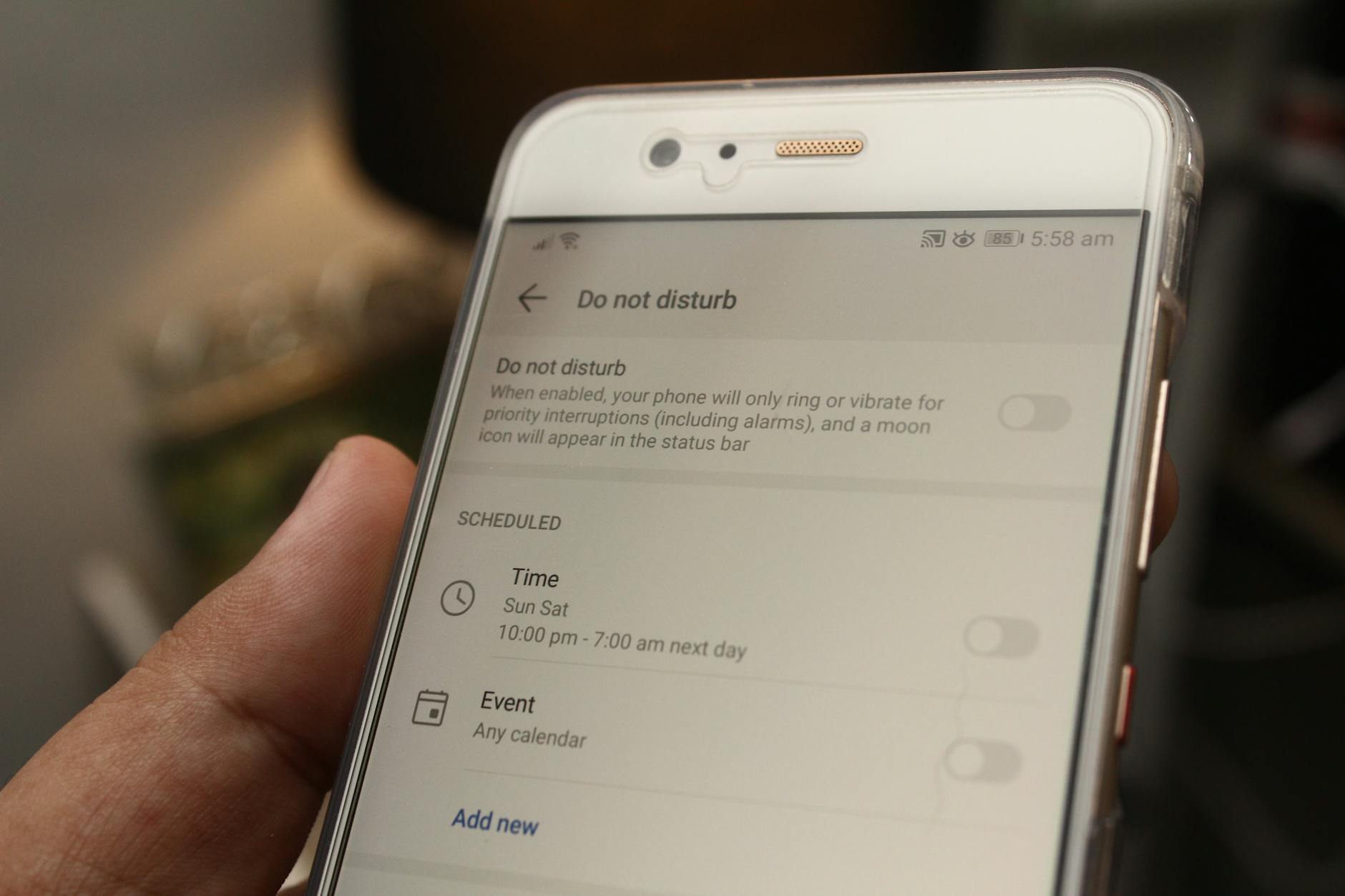 Photo by Daniel Moises Magulado
1) Balance Notification and Media Volumes
A mismatch between notification volume and media volume can cause jarring bursts. If your phone blasts a notification while a video is starting, it feels louder than it is on first glance.
- Check both sliders: Settings > Sounds & Vibration (Android) or Settings > Sounds & Haptics (iPhone).
- Align the levels so alerts and media sit in a similar range.
- Test with a known notification and then play media to confirm the balance.
Why this helps: when media playback is active, the system may raise or lower volumes independently. A balanced setup prevents surprise blasts when attention is on a video or game.
Tip: if you rely on loud alerts for important reminders, keep a modest margin so you still hear them without hurting your ears.
2) Scan for Aggressive Alerts by App
Some apps push high-priority or aggressive alerts that bypass normal Do Not Disturb rules. A quick audit can save you a lot of headaches.
- Review recently installed or updated apps. If the blasts started after a new install, focus there first.
- Check per-app notification settings. Look for high-priority alerts or “critical” warnings.
- Inspect apps with overlay permissions (draw over other apps). These can influence how alerts appear or sound.
How to act:
- Disable or tailor notifications for any app that seems too loud or unnecessary.
- Reboot after changes to ensure new settings take effect.
Why it matters: a single app can train you to ignore notifications, but it can also overwhelm you with random chimes if misconfigured.
3) Rule Out Software Glitches or Outdated Apps
Temporary bugs or stale software can misfire with notifications. A clean refresh often fixes this quickly.
- Update every app. Old notification logic can clash with current OS behavior.
- Check for OS updates and install any pending patches.
- Restart the device. A simple reboot reinitializes services and clears stuck processes.
- If problems persist, reset notification preferences to default and reapply your own settings.
Practical tip: a restart resolves many transient issues on both platforms. It clears memory and stops rogue processes from triggering again.
4) Inspect for Third-Party Sound Tools
Sound mixer apps, accessibility tools, or optimization utilities can alter how notifications play.
- Review all installed audio or sound-related apps.
- Disable or remove those you don’t use or don’t recognize.
- Temporarily disable third-party sound tools to see if the blasts stop.
What to look for:
- Apps promising to enhance focus or reduce noise that end up changing alert behavior.
- Promo or marketing apps that push frequent alerts to drive engagement.
Result: a simpler setup with fewer moving parts makes it easier to anticipate when and why a sound will occur.
5) Verify Focus or Do Not Disturb Settings
Focus modes and Do Not Disturb can mute or suppress alerts in ways that feel inconsistent if misconfigured.
- Confirm which notifications are allowed during Focus/Do Not Disturb.
- Create per-app exceptions only for essential alerts.
- Schedule quiet hours for blocks of time when you want complete silence.
Why this matters: misconfigured Focus rules can let certain sounds slip through or mute others unexpectedly, especially after a device update.
6) Do a Quick Check on Notification Channels
Both Android and iPhone use channels or notification categories to categorize alerts. A misconfigured channel can cause sounds when you don’t expect them.
- Open each app’s notification settings and review the alert tone and vibration for every channel.
- Turn off sound for nonessential channels, keep essential ones at a predictable level.
- If the app offers high-priority or critical alerts, decide whether you truly need them.
Result: you gain fine-grained control over what makes noise and when, reducing random blasts.
7) Consider a Full Device Restart Routine
If the issue persists after several checks, a full restart can clear stubborn glitches that aren’t visible in the settings.
- Power off, wait a few seconds, and turn the device back on.
- Open your notification settings again and recheck each area you adjusted.
- Perform a quick test by triggering a notification and then playing media to confirm stability.
Why a restart helps: it reinitializes core services, refreshes background processes, and can prevent a misbehaving service from pinging you again.
External resources you might find useful:
- How to disable notification sounds and system sounds on iPhone for targeted control.
- How to disable notification sounds and system sounds on Android smartphones for Samsung Galaxy devices.
If you’re ready to tackle the issue in a structured way, start with the simplest checks—volume balance, recent app activity, and a quick reboot. Move through rogue apps, then verify there are no underlying software glitches. This approach will usually bring your notification sounds under control without sacrificing important alerts.
Links for deeper dives:
- Android Control notifications to fine tune per-app channels.
- iPhone random sound solved discussions for real-world scenarios and remedies.
Android Fixes: Silence Notifications Step by Step
When your phone suddenly blasts a loud notification, it can throw off a call, meeting, or movie night. This section walks you through precise, practical steps to quiet those surprises on Android. You’ll learn per-app tweaks, smart Do Not Disturb rules, cache clearing, and a safe mode test to pinpoint the culprit. Follow these steps in order, and you’ll regain predictable, controlled alerts without missing critical messages. Throughout, think of your smartphone as a well-tuned instrument rather than a noisy machine.
Tweak App Notification Channels
Fine tune each app so only the alerts you want make noise. Android lets you customize notification channels per app, which means you can silence nonessential alerts while keeping important ones audible. This is especially useful for messaging, social media, and utility apps.
- Go to Settings > Apps > [select app] > Notifications.
- Review each channel listed under the app. For every channel, decide:
- Sound: set to a specific tone or turn off completely.
- Vibration: choose on or off depending on how you want to be alerted.
- Importance: tailor how intrusive the alert is (some channels can be set to silent, below the top-priority alerts).
- Repeat for apps that tend to surprise you. A few common culprits are messaging apps, social platforms, and calendar tools.
- After changes, test by triggering a notification from the app and then playing media to ensure you’ve achieved the balance you want.
Why this helps: misconfigured channels are a frequent source of noisy surprises. You can stop a channel from waking you up without losing vital updates.
Tip: you don’t have to adjust every channel at once. Start with the most noisy apps and work outward.
Helpful link: Control notifications on Android for precise per-app control and channel management.
Set Up Smart Do Not Disturb Rules
Smart Do Not Disturb (DND) rules reduce interruptions while keeping essential alerts intact. A well-crafted DND setup acts like a shield that still lets through the calls and messages you deem important.
- Schedule DND to activate automatically during meetings, bedtime, or focused work blocks.
- Specify exceptions for key contacts such as colleagues, family, or emergency services.
- Decide which apps can bypass DND. For most people, messaging and calendar apps are common exceptions.
- Test the setup by placing a mock notification from an exempted app while DND is active to verify it behaves as expected.
Why this matters: a good DND policy prevents random blasts during quiet times while preserving access to urgent alerts.
Helpful link: guidance on creating effective Do Not Disturb exceptions on Android and other platforms.
Clear App Cache and Force Stop Suspects
Sometimes a stubborn app caches old notification logic or runs processes in the background that cause odd sounds. Clearing cache and force stopping suspects helps reset behavior without a full device reset.
- Identify likely culprits such as messengers or social apps.
- Clear the app cache: Settings > Apps > [app] > Storage > Clear Cache.
- Force stop the app: Settings > Apps > [app] > Force Stop.
- Reopen the app and test notifications to confirm normal behavior.
- If a particular app keeps misbehaving, consider uninstalling and reinstalling it.
Why this helps: cached data can clash with new OS notification handling after updates. Clearing it removes the conflicting state.
Helpful links: How to silence notifications from individual apps on Android, and How to clear cache in messenger apps.
Boot into Safe Mode to Test
Safe Mode disables all third-party apps, letting you test whether the problem stems from a non-essential app. If the noise disappears in Safe Mode, the culprit is a third-party app.
- Power off the device, then press and hold the power button to reboot.
- When the device logo appears, press and hold the volume down button (or follow your manufacturer’s method) until you see Safe Mode.
- Use your phone normally and monitor notifications. If sounds stop, a third-party app is likely responsible.
- Exit Safe Mode by restarting the device. Then gradually reintroduce apps to identify the offender.
Why this helps: Safe Mode isolates system-level behavior from app-driven behavior, making it a reliable triage step.
Helpful link: Find problem apps by rebooting to Safe Mode on Android.
External resources you might find useful:
- Android control notifications to fine tune per-app channels.
- How to add exceptions to your phone’s Do Not Disturb mode.
If you’re ready to tackle the issue in a structured way, start with the simplest checks—volume balance, recent app activity, and a quick reboot. Move through rogue apps, then verify there are no underlying software glitches. This approach will usually bring your notification sounds under control without sacrificing important alerts.
iPhone Fixes: Stop Random Blasts Fast
When your iPhone suddenly erupts with a loud notification, it can ruin a moment and draw unwanted attention. The fix isn’t always obvious, but a methodical check of app alerts, Focus modes, and system resets can end the chaos quickly. Think of your iPhone as a finely tuned instrument; a small misconfiguration can create a loud, jarring note. In this section, you’ll learn practical, device-friendly steps to quiet those random blasts and keep essential alerts intact.
Customize Per-App Notification Sounds
Per-app control is a powerful way to stop unexpected chimes without muting everything. If a single app is misbehaving, you can silence its sounds while preserving audible alerts from apps you actually need.
- Open Settings, then go to Notifications.
- Tap the app you suspect and examine its alert style.
- For each notification category (channel), choose a specific sound or set it to none. Turn off banners or lock screen alerts if they aren’t essential.
- Repeat for other apps that tend to surprise you, especially social, messaging, and utility apps.
Why this works: many apps push alerts through their own channels. If one channel uses a loud tone, it can wake you up without you realizing which app triggered it. Fine-tuning each channel reduces noise while keeping critical messages audible.
Helpful resource: Apple’s official guide on changing notification settings on iPhone helps you navigate per-app controls and tones. You can also see real-world discussions about changing notification sounds on iPhone apps for context and troubleshooting.
Smartphone note: keeping a lean set of apps with clear notification purposes makes your device easier to manage.
Activate Focus Modes for Quiet Times
Focus modes are your best friend when you need quiet, predictable alerts. They let you tailor which apps can ring through and when, so you’re not plagued by random chimes during work, meetings, or sleep.
- Open Settings > Focus.
- Create a Personal or Sleep Focus and tailor it to your routine.
- Link Focus to a schedule (work hours, bedtime) so it activates automatically.
- Add exceptions for essential contacts or apps that must alert you during quiet periods.
Why this matters: a well-tuned Focus setup blocks the noise while ensuring urgent messages still get through. It’s about creating predictable boundaries, not locking yourself in a silent world. For further steps, Apple’s scheduling guidance and Sleep Focus tutorials can help you refine these rules.
Useful pointers:
- Schedule Focus to start and end with your day to reduce manual toggling.
- Use per-app allowances for critical communications so you don’t miss important updates.
External reading: explore official Focus guidance and third-party explainers that show how to automate Focus modes for sleep and work.
Smartphone tip: a good Focus plan acts like a nighttime watchdog, keeping distractions out while guarding the alerts that matter.
Update iOS and Reset All Settings
If the random blasts persist after you’ve checked apps and Focus, a software refresh can wipe out a stubborn fault. Start with lighter options and move to a deeper reset only if needed.
- Check for iOS updates: Settings > General > Software Update. Install any available patches.
- If problems continue, try a reset of all settings: Settings > General > Transfer or Reset iPhone > Reset > Reset All Settings. This won’t erase your data, but it will reset system preferences, including notifications.
- After the reset, reconfigure your essential preferences and test notifications with a few known triggers.
Last-resort guidance: resetting all settings often resolves stubborn issues that accompany recent updates or misconfigured system preferences. If you need more context, Apple’s support article on changing notification settings and troubleshooting iOS updates offers detailed actions and caveats.
Smartphone note: a clean slate on the notification framework can prevent old quirks from haunting you after an OS update.
Links for deeper dives:
- Change notification settings on iPhone from Apple Support.
- How to set up sleep focus and schedules on iPhone.
External resources:
- iPhone random sound solved discussions for practical, real-world fixes.
- Sleep Focus on iPhone: what it does and how to use it, for building quiet routines.
If you’re still dealing with unexpected tones, revisit each subsection in order. Start with per-app sounds, then Focus, and finally the iOS reset path. This approach usually clears up the issue without sacrificing the alerts you rely on. For ongoing troubleshooting and community-tested tips, you can review discussions around iPhone notification oddities and the effects of updates.
Links you might find useful:
- Change notification settings on iPhone
- Set up a schedule for a Sleep Focus in Health on iPhone
- How to schedule Focus modes
- Sleep Focus on iPhone: what it does and how to use it
What to do next: test by sending a notification from another device and then playing media. If the blasts disappear after adjusting per-app sounds and Focus, you’re good. If not, a software update or a full reset may be necessary. In most cases, these steps restore predictable, quiet notifications while keeping the alerts you actually need.
Prevent Loud Notifications from Coming Back
Once you tame the noise, the goal is to keep it under control without missing urgent alerts. This section covers practical, proven steps to prevent loud notification bursts from returning. You’ll learn targeted tweaks, smart scheduling, and a simple maintenance routine that fits into daily smartphone life.
Fine-tune Android notification channels and sounds
The right per-app controls are a powerful line of defense against surprise beeps. Android lets you silence or tailor each alert channel, so only the important stuff rings.
- Open Settings > Apps > [your app] > Notifications.
- For every channel, decide on Sound, Vibration, and Importance. Set nonessential channels to silent or lower priority.
- Test with a quick notification to confirm the balance between audio cues and media playback.
- Repeat for the most noisy apps, such as messaging, social, and calendar apps.
Why it helps: misconfigured channels are the most common source of sudden loud alerts. By dialing down nonessential channels, you keep the alerts you actually need.
External reference: Android’s guidance on per-app channel control provides concrete steps for fine-tuning notifications.
Lock in smart Do Not Disturb and Focus rules
A well designed Do Not Disturb (DND) or Focus setup acts like a filter, ensuring only the right alerts slip through during quiet times.
- Create DND or Focus profiles for work, sleep, and focused work blocks.
- Add only essential contacts and apps to exceptions.
- Schedule automatic activation during meetings or bedtime, and test with a simulated notification from an exempted app.
- For more control, align DND with calendar events so notifications pause during your busy periods.
Why it matters: a precise DND policy prevents random blasts while keeping critical messages accessible. This approach reduces the friction of constantly toggling modes.
External reference: Apple’s Focus guidance can help you understand cross-platform ideas for scheduling and exceptions.
Clear caches and keep apps lean
Occasional misbehavior can hide in cached data or stuck background tasks. A quick cache clear and a forced stop can reset behavior without a full reset.
- Identify suspect apps, especially messaging and social apps.
- Clear cache: Settings > Apps > [app] > Storage > Clear Cache.
- Force stop the app, then reopen and test notifications.
- If a problem persists, consider reinstalling the app.
Why it helps: stale cache data can confuse notification logic after OS updates. A clean slate reduces the chance of a reoccurrence.
External reference: Discussions about clearing app caches and stopping suspects often show up in real-world troubleshooting threads.
Use Safe Mode to confirm the source
If you still hear unexplained sounds, Safe Mode can reveal whether a third-party app is the culprit.
- Reboot into Safe Mode (the method varies by device, but typically involves holding the power button and selecting Safe Mode).
- Use the phone normally and monitor if the loud alerts disappear.
- Exit Safe Mode by restarting the device and reintroducing apps one by one.
Why it matters: Safe Mode isolates system behavior from third-party apps, making it clear where the fault lies.
External reference: Finding problem apps by rebooting to Safe Mode on Android can guide you to the offender quickly.
Review and refresh Focus/Do Not Disturb settings regularly
Settings drift over time, especially after updates. A quick once-over keeps things predictable.
- Revisit allowed notifications in Focus/ DND.
- Confirm per-app allowances reflect your current priorities.
- Make a habit of checking these rules every few weeks and after major updates.
Why this matters: small changes can reopen gaps that let loud sounds slip through. Regular checks keep your configuration robust.
Keep your system and apps up to date
Software updates fix bugs that can cause odd notification behavior and restore compatibility with new features.
- Check for iOS and Android updates and install them.
- After updating, review notification settings again to confirm nothing slipped back to a default that irritates you.
- If problems persist after updates, a targeted reset of notification preferences can be a safer next step than a full device reset.
Why it matters: updates often address known issues that trigger spurious sounds. Staying current reduces repeat problems.
External resources you might find useful:
- Apple’s guide to changing notification settings on iPhone for per-app control.
- Android control notifications for precise per-app channel management.
What to do next: implement the per-app channel tweaks, lock in Focus rules, and schedule regular maintenance. With these steps, you reduce the chances of loud notifications creeping back and keep important alerts intact.
Links for deeper dives:
- https://support.apple.com/guide/iphone/change-notification-settings-iph7c3d96bab/16.0/ios/16.0
- https://support.google.com/android/answer/9079661?hl=en
Conclusion
Taming random loud notifications comes down to a simple, repeatable process. Start with the basics like balancing notification and media volumes, then move to per app controls and smarter Focus or Do Not Disturb rules. A quick reboot, clearing caches, and checking for rogue apps finishes the sweep. You’ll often find the culprit in a single app or a misconfigured setting rather than a device-wide flaw.
If you want predictable alerts again, tackle one fix at a time. Adjust a few notification channels on Android, or fine tune per app sounds on iPhone. Add Focus rules to shield your most quiet hours, then confirm no setting drifts after updates. This approach keeps your phone responsive without the constant chorus of beeps and pings.
A calm smartphone makes it easier to stay focused and connected. The goal is to preserve important alerts while silencing the noise that interrupts work, calls, and downtime. You can reach that state with a modest routine and a little patience. The steps are practical and work across devices, so you won’t be left hunting for platform-specific quirks.
Final checklist
- Balance notification and media volumes
- Audit recent apps for aggressive alerts
- Update apps and OS, then restart
- Review Android notification channels or iPhone per app sounds
- Set focused modes with smart exceptions
- Clear caches or test in Safe Mode if needed
- Revisit settings every few weeks
Try one fix now and share in the comments what worked for you. Quiet, reliable alerts are closer than you think.