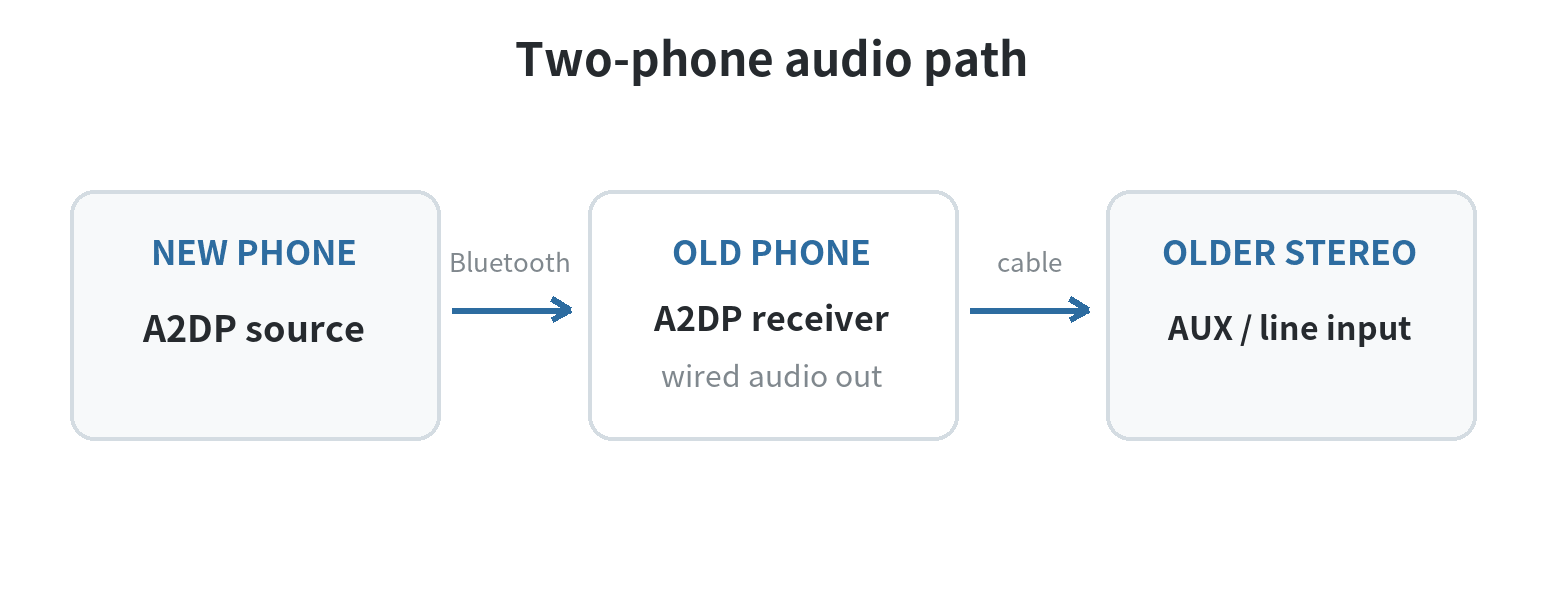
An old Android phone can feed a newer phone’s Bluetooth audio into an older stereo only if the old phone supports the A2DP receiver role. The Android Open Source Project describes an Android device as the source in most audio use cases, sending audio to a speaker or headset. Check the old phone’s model documentation and test the complete path before building the setup; if it cannot receive A2DP audio, its Bluetooth settings alone will not turn it into a receiver.
The useful chain is: newer phone → Bluetooth → old phone → wired audio output → stereo. The old phone acts as a bridge, not as the music source.
Check the Bluetooth role before connecting cables
A2DP, or Advanced Audio Distribution Profile, carries media audio between a source and a sink. The Bluetooth SIG defines the profile as audio streaming from source to sink; Android’s Open Source Project says an Android device is the source in most audio use cases, with a speaker or headset as the sink. For this setup, the newer phone is the source and the old phone must be the sink.
Look up the old phone’s exact model and software version in its maker’s support pages. Search the manual for “A2DP sink,” “Bluetooth audio receiver,” or receiving audio from another phone. Android’s developer documentation explains the A2DP profile and its API, but that does not mean every phone exposes a consumer receiver switch. A Bluetooth device list that can find headphones proves only that the phone can discover them; it does not prove that the phone accepts incoming music.
If the maker’s documentation does not confirm receiver mode, do a short pairing test before connecting the stereo. Put the old phone in the documented receiver or speaker mode, then open Bluetooth settings on the newer phone and pair with it. Start a local audio file at low volume. If the new phone does not list the old phone as an audio playback destination, or pairing works but no media arrives, stop there and check the model’s support instructions. Do not treat a file-transfer connection or a call-only Bluetooth connection as proof of A2DP music reception.
Match the old phone’s output to the stereo input
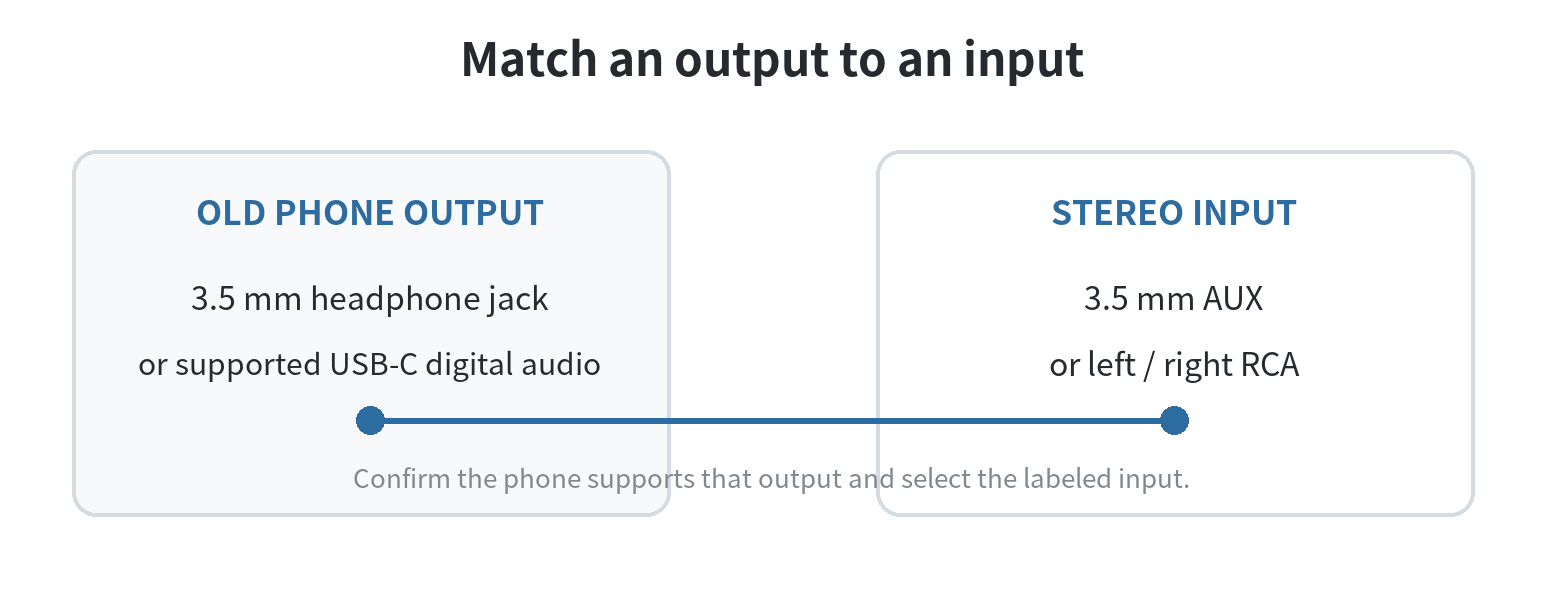
Once the Bluetooth receiver test passes, identify an audio output on the old phone and an input on the stereo. A headphone jack can connect to a stereo’s analog AUX input with the right cable. The stereo may use a 3.5 mm input or a pair of left/right RCA inputs; match the plugs to the labels on the rear panel rather than guessing from the jack’s shape.
If the old phone has no headphone jack, check its manufacturer’s audio instructions for a compatible USB-C digital audio adapter or USB audio output. Google’s Pixel audio guidance, for example, says USB-C adapters must support digital audio. USB-C connector shape alone does not establish that an adapter will carry sound from a particular phone.
A Marantz HD-DAC1 manual gives one concrete example: connect a smartphone to AUX, select AUX as the input, and play the connected device. Use your stereo’s own manual for its input labels and connection order.
Test the phone’s wired output separately before troubleshooting Bluetooth. Play a local recording through wired headphones or another known audio accessory, then confirm the phone sends sound through the same jack or USB adapter you plan to use. If that test is silent, the problem is on the wired-output side; check the phone’s audio settings and model guide before changing Bluetooth pairing.
| Old phone output | Stereo input | What to confirm |
|---|---|---|
| 3.5 mm headphone jack | 3.5 mm AUX | Both jacks are audio input/output, not a headphone output on the stereo |
| 3.5 mm headphone jack | Left/right RCA | The cable has a 3.5 mm plug at the phone and two RCA plugs at the receiver |
| USB-C audio | 3.5 mm AUX or RCA | The phone supports USB-C digital audio and the adapter provides an analog output |
| No compatible wired output | Any analog input | This phone cannot complete the described wired bridge without a supported audio output path |
Connect and test the complete chain
- Turn the stereo volume down and select the labeled AUX or other analog input.
- Connect the old phone’s audio output to that stereo input. If the manual recommends powering equipment off before connecting cables, follow it.
- Enable the old phone’s documented A2DP receiver mode and pair the newer phone to it. Keep the phones close for the first test.
- Play a familiar track from the newer phone. Confirm that its playback destination is the old phone, then raise the stereo volume gradually.
- Pause, resume, and reconnect once to confirm that the two-phone link and the wired output both work after a brief interruption.
Set levels in stages. Start with the newer phone around its middle volume setting, keep the stereo low, and raise the stereo slowly. If the sound distorts, lower the phone’s output before turning up the receiver. A clean test at a quiet level is more useful than starting with the stereo loud and trying to diagnose a harsh or clipped signal.
If the stereo stays silent, follow the signal in order. First confirm the newer phone is playing and shows the old phone as its media destination. Next listen at the old phone’s wired output. Then confirm the stereo is set to the input where the cable ends. Changing one link at a time makes it clear whether the issue is Bluetooth reception, the old phone’s audio output, the cable, or the stereo input selection.
Keep notifications and power from interrupting playback
Silence alerts on the old phone if its software offers a notification or do-not-disturb control that will not stop the receiver service. Keep the receiver app or system mode available in the foreground if the manufacturer requires it. Menu names and background behavior vary by model, so use that phone’s support instructions instead of following steps written for a different Android version.
Place the old phone where its cable will not pull against the audio jack or USB port. If it needs power during a long listening session, use its supported charger and leave the phone on a hard, open surface. An aging phone that disconnects or shuts down will interrupt the stereo regardless of cable quality.
When the old phone cannot receive Bluetooth audio
If the old phone supports only sending Bluetooth audio, it cannot serve as the receiver in this chain. You can still use the stereo’s wired AUX input with a compatible Bluetooth audio receiver, or use the old phone itself as the music player and send its audio to a compatible Bluetooth stereo. Those are different connection layouts, so label the source, receiver, and stereo input before changing equipment.
An older iPhone should not be assumed to work as the bridge either. Apple’s Bluetooth accessory setup instructions describe pairing an accessory with iPhone to stream music and video, which is the outgoing route. For a specific phone, rely on its maker’s documented Bluetooth roles and wired audio support. If those pages do not describe incoming A2DP playback, use another confirmed audio path instead of repeatedly pairing devices.
For a setup where the old phone itself plays the tracks, see the site’s guide to using an old phone as a dedicated music player. If you are adapting the idea for a vehicle rather than a home stereo, the old-phone car media player guide covers the source-phone-to-car connection.
FAQ
Can an old phone receive Bluetooth music while its screen is off?
It depends on how that phone implements receiver mode. Test playback with the screen off, then check the maker’s instructions for background limits or power-saving settings if the stream stops.
Can I connect the old phone to the stereo by USB instead of AUX?
Only if the stereo’s USB port is documented to accept playback from that phone. Check its manual for supported USB audio sources and formats.
Will a Bluetooth connection also give the old phone internet?
No. Bluetooth audio carries the media stream between the two phones; streaming services still need an internet connection on the device that runs them. The newer phone can play the service and send audio over Bluetooth if the old phone accepts A2DP.