An old tablet can work as a digital menu board or shop sign if it opens your file, stays awake, and reads from the customer’s position.
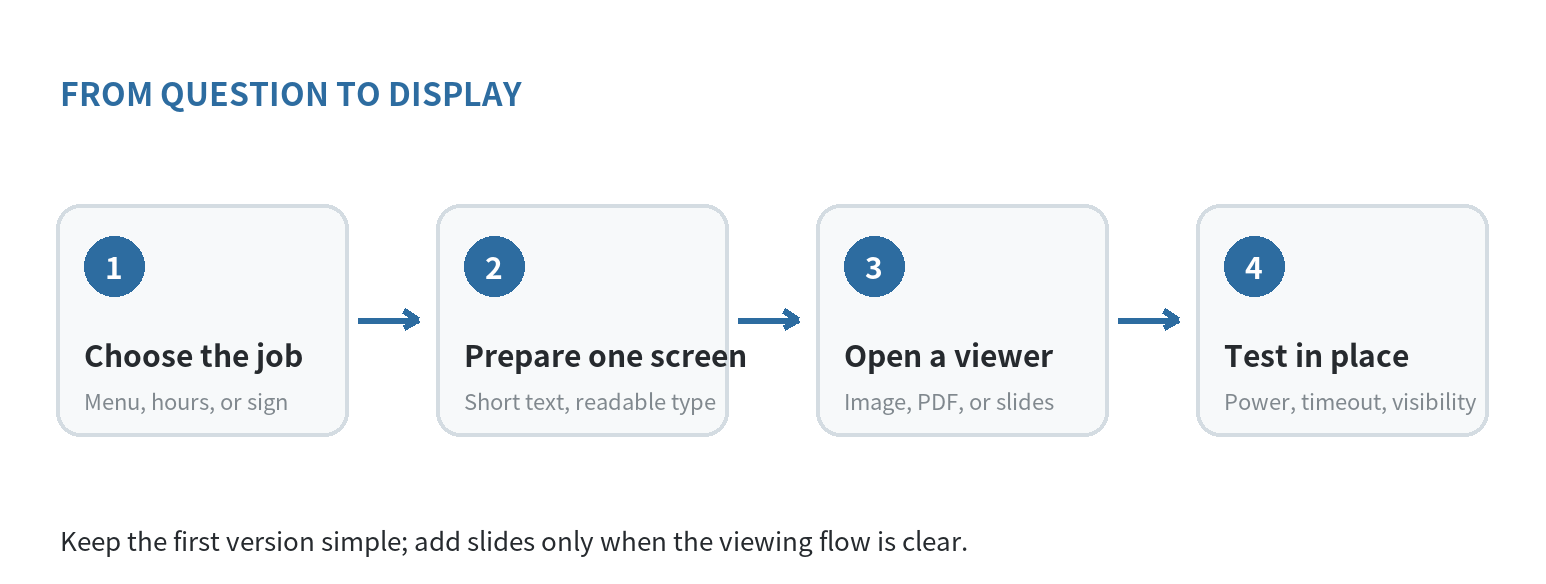
Start with one clear screen, then add slides only if someone can advance them or the tablet supports automatic playback.
The simplest setup is a single image or page with your current hours, menu, or service list.
A short presentation works when you want separate screens for categories or specials.
The tablet is the display; the content file and its update routine do the rest.
Choose one job for the screen
Decide what a visitor should learn without asking: what you serve, what it costs, when you are open, or where to get help.
Put the most time-sensitive detail on the first screen.
A shop sign can be one static screen.
A menu can also fit on one screen if the list is short.
Split a longer menu into sections, such as drinks and food, only when the viewer can move between them without confusion.
For a two-part menu, make the opening screen an index with clear labels, then give each category its own page.
If the tablet stays with staff, a swipe between categories may be enough.
For a screen customers view without help, keep the essential choices and prices visible together.
A person should not have to guess that the next slide contains another section.
Make a draft on a computer or another device before formatting it for the tablet.
Use a strong heading, a short list, and generous spacing.
Keep prices beside the item names, and avoid tiny footnotes that disappear at the counter.
Build for the tablet’s actual shape.
A landscape screen gives menu lines more horizontal room; portrait can suit a narrow sign or a short list.
Preview both orientations if you are unsure, then use the one that keeps the text largest.
Use a plain background and high contrast so the letters separate clearly from the screen.
A photo can support the message, but it should not compete with item names, hours, or instructions.
Make a file the tablet can show
Start with the tablet’s model, operating-system version, free storage, Wi-Fi, charging port, and screen condition.
Open the display app you plan to use and load a sample file before designing the full menu.
A saved image or PDF can suit a fixed sign when the tablet already has a viewer that opens it.
For changing menus, a presentation lets you keep sections on separate slides.
Check the app maker’s support page for compatibility with your tablet and the playback controls it documents.
Google’s Slides instructions for Android say a presentation can open full screen.
The viewer changes slides by swiping left or right.
Use it when a staff member can swipe between menu sections.
For a screen that changes slides on its own, choose an app whose official guide lists automatic playback.
On iPad, Apple’s Keynote guide describes a self-playing presentation, automatic slide changes, and a loop option.
The controls depend on the app and tablet version, so check that the installed version offers those settings before planning around them.
Keep an editable master away from the display device.
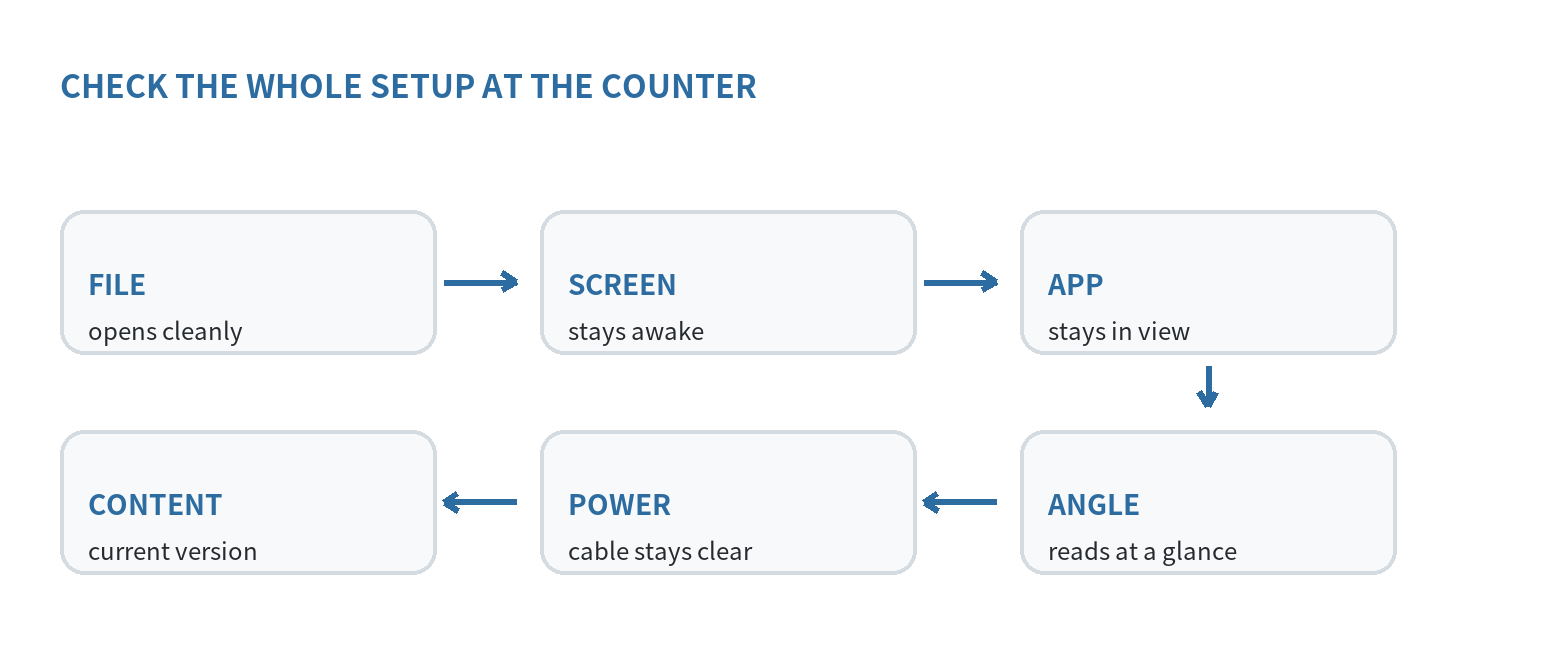
Export or copy the version you intend to show, then open it on the tablet and inspect every screen.
That way, an update starts from a known file instead of an old screenshot or a draft in a message thread.
If a menu changes during the day, include a simple update check in the opening routine.
Confirm the displayed version after replacing the file, and remove an outdated copy from the viewer if it can remain visible.
Give the active export one obvious file name and store older versions separately.
Before opening, compare the tablet’s visible content with the master.
This catches an incomplete transfer or an outdated screen before it reaches the counter.
Keep the screen open and on the right app
Sleep settings can interrupt a sign even when the file itself is fine.
On iPad, Apple says Auto-Lock sits under Settings, Display & Brightness, then Auto-Lock.
Apple warns that delaying or preventing Auto-Lock may increase power use.
For a public-facing iPad, Guided Access can keep the device in one app.
Apple’s iPad guide says to enable Guided Access under Accessibility, open the display app, start a session, and set a passcode for ending it.
On Pixel Tablet, Google documents app pinning to keep one app in view until it is unpinned.
Its instructions note that some steps require Android 14 or later, so follow the device’s own menus and version information.
For an Android tablet that is not a Pixel, check its maker’s support page for the available app-lock feature and exact steps.
Before leaving the tablet in public view, close personal accounts and messages.
Silence notifications that could cover the display.
Confirm visitors cannot reach unrelated screens.
Use only the controls the tablet supports.
Place it where the message can be read
Set the tablet on a stable stand or mount that holds it in the chosen orientation.
Put it near the decision point: by the entrance for hours, at the ordering area for a menu, or beside the service counter for instructions.
View the screen from the spot where a customer would pause.
Increase text size or reduce the amount of copy if the key information takes effort to read.
Adjust brightness for the room, then check the screen again under the lighting used during open hours.
Route the charging cable so it does not cross a walking path or pull on the stand.
Keep the outlet reachable for maintenance, and leave enough slack for the connector without creating a loop that can snag.
A tablet is small, so its placement matters as much as the design.
If someone must stand too close or wait for several slides to find a price, simplify the content or use a larger display already available.
Run a real shift test before relying on it
Test the tablet where it will sit, with the intended charger, app, file, and network conditions.
Let it run through the time it needs to stay visible.
Check that it has not dimmed, locked, returned to another app, or shown a notification.
Ask someone who did not build the display to find the hours, a key menu item, or the next step.
Their questions reveal missing labels and crowded screens more clearly than inspecting the design up close.
Check the update path too.
Replace one line or price in the master, export it, move it to the tablet, and confirm the new version appears.
If that handoff is awkward, simplify the file workflow before staff depend on it.
Keep a printed backup or another way to share the same information.
A tablet can lose power, need an update, or stop opening an older app.
The backup keeps the basic message available while you restore the display.
If you are deciding whether the tablet can handle other tasks as well, see our ideas for reusing an old Android tablet.
A smaller, personal display has different tradeoffs; our guide to using an old phone as a digital photo frame covers that setup.
FAQ
Can an old tablet show a menu without Wi-Fi?
Yes, if the menu file is saved on the tablet and its viewer opens local files.
Test the file with Wi-Fi turned off before relying on that arrangement, especially if the display app needs an online account.
Can the menu change slides by itself?
That depends on the presentation app.
Apple’s Keynote guide documents self-playing and loop settings on iPad; Google’s Android Slides instructions describe manual swiping.
Check the instructions for the app installed on your tablet.
How can I keep visitors from leaving the display?
Use a supported single-app control if the tablet offers one.
Apple documents Guided Access for iPad, while Google documents app pinning for Pixel Tablet; the available controls depend on the model and software.
What should I do if the tablet keeps dimming?
Review its screen timeout or Auto-Lock setting and test the actual display app.
Apple notes that delaying or preventing Auto-Lock can increase power use, so check the tablet during a full use period before choosing a setting.