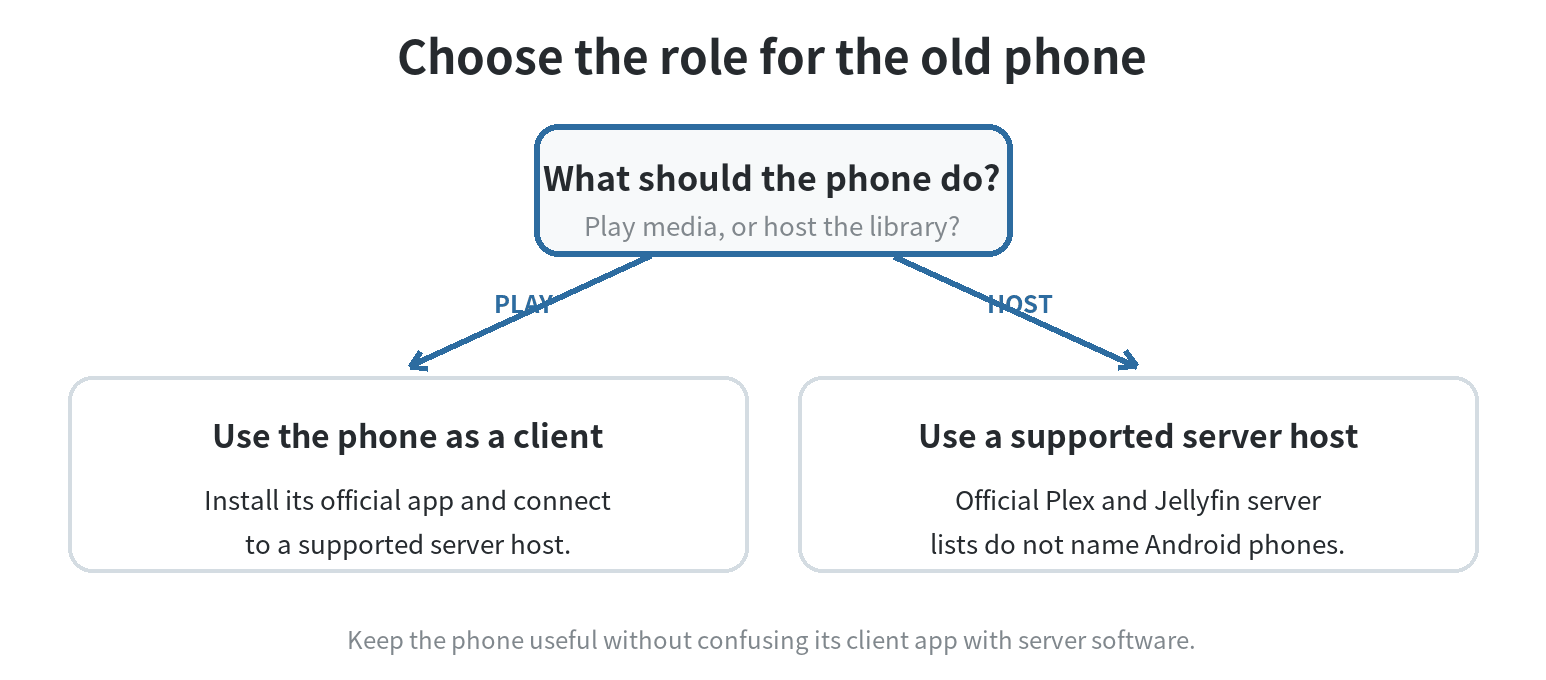
If you want to run Plex or Jellyfin directly on an old Android phone, the official apps do not provide that server setup. Plex lists its Android app as a player and names computers, compatible NAS devices, and NVIDIA SHIELD among supported Plex Media Server hosts. Jellyfin’s Android app connects to a Jellyfin server, while its server installation guide lists Windows, macOS, Linux, containers, and selected NAS platforms. Keep the phone as a dedicated playback screen, and run the library on a supported computer or NAS.
What Plex and Jellyfin mean by “server”
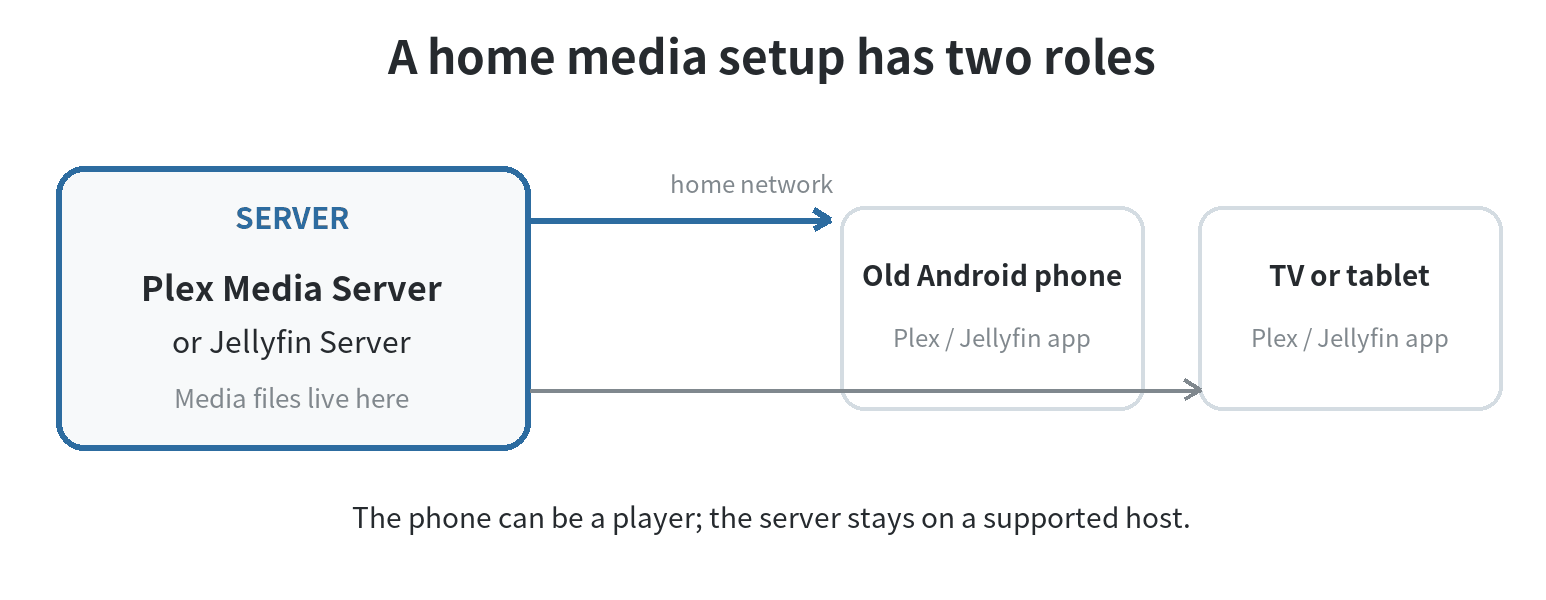
A media server is the device that holds or can reach your video, music, and photo files, organizes them into a library, and sends a playable stream to another device. A phone running a Plex or Jellyfin client is on the receiving side of that connection. The app name alone does not make the phone a server.
Plex’s support pages describe Plex Media Server for computers, compatible NAS hardware, and NVIDIA SHIELD, while its Android app is listed among mobile apps. Jellyfin’s project calls its Android software a client that connects to Jellyfin instances. The Jellyfin server installation guide lists desktop operating systems, containers, and selected NAS systems; it does not list Android phones.
That distinction prevents a common dead end: installing the Android playback app and looking for a library-hosting setup wizard. The official app is designed to find or connect to a server that already exists.
Put the old phone on the playback side
Choose the phone as a client if it still joins your home Wi-Fi, opens a current version of the app, and plays the file types you use. First, set up Plex Media Server or Jellyfin on a computer or NAS from the relevant project’s supported installation list. Put the media files somewhere that host can read, then complete the server’s library setup.
- Install the official Plex or Jellyfin Android app on the old phone.
- Connect the phone and server to the same home network for the initial connection.
- Open the app and connect to your server account or enter the server address as the app requests.
- Play one short file, then try a longer video and a subtitle track you actually use.
The last step checks the whole path: phone, Wi-Fi, server, storage, and media format. Jellyfin’s codec guide explains that an incompatible video may need transcoding, which shifts extra work to the server. If playback buffers, check whether the server is converting the file before blaming the phone’s wireless connection.
When one file fails, try a second file rather than changing several settings at once. Jellyfin’s codec guidance says incompatible audio, containers, or subtitles can require a direct stream, while an unsupported video codec can trigger video transcoding. A different result with another file points you toward media compatibility; failure across every file suggests checking the server connection and library path first.
Keep the library on a device the server can reach
For a simple home layout, leave the video library on the server computer’s internal drive or a storage device attached to that computer. The old phone can then sit near the TV as a playback screen or connect to a TV display if its hardware supports that use. The server and phone each have a clear job, and the files stay available when you use another client in the house.
If the files are on removable storage, confirm that the server host can access that storage directly. A USB drive plugged into the phone does not automatically become a library that Plex Media Server or Jellyfin Server can scan. The host needs a readable path to the media; file transfer from the phone to the host is a separate step.
For example, copy a folder of family videos from the old phone to a computer, add that computer folder to the server library, and use the phone’s app to browse and play the resulting library. Keep an untouched backup of important originals before moving or reorganizing files.
Transfer a small sample before moving the whole collection. Copy one video and one photo folder to the server host, point the library setup at that location, and confirm that the files appear on a second client. Then test the same video on the old phone. This sequence helps separate a missing-file problem from a playback-format problem.
Keep the originals on the phone until the server can read and play the copied files. If the library does not show a file, verify the folder path from the server host itself; a phone charging beside the TV cannot make a folder visible to a different computer. Once the small sample works, transfer the rest in batches and retain a separate backup of anything you cannot replace.
Check playback limits before leaving it by the TV
Older phones can run into app compatibility, Wi-Fi, storage, or codec limits. Check the Android version against the app’s current store listing, then test local playback before treating the phone as a permanent living-room device. Keep the screen off between uses if you do not need it visible; a client does not need to stay open as the library host.
Plan for what happens when the home internet is down. A local server and client may still communicate across the home network, but account checks, metadata, or app features can depend on internet access. Plex’s network guidance says some server and app functions require an active connection. Test the exact local playback you rely on before assuming every function works offline.
Remote viewing is a separate configuration from home Wi-Fi playback. Jellyfin advises that its server is not designed to be exposed directly to the internet. Plex also requires Remote Access to be enabled for viewing outside the home network and applies current account requirements to remote video playback. For a first setup, keep access local and avoid opening router ports just to make the old phone useful at home.
Use a charging plan that fits an aging battery
A server client can be used without keeping an old phone plugged in all day. If you do power it for extended sessions, inspect the device first. Fire and Rescue NSW advises against charging a device unattended or overnight and says to stop using batteries or devices that show swelling, leaking, overheating, or physical damage. The U.S. Consumer Product Safety Commission also reports battery and charger hazards during use, storage, and charging.
Use the manufacturer-supplied charger or one confirmed compatible with the phone. The U.S. Fire Administration recommends charging on a solid, flat surface, away from direct sunlight, and avoiding unattended charging when possible. Do not cover the phone with bedding or place it where heat cannot escape. If the battery bulges, the case separates, or the phone becomes unusually hot, unplug it if safe and stop using it; ask the phone maker or a qualified repair service about next steps.
Set a reminder to check the device while it is in use. An old phone’s battery condition is specific to that phone, so a timer or charging limit should not be treated as proof that continuous charging is safe. When the phone is not needed as a client, shut it down and store it according to the manufacturer’s guidance.
FAQ
Can an Android phone run the official Plex Media Server app?
Plex’s supported server list does not include Android phones. Plex identifies Android as a mobile app platform and lists other supported server hosts, including computers, compatible NAS devices, and NVIDIA SHIELD.
Can the Jellyfin Android app create a new server library?
No. Jellyfin describes its Android app as a client that connects to a Jellyfin instance. Set up the server on a supported host, then connect the phone to it.
Can the phone play videos stored on its own storage?
Yes, as a local playback device when the installed player supports the file. To browse those files as a Plex or Jellyfin library, the server host must be able to access the folder; the client app by itself does not share the phone’s storage as a server.
Should I leave an old phone charging beside the TV all the time?
Avoid making unattended, continuous charging the default. Fire and Rescue NSW advises against leaving devices charging unattended or overnight, and the U.S. Fire Administration recommends charging on a hard, flat surface and avoiding unattended charging when possible.