He Was Drowning in Bills and Burnout Until a Simple Daily Ritual Rewired His Brain for Wealth in Less Than a Week
>>> Start Your Shift Today <<<

Resetting only your WiFi settings can fix stubborn connection issues without touching apps, photos, or other data. If your phone won’t connect to familiar networks, or you keep getting asked for passwords you know are correct, a network reset is a simple, safe first step. This guide explains how to perform the reset on both Android and iPhone, so you can get back online quickly.
For Android users, a network reset clears saved WiFi networks and passwords, Bluetooth pairings, and other network settings. It won’t delete your apps or personal media. On most devices you’ll go to Settings, find System or General management, then choose Reset options and select Reset Wi-Fi, mobile and Bluetooth. You’ll likely confirm with a PIN or fingerprint, then reconnect to your networks by reentering passwords.
iPhone users have a similar option called Reset Network Settings. This removes saved networks and passwords, Bluetooth devices, and VPN settings but leaves your data intact. Open Settings, then General, Transfer or Reset iPhone, and choose Reset Network Settings. After the reset you’ll reconnect to your WiFi networks by entering passwords again. If you’ve recently changed your router or network name, this approach helps you start fresh without affecting photos, messages, or apps.
What resetting only WiFi settings really does
If your phone keeps dropping WiFi, forgets networks too often, or keeps prompting for passwords you know are correct, a targeted WiFi or network reset can be a smart first step. This section explains what actually happens when you reset only the WiFi settings, how it differs on Android and iPhone, and what you should expect afterward. Think of it as giving your phone a clean slate for wireless connections, without touching your photos, apps, or messages.
She Pressed Play on a Strange Audio Track and Within Days Her Financial Reality Started Shifting in Ways She Could Not Explain
>>> See How It Works <<<

What gets cleared and what stays put
- Clearing saved networks and passwords: The most noticeable change is that your device forgets all the WiFi networks you previously joined and the passwords you saved for them. You’ll need to reconnect to your networks by re-entering passwords.
- Repaired Bluetooth and other network ties: In many cases, Bluetooth pairings and certain network profiles tied to WiFi behavior may be reset or scrubbed as part of the process. This can help when devices won’t pair or when Bluetooth devices act oddly after a WiFi issue.
- VPN, cellular data, and apps: A standard network reset does not affect your cellular plan, installed apps, photos, or personal data. You won’t lose contacts, messages, or documents simply by performing this reset.
- Router and network name changes: If your home network recently changed its SSID (the network name) or password, you’ll need to reconnect with the new credentials after the reset. The reset acts like a clean slate for the device, not for the network itself.
In practice, this means you get a fresh start on wireless connectivity without risking loss of personal content. It’s a targeted fix, not a full device reset.
Android vs iPhone: what changes on each platform
- Android devices: A typical path is Settings > System or General management > Reset options > Reset Wi-Fi, mobile and Bluetooth. You’ll confirm with a PIN, pattern, or fingerprint. After the reset, you’ll reconnect to networks by reentering passwords. If you use corporate or school networks with managed profiles, you might need to re-enter credentials or re-approve device access.
- iPhone: On iOS, the counterpart is Reset Network Settings. This action clears saved networks and passwords, Bluetooth devices, and VPN settings, but leaves your media and apps intact. You’ll find it under Settings > General > Transfer or Reset iPhone > Reset Network Settings. After the reset, reconnect to WiFi by entering passwords again. If you’ve changed routers or network names, this is a quick way to start fresh without touching other data.
Both platforms keep your personal data intact, so you’re not risking photos, messages, or apps when you perform a network reset. If you’re dealing with stubborn network issues, this reset can be a practical, low-risk move before more involved troubleshooting.
When a network reset is the right move
- Repeated WiFi prompts for passwords you know are correct
- A device won’t connect to familiar networks despite correct credentials
- Bluetooth accessories glitching after network problems
- Your router recently got swapped or its name changed
- You’ve tried restarting the router and device, but issues persist
Treat the reset as a diagnostic step rather than a final fix. If problems persist after you reconnect, you’ll want to explore router settings, firmware updates, and potential interference from other devices.
What to do after the reset: a practical checklist
- Reconnect to WiFi: Enter your network password and verify a stable connection.
- Re-pair Bluetooth devices: Reconnect any headsets, speakers, or car systems that were reset.
- Check VPN and cellular settings: If you use a VPN, reconfigure it; if your mobile data behaves oddly, ensure carrier settings are current.
- Test with a quick workflow: Open a browser, stream a short video, and run a speed test to confirm stability.
- Update firmware and apps: Keep your router, phone OS, and essential apps up to date. These updates can address compatibility issues that a reset alone cannot fix.
- Note network specifics: If your household uses a guest network or a business VPN, document the required credentials so re-connecting is smooth.
Common pitfalls and quick fixes
- Forgetting passwords after the reset: If you’re unsure of any password, pull it from a password manager or router label. This keeps you from being locked out once you try to reconnect.
- Mixed networks causing confusion: If multiple networks exist, prioritize your primary home network to keep things simple.
- Reconnecting to 5 GHz networks: If your router broadcasts multiple bands, ensure your device connects to the intended 2.4 GHz or 5 GHz network as needed for range and speed.
- Interference from other devices: Move away from devices that can disrupt signals, like microwaves or cordless phones, during the initial reconnection.
Real-world examples and practical tips
- A busy smartphone user notices that after a reset, their device connects more reliably to the home router, especially when many smart devices are on the network. The simple act of clearing saved networks reduces the chance of a stale credential causing a failed handshake.
- In an apartment with shared networks, performing a network reset helps a phone forget countless guest networks, ensuring it connects to the correct one when at home or nearby cafes.
- For travelers, a quick reset before a flight or hotel stay can help when new networks require different login steps or captive portal credentials.
For further reading on how the network reset behaves on Android and iPhone, you may want to explore detailed guides like this overview of what a network reset does on Android and iPhone. It’s a concise reference that reinforces the expectations described above. What does Network Setting Reset do on Android?
Quick reference: does this reset affect your data?
- Personal data: No
- Apps: No
- Photos and videos: No
- Messages and contacts: No
If you’re unsure whether a specific app or configuration will be affected, test with a low-stakes scenario first. A short note here: this reset is about connectivity, not content.
To deepen your understanding and see how experts frame the reset on both major platforms, this guide covers the basics and the practical effects in plain language. It’s a solid companion as you decide if this step belongs in your troubleshooting plan. What Does “Reset Network Settings” Do on Android and iPhone?
Android: reset WiFi settings step by step
If your smartphone keeps dropping connections or keeps asking for WiFi passwords you know are correct, resetting just the network settings can help. This section breaks down Android specific steps in a concise, practical way. It’s a targeted fix that won’t touch your photos, apps, or messages. After the reset, you’ll reconnect to networks by reentering passwords and re-pairing any Bluetooth devices. Think of it as giving your smartphone’s wireless settings a clean slate.
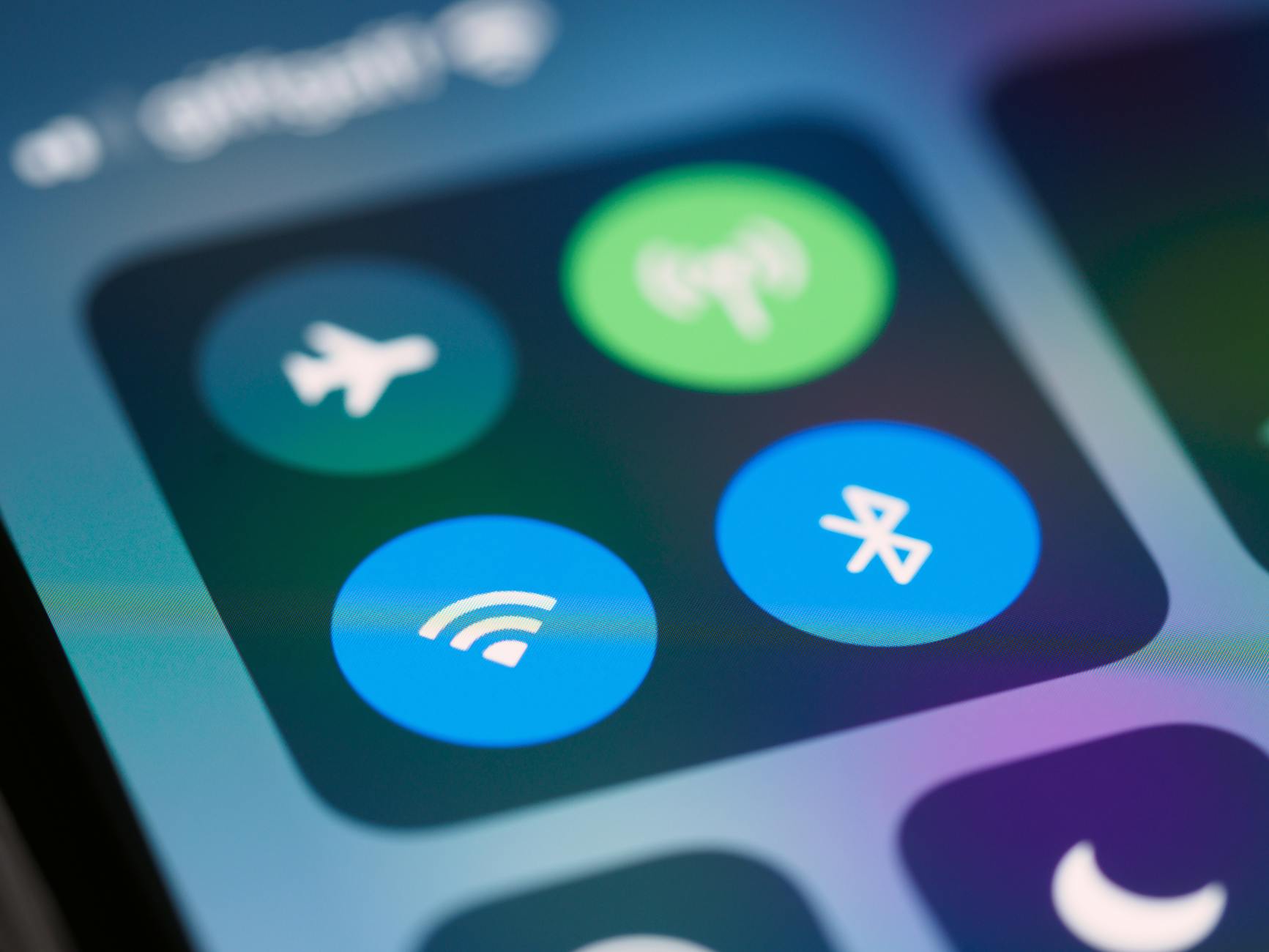 Photo by Brett Jordan
There Is a Frequency That the Wealthiest Families Have Used for Generations and Most People Will Never Know It Exists
>>> Open the Door <<<

A quick path for most Android phones
Use this device-agnostic path when you want a fast, reliable network reset. The exact menu names can vary by manufacturer, but the route stays similar.
- Open Settings on your Android phone.
- Tap System or General management (some devices use just “System” or “Backup & reset”).
- Choose Reset options or Reset.
- Select Reset Wi‑Fi, mobile & Bluetooth (or Reset network settings).
- Confirm with your PIN, pattern, or fingerprint if prompted.
- Reconnect to Wi‑Fi networks by reentering passwords and re-pair Bluetooth devices.
If you don’t see those exact menu terms, look for any option labeled with “Reset” and “Network” or “Wi‑Fi.” This path is reliable across most brands, including a quick rejoin to your saved networks once the reset finishes.
External reference: How to reset network settings on Android
Samsung Galaxy devices specific steps
Samsung users often see slightly different phrasing in the reset path. Here’s a model-friendly route that matches most Galaxy phones.
- Go to Settings.
- Tap General management.
- Choose Reset.
- Select Reset network settings (on some models you might see Reset Wi‑Fi, mobile data & Bluetooth).
- If prompted, select the SIM or confirm you want to reset.
- Tap Reset and confirm with your credentials if asked.
- After the reset, reconnect to Wi‑Fi by entering passwords again and re-pair Bluetooth devices as needed.
Note: Some Galaxy models label the option as “Reset Wi‑Fi, mobile data & Bluetooth” instead of just “Reset network settings.” If you see this wording, follow through with the same confirmation steps.
External reference: Reset network connection on Samsung Galaxy devices
What to do after the reset on Android
Once the reset finishes, these quick tasks help you get back to normal quickly.
- Rejoin saved networks: Enter passwords for the home, work, and typical guest networks.
- Re-pair Bluetooth devices: Headphones, speakers, and car systems may need re-pairing.
- Check VPN and data settings: If you use a VPN, reconfigure it; verify any special carrier or APN settings if needed.
- Test your connection: Open a browser, stream a short video, and run a speed test to confirm stability.
- Update devices: Keep your phone and router firmware up to date for the best compatibility.
If you want deeper guidance, Android Authority’s guide covers what to expect after a reset and how to troubleshoot further. How to reset network settings on an Android phone or tablet
Quick reference: does this reset affect your data?
- Personal data: No
- Apps: No
- Photos and videos: No
- Messages and contacts: No
If you’re unsure about a specific app, run a small test first. This reset focuses on connectivity, not content.
Real-world tips for your smartphone setup
- Keep a note of your home network password in a safe place so reconnecting is seamless.
- If you use a guest network, consider disabling guest access on your router temporarily during setup to avoid future prompts.
- For multi-device households, after a reset you may want to organize a short network audit to ensure every device connects as expected.
External reading for context: a helpful general overview on Android network resets can be found here. How to reset network settings on Android?
iPhone: reset network settings and what to expect
Resetting network settings on an iPhone can feel like a blunt instrument, but it’s a precise move that targets connectivity issues without touching your photos, apps, or messages. If you’re facing stubborn Wi‑Fi prompts, wonky Bluetooth pairings, or VPN quirks, this section breaks down exactly what happens and how to navigate it with confidence.
Thousands of People Were Struggling With Money Until They Discovered This One Ancient Secret Hidden in Sound
>>> Unlock It Now <<<

Steps for iOS 18+ devices
Break down the official steps: Settings, General, Transfer or Reset iPhone, Reset, Reset Network Settings, enter passcode, confirm. Note the device restarts afterward and you will need to rejoin networks.
- Open the Settings app.
- Tap General.
- Select Transfer or Reset iPhone.
- Tap Reset.
- Choose Reset Network Settings.
- Enter your passcode.
- Confirm the reset. Your iPhone will restart, and you’ll reconnect to Wi‑Fi networks by reentering passwords.
After the restart, Wi‑Fi, Bluetooth, and VPN settings revert to defaults. If you recently changed your router or network name, you’ll need to re-enter the new credentials. This keeps your data intact, so your photos, messages, and apps stay as they were.
For a reference that aligns with current iPhone practices, you can review Apple’s guidance on resetting iPhone settings and related steps: Reset iPhone settings to their defaults. You can also see how to factory reset your device if you ever need a full erase for security reasons. Links: Apple Support pages provide detailed step-by-step visuals and notes for iOS 18 and newer.
What happens after on iPhone
After you complete the reset, saved Wi‑Fi networks and their passwords are erased, Bluetooth pairings are cleared, and VPN settings may reset. Reconnecting to Wi‑Fi requires re-entering passwords, and you might need to reconfigure VPN if you use one. It’s common to re-establish VPN profiles and re‑pair Bluetooth devices after the reset.
Think of the reset as a clean slate for wireless behavior. You’re not starting over with data, but you are starting fresh with how your iPhone talks to networks and devices. If you’ve changed a router name or password, you’ll notice the impact immediately as you reconnect.
If you want extra context on what to expect after performing a network reset on an iPhone, Apple’s official overview and related articles are solid resources. For quick reference, see Apple’s guide on resetting iPhone settings and the dedicated page on erasing or resetting iPhone features. Additional reading from third parties can offer practical tips, but Apple’s documentation is the most authoritative for iPhone behavior post reset.
External references:
- Reset iPhone settings to their defaults
- How to factory reset your iPhone, iPad, or iPod touch
If you’re unsure about any step, take a moment to confirm you’re following the correct option in Settings. A small misstep can leave you without Wi‑Fi until you rejoin networks, but you won’t lose photos or apps in this process.
Troubleshooting after reset and best practices
After resetting only the WiFi settings on your Android or iPhone, you’re starting with a clean slate for wireless connections. This section covers practical steps to troubleshoot common hiccups and establish solid, long-term best practices. You’ll learn how to verify connections, fine-tune your network setup, and know when to push further with more thorough fixes. Think of it as smoothing the path back to dependable connectivity for your smartphone and other devices.
Router checks and quick fixes
A quick sanity check of your router often resolves many lingering issues. Try this simple sequence to confirm the network is behaving as it should.
- Unplug the router for 30 seconds, then plug it back in.
- Wait for the lights to stabilize and confirm the device is broadcasting normally.
- Move closer to the router to ensure a strong signal during testing.
- If possible, test with another device to confirm the issue isn’t isolated to one phone.
If you need more guidance on router behavior and basic resets, reputable guides cover the steps clearly. For instance, a concise overview explains what a network reset does on Android and iPhone and when it helps. What does Network Setting Reset do on Android?
Common post reset issues and fixes
After a network reset, you may run into familiar symptoms. Here are typical problems and fast fixes you can apply without rebooting your entire device.
- Wi-Fi networks not appearing: Forget the old network entry and re-scan. Then rejoin with the correct password.
- Wrong password prompts continue: Re-enter the password carefully, or use a password manager to autofill accurately.
- Bluetooth won’t pair: Toggle Bluetooth off and on, then pair again. If the device is still stubborn, remove the old pairing and re-pair from scratch.
- Connection drops after wake or sleep: Reconnect to the preferred network and test with a short activity like streaming a clip.
Quick actions to try first include: Forget This Network and re-adding networks, toggling airplane mode off and back on, and rebooting the phone if needed. For a broader look at post reset behavior, see guides that compare Android and iPhone network resets and their effects. How to reset your Android or iOS network settings to fix …
When to consider a full reset
A full factory reset should be a last resort. Use it only after you’ve backed up data and exhausted other fixes. Consider a full reset if you face repeated, hard-to-diagnose issues that affect more than one app or service, or if your device is exhibiting odd software behavior beyond connectivity.
- You’ve backed up photos, contacts, and essential data and are ready to start fresh.
- Network fixes, app updates, and router adjustments fail to resolve the core problems.
- The device shows systemic issues like persistent crashes, unusual battery drain tied to connectivity, or corruption that affects multiple features.
Stay calm through this step. A full reset can restore stability, but it clears more than just network settings. If you’re unsure, review guidance from reputable sources on how to prepare for and perform a full reset. For iPhone users, Apple’s official instructions outline what happens when you reset and what to expect after a factory reset.
- Apple Support: Reset iPhone settings and related steps
- Android guidance: Reset options and post-reset expectations
What to do after the reset: a practical checklist
Use this quick checklist to reestablish a reliable wireless setup after you reset network settings.
- Reconnect to Wi-Fi: Enter your network password, confirm the connection, and test browsing.
- Re-pair Bluetooth devices: Headphones, speakers, car systems, and wearables may need pairing again.
- Check VPN and mobile data settings: Reconfigure VPNs as needed; verify carrier or APN settings if you rely on cellular data in specific ways.
- Run a quick test: Open a browser, stream a short video, and perform a speed test to confirm stability.
- Keep devices up to date: Update your phone OS, router firmware, and important apps to maintain compatibility.
If you want deeper guidance, reputable guides offer practical, platform-specific tips for post-reset steps. Reset network connection on Samsung Galaxy devices
Common pitfalls and quick fixes
- Forgetting passwords after the reset: Use a password manager or router label to retrieve credentials.
- Multiple networks causing confusion: Prioritize your home network for easier reconnection.
- Connecting to the wrong band after reset: If your router broadcasts 2.4 GHz and 5 GHz, ensure the device connects to the correct one for the situation.
- Interference from other devices: Keep microwaves, cordless phones, and other electronics away during the initial reconnection.
A practical reference on what to expect after a reset can be helpful as you troubleshoot. For Android and iPhone behavior, see guides that outline post-reset expectations and common fixes. What Does “Reset Network Settings” Do on Android and iPhone?
Real-world examples and practical tips
- A busy home with many smart devices may benefit from the reset by clearing stale credentials that hinder handshakes with the router.
- In apartments with shared networks, a network reset can help a phone forget many guest networks and focus on the primary home network when you’re nearby.
- While traveling, a quick reset before a hotel stay can simplify login steps and captive portal prompts.
External reading for context: a general overview on Android network resets can be found here. How to reset network settings on Android?
Quick reference: does this reset affect your data?
- Personal data: No
- Apps: No
- Photos and videos: No
- Messages and contacts: No
If you’re unsure about a specific app or setting, try a low-stakes test first. This reset is about connectivity, not content.
To deepen your understanding and see how experts frame the reset on both major platforms, this guide covers the basics and practical effects in plain language. What Does “Reset Network Settings” Do on Android and iPhone?
Conclusion
A network reset targets WiFi and Bluetooth settings without touching your apps or files, making it a safe first step for persistent connectivity issues on your smartphone. Bookmark the steps so you can act quickly when needed, and back up important data before any larger troubleshooting. After the reset, you’ll rejoin networks and re-pair devices, but you’ll keep photos, messages, and apps intact. If you found this guide helpful, drop a comment with your experiences or any questions about your specific smartphone model.
There Is a Frequency That the Wealthiest Families Have Used for Generations and Most People Will Never Know It Exists
>>> Open the Door <<<