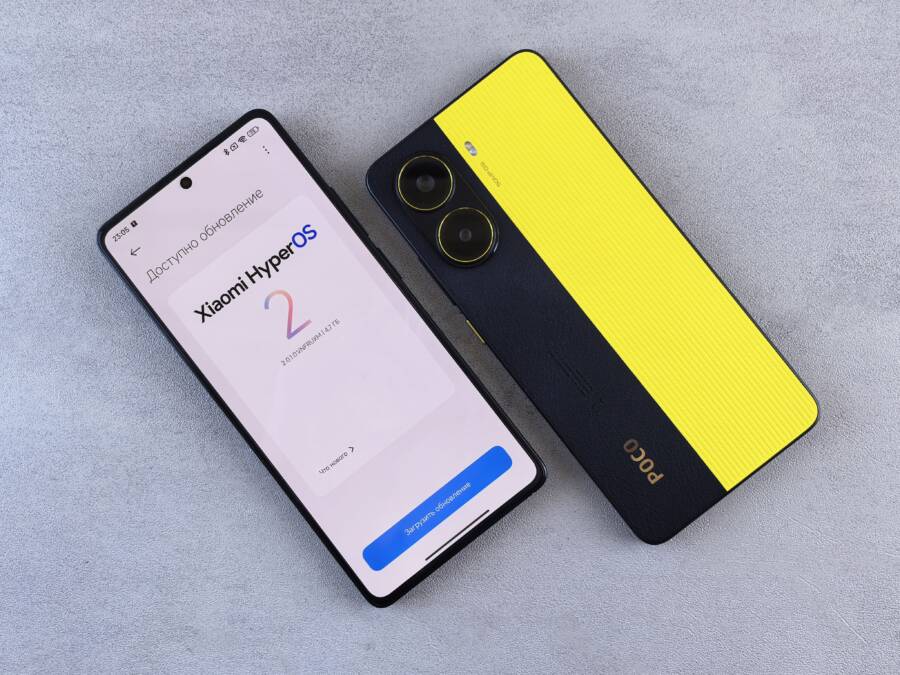
If your phone widgets stop updating, you likely need to adjust your background app refresh settings or your power management preferences. These widgets act as small windows into your apps, but your system will often pause those apps to save battery life, which causes the data on your home screen to freeze.
You don’t have to tolerate a stale home screen on your smartphone. By tweaking a few system permissions, you can ensure your favorite information stays current throughout the day.
Understanding Why Your Smartphone Widgets Freeze
Widgets on your smartphone often stop updating because the operating system limits their activity to preserve battery life and processing power. Your device prioritizes active tasks, such as calls or open apps, over background processes like refreshing a weather icon or a stock ticker. When a widget remains stuck on old information, the software behind it is likely restricted from reaching the internet or accessing new data.
Battery Optimization Settings
Most modern smartphones use aggressive power management tools that identify background activity as a drain on resources. If a specific app needs to pull data for its widget frequently, the system might categorize that activity as unnecessary or excessive. You can check these settings in your battery menu to see if the app is currently set to restricted or optimized mode. Changing this preference to unrestricted allows the widget to pull data whenever it needs to, regardless of current power-saving status.
Background Data Restrictions
Widgets rely on a steady connection to the internet to remain current. If you have restricted background data usage for certain apps, the widget remains frozen because it cannot reach its server. You should verify that your smartphone allows the specific app in question to use mobile data or Wi-Fi while running in the background. Without this permission, the app remains dormant until you manually open it, preventing the widget from performing its job.
System Cache and Memory Limitations
Occasionally, the temporary storage used by an app becomes corrupted or overloaded, which stops the widget from communicating with the main system. This cache holds bits of data to help the app load faster, but outdated files often prevent new information from displaying correctly. Clearing the cache for the app in your system settings often resolves this issue by forcing the widget to establish a fresh connection. If the widget continues to fail, checking the app for pending updates in your app store is a practical next step to ensure you are using the latest version of the software.
Memory Management and App Suspension
Smartphone operating systems act as gatekeepers for your system memory. When you have many apps running at once, the system suspends inactive apps to keep the interface smooth and responsive. A widget attached to a suspended app will stop updating because the underlying code is essentially paused by the system. If you notice your widgets frequently freeze during heavy multitasking, it is often a sign that your device is clearing memory to accommodate more demanding tasks.
Easy Steps to Fix Widgets That Are Not Refreshing
When your smartphone widgets stop showing current information, you can often restore them by adjusting your background connectivity settings. These tools pull data from the internet throughout the day, so they require permission to operate while you are not actively using the app. If your phone blocks this access, the widget content freezes. Changing a few system settings usually allows the information to flow again.
Checking Your Background Data and Refresh Settings
Background App Refresh is a core feature that permits apps to update their content while they remain idle in the background. On iOS, you can navigate to Settings, select General, and then tap Background App Refresh. Make sure the toggle is set to On for your specific app. On Android, the path varies slightly by manufacturer, but you should open Settings, select Apps, choose the app in question, and then look for Mobile Data or Battery settings to toggle on Background Data usage.
These settings are the most common cause of frozen widgets because your system treats them as non-essential tasks to conserve energy. When you manually restrict background data or disable refresh permissions, the app stops reaching out to servers for updates. Once you re-enable these permissions, the app resumes its communication loop, which effectively allows the widget to display live information again. If you prefer to save data, you might verify that the app still has access to Wi-Fi, as this is often sufficient to keep your home screen current.
Adjusting Battery Saver and Optimization Modes
Smartphone manufacturers include aggressive battery management tools that prioritize longevity over constant updates. These modes monitor your activity and automatically restrict apps that run frequently in the background, including those connected to widgets. If you notice your widgets stop updating specifically when your battery percentage drops, your phone is likely forcing those apps into a deep sleep state.
You can prevent this by adding your essential apps to a list of exceptions in your power management menu. On Android, navigate to your Battery or Device Care settings, find Battery Optimization, and look for apps that are currently set to optimize. Change the selection to Don’t Optimize or Unrestricted for the apps powering your widgets. On iOS, disabling Low Power Mode restores full background activity for all apps, as this mode forces the system to pause non-critical tasks. Keeping your battery level above the threshold where power saving kicks in is a practical way to ensure your widgets remain active throughout the day.
Deep Troubleshooting When Widgets Remain Stale
Persistent widget issues often stem from corrupted local storage or configuration errors that standard settings tweaks cannot resolve. When basic background refresh permissions fail to trigger an update, the internal link between the app and your home screen interface is likely broken. A clean start forces the smartphone to re-establish these connections, effectively flushing out old, static data that prevents the widget from pulling new information.
Removing and Re-adding Widgets to Your Home Screen
Removing a widget and placing it back on your home screen is the most effective way to reset its specific instance. Every widget exists as a separate process or view, and over time, these instances collect temporary configuration files that can become unreadable by the operating system. By deleting the widget, you instruct the smartphone to discard these potentially corrupted files. Once you add it again, the app initiates a fresh handshake with the operating system to request new data.
Follow these simple steps to refresh the connection:
Long-press the frozen widget on your home screen until the edit menu or the minus icon appears.
Select the option to remove or delete the widget.
Return to your home screen or the widget gallery to re-add the same widget.
If the app allows for customization, such as selecting a specific location or display style, ensure you choose these settings again to finalize the new setup.
This process is successful because it clears out old, cached configurations without affecting your actual account data or preferences inside the app. It forces the system to treat the widget as a new request, which often bypasses any hidden bugs that developed during a previous update or system change.
Verifying System Software and App Compatibility
Smartphone software runs on a foundation of constant communication between the operating system and individual apps. If your operating system is outdated, it might lack the necessary protocols to handle newer widget features or data requests. Conversely, using an older version of an app means it may rely on deprecated code that the newer operating system version intentionally blocks for security or battery reasons.
Compatibility issues frequently manifest as widgets that remain empty or show only a spinning loading icon. To maintain performance, check for the following:
System updates: Navigate to your phone settings and look for a section labeled Software Update or System Update to ensure you are running the latest version available.
App updates: Visit your app store and check the updates tab to see if the specific app powering your widget has a newer version waiting to be installed.
Integration logs: If the app provides a help or support menu, look for any notes regarding recent updates, as developers often release patches specifically designed to fix widget syncing problems.
Running current software ensures that your apps and your operating system speak the same language. If your phone software is several versions behind, the system may prevent apps from running background tasks to keep the device stable. Always prioritize keeping both the smartphone operating system and your apps current to avoid these integration gaps. When everything is up to date, the system reliably provides the resources necessary for widgets to update on schedule.
Balancing Battery Life and Real Time Widget Updates
Keeping widgets fresh requires a constant flow of data, but this activity competes directly with your goal of maximizing battery life. A smartphone manages resources by grouping background tasks and delaying updates when the battery level is low or when the screen is off. Finding the right balance depends on how often you truly need real-time data versus how much you value long-lasting performance throughout the day.
The Trade-off Between Frequency and Longevity
Every time a widget wakes up your smartphone to fetch new data, the device consumes power. This process requires the processor to exit its low-power state, initialize the app, connect to the network, and update the display. If you have ten widgets set to refresh every few minutes, the constant wake cycles prevent the phone from entering deep sleep. Modern operating systems mitigate this by throttling update frequencies for apps that remain unused. You can view this as a system-level negotiation where the software decides if a weather update is urgent enough to justify draining 1% of your remaining battery.
Optimizing Update Intervals for Specific Apps
Not every widget needs to update on the same schedule. A stock market tracker or a sports score widget might require high-frequency updates, while a calendar or photo widget can often wait hours without losing relevance. You should categorize your widgets based on your actual needs to conserve energy efficiently.
Consider these strategies for managing your widget activity:
Prioritize high-frequency updates only for apps where data relevance is measured in seconds.
Remove widgets from your home screen that provide information you rarely glance at, as these still perform background tasks.
Use static widgets for information that rarely changes, such as a note or a persistent task list, to stop the app from reaching out to servers.
Disable background refresh for apps that you frequently open manually, because opening the app will automatically trigger an update anyway.
Managing System-Level Power Profiles
Your smartphone operates under different power profiles that automatically override your individual app settings. When your device reaches a critical battery threshold, the system disables background processing to stretch the remaining charge. This action causes widgets to stop updating regardless of your manual configuration. If you prioritize real-time updates, keep your device plugged in during high-use periods or carry a portable battery pack.
You can also identify which apps are heavy consumers by reviewing the battery usage statistics in your settings menu. If a specific app consistently appears at the top of the power consumption list, its widget is likely the culprit behind your battery drain. Removing that widget often leads to a noticeable improvement in daily standby time. By limiting background activity to only the most necessary services, you maintain a responsive home screen while preventing unnecessary strain on your hardware.
Conclusion
Most widget issues resolve once you adjust your background permissions or power settings. Simply ensuring your apps have the authority to refresh data allows your smartphone to keep information current without manual intervention.
Monitor your battery usage while keeping these features active to maintain a balance between convenience and hardware longevity. Taking these steps ensures your home screen remains a useful, live tool rather than a collection of static images.