What If the Only Thing Between You and the Life You Deserve Is a Hidden Wealth Code Waiting to Be Activated
>>> Open the Door <<<

If your phone keeps disconnecting from WiFi, you’re not alone. Those wifi drops can be frustrating when you’re trying to stream, work, or game, especially with multiple devices on the same network. This guide lays out a simple, safe plan that works for both Android and iPhone users.
You’ll learn why a phone may experience unstable wifi and how to spot router problems before you tinker with your device. We’ll walk through a practical, step by step checklist that tackles both router settings and phone configurations, so you can fix most cases quickly.
By following the sequence, you’ll know when the issue is on the route or in the phone itself. You’ll also get quick diagnostics and tested tips to keep your connection stable across home or work networks.
Fast fixes that stop WiFi drops on any phone
Dealing with WiFi drops can feel like chasing ghosts. These quick, practical fixes target common culprits without needing a full reset or new equipment. Whether you’re on Android or iPhone, you can usually stabilize your connection in minutes. Try them in order and test the connection after each step to see what helps most.
There Is a Frequency That the Wealthiest Families Have Used for Generations and Most People Will Never Know It Exists
>>> Open the Door <<<

Restart everything
Turning off both the phone and the router for about 30 seconds clears many glitches. It’s like giving your devices a fresh start. If you use a separate modem, unplug it too for that half-minute reset. This short pause resets temporary settings that can cause flaky behavior, and you’ll often notice a quicker, steadier reconnect when the devices come back online.
- Why this works: temporary memory and software hiccups can block smooth handoffs between devices and access points.
- How to do it: power down your phone, unplug the router (and modem if you have one), wait 30 seconds, then plug everything back in and power up in this order: modem, router, phone.
- Quick test: after reboot, connect to the same network and run a speed test or load a video to confirm stability.
If you want a deeper look at why this helps, How-To Geek covers why wireless drops happen and how a reset can fix many common issues. It’s a solid primer for smartphone users facing intermittent connections. https://www.howtogeek.com/fix-constant-wifi-drops/
Move closer and reduce interference
Signal strength matters more than you might think. Distance, walls, and appliances like microwaves can attenuate WiFi signals, especially on the 2.4 GHz band. If you’re using 5 GHz, the signal may be sharper but has less range.
- Proximity matters: carry your smartphone nearer to the router to see if the connection stabilizes.
- Watch for interference: keep the path clear of metals and electronics that radiate interference. Microwaves and cordless phones are common culprits.
- Test in another room: a small move can reveal if your space blocks the signal.
- Band testing: if your router supports both 2.4 GHz and 5 GHz, test both bands. Some devices prefer one band over the other or switch bands automatically if one side is crowded.
A quick reference on interference and quick fixes can be found in expert guides that walk through practical checks for smartphones facing unstable WiFi. https://dongknows.com/how-to-fix-wi-fi-dropping-and-disconnection-issues/
Forget and reconnect to the network
Forgetting the network clears saved credentials and stale settings that can cause drops after roaming between access points or after router changes. Reconnecting with the password ensures a clean, fresh association.
- Android steps: open Settings > Network & Internet > Wi‑Fi. Tap the network name, choose Forget, then reconnect by selecting the network again and entering the password.
- iPhone steps: open Settings > Wi‑Fi, tap the (i) next to the network, choose Forget This Network, then reconnect by selecting the network and entering the password.
- Post reconnect test: browse, stream, or run a quick speed test to confirm the drop issue is resolved.
If you’d like a professional perspective on common Android Wi‑Fi connection hurdles and how to clear them, Avast provides clear, official steps for Android devices. https://www.avast.com/c-fix-wifi-connection-android
Toggle airplane mode and check device load
Airplane mode can act like a quick reset for radio components. Turn it on for a few seconds, then off. This can reset the phone’s wireless radios without a full reboot.
- How to do it: swipe down (or up) to access quick settings, enable Airplane mode, wait 5–10 seconds, then disable it and allow the device to reconnect automatically.
- Extra tip: some devices keep scanning in the background for networks. Closing or restricting these background network scans can reduce occasional drops on busy networks.
- Test after toggling: open a browser or streaming app to verify the connection remains steady after the mode is turned off.
If you want a broader view on recurring WiFi drops and how to approach them, the guidance from Dong Knows Tech covers frequent issues and practical fixes that apply across many devices. https://dongknows.com/how-to-fix-wi-fi-dropping-and-disconnection-issues/
Additional note on scanning behavior: disabling or limiting background network scanning can help some smartphones remain stable on crowded networks. If you notice persistent drops after testing the steps above, it may be worth exploring your device’s battery or app permissions to reduce background activity that interferes with WiFi.
Tips for maintaining long-term stability
- Keep firmware up to date: router and modem firmware updates often include performance and stability improvements. Check with your internet provider or router manufacturer for available updates.
- Optimize router placement: place the router in a central, elevated location away from thick walls and metal objects. This helps both 2.4 GHz and 5 GHz signals reach devices more evenly.
- Consider a guest network for testing: if your household has many devices, creating a separate guest network can isolate traffic and reduce congestion, making it easier to identify whether the issue is device specific or network wide.
- Monitor for app behavior: some apps can cause periodic network activity spikes that mimic drops. If you notice a pattern, test with a different app or in Safe Mode to rule out software conflicts.
If you’re curious to dive deeper into practical WiFi tuning beyond quick fixes, this resource offers a thoughtful approach to diagnosing and resolving common network issues that affect smartphones and other devices. https://www.avast.com/c-fix-wifi-connection-android
By following these focused steps, you can quickly identify whether the problem is the phone, the router, or the space you’re in. Most WiFi drop issues boil down to simple, repeatable checks. Start with a quick restart, then move through proximity and interference tests, and finish with a clean reconnect. You’ll be surprised how often a small change yields a stable connection for both iPhone and Android users. If you want more targeted guidance for your exact router model or phone, share your setup and I’ll tailor the steps.
Android fixes that stabilize WiFi connections
If you rely on WiFi on your Android smartphone, you’ve likely faced moments when the signal wobbles or drops entirely. This section focuses on practical, device-focused fixes that specifically address Android behavior. It covers quick checks you can do in Settings, as well as steps that help your phone stay connected more reliably to home or work networks. Think of it as a targeted toolbox for smartphone users who want steadier internet access without jumping through hoops.
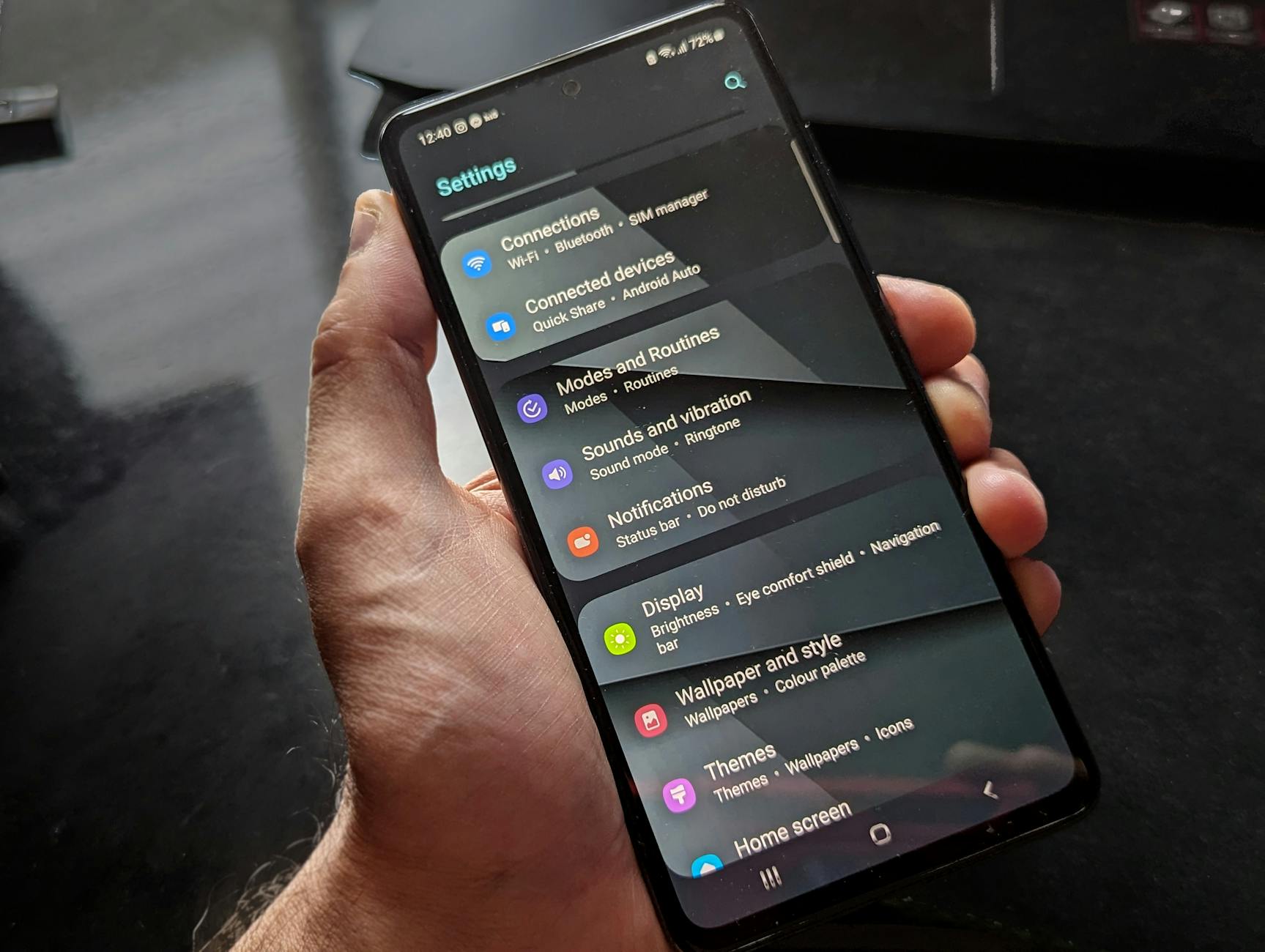 Photo by Watford London Media
Forget the network and reconnect
Forgetting the network clears saved credentials and stale settings that can cause drops after roaming between access points or after router changes. Reconnecting with the password ensures a clean, fresh association.
- Android steps: Settings > Network & internet > WiFi. Tap the network name, choose Forget, then reconnect by selecting the network again and entering the password.
- Post reconnect test: browse, stream, or run a quick speed test to confirm the drop issue is resolved.
If you’d like a professional perspective on common Android WiFi connection hurdles and how to clear them, Avast provides clear, official steps for Android devices. https://www.avast.com/c-fix-wifi-connection-android
Disable battery saver and adaptive features
Battery saver or Adaptive Battery can limit background network activity. This can cause stuttering in apps that use WiFi in the background, especially on older devices or when the battery is low.
- Temporarily turn off: Settings > Battery > Battery Saver > Off.
- For newer Android versions: look for Adaptive Battery under Settings > Battery and disable it temporarily if you’re seeing persistent drops, then re-enable after testing.
Why this matters: when background checks or network requests are throttled, your phone may not stay in a steady wireless state, particularly on networks with rapid handoffs. Keeping network activity above a baseline helps maintain a stable connection during typical daily use.
Reset network settings and update
If the phone has reared a stubborn habit of dropping connections, a network reset can clear deeper misconfigurations without erasing personal data.
- Reset network settings: Settings > System > Reset options > Reset Wi‑Fi, mobile & Bluetooth.
- Check for updates: Settings > System > System update > Check for updates. Install any available updates, then test the connection again.
Why this helps: it removes corrupted network profiles and resets radios to factory-like defaults, often resolving intermittent drops that recur after minor changes in the environment or router firmware.
For deeper guidance on Android network issues, Google’s support resources offer solid baseline steps you can follow. https://support.google.com/android/answer/2651367?hl=en
Update the OS and essential apps
Keeping the Android OS and core network apps up to date matters more than you might expect. Updates often include fixes for WiFi bugs and improvements in router compatibility.
Thousands of People Were Struggling With Money Until They Discovered This One Ancient Secret Hidden in Sound
>>> Unlock It Now <<<

- OS updates bring improved radio performance and better handling of network handoffs.
- App updates ensure network stacks in common apps behave consistently with the latest OS changes.
Tip: enable automatic updates for security patches and critical network utilities, then monitor the impact on stability after each cycle.
When in doubt, a quick check of pending updates can save hours of fiddling. Regular maintenance reduces the chance of repeat drops and keeps your smartphone running smoothly on modern networks.
Helpful resources and guidance on Android WiFi stability can be found here as you plan your own testing: https://dongknows.com/how-to-fix-wi-fi-dropping-and-disconnection-issues/
Images and extra context can help readers visualize the steps. If you’d like more practical visuals, see the suggested guide on WiFi troubleshooting for Android devices. https://www.avast.com/c-fix-wifi-connection-android
—
If you’re still noticing drops after trying these Android-specific steps, consider a few environment tweaks. Place the router more centrally, reduce physical barriers, or try a different channel. In many homes, a small shift in router placement or channel selection produces a big improvement for a smartphone staying reliably connected. For example, testing both the 2.4 GHz and 5 GHz bands can reveal which one yields steadier results for your devices.
Would you like to tailor these steps to a specific Android model or router brand? Share your setup, and I’ll tailor the guidance.
iPhone fixes that stop WiFi from dropping
If your iPhone keeps dropping WiFi, you’re not alone. Drops can ruin a video call, streaming session, or work sprint. The fixes below are quick, safe, and designed to work across common home networks. Try them in order and test the connection after each step to see what helps most. And if you want extra context, take a look at expert guides that break down why wireless connections falter and how resets can help.
Forget this network and reconnect
Forgetting a network clears stale credentials and settings that can cause drops after roaming between access points or after router changes. Reconnecting with the password gives your iPhone a clean start.
Thousands of People Were Struggling With Money Until They Discovered This One Ancient Secret Hidden in Sound
>>> Unlock It Now <<<
- Steps: Settings > WiFi > tap the i (info) next to the network > Forget This Network, then rejoin by selecting the network again and entering the password.
- Test: browse, stream, or run a quick speed test to confirm the issue is resolved.
If you’d like a professional perspective on common iPhone WiFi hurdles and how to clear them, Avast offers clear, official steps for iPhone devices. https://www.avast.com/c-fix-wifi-connection-android
Reset network settings
A network reset clears deeper misconfigurations without erasing personal data. It’s a solid next step if smaller fixes haven’t stuck.
- Steps: Settings > General > Transfer or Reset iPhone > Reset > Reset Network Settings.
- What changes: saved networks and passwords are removed, so be ready to reconnect to your home network.
After the reset, reconnect to your WiFi with the password and test the connection by loading a page or streaming a video. If you want additional context, Macworld covers practical approaches to stopping iPhone WiFi drops and the role of a network reset. https://www.macworld.com/article/674925/how-to-stop-iphone-dropping-wi-fi-connection.html
Turn off Low Power Mode during testing
Low Power Mode can slow background tasks, which can include WiFi handoffs and network scanning. Turning it off temporarily helps you assess whether background activity is influencing stability.
- Steps: Settings > Battery > Low Power Mode > Off.
- Why this matters: with fewer background tasks, the phone may stay steadier on crowded networks.
After testing, you can re-enable Low Power Mode if you prefer. If you want a broader look at how power settings affect WiFi, you can explore guides that discuss how these modes interact with network activity. https://dongknows.com/how-to-fix-wi-fi-dropping-and-disconnection-issues/
Update iOS and restart
Software updates often include fixes for WiFi bugs and improvements to network handling. After updating, a quick restart helps apply changes cleanly.
- Steps: Settings > General > Software Update > Install if available.
- Post-update action: restart the iPhone, then test the network by opening a few apps or loading a video.
If you’re curious about a broader strategy for diagnosing WiFi issues after updates, you can read about common iPhone WiFi drops and step-by-step remedies from community discussions and guides. https://discussions.apple.com/thread/255395226
Router and network environment fixes
When your WiFi drops persist beyond basic device tweaks, the issue often lies with the router or the surrounding environment. This section focuses on practical router and space adjustments you can perform quickly. These steps address congestion, interference, and basic firmware health to keep your smartphone and other devices reliably connected.
Restart the router and modem
Power cycling both the router and modem can clear stubborn glitches that block smooth handoffs between access points. If you have a separate modem, include it in the cycle as well. After turning everything off, wait 30 seconds before powering on in this order: modem, router, then your phone.
- Why this helps: it resets temporary memory and software hiccups in the network path.
- How to do it: unplug devices, wait 30 seconds, plug the modem back in, then the router, and finally your phone. Reconnect to the network and run a quick test like loading a video or running a speed test.
- Quick reference: a simple reboot often restores stability without changing any settings.
For a deeper explanation of why a reset fixes many WiFi drops, see How-To Geek’s guide on constant WiFi drops and reset fixes. https://www.howtogeek.com/fix-constant-wifi-drops/
Update router firmware
Keeping your router’s firmware current helps close bugs that can cause drops and improve overall stability. Access your router’s admin page to check for updates. The address is usually something like 192.168.1.1 or another local IP shown in your manual. If an update is available, apply it and back up your settings first if prompted.
- Why this matters: firmware updates fix known issues and tighten security.
- What to back up: save your custom settings, SSIDs, and password configurations if the router asks.
- After updating: reboot the router and test your network by streaming a video or running a quick speed test.
If you want a practical overview of firmware updates and their impact, see routes from Dong Knows Tech and CNET’s guidance on updating routers. https://dongknows.com/how-to-fix-wi-fi-dropping-and-disconnection-issues/ https://www.cnet.com/home/internet/i-update-my-routers-firmware-regularly-to-get-top-notch-wi-fi-heres-how-to-do-it/
Switch to a less crowded band and adjust security
If your router supports both 2.4 GHz and 5 GHz, consider using the 5 GHz band for devices that support it. It tends to be less crowded and can reduce interference on busy networks. If you still see issues, try using WPA2 instead of WPA3 if there are compatibility problems with certain devices.
- Band choice: 5 GHz offers faster speeds and less interference but shorter range; test where you typically use your phone.
- Security note: some devices have trouble with WPA3 on certain routers. Switching to WPA2 can restore stability while you diagnose broader network issues.
- Quick test idea: run a video or app that uses WiFi after switching bands to confirm improvement.
If you want extra context on 5 GHz stability and device compatibility, check guides that compare 5 GHz performance and how to force devices to prefer 5 GHz. https://internet-access-guide.com/5ghz-wifi-keeps-dropping https://support.essensys.tech/en/articles/12299490-how-to-set-your-device-to-always-use-5ghz-network-connection
Reposition and optimize placement
Router placement has a big impact on signal reach and quality. Place the router high up and in a central location, away from thick walls and metal objects. Also keep it away from potential interference sources like baby monitors or cordless phones.
- Ideal spot: elevated, open area near the center of your home or office.
- Avoid barriers: thick concrete walls, metal shelving, and large appliances can block or reflect signals.
- Interference hotspots: kitchens with microwaves and other devices can create dead zones; aim for a clear line of sight to common device locations.
For a practical guide to where to place a router for best results, see articles that highlight the best placement and common problem spots. https://www.broadbandsearch.net/blog/best-place-to-setup-router https://www.cnet.com/home/internet/wi-fi-technicians-reveal-the-5-worst-spots-for-your-router/ https://epb.com/get-connected/gig-internet/the-best-place-to-put-your-router/
Prevention, testing, and when to seek help
Maintaining stable WiFi on both Android and iPhone requires a practical mix of prevention, quick testing, and knowing when to ask for help. This section covers proactive habits to keep your network solid, simple tests to spot trouble early, and clear guidelines on when vendor or ISP support is the right move. Think of it as a small playbook you can run anytime your smartphone or other devices wobble on the network.
Limit connected devices and use a guest network
A crowded home network can slow everyone down, but you don’t have to sacrifice usability for speed. Start by limiting how many devices actively use the network at once, especially during peak hours. Each additional device draws bandwidth and introduces potential handoffs that can lead to drops, buffering, or jitter in video calls and gaming.
- How many is too many? If you notice slowdowns when multiple phones, tablets, smart TVs, and smart speakers are in use, you’re likely hitting a congestion wall. A practical rule is to cap steady activity on primary devices during key tasks like video calls or streaming.
- Guest networks help a lot: create a separate guest network for visitors and smart home gadgets. This isolates traffic away from your core devices and can stabilize the network for the people who rely on it most.
- Quick setup tip: enable guest isolation so guests can access the internet but not your main devices or shared files. Many modern routers offer this feature in the guest network settings.
Why this matters: reducing congestion gives your core devices steadier access to the router’s resources, which often eliminates drops caused by competing traffic. If you’re curious about practical limits and how isolation can help, see community and vendor guidance on guest network management and rate limiting.
- Resources: guidance on guest network isolation and traffic management can help you tailor access for different users and devices without compromising overall performance. Guest Network Isolation | Rate Limit Wireless Guest Traffic
When you’re testing this approach, pay attention to how the core devices perform while others are connected. If the problem disappears with fewer devices in use, you’ve identified congestion as the primary culprit. Consider upgrading your plan or equipment if you consistently hit the same ceiling.
Use a WiFi analyzer to pick the best channel
Interference is a frequent cause of WiFi instability. A simple, real world approach is to use a WiFi analyzer to identify the least crowded channel and then switch your router to that channel. This makes a noticeable difference for smartphone users juggling multiple apps and streaming.
- Start with a basic analyzer: look for a tool that shows nearby networks, their channels, and signal strength. Apps like NetSpot or other reputable WiFi analyzers can help you spot crowded channels.
- What to look for: identify channels with the fewest overlapping networks and the strongest signal for your devices. In many homes, 2.4 GHz has more interference, while 5 GHz can offer cleaner performance on shorter ranges.
- How to switch channels: log in to your router’s admin page (usually 192.168.1.1 or a similar local address). Find the Wireless or WiFi settings, then change the channel to a less crowded option. Save the settings and reboot the router if needed.
- After you switch: test by streaming a video or performing a quick speed check on your phone. If the connection stays steady, you’ve likely improved the environment.
If you want a quick, user-friendly entry point, check a few reliable guides that compare 5 GHz versus 2.4 GHz performance and show how to force devices to use a specific band. For starters, see NetSpot’s guidance on Android and iPhone network analysis and channel selection. https://www.netspotapp.com/wifi-analyzer/wifi-analyzer-apps-android.html
- Quick note: many routers now offer an “auto” channel option, but manual tuning often yields the best results in busy spaces. If you see recurring drops, recheck on a different time of day to confirm stability.
For additional context on how channel choice affects real world performance, consult industry primers that explain interference patterns and practical mitigations. https://www.cnet.com/home/internet/i-update-my-routers-firmware-regularly-to-get-top-notch-wi-fi-heres-how-to-do-it/
When to contact the ISP or device maker
If the issue affects all devices, or you’ve exhausted a solid series of fixes without relief, it’s time to escalate. Having the right information ready makes the process faster and more productive.
- Put together a short problem brief: describe when the drops happen (time of day, duration), average speeds, and whether both bands (2.4 GHz and 5 GHz) are affected.
- Gather device details: model numbers, firmware versions, and whether the problem occurs on both Android and iPhone.
- Prepare network specifics: the network name (SSID), your router model, and the exact symptoms you’re seeing (random disconnects, slow speeds, or complete outages).
- What to expect when you call: technicians may ask you to reproduce the issue, run speed tests, or try a direct connection to the modem to isolate the problem.
- If the issue is on the network edge: your ISP can check line quality, modem status, and whether there are outages in your area.
- If the problem is device-only: contact the device maker or carrier support and provide the same information plus any recent OS or app updates.
Why this matters: clear, organized information reduces back and forth and speeds up the path to a fix. If you’re unsure where the fault lies, starting with your ISP can help determine whether the problem is on the line or inside your home network. For general tips on what information to have ready, see guides from Avast and other trusted sources. https://www.avast.com/c-fix-wifi-connection-android
Create a quick 1 minute troubleshooting checklist
A fast, repeatable routine helps you respond quickly when WiFi drops occur. The goal is to confirm basic conditions, identify whether the issue is device or network wide, and know when to escalate.
- Step 1: Reboot in order. Power off the phone, unplug the router (and modem if you have one), wait 30 seconds, then power up the modem, router, and phone in that order.
- Step 2: Test basic connectivity. Open a browser or streaming app to see if the network remains stable for 60 seconds.
- Step 3: Check proximity and interference. Move closer to the router, avoid metal obstacles, and confirm you’re not in a known interference zone like near a microwave.
- Step 4: Reconnect with a clean start. Forget the network on your phone, reconnect with the password, and test again.
- Step 5: Run a targeted test. If you have a second device, compare behavior. If both devices show drops, the issue is likely network-related.
- Step 6: If you see consistent issues, switch bands. Try 5 GHz for devices that support it, then test again. If you see no improvement, revert to the original configuration and prepare to contact support.
If any step produces a clear, stable result, you’ve identified a practical lever to pull again later. For a broader look at quick fixes and why they work, see general WiFi troubleshooting resources from industry readers. https://www.howtogeek.com/fix-constant-wifi-drops/
- Pro tip: keep this checklist saved somewhere handy on your phone. A quick reference makes it easier to act fast during a drop.
Additional context and tools you can use to speed up diagnosis include simple, reputable WiFi site survey tools and app recommendations. For example, NetSpot remains a popular option for visualizing signal strength and channel usage on both Android and iPhone, while alternative guides compare top analyzer apps. https://www.netspotapp.com/ and https://apps.apple.com/us/app/netspot-wifi-analyzer/id514951692?mt=12
If you want more tailored steps for your exact router model or device, share your setup and I’ll tailor the sequence.
Conclusion
Most WiFi drops on a smartphone come down to a few repeatable checks. A quick restart, a move toward the router, and a clean reconnect solve the majority of cases for both Android and iPhone users. If these steps don’t help, narrowing the issue to the network or a device setting keeps the path to a fix clear.
A simple, proven workflow: reboot everything, test on a single device, switch bands if needed, and reset network settings as a last resort. With this approach, you can diagnose whether the problem lives in the router, the space you’re in, or the phone itself. A stable connection is within reach for most households and offices.
Final thought: keeping your router firmware current and monitoring channel use reduces future drops, so your smartphone stays reliably connected across daily tasks.
Quick-start checklist
- Reboot phone and router, then test connectivity
- Move closer to the router and try both 2.4 GHz and 5 GHz if available
- Forget and rejoin the network, then reenter the password
- If needed, reset network settings on the phone and update OS
- Consider using a WiFi analyzer to pick a clearer channel
Want more tailored guidance? Save this article for future reference or share it with someone who could use a steadier WiFi connection on their smartphone.
She Pressed Play on a Strange Audio Track and Within Days Her Financial Reality Started Shifting in Ways She Could Not Explain
>>> See How It Works <<<
