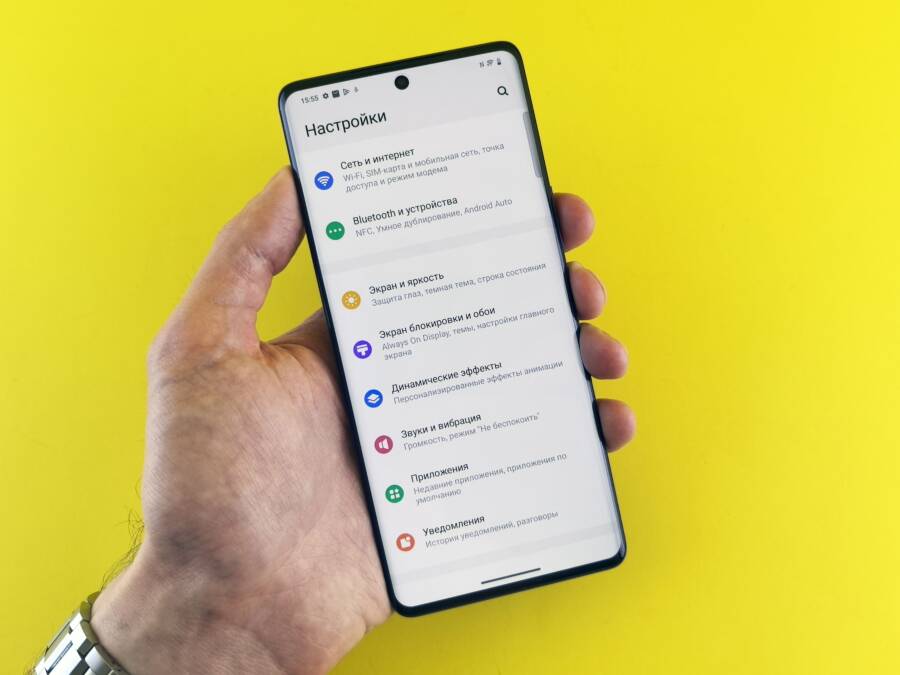
If your smartphone keeps resetting app permissions, you are likely dealing with an aggressive background security feature or a corrupted system cache. This issue often happens because the operating system automatically revokes permissions for apps you haven’t used recently to protect your data.
While this behavior is intended to keep your device secure, it becomes a major headache when essential apps lose access to your camera, location, or files without warning. You can resolve these recurring resets by adjusting specific power-saving settings and clearing out temporary system glitches.
Follow the guide below to stop these unnecessary permission resets and take full control over your privacy settings.
Understanding Why Your Phone Resets Permissions Automatically
Your smartphone often manages sensitive app permissions without your direct input. While this activity might feel like an error, it is typically a function of modern operating systems designed to defend your private data. System developers create these mechanisms to prevent apps from accessing hardware components like the camera, microphone, or location when they remain inactive for extended periods.
The Role of Privacy Protections in Modern Systems
Security is a primary concern for developers of Android and iOS platforms. To minimize your exposure, modern operating systems include features that automatically revoke access for apps you stop using. If an app stays dormant for several weeks, the system resets its permissions to a restricted state. This practice limits the risk of hidden background processes accessing your personal sensors or tracking your location without your knowledge.
You might notice your smartphone prompts you to re-enable permissions when you open an app after a long break. The operating system treats this as a safety check. By forcing these resets, the system requires apps to justify their need for sensitive data each time they resume activity. This approach effectively shrinks the window of opportunity for malicious or poorly managed software to collect data while you are not actively using the application.
Auto-revocation features: These triggers kick in once an app hits a specific threshold of inactivity.
Privacy dashboards: You can view which apps recently lost access within your privacy settings menu.
Hardware isolation: The system disconnects the bridge between the application and your hardware sensors automatically.
This automated cleanup is not just about security; it also helps manage system resources. Background apps frequently polling for location data or camera access consume battery life and processing power. By revoking these privileges, your smartphone maintains better efficiency while closing potential security gaps that could compromise your sensitive information.
Identifying When a System Bug Is to Blame
Distinguishing between a standard security feature and a genuine software glitch requires observation of your device behavior. Normal security behavior follows a logical pattern, such as resetting permissions only after an app has remained unused for several weeks. You will usually receive a notification or a prompt upon relaunching the app that explains the status of your permissions.
A software glitch presents differently. You should suspect a bug if permissions reset immediately after you grant them, or if the phone reverts these settings daily regardless of whether you are actively using the application. If every app on your device loses its permissions simultaneously, or if the settings menu crashes when you attempt to toggle access, you are likely facing a corrupted system cache or a firmware defect.
Consider these signs to determine if you have an underlying issue:
Persistent resets: Permissions disappear within minutes or hours of you manually toggling them back on.
Global resets: Your settings revert for every installed app, not just the ones you have not opened recently.
Settings instability: The permissions interface becomes unresponsive or fails to save your changes even after a reboot.
App crashes: Applications that require specific permissions close unexpectedly because the system failed to retain your granted settings.
If you experience these symptoms, clearing your system cache or checking for pending firmware updates is a logical first step. Software bugs often reside in temporary system files that become corrupted during updates. A reset or an update will often overwrite these broken files and restore the intended functionality of your privacy settings.
Simple Troubleshooting Steps to Stop Permission Resets
Addressing persistent permission resets often requires a mix of software maintenance and fine-tuning your privacy settings. If your smartphone behaves inconsistently, try these practical steps to regain stability and prevent future issues.
Updating Your Smartphone Software to Patch Known Issues
Software bugs are a primary cause of unexpected permission behavior. Manufacturers release system updates specifically to fix errors in how the operating system manages background services. When your device runs outdated firmware, it may struggle to maintain the complex database of granted permissions, leading to crashes or unintended resets. Updating your phone ensures that the underlying code governing these security functions is stable and compatible with your apps.
To check for pending updates on most modern devices, open your Settings menu and look for an option labeled System, General Management, or Software Update. Tap on this menu to see if an update is available for your smartphone. If your device finds a new package, download and install it immediately. Rebooting your phone after the installation process is complete allows the system to clear temporary files and initialize the updated services properly. This simple step often resolves permission glitches that stem from outdated system libraries.
Adjusting App-Specific Settings to Disable Auto-Reset
Most operating systems include a feature that automatically revokes permissions for apps that remain inactive for several weeks. This setting is useful for security, but it often targets essential apps you only use occasionally. You can stop this behavior for specific applications by manually adjusting their access status within your system settings.
Navigate to the Apps or Application Manager section in your settings menu. Select the app that keeps resetting its permissions. Look for a menu item labeled App Permissions or simply Permissions. In this view, you will likely find a toggle switch titled Remove permissions if app is unused or Pause app activity if unused. Switch this setting to the off position. Once disabled, the system stops revoking access for that specific app, even if you do not open it for an extended period. This change gives your smartphone more predictable behavior for the tools you rely on most.
Clearing App Cache and System Settings
Corrupted data within the cache can interfere with the way your phone tracks permission states. System services responsible for security and app management store temporary files to speed up performance. When these files become bloated or damaged, the OS may fail to read your permission choices correctly, resulting in a reset loop. Clearing the cache for these background services refreshes their data and forces the system to rebuild its reference files.
To clear the cache for system services, go to your Apps settings and enable the option to show system apps. Search for a process named Permission Controller, Package Installer, or Settings. Tap on the app entry and select Storage, then choose the option to Clear Cache. Do not select Clear Data unless you are prepared to reset your global app preferences, as that may remove customized notifications or default app assignments. After clearing the cache, restart your smartphone to ensure the system services reload fresh data and stop the cycle of unnecessary permission resets.
Advanced Fixes When Simple Troubleshooting Fails
If basic cache clearing and software updates do not stop your smartphone from stripping permissions, you might have a deeper software conflict. These persistent issues often stem from corrupted configuration files or third-party background services that interfere with the way your system manages privacy settings. When common remedies prove ineffective, you need to isolate the system environment to determine the exact source of the malfunction.
Testing Your Phone in Safe Mode
Safe mode is a diagnostic environment that disables all third-party applications and services, allowing only the core operating system to run. If your permissions remain stable while in this mode, you have definitive proof that a specific app you installed is the culprit behind the resets. Third-party security suites, cleaning utilities, or aggressive battery managers often attempt to override your system settings, causing the behavior you observe.
To enter safe mode, hold the physical power button until the shutdown prompt appears on your screen. Long-press the power-off icon until your device asks if you want to reboot into safe mode. Once your smartphone restarts, you will see a watermark or label indicating the mode is active.
While in this state, attempt to grant the necessary permissions to your apps again. If they stick, the problem is not your operating system, but rather an application interfering with your privacy controls. You can identify the problematic app by uninstalling your recent downloads one by one until the permission resets stop. This process effectively isolates the conflict and restores your device to a normal, functional state without compromising your data.
Resetting All App Preferences Safely
If you cannot identify a single app causing the conflict, resetting all application preferences is a reliable last resort. This action does not delete your personal data, such as photos or messages, but it does reset every setting tied to your installed apps. It essentially returns your app environment to its factory state, which is why it works so well for resolving deep-seated permission loops.
When you perform this reset, the following changes occur:
All disabled apps become enabled again.
Default app assignments, such as which browser or messaging client opens a link, revert to their factory defaults.
Background data restrictions for every app are reset to their original settings.
Notification permissions and restrictions are cleared across the board.
Because this command targets the internal database that controls app interaction, it often clears away the corrupt entries causing your permission issues. You can typically find this option in your system settings under the Apps or Application Manager menu, often hidden behind a three-dot menu icon labeled Reset App Preferences. After you confirm the action, restart your smartphone to ensure the system properly rebuilds its permission manifest. You will need to reconfigure your defaults and notifications, but this small effort is often the only way to break a persistent, system-wide cycle of permission resets.
Best Practices for Managing App Permissions Long-Term
You can maintain control over your privacy and prevent unwanted permission resets by adopting a structured maintenance routine. Instead of waiting for an app to fail or losing access to your files, you should perform periodic reviews of your privacy settings. These habits ensure your smartphone remains functional while keeping your data access transparent and secure.
Establish a Monthly Privacy Audit
Scheduling a recurring audit prevents the build-up of unused permissions or accidental access gaps. Pick a day at the start of each month to review which apps have access to sensitive hardware such as your camera, microphone, and location. This brief check ensures you only grant access to software you still use regularly.
Open your privacy dashboard in the settings menu to view a list of all applications and their current permissions. If you find apps you no longer rely on, remove their access immediately. You can re-enable these features later if you decide to use the app again. Consistent monitoring keeps your device performance high and prevents background services from draining battery life.
Standardize Permission Patterns for Essential Apps
Some applications require specific access to function properly, but they often lose these rights during system updates or long periods of inactivity. You can prevent this by checking the notification logs and battery usage settings for your primary tools. If an app frequently requests permissions you already granted, look for a “Do Not Optimize” or “Background Activity” setting within your battery menu.
Most modern versions of Android allow you to pin or lock specific app settings. When you manually adjust these preferences, the operating system is less likely to revert them during an automated cleanup. Keep a mental list of your three most important apps that require persistent access, such as your navigation tool or cloud storage client, and verify their status whenever you perform a major system update.
Recognize When to Reset vs. When to Keep
Not every permission reset is an error, and attempting to stop every single automated safety feature often causes more problems than it solves. You should allow the system to revoke access for applications you haven’t opened in over 30 days. This practice acts as a safety layer for your private data.
However, if you notice your daily-use apps constantly losing their ability to access photos or location data, this indicates an issue with the system’s management service. Use the table below to decide whether to intervene or let the system operate as intended.
If you follow these guidelines, you stop fighting against your smartphone and start working with its security features. Proper management allows you to enjoy the benefits of automated privacy protection without the frustration of repeated configuration errors. Stay aware of your app behaviors to maintain a stable, secure, and personal device experience.
Conclusion
Solving persistent permission resets on your smartphone requires a clear understanding of how system security conflicts with daily convenience. You can usually resolve this behavior by disabling auto-revocation for specific apps, clearing the cache of system-level services, or resetting app preferences to fix corrupted configuration files.
Managing these settings is a continuous balance between maintaining your personal privacy and ensuring your apps remain functional. If you take the time to audit your permissions regularly, you stop the operating system from over-correcting your access rights.
Keeping your device healthy often comes down to this simple habit of periodic maintenance. When you stay consistent with these checks, you create a stable environment that respects both your data security and your user experience.