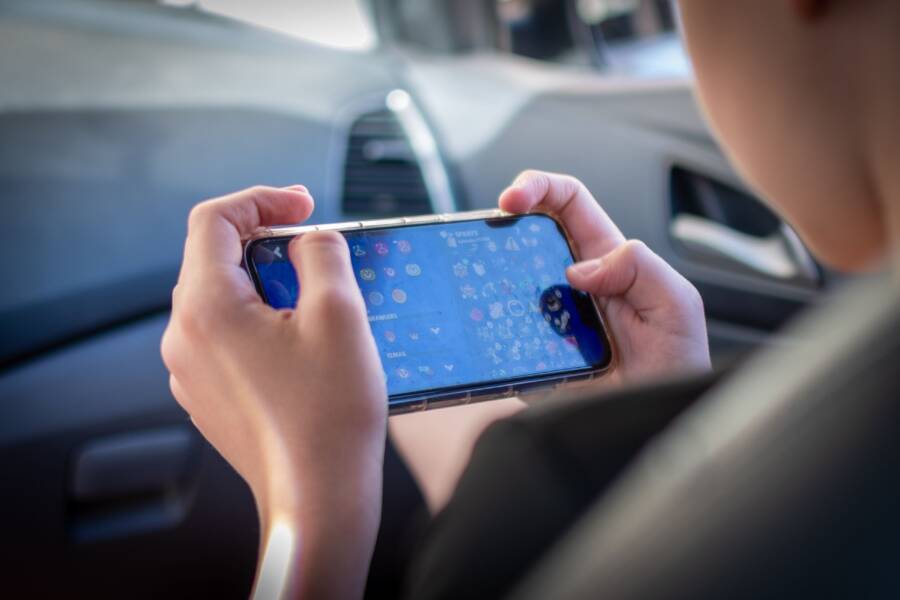
When your smartphone stops running two apps side by side, it is usually a simple software glitch, a specific app incompatibility, or a lack of available memory. You do not need to reset your device or visit a repair shop to fix this problem.
Most instances occur because an app developer has not enabled multi-window support for their software. In other cases, the system cache becomes cluttered or your operating system needs a quick refresh to manage background processes again.
Follow these steps to restore your multitasking capabilities and get your device back to peak performance.
Why Your Smartphone Suddenly Stops Using Split Screen Mode
Split screen mode often fails because of background system changes or specific app limitations. When this feature stops working on your smartphone, the device usually prevents the action to protect system stability or screen clarity. You might notice the option disappears from your recent apps menu or that dragging an app window simply refuses to snap into place. These issues stem from either how the operating system handles resources or how an individual app identifies its own interface requirements.
App Incompatibility and Screen Orientation
Many apps do not support multi-window view because their internal code forces a fixed aspect ratio. When an app developer restricts their software to full-screen mode, your smartphone automatically disables the split screen option for that specific window. If you try to launch a second app while a restricted one is open, the system keeps the first app in full control.
Orientation locks also play a major role here. If you hold your device in a way that conflicts with the design of the apps you want to pair, the system often blocks the split screen function. For instance, some apps only render correctly in portrait mode. If you attempt to snap these into a side-by-side layout while holding the phone horizontally, the system might refuse the command to prevent a broken user interface.
Memory Management and Resource Throttling
Your smartphone prioritizes performance to prevent crashes when memory runs low. When you run multiple demanding applications, the operating system may deactivate multi-window support to save random access memory. If your device detects that it cannot maintain smooth frame rates with two active windows, it restricts the interface to single-app focus.
You can verify if this is the issue by closing background tasks or clearing the recent apps list. If the split screen function returns after you free up space, your device simply reached a resource limit. Regularly restarting your smartphone also helps, as it clears out the temporary cache files that sometimes cause the operating system to misinterpret its own multitasking capabilities.
Hidden System Restrictions
Sometimes a recent software update changes how your smartphone manages multitasking settings. You should verify that your display settings have not defaulted to a “zoom” or “large text” mode. These accessibility features often enlarge screen elements so much that the operating system determines there is insufficient room to display two windows at once.
Check these common areas if the feature remains unavailable:
Display Zoom: Ensure your text and display size settings are set to the default or smaller.
Developer Options: If you previously enabled specific animations or window scaling settings, these might conflict with multi-window logic.
App-Specific Settings: Some custom skins on Android devices allow you to toggle “Force activities to be resizable” within hidden settings menus.
If you find that split screen mode works for some apps but not others, the problem is almost always an app-level restriction rather than a hardware fault. You can try to update your apps through the store to see if developers have released patches that enable better multitasking compatibility.
Quick Fixes to Get Split Screen Working Again
When your smartphone stops showing two windows at once, it feels frustrating. You often assume the hardware is failing, yet the fix is usually quick. Most multitasking issues arise from temporary software hiccups or mismatched app requirements. You can resolve these by clearing the system memory or verifying that your software environment is current.
Performing a Hard Reset on Your Device
A hard reset forces your smartphone to shut down and reboot, which clears temporary data from your memory. This process does not delete your personal files, photos, or apps. It simply forces the operating system to dump cached information that might be blocking the split screen function.
Follow these steps to perform a force restart on your device:
Press and hold the power button along with the volume down button for about 10 to 15 seconds.
Wait for the screen to go black and wait until you see the manufacturer logo appear.
Release the buttons once the logo shows up.
Allow the system to finish the boot process before you attempt to open two apps at once.
This refresh forces the multitasking manager to reload its process table. If a background service stalled or locked the split screen feature, this restart clears the obstruction. You should notice the option for multi-window mode returns to your recent apps menu immediately after the phone powers back on.
Checking for Software and App Updates
Outdated apps are a common cause of multitasking failures. App developers frequently release patches to address compatibility issues with newer versions of the operating system. If an app runs on old code, your smartphone might prevent it from entering split screen mode because the application cannot resize its interface.
You should check for updates to ensure your tools keep up with system changes:
Open the app store on your smartphone and navigate to your profile or manage apps section.
Review the list of available updates for all your installed applications.
Select the option to update all or specifically target apps you use in split screen mode.
Restart your phone after the updates install to apply the new configurations.
System updates also matter because they contain improvements for the core multitasking engine. If the operating system itself is out of date, it might fail to communicate correctly with newer applications. Keeping your software current prevents these compatibility gaps and helps your smartphone manage multiple windows without crashing or freezing. If the problem persists after an update, the specific app might lack official support for multi-window views entirely.
Advanced Settings That Might Be Blocking Multitasking
Sometimes your smartphone software includes hidden configuration options that interfere with how windows display on your screen. These settings reside in the developer or accessibility menus, which are typically meant for fine-tuning system behavior rather than daily use. If split screen mode stops working, checking these specific areas helps identify if a manual override is preventing proper window resizing.
Tweaking Developer Options Safely
The Developer Options menu on your smartphone contains a setting specifically labeled Force activities to be resizable. When this toggle is active, it forces every application to support multi-window mode, even those that the developer restricted. While this sounds like a universal fix, it often causes conflicts with system stability or layout rendering.
If you have this setting turned on, it might cause the split screen interface to crash or fail to launch entirely. Because some apps cannot handle being resized, they trigger a system error that prevents them from entering a split window state. Follow these steps to verify your current configuration:
Open your phone Settings app.
Navigate to System or About Phone and tap Build Number seven times to unlock Developer Options.
Locate the Developer Options menu in your system settings.
Scroll through the list to find Force activities to be resizable.
Toggle this setting off if it is currently enabled.
Restart your smartphone to apply these changes.
Disabling this force command allows your phone to resume its standard window management logic. After the reboot, your system relies on the native behavior defined by each app, which frequently resolves conflicts where the multitasking menu refused to open.
Adjusting Accessibility Services
Many third-party applications require special permissions to monitor your screen or draw overlays on top of other content. These are known as accessibility services. While they are useful for features like screen readers or automated macro tools, they can occasionally lock the screen canvas and prevent the system from drawing two windows side by side.
When an app maintains a persistent overlay, the operating system may prioritize that single app’s requirement to remain on top. This creates a functional barrier that blocks the split screen manager from splitting your workspace. To determine if an overlay is the culprit, review which apps have these elevated permissions:
Open your Settings and search for Accessibility or Special App Access.
Look for a list labeled Display over other apps or Installed Services.
Examine the list for apps that might draw visual elements over your screen.
Disable permissions for any suspicious or non-essential applications to test if split screen returns.
If the multitasking feature begins working again after you disable a specific service, you have identified the source of the interference. You can keep the service off while using split screen or look for an alternative app that does not require constant overlay access. Managing these permissions gives your smartphone the freedom to partition the screen area correctly for your active tasks.
When to Reset Your Phone or Seek Professional Help
Most split screen issues resolve with simple software adjustments, but persistent problems might signal deeper system corruption or hardware damage. You should consider a factory reset only after you exhaust all standard troubleshooting methods, such as clearing the app cache or checking for OS updates. If your smartphone continues to exhibit erratic behavior across multiple apps after a full reset, the issue likely sits beyond the reach of software fixes.
Knowing When a Factory Reset is Necessary
A factory reset is the final step in software troubleshooting. You should perform this action if your smartphone constantly freezes during multitasking, if the split screen menu is missing even after a system update, or if your device behaves as if it is infected by malware. Since a reset deletes all personal data, back up your photos, contacts, and important documents to the cloud before starting the process.
Follow these guidelines before deciding to wipe your device:
Test the split screen mode in Safe Mode to see if a third-party app causes the conflict.
Confirm that your current firmware version is fully updated.
Ensure you have a complete backup of all data stored on the internal memory.
Verify that you have your account credentials ready, as a factory reset often triggers a security lock that requires your original login details.
If the feature remains broken after the system wipes clean and restores to its original state, the problem is likely tied to the physical hardware. Do not attempt a reset more than once, as repeating it rarely fixes a persistent mechanical or permanent software corruption issue.
Recognizing Signs of Hardware Failure
Hardware faults are rare but possible, especially if your smartphone recently suffered a fall, liquid exposure, or significant pressure. If the touch digitizer is unresponsive in specific areas of the screen, you will struggle to drag or snap windows into place. These physical dead zones often mimic software bugs because they prevent the precise touch input required to engage the multitasking interface.
Seek professional help from an authorized repair center if you notice any of these indicators:
The screen displays ghost touches, where the phone registers input without your physical touch.
You see visible cracks or pressure points under the glass that distort the display.
The phone produces heat near the battery or processor even when you are not running demanding apps.
The device fails to register touch input consistently across the entire screen surface.
Professional technicians have the diagnostic tools to determine if a malfunctioning display controller is preventing your smartphone from processing split screen gestures. Attempting to repair internal components on your own often voids your warranty and can lead to secondary issues with your battery or ribbon cables. If your device is still under warranty, contact the manufacturer to discuss a replacement or professional inspection rather than risking an expensive DIY repair.
Conclusion
Most split screen issues on your smartphone stem from temporary memory constraints or apps that do not support multi-window interfaces. By restarting your device or checking for app updates, you can usually resolve these problems without needing advanced technical assistance.
Focus on these final steps to prevent future multitasking errors:
Keep your system software and installed applications updated to the latest versions.
Maintain sufficient storage space so your operating system has enough memory to handle multiple processes.
Avoid using custom display zoom settings if you require consistent window resizing.
Monitor your accessibility permissions to ensure third-party overlays do not block the system interface.
If the feature remains unavailable after you complete these checks, confirm whether the specific apps you want to use allow split screen functionality. Sometimes, the limitation belongs to the application design rather than your hardware.