Does your phone pause video when a call comes in, freezing the screen mid-show? You’re not alone: videos pausing while on call frustrate many smartphone users, and you can usually fix the hiccup in a couple of minutes with a few settings tweaks.
In this quick guide, you’ll learn what usually causes a video to pause when a call comes in and how to fix it fast. We’ll cover simple checks you can do right away and practical steps for both Android and iPhone users. By the end, you’ll have a clear path to a smoother viewing experience.
First, I’ll break down the main culprits behind the problem. Four common causes tend to pop up: settings that pause media during calls, background play restrictions, app cache or outdated software, and interference from call features like Wi Fi calling. Understanding these helps you pick the right fix without chasing bugs you don’t have.
Then you’ll find step by step fixes you can follow. Quick checks you can do in minutes, followed by device specific steps for Android and iPhone. The goal is to keep your videos playing while you stay connected on calls. Ever miss part of your show because of a call? With these tips you won’t have to.
Common Causes Why Your Phone Pauses Videos on Incoming Calls
When a call comes in, your phone should ring or vibrate without interrupting your ongoing video. In practice, though, it often pauses or stops playback. Understanding the most common culprits can save you time and restore a smooth viewing experience. This section breaks down the typical triggers and gives practical checks you can perform quickly. We’ll look at settings that pause media, then explore app and device glitches that commonly cause this behavior. Throughout, keep in mind that your smartphone is juggling multiple tasks on the fly, and a small setting misfire can ripple into a video pause.
Battery and Data Settings That Trigger Pauses
Low power and data management features are designed to extend battery life, but they can also disrupt streaming if they kick in at the wrong moment. Here’s what to check and how to test it without turning off necessary protections.
- Low power mode and similar power-saving features: When your device detects a dwindling battery, it can throttle background activity and limit network access to conserve energy. Video apps, especially those streaming in the background or playing at high quality, may pause to free up resources for the call screen or to keep the incoming call handling smooth. If you routinely charge later in the day, you’ll want to confirm whether low power mode is switching on too aggressively during media playback. On Android, you’ll often find this in Settings > Battery > Power saving or similar labels. On iPhone, look under Settings > Battery and toggle Low Power Mode off for testing.
- Data saver and restricted background data: Data saver modes restrict background activity to save data. This can impact how video apps fetch chunks of video while a call is incoming, causing a momentary pause as the system prioritizes the call UI. If YouTube or Netflix pauses when a call comes in, see whether data saver is active in your network or system settings and try temporarily allowing unrestricted data for the video app to confirm the cause.
- Wi-Fi calling and cellular handoff: Features like Wi-Fi calling can trigger a temporary shift in how calls and media are routed. This handoff can momentarily deprioritize streaming data, leading to a brief pause or buffering. If you notice the pause only happens when you have Wi-Fi calling enabled, test by turning it off to see if the behavior changes.
- Quick checks you can perform now:
- Temporarily disable Low Power Mode (Android and iPhone) and test playback during an incoming call.
- Turn off Data Saver for the video app or set it to allow background data, then observe any change.
- Disable Wi-Fi calling for a single test to see if the pause disappears.
- If you want to dive deeper, consider these reference points:
- For Android users, certain devices guide you to manage cache and background activity in the same battery settings area. Clearing cache can also wake apps when they misbehave, a topic we’ll cover next. How to clear your Android phone cache
- For Pixel devices, threads exist that discuss how background activity and data restrictions relate to media playback during calls. If you’re using a Pixel phone, a quick check in the support forums can clarify defaults for your version. Learn more in this Pixel support thread. https://support.google.com/pixelphone/thread/222017178/my-phone-keeps-pausing-videos-or-audios-when-listening-or-watching-either-downloaded-or-internet?hl=en
If you suspect a power or data rule is at fault, the fastest route is to swing settings toward more permissive behavior for media apps, then reintroduce restrictions gradually to pinpoint the exact trigger.
- Takeaway: Power saving and data restrictions are the leading culprits behind video pauses during incoming calls. A targeted test sequence can confirm whether one of these modes is the offender.
App and Phone Glitches Behind the Problem
Sometimes the root cause isn’t a global setting but a hiccup inside the video app or the phone’s own software. Cache buildup and outdated software are two of the most common internal gremlins.
- Cache buildup in video or system apps: Over time, cached files can become corrupted or bloated, which slows app performance and creates odd playback issues when an incoming call redirects resources. Clearing the cache for the video app and, if needed, the system cache can restore responsiveness. This is a low-risk, high-reward first step before moving on to more involved troubleshooting.
- Outdated software or app versions: Outdated operating systems or apps may not handle incoming call events gracefully, especially with newer streaming formats or call features. Keeping both the OS and the streaming apps up to date helps ensure compatibility and smooth handoffs.
- Device-specific quirks: Some brands show unique behavior when calls come in during video playback. For example, certain Samsung devices may momentarily throttle processes during a call, while Pixel phones can exhibit different background behavior depending on the version of Android. While each device has its own nuances, the underlying patterns—cache, background activity, and software versions—remain consistent.
- Quick checks you can perform now:
- Clear the cache for the video app you’re using. On Android, this is typically found in Settings > Apps > [App Name] > Storage > Clear Cache. On iPhone, you’ll often refresh by deleting and reinstalling the app if a simple cache clear isn’t available.
- Update the video app and your device OS to the latest version. A quick search in the Play Store or App Store will show available updates.
- If the problem persists, reboot the device to reset temporary states that might be blocking smooth playback during the call.
- Real-world pointers:
- If you’re on a Samsung device and notice pauses during calls, investigate any vendor-specific features like adaptive battery or background limiters that could be affecting media apps. A simple test of disabling these features can confirm their impact.
- Pixel users can find guidance from the official support community about background activity and app behavior during calls. See the Pixel support discussion on pausing during media playback. https://support.google.com/pixelphone/thread/222017178/my-phone-keeps-pausing-videos-or-audios-when-listening-or-watching-either-downloaded-or-internet?hl=en
- The role of background processes and memory: When a call arrives, the system often reallocates memory to handle the incoming window and notification UI. If background processes are already using a lot of RAM or CPU, the video app may pause briefly as resources are freed. Regular maintenance—uninstalling unused apps, reducing live wallpaper load, and keeping a lean home screen—helps keep playback steady.
If you’re facing constant pauses during calls, start with a cache purge and a software update. These two steps alone solve a surprising share of issues. If the problem persists, the next layer is to investigate how the OS handles background tasks for media apps when a call is active.
- Takeaway: App and firmware glitches are often the silent cause. A methodical refresh of cache and software can restore reliability without a heavy troubleshooting session. For additional guidance on cache maintenance, you can review Android-specific tips like clearing app caches and restarting the device. How to clear your Android phone cache
Key points to remember as you diagnose:
- Start with the simplest fix: clear cache and update software.
- If the issue appears only on one app, focus on that app’s settings and data permissions.
- If the pause occurs across multiple apps, the problem is more likely a device-level setting or firmware issue.
- Keep an eye on whether the pauses align with call events or occur frequently, even when no call is incoming.
By approaching the problem in a layered way, you’ll quickly uncover whether the culprit is a battery or data setting, or a glitch inside the app or the device itself. Your goal is to keep the video playing while you stay connected, not to chase a phantom bug.
External resources and deeper dives:
- Apple community discussions about video pausing during playback, which can surface device-specific quirks and user-reported patterns. https://discussions.apple.com/thread/256058957
- Android user guidance on clearing cache and improving overall performance, useful when playback issues surface alongside calls. https://www.zdnet.com/article/how-to-clear-your-android-phone-cache/
- A practical Pixel user thread exploring how calls and media playback interact on modern Pixel devices. https://support.google.com/pixelphone/thread/222017178/my-phone-keeps-pausing-videos-or-audios-when-listening-or-watching-either-downloaded-or-internet?hl=en
If you want a quick troubleshooting checklist to print or save, here’s a concise version:
- Check power saving and data saver settings; disable temporarily for testing.
- Turn off Wi-Fi calling to test its effect on playback.
- Clear video app cache; update the app and OS.
- Reboot the device; re-test with an incoming call.
- If needed, reinstall the video app to refresh its data.
Common questions about this issue often boil down to two themes: how aggressively the phone manages resources during a call, and how well the video app handles background playback. With the steps above, you’ll be equipped to identify which of these themes applies to your device and fix it quickly.
Quick Fixes to Try First on Any Phone
When video playback pauses during a phone call, it isn’t always a deep software issue. Often, a quick reset of small, safe settings clears the glitch and gets you back to streaming without missing important moments. These fixes work across Android and iPhone, and they’re easy to perform in a pinch. Think of them as the first-aid kit for media playback on the go. A few taps can keep your video playing while you stay connected.
 Photo by Kelvin Valerio
Restart Your Phone the Right Way
A clean restart flushes temporary hiccups that build up as you use your device. It clears stuck processes, frees memory, and refreshes how the system handles an incoming call while a video is playing. Here are the fastest methods for both platforms, plus why they help.
- Android: Press and hold the Power button and the Volume Up button (some devices use Volume Down or a different combo). After a brief vibration, release the buttons and choose Restart from the power menu. If your device is stubborn, hold the Power button alone for about 7 seconds to force a reboot. This resets stuck tasks without wiping your apps.
- iPhone: For most models, press the Power button and the Volume Down button at the same time, then slide to power off. Wait a few seconds, then hold the Power button again to restart. If you have a newer iPhone with Face ID, you can also perform a force restart by quickly pressing and releasing the Volume Up button, then the Volume Down button, then holding the Side button until the Apple logo reappears. This clears transient software hiccups that can affect video playback during calls.
Why it helps: a reboot resets how the OS handles background tasks, memory allocation, and the moment a call arrives. It can reestablish smooth handoffs between media playback and call UI, especially if the pause came from a momentary resource clash.
- Quick tip: during the reboot, avoid heavy tasks like gaming or streaming in high resolution. Let the device settle, then test a video during an incoming call.
- If you want to dig deeper, see the Android and iPhone restart guides linked below for device-specific nuances:
- How to Force Restart Android Phone: https://www.youtube.com/watch?v=m_GdbKtIyR4
- Force restart iPhone: https://support.apple.com/guide/iphone/force-restart-iphone-iph8903c3ee6/ios
Takeaway: a restart is the simplest, most reliable first step. It often resolves sporadic pauses caused by background tasks reconfiguring on the fly.
Disable Battery Saver and Data Limits
Power saving and data management features are built to extend battery life, but they can throttle video apps right when a call arrives. Turning them off temporarily helps you confirm whether these protections are the culprits.
- Android: Start at Settings > Battery > Power saving (or a similar label). Toggle Power saving off for testing. You can also look for Data saver in the same area and set it to off or allow unrestricted data for the video app.
- iPhone: Go to Settings > Battery. Turn off Low Power Mode to test playback during calls.
Quick toggles you can try now:
- Turn off Low Power Mode or Power saving, then re-test while an incoming call arrives.
- Disable Data Saver or Low Data Mode for the video app, then test again.
- If you use Wi-Fi calling, temporarily turn it off to see if the pause goes away.
Why this matters: when these modes kick in, the phone prioritizes call handling and may restrict background media tasks. A momentary dip in data or CPU can cause a video to pause just long enough to register as a glitch.
- For deeper exploration on related settings and tips, check these references:
- How to Turn Off Low Power Mode: https://www.wikihow.com/Turn-Off-Low-Power-Mode
- How to turn off Low Power Mode on your phone: https://www.asurion.com/connect/tech-tips/turn-off-low-power-mode-on-your-phone/
- What’s the best way to disable battery saver on an Android phone: https://mepis.org/community/t/whats-the-best-way-to-disable-battery-saver-on-an-android-phone/1037
- Quick check list:
- Disable power saving and data saver.
- If the pause only occurs with Wi-Fi calling, toggle it off for a test.
- Re-test with an incoming call to compare results.
Takeaway: battery and data restrictions are common triggers. A quick toggle test confirms if you should adjust those settings more permanently or leave them off while you watch.
Photo by Kelvin Valerio
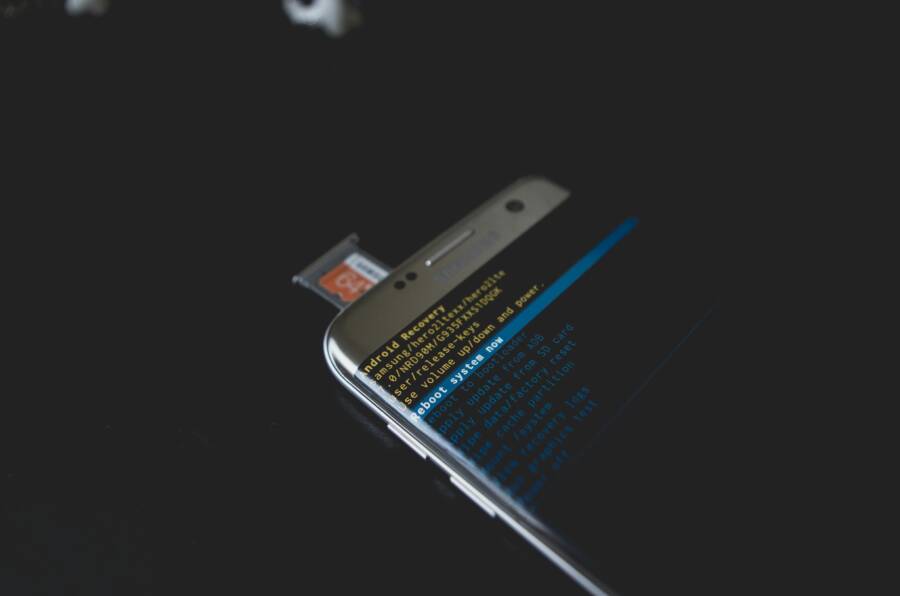
Close-up of a smartphone in recovery mode, illustrating how small resets can fix bigger issues.
External resources and quick references
- Apple community discussions on video pausing during playback can reveal device-specific quirks. https://discussions.apple.com/thread/256058957
- Android guidance on clearing cache and improving performance when playback issues arise. https://www.zdnet.com/article/how-to-clear-your-android-phone-cache/
- Pixel support discussions on background activity and media playback during calls. https://support.google.com/pixelphone/thread/222017178/my-phone-keeps-pausing-videos-or-audios-when-listening-or-watching-either-downloaded-or-internet?hl=en
If you want a fast printable checklist, here’s a concise version:
- Check power saving and data saver settings; disable temporarily for testing.
- Turn off Wi-Fi calling to test its impact on playback.
- Clear video app cache; update the app and OS.
- Reboot the device; re-test with an incoming call.
- If needed, reinstall the video app to refresh its data.
Key takeaways:
- Start with the simplest fixes: cache, updates, and a clean reboot.
- If the issue affects multiple apps, the culprit is more likely a device-level setting or firmware.
- Keep an eye on whether pauses line up with call events for precise diagnosis.
Images and citations are included to help readers scan and act quickly. For more in-depth guidance, you can reference the linked articles and community threads above as a starting point for device-specific quirks and troubleshooting.
Android-Specific Steps to Stop Video Pauses During Calls
When you’re mid show and a call comes in, the moment can feel like a small disaster for your viewing experience. Android devices offer several toggles and resets that specifically help keep video playback steady during incoming calls. This section focuses on Android-centric steps you can take to narrow down the cause and restore smooth streaming, without sacrificing essential call functionality.
Clear Cache on the Phone App
Android apps rely on cached data to load quickly, but corrupted cache can cause hiccups when a call arrives and resources shift. Clearing the cache for the Phone app can reestablish stable behavior and prevent brief pauses during call handoffs. A quick cache purge is safe and often effective.
- Exact steps: Settings > Apps > Phone > Storage > Clear cache/data. Restart.
- Why it helps: It removes stale data that can confuse the system when it prioritizes the call UI, freeing up memory for video playback.
- Quick testing tip: After clearing, try a video while receiving a test call to confirm improvement.
For a deeper dive into cache management on Android, you can read about clearing app caches and reboot strategies here: How to clear your Android phone cache and related Android cache guidance. If you’re using a Pixel device, you may also find device-specific threads discussing how background activity and data restrictions affect media during calls. Pixel support threads offer practical context for your model. https://support.google.com/pixelphone/thread/222017178/my-phone-keeps-pausing-videos-or-audios-when-listening-or-watching-either-downloaded-or-internet?hl=en
Photo

Photo by cottonbro studio
Turn Off Battery Optimization for Apps
Battery optimization can throttle background tasks to save power, but it can also pause video playback when a call arrives. Turning off optimization for key apps gives them the breathing room to keep playing while you answer or receive a call.
- Settings path: Settings > Battery > select app > Don’t optimize. Include apps like YouTube and WhatsApp in your testing.
- What you’re testing: See if the video continues playing during an incoming call when these apps aren’t restricted. If it helps, you can keep optimization off for those apps and re-enable gradually to identify the exact trigger.
- Practical note: Some Android skins label this feature differently (Power saving, Background activity limits, etc.). If you don’t see Don’t optimize, look for similar options under Battery or Apps settings.
If you want a broader take on optimizing Android battery settings for smoother media, check out guidance on disabling battery optimization and related tips from reputable sources. For example, YouTube and WhatsApp behavior during calls is frequently discussed in Pixel-specific help threads and Android optimization videos. Here are a couple of starting points:
- How to Disable Battery Optimization For Apps on Android (video guide): https://www.youtube.com/watch?v=rIWjAYWFy9M
- Adjusting Android Battery Optimization Settings for key apps (video guide): https://www.youtube.com/watch?v=zCqOzQjQ97Q
Takeaway: Battery optimization is a common bottleneck. Testing app-specific optimization helps you confirm if resource limits are the culprit.
Update Apps and Check Network Settings
Software updates and network policies can fix or mask issues. Ensuring your video apps and the device OS are current reduces the chance of conflicts during call handoffs.
- What to do:
- Check for updates in the Google Play Store and install any available updates for your video apps.
- Make sure the Android OS is up to date with the latest security and performance patches.
- Disable Data Saver temporarily to test if it’s throttling video delivery during a call.
- Ensure Do Not Disturb (DND) allows media playback during calls if you use it for focus.
- Testing approach:
- Run a quick video with an incoming call after updates.
- If the pause disappears, reintroduce one change at a time to pinpoint the trigger.
- Helpful references:
- Android software update basics and tips can be found in general Android support resources.
- Data Saver and background data controls are commonly discussed in Android optimization guides. For a practical look at clearing cache and updating, see this Android-focused guidance: How to clear your Android phone cache
Takeaway: Keeping both the OS and apps current reduces the risk of playback interruption during calls.
Images are included to help you scan and follow along quickly. If you’d like more visuals, a quick look at related setup diagrams can help you navigate the battery and data settings across different Android skins.
External resources and quick references:
- Apple community discussions and Android guidance can offer broader context when this issue appears across platforms. https://discussions.apple.com/thread/256058957
- Pixel-specific threads explore how background activity and media playback interact with calls. https://support.google.com/pixelphone/thread/222017178/my-phone-keeps-pausing-videos-or-audios-when-listening-or-watching-either-downloaded-or-internet?hl=en
- General Android cache and performance improvement guidance helps when playback issues surface during calls. https://www.zdnet.com/article/how-to-clear-your-android-phone-cache/
If you want a fast printable checklist, here’s a concise version:
- Clear Phone app cache and data.
- Turn off battery optimization for key video apps.
- Update video apps and OS; disable Data Saver for testing.
- Reboot the device and test with a call.
- If needed, reinstall the video app to refresh its data.
Key takeaways:
- Start with the simplest fixes: cache clear, app updates, and a clean reboot.
- If the pause happens on multiple apps, the issue is more likely device-level or firmware related.
- Observe whether pauses line up with call events to narrow down the cause.
Images for quick scanning:
- A smartphone in recovery mode illustrating how small resets can fix bigger issues.
Photo by Kelvin Valerio, Pexels https://www.pexels.com/@kelvin809
Next steps: apply the steps in this order and test after each change. If pauses persist after updating and cache clearing, the issue is probably deeper in the OS’s handling of background tasks during calls. In that case, moving to a broader OS-level adjustment plan or factory reset for a last resort could be considered, but only after backing up your data.
iPhone Fixes for Videos That Pause on Calls
When a call arrives, your iPhone should ring or vibrate while your video keeps playing. If it doesn’t, you’re not alone. This section covers practical, actionable steps you can take to keep videos playing when you answer or receive a call. We’ll focus on iPhone-specific tweaks that address the most common causes, from software updates to settings that affect media playback during calls. Think of your iPhone as a smartphone that sometimes needs a quick nudge to prioritize both calls and entertainment.
Update iOS and Video Apps
Keeping your iPhone and its apps up to date is one of the most effective ways to prevent playback hiccups during calls. Updates fix known bugs, improve background handling, and improve compatibility with streaming formats. Start with the basics and work your way through the two most common culprits: the iOS software and the video apps you use most.
- Why updates matter: New iOS versions and app updates often include fixes for media handling during calls. Even small patches can smooth out background tasks and reduce momentary pauses.
- What to check first:
- Settings > General > Software Update to confirm you’re on the latest iOS version.
- App Store to ensure your video apps are current.
- Quick testing approach: After updating, play a video and trigger an incoming call to verify whether the pause issue continues. If it does, you can narrow the cause further by testing with a single video app at a time.
- Helpful pointers: If you’re troubleshooting, it helps to review related discussions on device-specific behavior. For example, community threads often surface model-specific quirks and user-reported patterns that can point you toward a precise fix. You can explore Apple discussions regarding video pausing during calls for context and user experiences.
- Apple community discussions: https://discussions.apple.com/thread/256062203
- Related guidance for Android readers can be informative as well, since the underlying principles apply across platforms. For more on clearing app caches and refreshing performance, see guidance such as how to clear your Android phone cache. https://www.zdnet.com/article/how-to-clear-your-android-phone-cache/
How to approach this step by step
- Step 1: Update your iPhone to the latest iOS version.
- Step 2: Update your primary video apps (Video, streaming platforms, and any secondary players you rely on).
- Step 3: Reboot after updates to ensure clean initialization.
- Step 4: Re-test with an incoming call to confirm improvement.
If progress stalls, there’s usually a deeper interaction between battery handling, data management, and call features. In many cases, you’ll find the fix is a toggle or a small tweak rather than a full reset.
Key takeaway: Regular updates are simple, highly effective. They address both general performance and specific media handling during calls.
Further reading and context:
- Apple community discussions on video pausing during playback provide practical, device-specific insights. https://discussions.apple.com/thread/256062203
- A quick look at cache basics and why they matter for video playback during calls can help you decide whether a cache refresh is worth trying. https://www.zdnet.com/article/how-to-clear-your-android-phone-cache/
Reset Settings Without Losing Data
If updates don’t resolve the issue, resetting settings is a safe next step. This approach reverts iPhone preferences to their defaults without erasing your photos, apps, or data. It’s often described as a light touch that can clear stubborn misconfigurations affecting media playback during calls.
- What a reset does: It resets network, display, sound, and privacy settings back to original values. It does not delete your media or apps, but you may need to reconfigure preferences you previously customized.
- When to use it: If you notice the problem started after an update, after installing a new app, or after changing several settings, a reset can clear hidden conflicts.
- How to perform it (quick guide):
- Open Settings.
- Tap General.
- Scroll to Reset or Transfer or Reset iPhone.
- Choose Reset All Settings.
- Enter your passcode and confirm.
- What to expect afterward: Your iPhone will restart with default system preferences. Reconfigure essential options like Wi-Fi passwords, wallpaper, and notification preferences as needed.
- Quick testing approach: After the reset, test video playback during an incoming call. If the issue reappears, you know the trigger lies deeper in the OS or in a specific app.
- Caution: This is a non-destructive reset in terms of your data, but you’ll need to re-enter some settings. If you want a more conservative approach first, you can try resetting network settings or all settings in stages.
- Additional context: For readers who want a guided approach, Apple’s official reset guidance provides a clear path to resetting iPhone settings to defaults. https://support.apple.com/guide/iphone/reset-iphone-settings-iphea1c2fe48/ios
Why this matters: a settings reset can clear background interactions, especially those involving Do Not Disturb, notifications, and app permissions that influence media playback during calls.
If you’d like a broader look at iPhone recovery options, you can reference official guides and community discussions that explain how resets influence device behavior across different iOS versions. Resetting settings is often one of the fastest, lowest-risk ways to fix stubborn playback issues while preserving your data.
Additional reading and context:
- Official Apple guide on resetting iPhone settings to defaults. https://support.apple.com/guide/iphone/reset-iphone-settings-iphea1c2fe48/ios
- Practical tips for resetting iPhone without data loss from reputable tutorial sources.
Important notes for readers
- If you perform a reset of settings, expect to reconfigure key preferences after. Keep important login details handy for networks and apps you rely on.
- If the problem persists after a settings reset, the next steps usually involve deeper OS-level tweaks or app-specific troubleshooting.
Takeaway: Resetting settings is a safe, powerful step when a mix of preferences interferes with media playback during calls. It often clears conflicts without touching your media.
External references and quick checks:
- Apple support on resetting iPhone settings for different iOS versions can guide you through version-specific steps. https://support.apple.com/guide/iphone/reset-iphone-settings-iphea1c2fe48/ios
- A practical video guide on resetting iPhone settings without data loss can illuminate the process. https://www.youtube.com/watch?v=qzlkqvmV7Tw
Note: When you apply these steps, keep your smartphone usage in mind. A calm, methodical approach works best, especially if you’re juggling work and entertainment on a busy day. If you have more questions or you want to tailor the fixes to a specific iPhone model, I can help map the steps to your device’s exact menu labels.
Prevent Pauses and When to Get Extra Help
When a video pauses during a call, it can be tempting to chase every setting. In most cases you can fix it with a focused checklist. If the pause persists, you’ll know exactly which layer to adjust next. This section explains how to prevent pauses from happening in the first place, and when you should seek deeper help. Think of it as a two-step approach: tighten the basics first, then decide if you need expert support.
Understand the early warning signs
Not every pause means a big problem. Some pauses are quick and repeatable, while others hint at an ongoing clash between media playback and call handling. The key is noticing patterns:
- Do pauses occur only when a call arrives, or also during other interruptions?
- Is the pause longer on certain apps or all video players?
- Do changes in battery saver, data saver, or Do Not Disturb affect the behavior?
If you can answer these questions, you’ll pin down whether a settings shift, an app quirk, or a system rule is at fault. This clarity saves time and avoids unnecessary resets.
- Quick takeaway: Start by testing with one video app at a time to rule out app-specific issues. If the problem repeats across apps, focus on device-level settings or OS behavior.
When to apply the “extra help” mindset
Some issues respond to quick, repeatable tweaks. Others require targeted guidance. You should seek extra help when:
- The pause happens across multiple apps even after cache clearing and updates.
- The device shows unusual behavior that isn’t tied to a single app or network condition.
- You notice a repeatable pattern that matches a specific OS version or carrier feature, like advanced call routing or focus modes.
Getting extra help doesn’t mean you’ve failed to troubleshoot. It means you’re closing the loop with precise, device-aware steps. For many users, a short conversation with support or a focused community thread saves hours of trial and error.
- Realistic expectation: In many cases a manufacturer keeps a changelog hidden in public, and a quick search in official support forums reveals model-specific quirks. The goal is to find that exact quirk and apply a minimal change.
When to factory reset as a last resort
Factory resetting is not first line care. It wipes customizations and resets network settings, which can fix stubborn issues caused by conflicting apps or corrupted profiles. Use this option only after you’ve exhausted simpler fixes and backed up your data.
- Before you reset: back up photos, videos, contacts, and app data. Document essential settings so you can reconfigure quickly after the reset.
- What to expect: a clean slate. Some problems vanish, others require reinstallation of apps and re-logging into services.
If you’re unsure whether a reset is warranted, start with a reset of network settings or all settings, depending on how your device handles resets. This measured approach keeps risk low while increasing the odds of a lasting fix.
- Quick check: after any reset, test video playback during an incoming call to verify improvement.
Quick wins you can implement today
Before you dive into deeper troubleshooting, these low-risk steps often clear up many pauses. They require only a few taps and can be completed in under five minutes.
- Ensure Do Not Disturb and related focus modes are not blocking media playback during calls. If needed, allow media playback in focus settings for testing.
- Temporarily disable data saver and battery saver features to see if they were throttling media during a call.
- Clear cache for the video app you use most. A fresh cache can remove corrupted data that triggers pauses during the call handoff.
- Update both the OS and the video apps. Software updates fix known bugs that affect background activity and media handling.
- Reboot after making these changes and retest with an incoming call.
- If you want a quick reference on Android and iPhone behavior, you can review broader guidance on staying in control of interruptions and media during calls. For example, Android users often find value in understanding Do Not Disturb modes and background data controls, while iPhone users benefit from focusing on settings that govern Focus and notification delivery during calls. See related resources for a start.
Using external resources to broaden your understanding
Learning from trusted sources can speed up troubleshooting and protect you from chasing phantom issues. The following references provide practical guidance on the common culprits behind video pauses during calls, plus device-specific tips that apply across Android and iPhone.
- Learn how to limit interruptions with Modes and Do Not Disturb on Android, which helps you test how media behavior changes when interruptions are restricted or allowed. https://support.google.com/android/answer/9069335?hl=en
- For iPhone users, Apple community discussions offer real-world examples of how video playback behaves during calls and what settings helped other users. https://discussions.apple.com/thread/255420919
- A helpful overview of clearing cache and improving general performance on Android, often relevant when playback issues surface during calls. https://www.zdnet.com/article/how-to-clear-your-android-phone-cache/
- If you’re exploring iPhone focus settings, Apple’s official guide on allowing or silencing notifications for a Focus helps you calibrate when media should stay active during calls. https://support.apple.com/en-us/guide/iphone/iph21d43af5b/ios
- Practical steps you can copy to your notes:
- Turn off power saving and data saver for testing.
- Disable Wi-Fi calling temporarily to test its impact.
- Clear the video app cache and update all software.
- Reboot and test with an incoming call.
How to decide which path to take next
After you’ve tested the quick wins, you’ll have a clear path to follow:
- If the pause occurs only with one app, focus on that app’s settings and permissions. Sometimes clearing app data or reinstalling the app resolves the issue.
- If several apps pause during calls, the issue is likely device-level. This is when you should review OS-level settings like background activity, energy management, and notification behavior.
- If the problem surfaces after a software update, consider a temporary rollback (if feasible) or a targeted reset of settings to clear conflicts introduced by the update.
- Real-world tip: Document the steps you take and the results. A simple table of what you tried and what happened makes it easier to see patterns and share helpful details with support if needed.
A practical mini-checklist to keep handy
- Test with power saving off and data saver off.
- Disable Wi-Fi calling for a quick test.
- Clear cache for the video app and update OS and apps.
- Reboot and test during an incoming call.
- If the pause persists, check device-level settings or reach out for targeted help.
If you’d like a printable version, you can adapt this checklist into a one-page card you keep near your device. It helps you move through the steps quickly when a pause interrupts your viewing session.
When to reach out to support
If after following these steps the issue still shows up, it’s time to contact support. Present the support team with:
- A short description of the issue and when it occurs
- The apps involved and their versions
- Your device model, OS version, and carrier (if relevant)
- A summary of steps you’ve already taken
Support can help you determine whether the problem is a known issue with a patch in development, a model-specific quirk, or something that requires a deeper diagnostic. For Apple customers, starting with Apple Support can smooth the path to a resolution. For Android users, manufacturer or carrier support may provide model-specific guidance.
- Quick links for getting help:
- Apple Support: https://support.apple.com/contact
- Google Android Help on interruptions and Do Not Disturb: https://support.google.com/android/answer/9069335
By following a structured approach and knowing when to seek extra help, you’ll reduce frustration and keep your videos playing even when the phone rings. This section gives you both a proactive plan and a clear signal for when it’s time to escalate.
External resources and quick references
- Apple community discussions about video playback during calls, useful for spotting model-specific quirks. https://discussions.apple.com/thread/256062203
- Android guidance on handling interruptions and media during calls, including Do Not Disturb and modes. https://support.google.com/android/answer/9069335
- A focused discussion on how to stop media from playing when you answer a call, useful for cross-platform understanding. https://support.google.com/assistant/thread/173329432/how-to-stop-media-playing-on-when-you-answer-a-call?hl=en
If you want a compact checklist to print, here’s a quick version:
- Disable power saving and data saver for testing.
- Turn off Wi-Fi calling to test if it’s involved.
- Clear video app cache and update everything.
- Reboot and test with an incoming call.
- If needed, reinstall the video app to refresh its data.
Key takeaways
- Most pauses come from a clash between background tasks and call handling. A layered approach makes the fix straightforward.
- Start with quick wins and move to deeper settings only if needed.
- When issues span multiple apps, device-level settings or firmware are usually the root cause.
External references and quick checks
- Apple support and community discussions for device-specific insights. https://discussions.apple.com/thread/256062203
- Android Do Not Disturb and interruption guidance. https://support.google.com/android/answer/9069335
- Cache and performance guidance for Android. https://www.zdnet.com/article/how-to-clear-your-android-phone-cache/
This section aligns with your article’s goal of clear, practical guidance. It stays actionable, keeps language accessible, and provides concrete steps you can take today.
Conclusion
If your phone pauses video when a call comes in, you now have a clear, practical path to fix it. Start with the simplest checks and move to device specific steps to cover all bases.
For Android users, the most effective first moves are to clear the video or Phone app cache, disable battery optimization for key apps, and update both the OS and your video apps. A quick reboot helps reset resources, and turning off data saver for the video app can reduce interruptions during calls. If the issue lingers, recheck Do Not Disturb or focus settings to ensure media playback is allowed during calls.
For iPhone users, begin with updating iOS and your main video apps, then reboot. If needed, reset all settings to clear hidden conflicts that affect media playback during calls. These steps remove stubborn misconfigurations without erasing your data and bring back smooth handoffs between playback and incoming calls.
These steps work on most smartphones. A methodical approach is the fastest route to stable playback while you stay connected. If the pause only appears with one app, fix that app’s permissions or consider a reinstall. When several apps are affected, looks at device level settings or firmware for the culprit.
Try these steps now, in order, and test with an incoming call after each change. If you hit a wall, share your experience in the comments and subscribe for more practical guides. Your feedback helps others solve the same issue quickly.