He Was Drowning in Bills and Burnout Until a Simple Daily Ritual Rewired His Brain for Wealth in Less Than a Week
>>> Start Your Shift Today <<<

How to Use Battery Saver Without Missing Notifications (Android & iOS)
You’ve felt that panic when your phone’s battery dips low right before a big delivery. You flip on battery saver to stretch it out, but then crucial texts or app alerts vanish. It’s frustrating; no one wants to choose between power and staying connected.
Battery saver modes on Android and iPhone curb background tasks to save juice. This often delays or blocks notifications from apps like email, rideshares, or messages. Your smartphone stays alive longer, yet you miss important updates.
Good news: you can tweak settings on both platforms to get calls, texts, and alerts without shutting off saver mode. These steps work on modern devices and take just minutes. No more guessing or constant checks.
In this guide, we’ll cover quick fixes for Android, like exempting apps from optimization, and iOS tricks, such as enabling background refresh. You’ll handle real scenarios, from delivery pings to work chats. Stick with us, and power up your day without the worry.
He Was Drowning in Bills and Burnout Until a Simple Daily Ritual Rewired His Brain for Wealth in Less Than a Week
>>> Start Your Shift Today <<<
Why Battery Saver Changes Your Notifications
Battery saver mode keeps your smartphone running longer by limiting background tasks. Apps run less often in the background, so they fetch new data like messages or alerts slower. On Android, features like Doze and adaptive battery put apps to sleep after a while. Your iPhone’s Low Power Mode does the same; it cuts background app refresh to save power. Notifications still arrive, but they might show up minutes or hours late. This trade-off helps when your battery hits 20%, yet it leaves you blind to urgent pings from rideshares, deliveries, or chats. Think of it like your phone dimming its awareness to conserve energy; it wakes up less frequently.
Spot these issues before they snowball, and you’ll know when to adjust settings.
Spot the Signs of Missed Alerts
You might miss key updates without realizing battery saver plays a role. Run these quick checks to confirm.
- Test with another device: Ask a friend to text or app-notify you right away. If it takes over a minute to pop up, saver mode likely delays it. Time the alert from send to receive.
- Check app sync times: Open apps like email or Messages. Pull down to refresh; note if new items appear only then. Battery saver often pauses automatic syncs on your smartphone.
- Review battery stats: Go to Settings > Battery on Android or iOS. Look for apps labeled “restricted” or high background use. Android Authority explains how these limits cause delays. Exempt key ones to test.
These steps take under five minutes. If alerts lag consistently in saver mode, tweak permissions next. Your smartphone stays powered without surprises.
Set Up Battery Saver on Android Without Delays
If you want to extend your battery life without losing the flow of important notifications, this section shows practical steps you can take on Android. You’ll learn how to turn on Battery Saver strategically and tailor it so key apps keep sending alerts. Think of your smartphone as a smart helper that respects power but still stays in the loop for calls, texts, and essential updates. We’ll cover quick setup, app by app tweaks, and some smart habits that prevent missed pings during the day.
Turn On and Customize the Mode
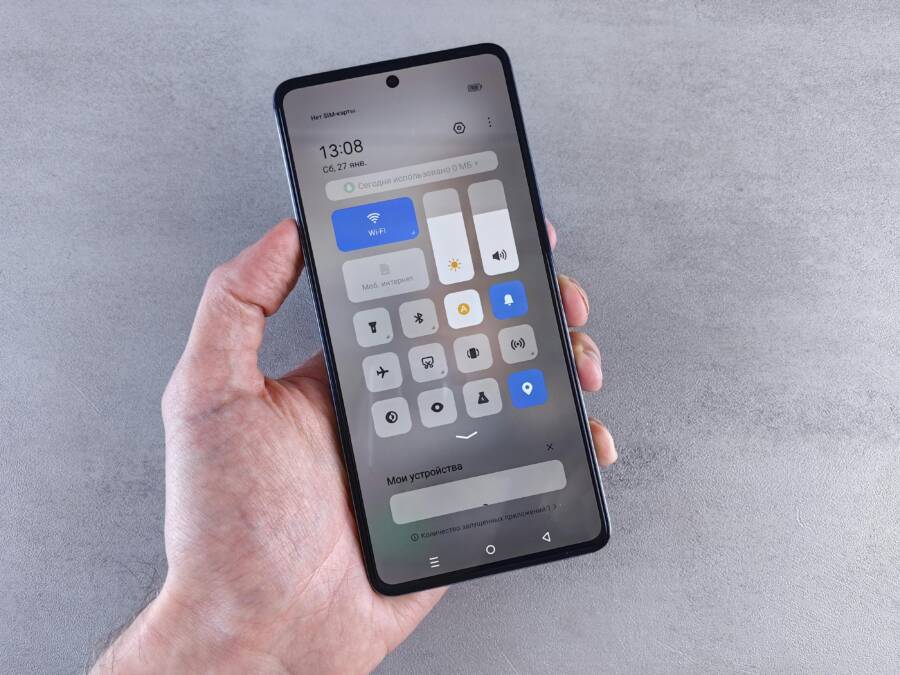
Start by enabling Battery Saver when you need a boost, but customize it to keep critical communications flowing. Access the settings quickly by swiping down and opening the Quick Settings panel, then tap Battery Saver. On many devices you’ll see options for standard and Extreme modes; choose the level that matches your day. If you know you’ll be waiting on a delivery or a message, set Battery Saver to a level that still allows essential alerts from calls and SMS. After enabling, verify that automatic activation aligns with your routine so you’re not scrambling to toggle it on at the last minute. If you want a smoother experience, pair this with a schedule so the mode turns on when your battery hits a threshold, like 20 percent, and reverts when it’s charged. For more precise guidance, check Google Pixel and Android OEM guides that detail how to optimize Battery Saver across devices. You’ll find practical steps in reputable sources that break down how extreme modes function and what changes to expect during saver time. To see where the power savings come from and how to adjust, you can review official support pages and trusted tech sites.
- Quick access path: swipe down, Settings, Battery, Battery Saver.
- Levels to consider: standard for everyday use, extreme when you’re far from a charger.
- Practical tip: test how your phone behaves with notifications right after you switch modes so you know what to expect.
Protect Your Key Apps
Some apps are non negotiable when it comes to staying connected. Messaging, email, ride-hailing, and delivery apps often need to push notifications promptly even while you save power. The trick is to exempt these essential apps from aggressive battery optimization, then monitor how they behave in saver mode. Start by listing the apps you rely on for real-time updates, then navigate to Settings > Battery > Battery optimization (or Apps > Special app access depending on your device). From there, select each critical app and set it to “Not optimized” or “Unrestricted.” After applying, run a test notification from each app to confirm it appears promptly. If a system prompt asks you to allow background activity or unrestricted data while on mobile data, approve it so alerts aren’t blocked when you switch networks. You can also review the battery usage screen for each app to spot unexpected drains and adjust accordingly. If you’re unsure how a specific app behaves, use a trusted guide to compare experiences across devices, like those from Android authority and major tech outlets. This approach helps you keep essential pings active without sacrificing overall power efficiency.
- Steps to un-restrict notifications: in Settings, locate the app, adjust battery optimization, then test.
- Quick validation: send a test alert from each key app and confirm prompt delivery.
- Extra tip: if you notice delays, inspect the battery usage list and adapt exemptions as needed.
Smart Tweaks for Extra Savings
Beyond the basics, small tweaks can yield meaningful gains without muffling notifications. Turn off features that drain power in the background while keeping the essentials online. Lower the display refresh rate where possible, especially on devices with adaptive or dynamic rates. Enable dark mode to reduce pixel energy use on OLED screens, which can contribute to longer standby time. If your device supports an always-on display (AOD), consider turning it off during long stretches without charging to save a bit more power. These adjustments are lightweight but effective, and they don’t require sacrificing the apps you rely on most. It helps to test changes in short intervals to observe how much impact each tweak has on battery life and notification timing. Remember, the goal is to balance energy savings with timely alerts, so you stay productive without constant recharging. For further reading on keeping key apps alive in the background, see reputable guides that discuss Android background processes and optimization.
- Lower refresh rate: reduces screen power draw.
- Dark mode: saves energy on OLED screens.
- AOD off: safe to save small amounts of power without hurting day-to-day use.
- Quick check: after each change, monitor notification delivery for a couple of hours to confirm no regressive delays.
Links for deeper reading and device-specific tips:
- Use Battery Saver on a Pixel phone: https://support.google.com/pixelphone/answer/6187458
- Keep Adaptive Battery & battery optimization on: https://support.google.com/pixelphone/answer/7015477
- How to turn off battery optimization for an app: https://support.google.com/pixelphone/thread/299966895/turn-off-battery-optimization-for-an-app?hl=en
- How to keep background apps alive on Android: https://blog.usro.net/2025/05/how-to-keep-android-apps-running-in-the-background/
Run Low Power Mode on iPhone and Stay Connected
When your iPhone slips toward a low battery, Low Power Mode can be a lifesaver. It curbs background activity to stretch your juice, but you still need critical notifications to come through. This section shows practical ways to activate Low Power Mode quickly and keep key alerts alive, so you don’t miss important updates even as you save power.
Quick Activation and Basics
Getting into Low Power Mode should be fast and predictable. Start by opening Settings, then navigate to Battery and toggle Low Power Mode on. On newer iPhone models you can also add Power Mode to your Control Center for a one-tap enablement. Consider setting automatic activation at a battery threshold, such as 20 percent, so you don’t have to think about it during a busy day. This approach allows you to tailor how aggressively power is saved. For most users, the default level is enough to extend life without feeling cut off from essential alerts. If a quick test reveals delayed notifications, adjust a couple of related settings to fine tune the balance. For deeper guidance, Apple’s official guide explains how Power Modes function across iOS versions and devices, helping you pick the right configuration for your smartphone routine.
- Quick access path: Settings > Battery > Low Power Mode.
- Optional shortcut: add Power Mode to Control Center for instant activation.
- Practical tip: test notification timing after enabling to confirm you’re still in the loop.
- For more context on how Power Modes adapt, see Apple’s official guide.
Keep App Alerts Buzzing
A key goal is preserving timely notifications while saving energy. Start by keeping essential alerts active even when Low Power Mode is on. In iOS, this means ensuring background activity and data access are allowed for critical apps, such as messaging, email, and ride-sharing services. On the iPhone, you can adjust per-app settings to allow background refresh and push delivery, which helps alerts arrive promptly even in a low-power state. If you notice delays, revisit the Background App Refresh setting and consider leaving it on for the most important apps while keeping it off or restricted for others. It’s also worth checking the notification style for each app. Make sure banners, sounds, and badges are enabled so you don’t miss an alert when your screen is off. For a broader view of how background activity interacts with battery life, reputable guides explain the trade-offs and give step-by-step tweaks for iOS devices.
What If the Only Thing Between You and the Life You Deserve Is a Hidden Wealth Code Waiting to Be Activated
>>> Open the Door <<<

- Per-app notifications: Settings > Notifications > select app > Allow Notifications with the preferred style.
- Background activity: Settings > General > Background App Refresh; enable for essential apps.
- Validation: send test alerts from key apps and confirm timely delivery.
- Helpful resource: Apple’s guide on saving battery life with Power Modes and related settings.
Daily Habits to Boost Battery on Any Phone
Powering through the day without constantly hunting for a charger starts with small, smart habits. This section focuses on two practical areas: keeping essential notifications alive without sacrificing display and connection efficiency, and building routines that make battery life a steady ally. Think of your phone as a well-tuned tool rather than a device you babysit. By adjusting a few everyday settings and forming simple habits, you get reliable alerts and longer screen time without constant charging.
Screen and Connection Fixes
Smartphone screens eat power, especially at high brightness and fast refresh rates. The goal here is to trim energy use without dulling visibility or missing alerts. Start by lowering the display brightness to a comfortable level and enable auto brightness only if it actually saves power on your device. If your phone supports a lower refresh rate while staying smooth, switch to that setting for daily use. Dark mode is a quick win on OLED screens, reducing energy per pixel and extending standby time. Disable features you rarely use, like always-on display, but keep essential on-screen indicators for notifications active.
Thousands of People Were Struggling With Money Until They Discovered This One Ancient Secret Hidden in Sound
>>> Unlock It Now <<<

To preserve timely alerts, keep network-related tasks efficient. Turn off unnecessary synchronizations in the background while preserving push for messages from trusted apps. You can also set precise data restrictions for noncritical apps so they won’t wake the radio constantly. For deeper guidance, explore Android and iOS optimization guides that explain how background tasks relate to battery life.
- Quick tip: test notification timing after each change to confirm key alerts still arrive promptly.
- Quick access concept: adjust brightness, refresh rate, and AOD settings in your display menu, then test.
Image: 
Photo by Andrey Matveev
For further reading on how to save battery on a Pixel or similar devices, see Google’s official guidance and trusted tech outlets that break down Doze, adaptive battery, and background restrictions.
- Learn more: How to Save Battery Life on Android
Build Better App Routines
Creating reliable app routines means you can protect power without starving yourself of updates. Start with a weekly usage review. Open Settings and inspect battery or data usage by app. Identify which apps drain power in the background and which ones actually need real-time updates. Prioritize those essentials and adjust their permissions so they remain responsive even when the phone is in a power-saving state.
Next, set up per-app exceptions for critical services. For messaging, email, navigation, or delivery apps, mark them as “Not optimized” or “Unrestricted” so they can push notifications even when the system conserves energy. After applying, test by sending messages and alerts to verify timing. If you notice delays, refine exemptions or adjust background data permissions. Regular checks help you keep essential pings alive while the rest stay tucked in.
Finally, adopt a lightweight testing routine. Once a week, review which apps still require background activity and tweak as needed. This keeps your overall battery health in good shape and reduces missed notifications during busy days. For deeper insights, consult reputable guides that compare Android background processes and practical optimization steps.
- Practical tip: maintain a short priority list of apps that must stay active.
- Quick validation: run a quick alert test from each key app and confirm prompt delivery.
Image:
Photo by Andrey Matveev
External references for deeper reading and device-specific tips:
- How to Turn Off Battery Optimization for an App on Android: https://support.google.com/pixelphone/thread/299966895/turn-off-battery-optimization-for-an-app?hl=en
- Keep Adaptive Battery & battery optimization on: https://support.google.com/pixelphone/answer/7015477
This section helps you strike the balance between power savings and staying in the loop. With deliberate tweaks to screens and app behavior, your device remains a reliable helper rather than a battery drain.
Conclusion
Tuning Battery Saver to keep critical alerts while extending life works best when you apply targeted app exemptions on Android and keep essential background activity on iOS. For Android, set Battery Saver with exemptions for messaging, email, and delivery apps, then test push timing and adjust as needed. On iPhone, keep background refresh active for key apps and verify per app notification settings so banners and sounds stay reliable.
Adopt simple daily habits that support reliable notifications. Lower your screen brightness and use a shorter screen timeout, then verify that essential apps stay responsive in saver mode. Limit unnecessary background tasks and nonessential data syncing, while maintaining push for trusted apps. Regularly review battery usage and adjust exemptions so your smartphone remains a helpful companion instead of a power drain.
Take action today: tweak the settings you rely on, run a quick notification test, and observe over a few hours. Create a short priority list of apps that must stay online and recheck them weekly. By balancing power saving with timely alerts, you protect your schedule and your peace of mind. Your smartphone will feel like a trusty partner again, delivering the right pings when they matter most.
Empowerment comes from consistent small changes. Enjoy longer battery life and no missed alerts for a stress free day.
Thousands of People Were Struggling With Money Until They Discovered This One Ancient Secret Hidden in Sound
>>> Unlock It Now <<<