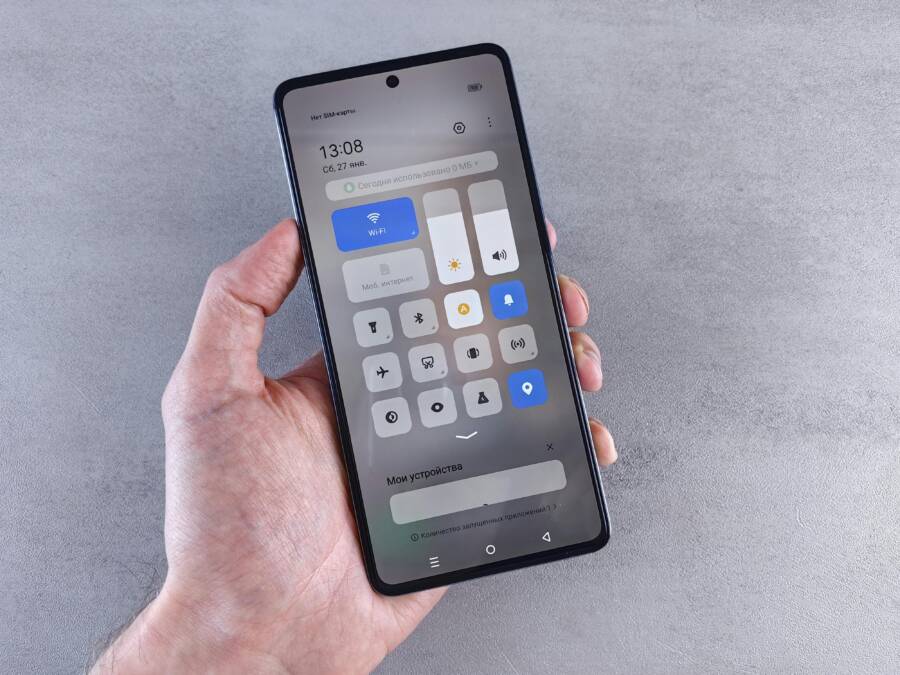
If your phone mixes call audio with your music or videos, you need to separate call volume and media volume on Android and iPhone. This guide shows you exactly how to keep these controls independent, so calls stay clear while podcasts, music, and games play at their own level.
Separating these two sounds gives you steady control in daily life. You can keep call volume clear for important conversations while fine tuning media volume for podcasts, videos, or games. You’ll also see how to handle different devices and setups, from stock Android to brand skins, and from iPhone to Bluetooth headphones.
We’ll walk through simple steps for both platforms and share practical tips to avoid audio surprises. By the end, you’ll know how to use control center on iPhone and the volume controls on Android to keep call volume and media volume independent. You’ll also learn about per app volume where your favorite apps can have their own levels.
Why you should separate call and media volume
Separating call volume from media volume gives you reliable control when you juggle conversations, music, and videos on a single device. With independent controls, you don’t have to guess which sound level will rise or drop. Imagine driving and taking a call; you can keep the conversation clear without blasting your podcast. Or you can lower media volume for a quick phone ring without muting essential notifications. It also benefits smartphone users who rely on accessibility features, as mixed audio can make spoken prompts harder to hear. For many, this separation translates to a calmer, safer daily routine.
What you gain from separate control
- Better audio balance: Fine tune call clarity while keeping media at a comfortable level. This helps when you’re in a noisy office or a busy street.
- Safer driving: Separate volume reduces the need to fumble for settings while you focus on the road.
- Accessibility: Clear distinctions between calls and media help users with hearing impairments or those using assistive options.
- For deeper dives, see how Android and iOS handle independent volume features in articles like Android Does it Better and ghacks’ comparison of volume controls, which illustrate practical differences across platforms. You can also explore how some tricks work on iPhone and Android to keep volume behavior predictable while listening to media or taking calls.
Android guide to separating call and media volume
Separating call volume from media volume on Android gives you reliable, day to day control over how you hear conversations, music, and videos. This section breaks down practical, beginner friendly steps you can take right now. You’ll learn quick tricks you already know, what per‑app tweaks can do for you, and safe methods to fine tune audio without root. Think of your phone as a well balanced sound system where calls stay crisp and media stays at the right mood.
 Photo by Andrey Matveev
Quick controls you already know
If you’ve ever adjusted volume by pressing the side buttons, you’ve already seen the basic split in action. Outside of a call, those hardware buttons change the media volume. During a call, the same buttons control the call volume. It’s simple, but easy to misfire if you’re not paying attention.
- On most Android phones, after you press a volume button, a volume panel slides in from the side or top with separate sliders for Media, Calls, and sometimes System or Alerts. Tap the menu icon (the three dots or hamburger icon) in that panel to view the full set of sliders. This is where you can see the distinct media and call controls side by side.
- A quick tip to avoid mistakes: before you adjust, look for which slider is highlighted or active. If you want to raise media volume, make sure the Media slider is selected. If you’re in a call and you want to boost call clarity, switch to the Call slider first.
For a quick verification, try this flow: during a normal moment, press the volume up button. The Media slider should respond. Start a call, then press the same button and watch the Call slider respond. If you don’t see the expected slider move, reopen the volume panel and confirm you’ve targeted the correct control.
If you want more detailed, step by step guidance from official sources, Google’s Android Help covers adjusting media and sound settings and explains how to navigate the volume panel on newer Android versions. It’s a reliable baseline for understanding what your device can do. You can check it here: Change volume, sound, & vibrate settings. https://support.google.com/android/answer/9082609?hl=en
In practice, this means you can quickly adapt to noisy environments by bumping media volume without risking a loud phone ring. It also means if a call comes in while you’re listening to a podcast, you won’t have to scramble to reset your audio levels. A smartphone is a multitasker after all, and knowing these quick controls makes that multitask smoother.
Per app and device features
Some Android devices offer finer control right at the system level, while others rely on app specific tweaks. On Samsung devices, you have Sound Assistant or the App Volume feature for per‑app control. This lets you set different volumes for different apps, so a game can be louder than a streaming app, yet calls stay at their own level. Here’s how you can use these options.
- Samsung Sound Assistant: This feature adds per‑app volume control, a separate slider for each app. It’s especially helpful if you juggle music apps with games or navigation voices. You can access it from the Galaxy Store or through your settings in newer models. For a quick how‑to, see the discussion on individual app volumes in the Samsung community. https://eu.community.samsung.com/t5/galaxy-s22-series/how-to-set-individual-app-volumes/td-p/10162577
- App Volume (on Samsung systems): This option exists within the Sound settings and lets you assign a volume level to each app. The louder you want Spotify, the quieter you want a game to be, all without muting your calls.
Pixel devices and many other Androids support per‑app volume as well. Google’s Pixel community threads show how to enable per‑app tweaks and what outcomes to expect. When enabled, each app uses its own volume level while calls stay separate, allowing you to enjoy media without sacrificing call clarity. Quick reference for enabling per‑app tweaks can be found here: Individual app volume – Google Pixel Community. https://support.google.com/pixelphone/thread/264339218/individual-app-volume?hl=en
Per‑app tweaks can lead to predictable outcomes. Apps such as music or video players can be louder or quieter without changing the system call volume. It helps when you want to watch a video on one app while a navigation prompt stays audible at a comfortable level. If you want to explore how to apply per‑app tweaks on different devices, these resources are useful starting points: Samsung Sound Assistant, Pixel per‑app volume, and general guidance on per‑app controls.
- Samsung Sound Assistant: https://galaxystore.samsung.com/detail/com.samsung.android.soundassistant
- General per‑app volume concept on Android: https://support.google.com/pixelphone/thread/264339218/individual-app-volume?hl=en
- YouTube explainer on per‑app volumes (non‑root methods): https://www.youtube.com/watch?v=_ssMIEQuTaY
If you’re new to per‑app volume, start with a single app you use often. For example, set a higher media volume for your music player and a separate lower level for a game that can be loud in the background. This approach keeps your calls unaffected while you fine tune your listening experiences.
Advanced options without root
If you want finer control than the stock sliders offer, you can explore safe, non‑root methods. The goal is to adjust media volume by app while keeping call volume separate. Here are practical, beginner friendly approaches.
- Built‑in accessibility tools: Some Android devices include accessibility features that help you manage sound. For instance, you can use larger on‑screen controls or simplified volume interfaces to avoid accidentally changing the wrong slider. These tools don’t modify call volume and are designed to be safe and easy to use.
- Lightweight third‑party apps: There are apps that adjust media volume per app without needing root. For example, Precise Volume and similar apps create per‑app profiles so each app has its own volume setting. These apps are popular because they add precision without the risk of system wide changes. A widely used option is Precise Volume, which can be found on Google Play. Precise Volume 2.0 + Equalizer. https://play.google.com/store/apps/details?id=com.phascinate.precisevolume&hl=en_US
- App specific managers: Some apps act as per‑app volume controllers and work across many Android devices. These tools can help you assign separate volumes to media apps and reduce conflicts with calls. Android Authority’s guide on best volume control apps shares several options that can fit different devices. https://www.androidauthority.com/best-volume-control-apps-android-3101217/
Limitations to know
- These methods don’t affect the call volume during actual phone calls on most devices. The call channel often remains separate due to how Android handles telephony audio.
- Per‑app controls depend on device support and app compatibility. If a phone maker removes a feature in a software update, options can disappear or behave differently.
- Rooted methods can provide deeper control but come with safety risks and potential warranty concerns. The focus here is safe, non‑root routes that work for most everyday users.
If you’re curious about a practical setup, consider starting with Pixel per‑app volume or Samsung Sound Assistant. These solutions are native or widely supported, and they give you a reliable starting point without risking your device.
Troubleshooting common Android issues
Even the best setups can run into hiccups. Here are quick checks to keep your call and media volumes behaving as you expect.
- Verify the correct slider is being adjusted. The volume panel can show multiple sliders; ensure you’re adjusting Media when you want music and Call when you want to speak clearly during a phone call.
- Disable Bluetooth if it overrides. Some devices route media or calls through a connected headset or car system. If you notice changes happening only with a Bluetooth device, try disconnecting to confirm where the issue originates.
- Test in Safe Mode. Safe Mode disables third‑party apps, helping you determine if a conflicting app is changing volumes. If the problem goes away in Safe Mode, a recently installed app is the likely cause.
- Hardware checks. If volume levels drift or there is no separation, check for speaker or mic issues. A dusty speaker or blocked microphone can seem like audio problems, but it’s a hardware symptom.
Here’s a simple 4‑step quick fix flow you can follow:
- Reopen the volume panel and confirm you’re adjusting the right slider.
- Toggle Bluetooth off and test on the device speaker.
- Reboot the phone to reset the sound system.
- If problems persist, try a per‑app volume tweak with a safe app and confirm call volume remains unaffected.
If hardware failure is suspected, consult your device’s service options or the manufacturer’s support page. Audio issues on a hardware level often require professional attention.
Image suggestions
- An illustration of the Android volume panel with distinct Media and Call sliders, plus the three‑dot menu for accessing all controls.
- A photo showing a person adjusting app volumes on a Samsung device using Sound Assistant.
In summary, Android gives you practical ways to keep call volume and media volume separate. Start with the built‑in volume panel, explore per‑app tweaks on your device, and consider light, non‑root apps for more control. With a little setup, you’ll enjoy crisp calls and a comfortable listening experience for your favorite media without the constant back and forth. For further reference, you can explore how to control media and ringtone volumes separately in Android discussions and guides linked above.
iPhone guide to separating call and media volume
When you’re juggling a phone call with music, videos, or podcasts, the iPhone’s volume controls can feel like they’re fighting you. On most iPhones, the system relies on a single, global volume slider, and the behavior during calls means you often can’t fully separate call volume from media volume. This section explains what you can expect out of the box and highlights practical workarounds that keep your audio predictable. You’ll find tips that work with standard iPhone setups, AirPods, and wired or wireless headphones, plus quick paths to control center tweaks and simple automations.
Current iOS behavior and limits
iOS primarily uses one global volume control, with limited separation in normal use. The side volume buttons and the on-screen slider often affect media volume when you’re not on a call. During an active call, those same controls tend to steer the call audio, and trying to adjust media at the same time can be awkward or ineffective. In practice, full unlinking isn’t available on standard devices, which means you’ll usually have to adjust one channel at a time or switch tools to manage both streams.
- During a call, volume buttons typically change call volume. If you start playing media while on the call, the system sometimes shifts to media control, but this can diminish call clarity or override the change you intended.
- The hard minimum and maximum levels for media and ringer are set separately in Settings > Sounds & Haptics, but they don’t provide a true split between call and media volumes during the conversation.
- Bluetooth headphones or car systems can shift how volume changes propagate, sometimes making media levels feel more or less responsive than you expect.
For readers who want to see how real users describe this behavior, Apple discussions and support pages cover the general limits, including the fact that there is no built-in app-by-app or full, independent dual slider solution on most iPhones. These resources are helpful to set expectations and to confirm what you can and cannot do with the stock tools. See discussions here: How do iPhone volume controls work and related threads.
When you need to protect your hearing or manage long listening sessions, you can still adjust your setup to avoid surprises. For example, combining built-in controls with your app’s own volume slider can reduce the risk of a loud notification overlapping a movie or a paused podcast. If you’re exploring ways to keep media at a comfortable level while on call, these approaches become practical starting points.
Workarounds and tips
You can keep call clarity intact while still enjoying media by using the tools iPhone provides, plus a few smart habits. The goal is to minimize cross-talk between the two audio streams and to make quick adjustments effortless.
- Adjust volume during a call using the on‑screen media slider. When a call starts, swipe down to access Control Center and use the media slider to fine tune playback without touching the call volume.
- Use Control Center for quick changes. The media slider in Control Center gives you fast access to the volume you want, even while a call is ongoing.
- Shortcuts can set media volume in advance. A simple automation can set a preferred media level when you launch a favored app, helping you keep media at a comfortable level without fiddling with sliders during a call.
- Turn off Change with Buttons if helpful. This setting prevents accidental switches between media and ringer when you press the side buttons during a call.
- AirPods or headphones simplify control. With wireless earbuds, you can often adjust media volume and call volume from the same device, and some headsets offer dedicated controls that stay consistent across apps.
If you want a straightforward, non‑root approach that stays within iOS limits, start with the built‑in media slider in Control Center. You can also experiment with Shortcuts to automate a preferred media volume when you open your go‑to apps. For a quick read on how iPhone users manage ringtone versus media volume, see Lifehacker’s guide to adjusting ringtone and media volume separately and iDrop News’ take on per-app focus.
Using Control Center and Shortcuts
Control Center provides a fast path to adjust media volume while a call is in progress. It’s the easiest way to avoid accidentally changing the wrong slider during conversations, and it doesn’t require any special setup.
- Open Control Center during a call by swiping down from the top right (iPhone X and later) or up from the bottom (older models). The Media volume control appears as a separate slider from the Call volume control when available.
- Move the Media slider to set playback levels without touching the Call slider. This helps keep your call audible while you tune your media.
- Create a basic Shortcuts routine to set media volume. For example, a simple shortcut could set the media volume to a comfortable level when you launch your favorite music app. You can trigger it from the Home Screen, Wallet, or a Siri command.
A minimal example to try right away:
- Create a shortcut named “Media Comfort” that uses the action “Set volume” to a comfortable level for Media.
- Add a simple automation: when you open your preferred music app, run the “Media Comfort” shortcut.
- Test by starting a call, then opening Control Center to confirm you can still adjust media independently.
If you want more context on iPhone automation, Apple’s Shortcuts documentation covers the basics of automating volume changes, while iPhone community discussions show real-world workarounds users have tried. You’ll find practical, low‑risk setups that don’t require rooting or third‑party apps.
Bluetooth and accessories considerations
Your audio experience hinges not only on the iPhone but also on the devices you pair with. Car systems, wireless headphones, and speakers can influence how volume behaves during calls and media playback. Here are practical tips to keep sound consistent across setups.
- Test with AirPods or wireless headphones. These devices often streamline control, letting you adjust volume from the buds themselves or via touch controls. If your headset supports volume gestures, use them to maintain call clarity and media levels without swapping between sliders on the phone.
- Car systems can override or reshuffle volume paths. If you notice odd changes when you connect to Bluetooth in the car, try adjusting the phone’s media volume first, then fine‑tune via the car’s own volume controls. In some cases, the car’s stereo interface may be the dominant controller and can dampen the phone’s independent adjustments.
- Wired headphones as baseline. If you want a stable reference point, test with a wired headset. It gives a straightforward read on how the iPhone handles media volume without the influence of wireless latency or car interfaces.
For further context on headphone customization, Apple’s guidance on Headphone Accommodations can help in cases where you need clearer speech or adjusted frequencies while listening to media through AirPods or other headphones. This can be especially useful for long calls or media sessions that require precise audio tuning. You can explore how to customize headphone audio levels here: Customize headphone audio levels on your iPhone or iPad.
Conclusion for this section iPhone users face a built in limitation: call and media volumes don’t fully separate in everyday use. Still, practical steps like using Control Center, applying Shortcuts for media level presets, and choosing compatible accessories help you stay in control. With some setup, you can keep calls crisp while enjoying media at a comfortable volume. If you want to explore deeper options, Apple’s support pages and user discussions offer a trail of real‑world experiments that align with these tips. For quick reference on paired accessories and multi‑device setups, see the official headphone guidance and related discussions.
Best practices and practical tips
Fine tuning how your device handles call volume and media volume can save you from sudden blasts or muted conversations. This section packs practical, easy-to-implement tips for both Android and iPhone users. You’ll learn quick checks, small automations, and how to tailor the setup to your daily use. Think of your smartphone as a multipurpose audio hub where calls stay clear and media stays comfortable.
In car and Bluetooth devices
When you connect to a car stereo or a Bluetooth speaker, the audio paths can shift. The goal is to keep calls crisp while you enjoy podcasts or music without fighting with the same sliders.
- Set base levels before you drive. Start with a comfortable media volume on your phone, then adjust the car’s volume so that both streams feel balanced. If a call comes in, you can quickly tweak the call volume without losing your media settings.
- Use the separate sliders in the volume panel. On most Android devices, after you press a volume button you’ll see distinct sliders for Media and Calls. Tap the menu to access all sliders and confirm you’re adjusting the right channel.
- Quick troubleshooting if audio is too loud on a call: disconnect Bluetooth momentarily and test on built-in speakers, then re‑connect. If the problem persists, adjust the Call slider first, then fine-tune media after the call ends.
- Quick tip for car systems: some vehicles override your phone’s volume settings. In that case, set the phone to a comfortable media level first, then use the car’s own controls to finish dialing in the sound.
Helpful reference: Android’s volume management and per‑device behavior are explained in official docs and automotive guidance, which you can consult to understand how to balance media and call paths in a car environment. https://source.android.com/docs/automotive/audio/volume-management
- When Bluetooth is involved, you may notice different response times. If you notice inconsistent behavior, try toggling Bluetooth off briefly to identify where the issue originates.
If you drive or ride with Bluetooth gear often, consider a per‑device profile. Some Android devices and Bluetooth hands-free systems remember the volume levels for each paired device, which reduces the need to readjust every time you connect.
Media and calls during video calls
Video calls blend two streams at once. The trick is to pause or manage media without letting background audio wreck the conversation.
- Pause media during a call if the app allows it. Most video apps offer a visible pause or mute option, which helps you focus on the person speaking.
- Use on-screen sliders for precise control. Within the app or system volume controls, set the media level to a comfortable backdrop while the call remains clear.
- Avoid echo and background noise. If you hear echo or loud room noise, move to a quieter space, enable call suppression features if your device supports them, and keep media volume at a steady level to prevent feedback.
- Practical workflow: start the video call, then quickly lower background media to a safe level using the on-screen media slider. If you need more room, pause playback temporarily and resume when the call ends.
For iPhone users, FaceTime and other video apps can benefit from audio tweaks that reduce ambient sound during calls. Apple’s guidance on FaceTime audio settings can help you dial in the right balance. https://support.apple.com/guide/iphone/change-the-facetime-audio-settings-iphb54d5dee2/ios
- If you’re using AirPods or other wireless headphones, test how your headset handles mic input and playback simultaneously. Some headsets offer on-ear controls that let you adjust media volume without touching the phone.
If you want to explore Voice Isolation and mic modes for clearer calls, Apple provides options that work across FaceTime and compatible apps. This can help when background noise is a constant challenge. https://support.apple.com/en-us/101993
Automation and routines
Small automations can keep your audio experience steady without manual fiddling.
- Do Not Disturb timing rules. Create a routine that lowers all non-essential notifications during meetings or workouts, while preserving media playback volume. This avoids sudden loud alerts mid‑call.
- Siri and Google Assistant prompts. Set phrases like “Good morning media level” or “Set media to comfortable level” to adjust playback with a single command. These routines minimize the chance of accidental changes during a call.
- Shortcuts for iPhone. A simple automation can set a preferred media volume when you launch a favorite app, ensuring consistent sound from the moment you start listening.
- Quick action plan to start:
- Create a baseline routine that sets media volume to a comfortable level.
- Add a trigger for your go‑to media apps to apply the preset automatically.
- Add a separate routine for Do Not Disturb during your common quiet hours.
- Test across a few real scenarios to confirm that calls stay clear and media remains pleasant.
Useful reference: Apple’s Shortcuts guide explains how to automate tasks on iPhone, including volume-related actions. https://support.apple.com/guide/iphone/shortcuts-iph47e1c9d7d/ios
Android users can lean on Google Assistant routines to handle similar goals. Set up routines that adjust device volumes across apps and scenarios. https://support.google.com/assistant/answer/7672035?hl=en&co=GENIE.Platform%3DiOS
- Start simple and expand later. Begin with one routine that adjusts media volume when you open your music app, then add a second routine for calls during specific hours.
Per‑app volume options and apps
Per‑app controls let you tailor sound for each app, reducing the need to juggle system sliders mid‑task.
- Android per‑app options. Some devices offer per‑app volume through built‑in tools. On Samsung devices, Sound Assistant provides separate app volumes, letting a game stay loud while calls stay at a fixed level. The App Volume feature also helps fine tune different apps without muting calls.
- Pixel and other Android devices. Per‑app volume tweaks are available on many phones, often through system settings or specific manufacturer features. When enabled, each app uses its own volume level, while calls stay separate.
- iPhone behavior. iOS does not offer a universal per‑app volume control that applies to all apps. Some apps provide their own in‑app volume settings, and iPhone users can pair app control with device controls for a smoother experience. For example, volume adjustments in a video app or music app can be managed within the app itself, while calls use the system media controls.
- Apps that offer in‑app volume. Some media players and streaming apps include independent volume controls. Pair these with the device’s master controls to minimize unintentional changes during a call.
If you want to explore specific options, these examples are a good starting point:
- Samsung Sound Assistant for per‑app control. https://galaxystore.samsung.com/detail/com.samsung.android.soundassistant
- Pixel per‑app volume guidance. https://support.google.com/pixelphone/thread/264339218/individual-app-volume?hl=en
- App-based volume controllers for Android. https://www.androidauthority.com/best-volume-control-apps-android-3101217/
On iPhone, per‑app volume is often managed by the app itself. Some popular apps provide their own sliders, which helps you keep media levels predictable while calls use the system controls.
- A practical approach is to pick one app you use heavily for media and set its internal volume to a comfortable baseline. Then use the iPhone’s Control Center to nudge the global media volume as needed during a call.
A quick example setup:
- Android: Enable Samsung Sound Assistant, create a dedicated level for a music app, keep Calls at a fixed, clear level.
- iPhone: Use Control Center to adjust media during a call; add a Shortcuts routine to set media volume when you open your favorite music app.
For quick reference on per‑app volume concepts, you can review Android and iPhone guidance from the sources above.
If you’re curious about non‑root options for Android, lightweight apps that provide per‑app profiles are worth trying. They’re designed to add precision without broad system changes. A well‑known option is Precise Volume, which supports per‑app profiles. https://play.google.com/store/apps/details?id=com.phascinate.precisevolume&hl=en_US
Tips for a consistent, reliable setup
- Start with a clear baseline. Set media to a comfortable level first, then adjust calls as needed.
- Use the app’s own volume controls when available. They often provide the most predictable results.
- Test in real-world scenarios. A quick call while listening to music will reveal whether your setup needs tweaking.
These best practices help you keep both streams aligned with your daily routine. With the right combination of hardware controls, app settings, and smart automations, you can protect call clarity and enjoy media without surprises. If you want to dive deeper, explore the official support pages for your device and app ecosystem to confirm current behaviors, as updates can shift how volume controls behave across platforms.
Conclusion
Separating call volume from media volume on your smartphone gives you steadier listening during calls and clearer control of playback. On Android, start with the built in volume panel to verify separate sliders for Media and Call, then explore per‑app tweaks like Samsung Sound Assistant or Pixel per‑app volume if your device supports them. For even more precision, consider safe, non root options or app based controls that let individual apps keep their own levels while calls stay separate. These steps make it easier to tune music, podcasts, or videos without risking a loud ring.
On iPhone, use Control Center to adjust media volume while in a call and disable changes with the side buttons if needed. Shortcuts can automate a preferred media level when you launch a favorite app, and Bluetooth or headset setups can help keep your audio predictable across devices. Remember, iOS still does not offer a universal dual slider for calls and media on most models, so these practical workarounds are your best path to reliable sound.
The key benefit remains: you gain consistent call clarity and comfortable media levels without constant fiddling. Hardware limits and updates can shift behavior, so check your device’s settings and supported features periodically. Try these steps today, and share your experiences or questions in the comments to help others dial in their perfect balance.