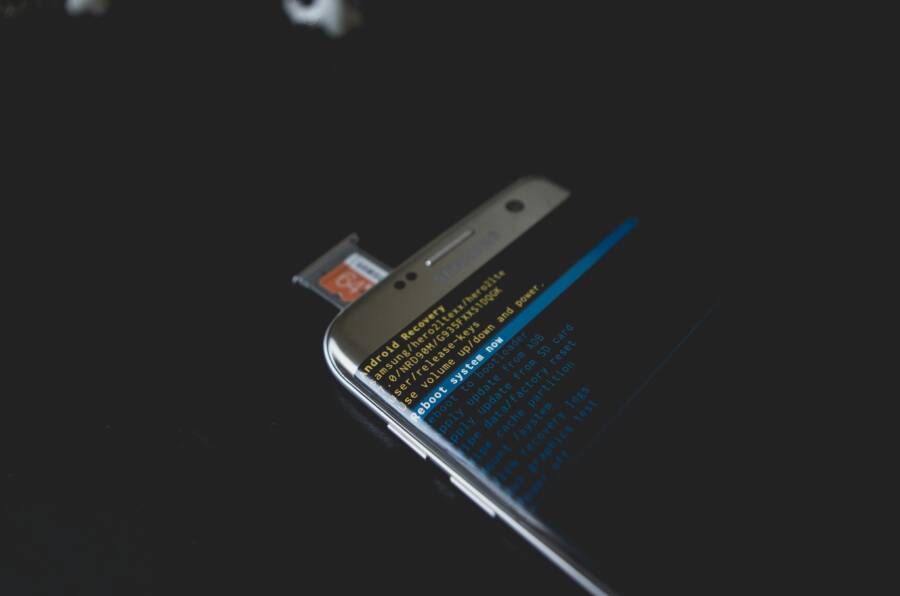
Have you ever watched your smartphone restart the moment you open a favorite app? This frustrating issue shows up on both Android and iPhone, driven by common glitches like outdated software, low storage, or corrupted app data. In this quick guide, you’ll learn practical checks and fixes you can try today to stop the problem.
If you’re wondering what to do first, start with the basics: update your OS and apps to the latest versions, clear caches, and free up space. These steps resolve most crashes and restarts and do so without touching your personal data. You’ll also learn how to test for app conflicts in Safe Mode and reinstall problem apps if needed, which helps identify whether a single app is the culprit.
Spot the Common Causes Behind App-Triggered Shutdowns
When an app forces your phone to reboot or shut down unexpectedly, it’s usually not a single fault. Most issues come from a few common culprits that mix hardware limits with software quirks. This section breaks down the top three causes you’ll want to check first. Think of it as a rapid triage guide for your smartphone. By understanding what’s most often at play, you can fix the problem faster and get back to your apps without the drama.
Outdated Software and App Bugs
Outdated software and buggy apps are a frequent pairing that leads to crashes. When the operating system (OS) or an app relies on features or security fixes that newer code expects, you can see instability on older builds. The result is abrupt closes or reboots as the system tries to protect itself from corrupted processes.
What to look for:
- OS updates pending on Android or iPhone. Updates often include stability improvements, memory management tweaks, and bug fixes that prevent crashes.
- App updates pending in the Play Store or App Store. App developers frequently push patches to address compatibility problems with current OS versions.
- Known bug reports for your device model or the specific app. Sometimes a particular device + app combo is prone to issues even after updates.
How to act:
- Install available OS updates first, then update all apps. If you’re unsure how to update, check your device’s Settings under “Software Update” (Android) or “General” > “Software Update” (iPhone).
- If the problem starts after a recent app update, try rolling back or reinstalling that app. A fresh install can remove corrupted data that causes crashes.
- When in doubt, consult reputable guides for your device and the app. For example, articles outlining Android and iPhone crash fixes can provide targeted steps and caveats. See a practical overview here: https://bugfender.com/blog/how-to-fix-crashing-apps-iphone-android/
Why this matters for you:
- Updating closes gaps that apps rely on, which reduces the likelihood of sporadic shutdowns.
- Reinstalling or rolling back helps identify whether a single app is the root cause.
- Reliability improves when both OS and app ecosystems stay in sync.
Low Storage or Full RAM Issues
A full memory stack can silently push your device toward instability. When storage is packed, the system cannot write temporary files or cache data efficiently. Similarly, if RAM is tapped out by background tasks, foreground apps may be forced to reload constantly, leading to freezes and restarts.
What to look for:
- Device storage nearing capacity. Photos, videos, and apps accumulate quickly and leave little room for system operations.
- RAM pressure during heavy use. Even with available storage, running multiple apps or memory-hungry tasks can exhaust RAM, triggering slowdowns or reboots.
How to act:
- Free up space by offloading unused apps, clearing cached data, and transferring media to cloud storage or a computer.
- Check and optimize RAM usage by closing unused apps or using built-in memory managers. If you notice frequent restarts, check for OS updates that improve memory management.
- Ensure automatic cache clearing is enabled where appropriate, and consider temporarily limiting background processes while you troubleshoot.
Real-world guidance on Android and related steps can be found here: https://support.google.com/android/answer/7664448?hl=en
Why this matters for you:
- Even when you have plenty of storage, RAM pressure can cause a crash if background tasks spike.
- Regular housekeeping keeps both storage and memory headroom for critical system functions.
- A well-managed device experiences fewer abrupt reboots during app launches.
Overheating from Heavy Apps
Thermal throttling is a protective feature. When you push a phone with a graphics-intensive game or a data-heavy app, the device heats up quickly. If temperatures rise too high, the system may shut down or throttle performance to prevent damage. This is especially common when gaming, streaming, or running multiple heavy apps at once.
What to look for:
- Temperature spikes during app use, especially with processor-intensive tasks.
- Reduced performance or sudden shutdowns when the device is hot to the touch.
- Charging while gaming, which can exacerbate heat buildup.
How to act:
- Pause demanding tasks and let the device cool before reattempting use.
- Play games or run heavy apps in shorter sessions, and avoid charging at the same time if the device gets hot.
- If overheating recurs, check for software updates that address heat management and verify you’re using official app versions.
- Consider a device with stronger cooling or higher thermal headroom if you frequently run intensive apps.
Guidance on addressing overheating and how to fix an overheating smartphone can be found here: https://www.greenware.lk/mobile/how-to-fix-an-overheating-smartphone-android-iphone?srsltid=AfmBOorxnRkQ1vXyV_3aLSBn8B322PLqCcO8IBqgmzWWxYdFH2gW4MQS
Why this matters for you:
- Thermal protection is there to prevent hardware damage. Following safe usage patterns reduces unexpected shutdowns.
- Short, controlled sessions with heavy apps help maintain performance without overheating.
- Regular checks for software updates can address heat management and keep performance stable.
External factors to consider:
- If you notice frequent crashes across multiple apps, it may signal a broader issue with the OS or device health. In such cases, a factory reset after backing up data can help determine if software corruption is the culprit. If the behavior persists, reaching out to the device manufacturer or a service center is a sensible next step. For additional crash prevention tips, you can explore resources like Norton’s performance tips for Android apps crashing: https://us.norton.com/blog/performance-tips/android-apps-crashing
Final quick-check tips:
- Reboot your phone to clear temporary states before testing each fix.
- Test with a single app at a time to identify the real culprit.
- Keep a notebook of symptoms, such as when the crash happens and what you were doing, to help pinpoint the cause.
If you’re dealing with a stubborn crash, you don’t have to go it alone. Use the steps above as a roadmap, apply updates, and monitor results. Your smartphone should return to stable operation, letting you focus on what matters most—your apps, your data, and your day. For further reading on crashing fixes across iPhone and Android, the Bugfender guide offers practical, step-by-step solutions: https://bugfender.com/blog/how-to-fix-crashing-apps-iphone-android/
Try These Quick Fixes First to Stop Sudden Restarts
When an app is forcing your phone to reboot, you want fast, practical steps that don’t risk your data. These quick fixes focus on the two most common shortcuts: restarting the device correctly to clear transient files, and freeing up space so the system has room to breathe. Follow these steps in order and test after each one to see if the crashes stop. A well-tuned phone runs smoother, and you’ll get back to your apps faster.
Restart Your Phone the Right Way
Restarting the device properly helps flush out temporary files and reset background tasks that may be causing the crash. It’s a simple, low-risk move that prevents data loss and often fixes random restarts. Think of it as rebooting a stubborn computer: a clean slate can make everything behave again.
- For Android: Hold the power button, then tap Restart or Power off and turn it back on. If the restart option isn’t visible, power off, wait 10 seconds, then power on.
- For iPhone: Press and hold the side button and either volume button until the slider appears, slide to power off, then wait 15 seconds and press the side button again to turn back on.
- After the device comes back, open a single app you were having trouble with and monitor its behavior.
Why this helps:
- It clears temporary files and resets background processes without touching your personal data.
- It gives the OS a fresh start, which can stop a cascade of issues that lead to a restart.
Photo by Kelvin Valerio on Pexels
 Photo by Kelvin Valerio
If you want more guidance on how to handle crashes after a restart, you can check out tips from reputable sources that cover Android and iPhone crash fixes.
- Android crash fixes overview: https://bugfender.com/blog/how-to-fix-crashing-apps-iphone-android/
- General Android restart and troubleshooting: https://support.google.com/android/answer/7664448?hl=en
Free Up Space and Clear Basics
Low storage and memory pressure are frequent culprits behind unexpected shutdowns. When the system can’t write temporary data or keep essential cache, it can misbehave at launch, especially when opening demanding apps. Clearing space and trimming unnecessary data gives your OS room to operate.
- Check your storage and RAM health:
- Android: Go to Settings > Storage to see how much space is left; review apps that consume cache and large files.
- iPhone: Go to Settings > General > iPhone Storage to see recommendations and a breakdown by app.
- Free up space with safe, non-destructive steps:
- Offload unused apps on iPhone where possible, or delete apps you rarely use.
- Move photos and videos to cloud storage or a computer, keeping a small, essential library on-device.
- Clear cached data in apps that allow it, such as browsers and streaming apps, to reclaim space quickly.
- Monitor RAM usage:
- On Android, close background apps you aren’t using, and consider a brief break from heavy multitasking if you notice slowdowns.
- On iPhone, a quick app quit on multitasking view can help, but avoid overdoing it; iOS manages memory efficiently when you keep the working set modest.
When to test again:
- After removing junk, recheck the app that previously triggered the reboot.
- If the problem persists, proceed to the next steps in your troubleshooting flow.
If you want a deeper dive into freeing up space on both platforms, this guide offers practical, safe techniques: https://techcabal.com/2025/12/01/how-to-free-up-storage-on-android-iphone/
Final thoughts:
- Keeping storage headroom is a daily habit, not a one-off fix. Regular cleanup reduces the chance of crashes during app launches.
- After freeing space, re-test with the problematic app and then with a fresh session of your phone’s usage to confirm stability.
Optional related reads for further clarity:
- Free up space on Android: https://support.google.com/android/answer/7431795?hl=en
- Free up space on iPhone: https://www.youtube.com/watch?v=bwjcYyCneNc
Remember, a calm, methodical approach pays off. If you still see restarts after these steps, you’re ready to move into deeper troubleshooting or consider service support. You can explore more crash-prevention guidance here: https://bugfender.com/blog/how-to-fix-crashing-apps-iphone-android/
Fix App Problems by Clearing Data and Reinstalling
When apps misbehave on Android or iPhone, a clean slate often solves the issue. Clearing cached data or app data can remove corrupted files, while reinstalling or offloading apps can fix broken installations without harming your personal content. This section covers practical steps you can take to restore stability, with careful testing after each move to pinpoint the culprit.
Clear Cache and App Data on Android
Clearing an app’s cache or its data can resolve crashes that come from corrupted temporary files. This is a safe first step that typically doesn’t affect your personal files, just the app’s local storage.
- Settings path: Settings > Apps > [Your App] > Storage > Clear Cache, then Clear Data if the issue persists.
- What to expect: Clearing the cache removes temporary files that can slow or crash an app. Clearing data resets the app to its initial state, so you may need to sign in again or reconfigure preferences.
- Quick checks after the fix: Reopen the problematic app and test a few actions that usually trigger the crash. If the app still misbehaves, the issue may lie with the app itself or with broader software conflicts.
Tips and considerations:
- Clear cache first, then data if needed. A partial wipe avoids more setup steps while still removing problematic files.
- If you share the device with others, an offhand sign-in or saved preferences could reappear after data is cleared. Be prepared to re-enter settings.
- For more in-depth guidance on Android cache management, see official guidance from Android and device manufacturers: https://android.com/articles/clear-cache-and-cookies/
Why this helps:
- Cached data often becomes stale or corrupted after updates. Clearing it reduces the chance of a faulty startup sequence.
- A clean cache can noticeably improve load times and reduce unexpected resets during app use.
Before moving on, test the app with a typical task. If the problem persists, you may need to try removing and reinstalling the app or testing for conflicts in Safe Mode (see Section 3).
External reference for broader cache management concepts: https://support.google.com/android/answer/7665064?hl=en
Reinstall or Offload Apps on iPhone
If Android steps aren’t solving the issue, iPhone users can offload or reinstall an app to clear problematic data without losing the app’s documents and data. Offloading preserves documents and data tied to the app, while a full reinstall resets everything.
- Steps via App Library or Settings > General > iPhone Storage:
- Open Settings, tap General, then iPhone Storage.
- Find the troublesome app in the list. Choose Offload App to free up space while keeping documents and data.
- Alternatively, select Delete App to remove the app entirely. Then reinstall from the App Store.
- If you Offloaded, tap the app again to reinstall and restore data.
Why this matters:
- Offloading is ideal when you suspect the app’s local data is corrupted but you want to keep your user data intact.
- Reinstalling ensures you replace a possibly flawed installation with a clean copy from Apple’s servers.
If you prefer a direct re-download route, you can use the Apple App Store to redownload apps at any time. Learn more about redownloading and managing apps on iPhone here: https://support.apple.com/en-us/102417
When to proceed with a complete reinstall:
- If offloading does not fix the issue, a full reinstall often resolves deeper storage or installation problems.
- After reinstalling, monitor the app for stability across typical usage scenarios.
Suggested reference for reinstall methods on iPhone: https://www.guidingtech.com/how-to-reinstall-apps-on-iphone/
Boot into Safe Mode on Android to Test
Safe Mode temporarily disables third-party apps. This is a powerful way to determine if a problem comes from a specific app or from the system itself.
- How-to: Hold power and volume down (device-dependent). If your device boots into Safe Mode, you’ll see a Safe Mode banner and all third-party apps are disabled.
- Test plan in Safe Mode:
- Use the phone as you normally would and open the previously problematic app.
- If the crash stops in Safe Mode, a third-party app is likely responsible.
- If the crash persists, the issue may be OS-related or hardware-level.
- How to exit Safe Mode: Restart your device.
What to do after Safe Mode testing:
- If the issue disappears in Safe Mode, identify the suspect apps. Uninstall or disable recently installed or updated apps one by one, then test after each removal.
- If the issue remains in Safe Mode, perform additional steps such as a system update check, reset of app preferences, or a factory reset as a last resort after backing up data.
- For guidance on entering Safe Mode and troubleshooting step-by-step, see official Android support resources: https://support.google.com/android/answer/7665064?hl=en
Why Safe Mode helps:
- It isolates software layers. By removing the influence of third-party apps, you can confirm whether the problem is app-related or system-wide.
If you want a quick walkthrough from multiple Android sources, you can also view recommended guidance on entering Safe Mode here: https://www.androidauthority.com/how-to-enter-safe-mode-android-801476/
Note on testing: After any Safe Mode test, return to normal mode and reintroduce apps carefully. A single misbehaving app can cause a reboot or crash under normal use, so proceed methodically.
External links for quick Safe Mode references:
- Find problem apps by rebooting to safe mode on Android: https://support.google.com/android/answer/7665064?hl=en
- Pixel-specific safe mode guidance: https://support.google.com/pixelphone/answer/2852139?hl=en
By following these steps in order, you can narrow down the exact trigger for the shutdowns. Whether it’s a cached file, a stubborn app, or a deeper OS issue, you’ll gain clarity and keep your data intact. If the problem persists after all these checks, it may be time to consider a factory reset or professional service, especially if multiple apps are affected. For a consolidated crash prevention overview, refer to Bugfender’s practical guide: https://bugfender.com/blog/how-to-fix-crashing-apps-iphone-android/
If you’d like, I can tailor these subsections further to align with your site’s voice or add a concise troubleshooting checklist you can drop into the article.
Update Everything and Handle Overheating
Keeping your device in peak shape requires a disciplined approach. This section focuses on ensuring your OS and apps are current and on how to calm an overheating phone that acts up when you open demanding apps. By staying up to date and managing heat, you reduce the odds of random shutdowns and sluggish performance. Think of it as giving your smartphone a stable foundation to run on.
Update Your OS and All Apps
Outdated software is a leading cause of crashes and restarts. When the OS and apps rely on newer features or security fixes, older builds can stumble, especially when you launch resource-heavy tasks. Regular updates patch bugs, improve memory handling, and tighten security, all of which contribute to smoother operation.
What to check first:
- OS updates on Android and iPhone. Keeping the system code current is essential for stability and compatibility with new apps.
- App updates in the Play Store or App Store. Developers push patches to fix crashes and align with the latest OS requirements.
- Known issues for your device model or the specific apps you use. Some hardware and software combinations have unique quirks.
How to act:
- Update the OS first, then update all apps. On Android, open Settings and look for Software Update; on iPhone, go to General > Software Update.
- If a recent app update started the problem, try rolling back or reinstalling that app. A fresh install can remove corrupted data that causes crashes.
- When in doubt, consult trusted guides for your device and app. For a practical overview of updating on iPhone and Android, you can review Apple’s guidance on manually updating apps from the App Store and related steps: https://support.apple.com/en-us/102629
Why it matters:
- Updates close gaps that apps rely on, reducing the chance of unpredictable shutdowns.
- Reinstalling or rolling back helps confirm whether a single app is the root cause.
- A synchronized ecosystem—both OS and apps—boosts overall reliability.
A quick extra tip: after updating, reboot your phone before testing the previously problematic app. This ensures a clean environment for the new code to run. If you want a broader reference on keeping apps up to date, see Apple and Google’s official update guides and community-tested tips: https://support.apple.com/guide/iphone/update-apps-iph98709f167/ios
What to watch for after updates:
- New crashes or new app behaviors can indicate conflicts with other software. If that happens, test in a controlled way by using a single app at a time.
- Some updates may require re-signing into services or reconfiguring preferences. Have your account credentials handy just in case.
If you’d like, you can pair these steps with a short maintenance routine: monthly checks for OS updates, automatic app updates enabled when you’re comfortable, and a quarterly review of apps with heavy permissions. For a broader crash prevention perspective, the Bugfender guide offers practical, step-by-step solutions you can apply across both platforms: https://bugfender.com/blog/how-to-fix-crashing-apps-iphone-android/
Cool Down Your Overheating Phone
Thermal management is not a feature; it’s a safety mechanism. When a smartphone runs heavy tasks, the processor works harder and heat builds up quickly. If temperatures rise too high, the device might throttle performance or shut down to protect internal components. This is especially common when gaming, streaming high‑resolution video, or running multiple demanding apps simultaneously.
Key signs to notice:
- Temperature spikes during heavy use, especially with graphics or data processing.
- The phone feels hot to the touch and performance noticeably slows.
- Charging while using intensive apps, which can amplify heat buildup.
What to do in the moment:
- Pause the high‑drain tasks and give the device a breather. A few minutes of cooldown can restore normal operation.
- Try shorter sessions for gaming or video streaming. Avoid playing and charging at the same time if the device gets hot.
- Ensure you’re on the latest software version. Updates often include improvements to heat management and power efficiency.
- If overheating repeats, check your app versions. Only use official versions from the App Store or Google Play.
Practical, immediate steps you can take:
- Move to a cooler environment when you notice heat buildup. Heat travels away from the body more easily in cooler air.
- Remove the case if it traps heat during extended sessions. A lighter, breathable setup helps heat escape.
- Disable features you aren’t using, like high‑drain animations, location services, or background app refresh, while you troubleshoot.
- Limit background processes for a short period. Close unused apps and turn off features that run in the background.
If heat continues to surge after these basics, consider deeper checks. Temperature issues can point to a broader problem with the battery, cooling efficiency, or a software loop. For more practical guidance on cooling a smartphone, see resources that cover both Android and iPhone approaches: https://www.greenware.lk/mobile/how-to-fix-an-overheating-smartphone-android-iphone?srsltid=AfmBOorxnRkQ1vXyV_3aLSBn8B322PLqCcO8IBqgmzWWxYdFH2gW4MQS and a broad overview of overheating prevention: https://www.cnet.com/tech/mobile/phone-temperature-skyrocketing-these-tricks-keep-it-chill/
When heat does crop up, think of your phone as a car engine. It can tolerate brief surges, but sustained heat drains performance and shortens life. Keeping sessions short and letting the device cool between intense tasks protects both performance and longevity.
Real-world tips you can apply today:
- Use a cooling break after 20–30 minutes of heavy use to prevent thermal throttling.
- If you’re in a hot environment, plan lighter tasks and avoid charging while gaming.
- Regularly update both OS and apps to address heat management improvements introduced by developers.
If overheating becomes a recurring theme across multiple apps, it’s wise to perform a broader check. Review battery health and consider a professional assessment if temperatures stay high even after updates and cleanups. A consolidated crash prevention overview can be helpful here, such as Bugfender’s practical guide: https://bugfender.com/blog/how-to-fix-crashing-apps-iphone-android/
Quick caution on external factors:
- Overheating can sometimes mask other issues. If you notice frequent crashes beyond heat, a factory reset or service check may be warranted after data backup. For more on safe, structured troubleshooting that includes heat considerations, you can explore further resources: https://www.wikihow.com/Cool-Down-Your-Phone
By updating software and managing heat effectively, you give your smartphone a solid platform to handle apps that demand more from the system. Use these steps as a baseline, then tailor your routine to your daily usage. If you’d like, I can tailor these subsections further to align with your site’s voice or add a concise troubleshooting checklist you can drop into the article.
Last Resort: Reset and Prevent Future Issues
If you’ve tried the quick fixes and your phone still shuts down when opening certain apps, it’s time to consider a reset as a last resort. A factory reset can clear software glitches, corrupted data, and stubborn app conflicts that other steps can’t fix. Before you ride this path, back up everything you value. You’ll lose your settings and locally stored app data, so make sure you’ve saved photos, messages, and important documents. After the reset, you’ll want a plan to prevent the same problems from returning. The ideas below balance a clean slate with good habits that keep your device running smoothly.
Back Up and Factory Reset Your Phone
Performing a factory reset wipes all personal data and apps, returning the device to its original state. Do this only after you’ve made a complete backup. Here are practical steps for Android and iPhone, with a strong emphasis on protecting your data.
- Android:
- Back up first. Go to Settings > System > Backup, and ensure your data is syncing to Google Drive or your preferred service.
- Prepare for reset. Check that you have your Google account credentials handy and note any app logins you’ll need to re-enter.
- Reset. Settings > System > Reset > Factory data reset. Confirm and let the device wipe.
- Restore selectively. After the reset, restore essential data from your backup and reinstall apps one by one.
- iPhone:
- Back up. Use iCloud or a local Mac/PC backup with Finder or iTunes.
- Sign out of accounts if prompted. This helps prevent activation issues after the reset.
- Reset. Settings > General > Transfer or Reset iPhone > Erase All Content and Settings. Enter your passcode if asked.
- Restore carefully. When prompted, choose a backup. Reinstall apps gradually and test after each one.
Why this matters:
- A reset gives you a clean software environment, eliminating hidden corruption.
- It helps you confirm whether the root cause is software, not hardware.
- You’ll reestablish a stable baseline before reintroducing apps and data.
If you want a structured, step-by-step guide to factory resetting with data preservation options, see practical outlines here: https://www.techlicious.com/tip/how-to-reset-android-phone-without-losing-data/
When to pause the reset:
- If you haven’t backed up recently, postpone the reset until you secure a recent copy of your data.
Aftercare checklist:
- Reinstall only essential apps first. Test each one before adding more.
- Reconfigure settings gradually to spot any reintroduction of the issue.
- Keep your OS and apps updated to avoid known bugs that trigger restarts. For a concise crash prevention overview, you can review Bugfender’s guide: https://bugfender.com/blog/how-to-fix-crashing-apps-iphone-android/
Image
 Photo by Helena Lopes
Source: https://www.pexels.com/@helenalopes
Photo by Helena Lopes
Source: https://www.pexels.com/@helenalopes
What you’ll gain from a reset:
- A reliable baseline to confirm whether issues were software related.
- A fresh start that often reduces crashes caused by corrupted data.
- A calmer test environment to identify stubborn apps or settings.
If you’re unsure about any step, consider professional help. A service visit can confirm there’s no hardware fault behind the shutdowns, and a factory reset can then be considered with confidence.
Daily Habits to Keep Shutdowns Away
Once you’re past the reset, adopting simple daily habits can prevent future shutdowns. This section highlights routine checks that keep your device in good health and prevent crashes from creeping back into daily use.
- Keep software fresh with timely updates:
- Enable automatic OS and app updates where possible. Regular patches fix bugs that could trigger reboots.
- Periodically review update notes to understand what changed and how it might affect performance.
- Free up storage and manage memory:
- Aim for at least 15–20% free space on your device. Clear large files you don’t need and offload media to the cloud.
- Monitor RAM usage by closing unused apps and rebooting only when necessary to clear memory leaks.
- Practice mindful app management:
- Install apps from trusted sources and keep only those you truly use.
- Reinstall problematic apps if you notice repeated crashes after updates.
- Monitor temperatures during heavy use:
- If you notice rapid heat when opening certain apps, pause and let the device cool. Thermal throttling can force a shutdown to protect components.
- Regular backups aren’t a one-time move:
- Schedule weekly or monthly backups so a reset doesn’t become catastrophic for your data.
- Verify backups periodically by restoring a file or two to ensure everything is working.
Why these habits matter:
- Regular updates close gaps that apps rely on for stability.
- Plenty of storage and healthy memory headroom prevent the system from freezing or rebooting during launches.
- Routine backups give you a safety net if issues recur.
If you want a quick, reader-friendly reference on daily maintenance, Norton’s performance tips for Android apps crashing offer practical guidance: https://us.norton.com/blog/performance-tips/android-apps-crashing
To keep things simple, build a lightweight weekly routine:
- Monday: Check for OS and app updates.
- Wednesday: Free up space by reviewing large files and clearing caches where available.
- Sunday: Review battery health and temperature patterns during the week.
In the long run, small, consistent habits beat big fixes. Your device will feel snappier, and you’ll miss fewer moments due to unexpected reboots. If you ever need more targeted tweaks, I can tailor these tips to your device model and usage pattern. For a broader crash prevention perspective, Bugfender has a practical guide with step-by-step solutions you can apply across both platforms: https://bugfender.com/blog/how-to-fix-crashing-apps-iphone-android/
Conclusion
Shutting down or restarting when you open certain apps is a common smartphone hiccup, and most people fix it with a simple, ordered approach. Start with the basics and move step by step until you find the trigger. You’ll likely restore stable performance without professional help.
Remember, you can often solve it by updating software, freeing storage, clearing app data, or reinstalling the troublesome app. A careful reset or safe mode test helps confirm whether the issue is app related or system wide. Keep your data safe with backups and follow the checklist below in order.
Recap checklist
- Update OS, then all apps.
- Free up storage and manage memory.
- Clear cache or reinstall the problematic app.
- Test in Safe Mode on Android or reinstall on iPhone.
- If needed, back up and perform a factory reset as a last resort.
- Monitor temperatures during heavy use and adjust as needed.
Most users fix this without a pro by staying methodical and patient. Your smartphone should behave reliably again, letting you use your favorite apps with confidence. If you try these steps and still see restarts, share which fix worked in the comments so others can learn from your experience. What step made the biggest difference for you, and why?