An old tablet can work as a sheet music reader if it can open your score files, stay powered through a rehearsal, and sit securely where you can read it. Start by checking those three things with one piece of music; then set up a simple way to find the next page without losing your place.
Check the tablet before moving your whole library
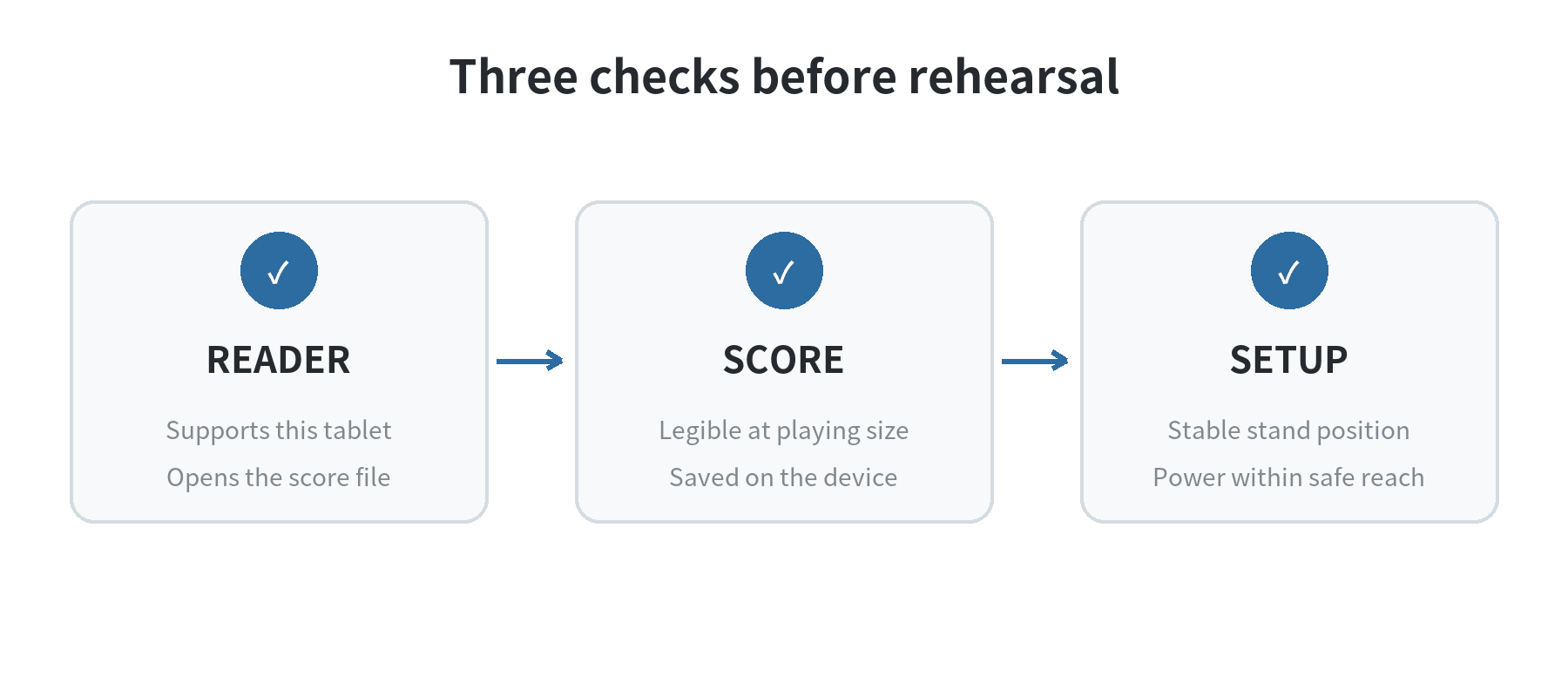
Charge the tablet, connect it to Wi-Fi, and install any operating-system update the device still offers. Then open its app store and confirm that a current document reader or music-reading app supports that tablet’s operating-system version. App compatibility is more useful than the tablet’s age by itself: an old device that can still open a supported reader may be enough, while one that cannot install or update the required app may be difficult to rely on.
Test with one score you already own. If it is a PDF, choose a reader that explicitly lists PDF support and check whether it can store the file on the tablet. The Library of Congress describes PDF as a page-oriented format and notes that PDF can preserve layout details such as fonts and appearance. That makes it a useful format to test for a printed-style score, but it does not guarantee that every reader handles every PDF feature.
Open the test file, move between pages, and zoom in on a dense passage. Make sure the staff lines and small notes remain clear at the distance from which you will play. If the score is too small in landscape view, try portrait view or a reader’s fit-to-width option.
Move one score and check the file itself
Copy a single score into a folder you can find again, such as a folder named “Music.” You can transfer it through the tablet’s file manager, a computer connection, or a cloud folder that synchronizes to the device. The exact steps depend on the tablet and file service, so follow their own help instructions for the transfer method you use.
Open the copied file from the tablet’s storage rather than assuming that a cloud preview is a saved copy. If the reader provides an offline or downloaded-files area, confirm that the score appears there. Then briefly disconnect from Wi-Fi and reopen it. That small check tells you whether the file is available at the music stand when the room has no usable connection.
Keep the original file unchanged. If you want to mark fingerings, rehearsal letters, or page turns, make a duplicate first and check the reader’s instructions for annotations. Close and reopen the marked copy once to confirm that your notes remain. If the score is shared with an ensemble, keep personal markings in your own copy so another player can still read a clean version.
If you use several arrangements of the same piece, include composer or version information in the file name. A short pattern such as “Composer – Piece – Version” makes it easier to select the right score from a list. Keep set lists or frequently used pieces in a separate folder instead of burying them among every scan you own.
Set the page for playing, not browsing
Place the tablet in landscape or portrait orientation, then choose the view that shows the next musical passage at a comfortable size. Landscape can show more horizontal measures; portrait may make a full page easier to scan. There is no single layout that fits every score, so test the actual page rather than judging from the home screen.
Turn off automatic screen rotation after you choose an orientation if a small movement keeps changing the page. Adjust brightness for the room, then place the screen where overhead lights do not reflect directly into your eyes. Google’s Pixel display instructions show that display brightness, screen timeout, and auto-rotate are device settings; names and menu paths differ across tablets. Use the manufacturer’s help page for your model if the setting is hard to find.
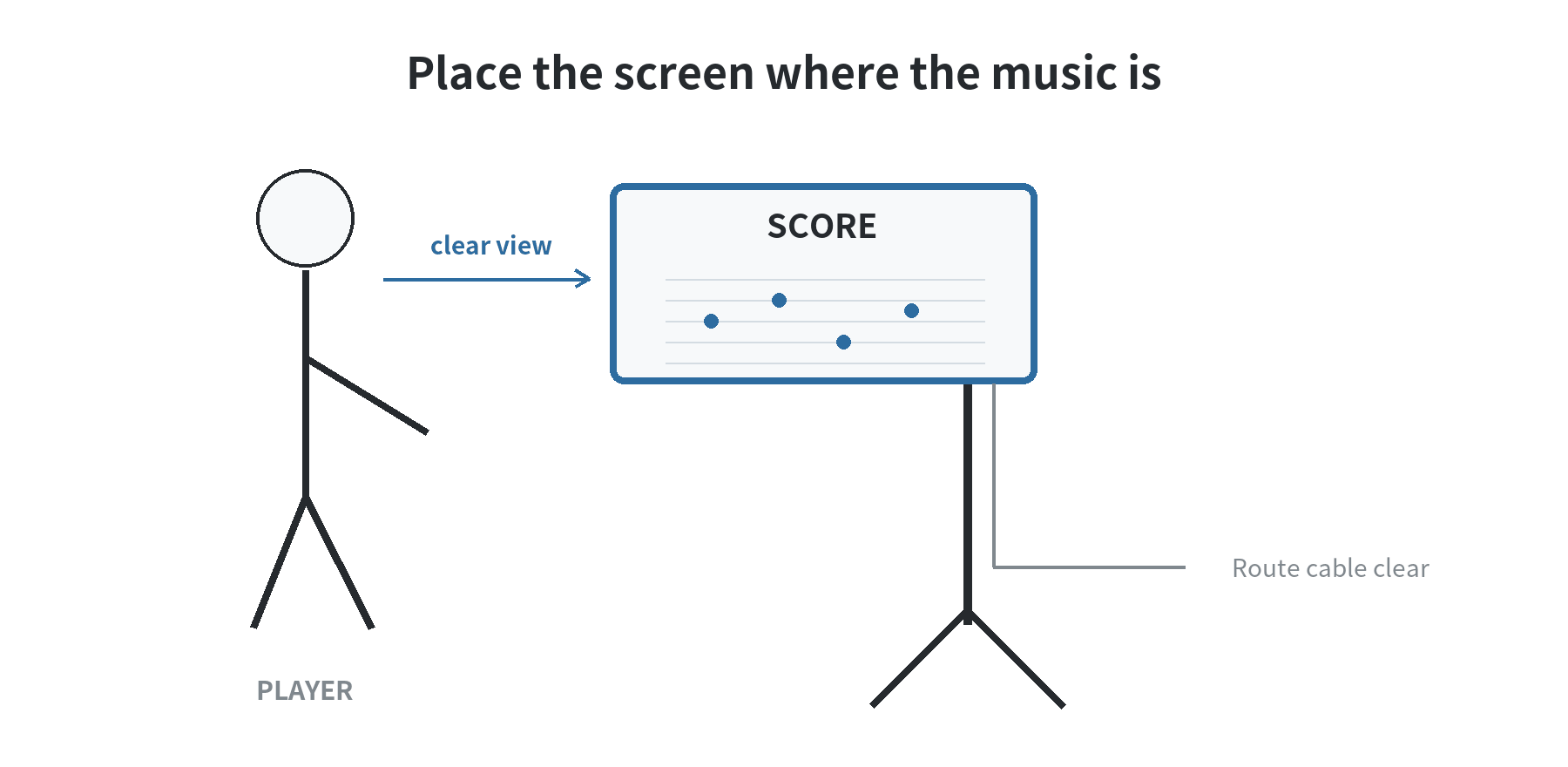
Set a longer screen timeout for practice, or leave the tablet connected to power if that fits your setup. Google’s Pixel display instructions and Apple’s iPad User Guide document their own screen-timeout or Auto-Lock controls; names and menu paths differ by device. Test the setting with the score open, because a sleeping screen in the middle of a passage can interrupt practice. Keep the cable away from pedals, instrument stands, and walking paths.
Choose a page-turn method and rehearse it
First try the controls already available in the reader: a screen tap, swipe, or on-screen arrow. Put the tablet where your hand can reach the control without covering the music or pulling the stand off balance. If touch gestures cause accidental zooming, check the reader’s settings for a simpler page-turn control.
For a score that continues across a page break, decide where you will turn before you begin the passage. A pause or a long note may give you a free moment; a dense run may not. If the printed layout leaves no comfortable pause, check whether the reader offers a way to keep the next page ready. The right choice depends on the score and the space on your stand.
Some readers support external page-turn controls, but support depends on the app, tablet, and accessory. Check the reader’s own documentation before choosing a pedal or remote. For tuning or metronome use, see the separate guitar tuner and metronome setup.
Run through a short section while seated or standing as you would during practice. Turn pages at the same points you expect to use them, and note any awkward reach, glare, screen sleep, or accidental gestures. Change one setting at a time, then repeat the passage. If the tablet shifts when you touch it, secure the stand before relying on it during a longer session.
Pay attention to the stand itself during this trial. A case or clamp should hold the tablet without covering the display or blocking the charging port. If you need to touch the screen, put the tablet close enough to reach without leaning across the instrument. For a rehearsal with a conductor or accompanist, choose a position that lets you see both the score and the people giving cues.
Keep the library easy to recover
Back up the original scores somewhere separate from the tablet. A computer or a cloud storage account can serve as a second copy, depending on the service and your preferences. A music-reader setup should not become the only place a purchased or scanned score exists. Check that the backup includes the files you care about, not just shortcuts that still point to a cloud account.
When you add new scores, use the same folder and naming pattern. Keep annotated practice copies distinct from clean originals, and periodically remove duplicates that make the list harder to scan. If the tablet later stops supporting the reader, your source files remain available to move to another device.
If you want a smaller device dedicated to reading books and PDFs, the site’s old-phone e-reader setup covers that separate use. For sheet music, the practical test is simple: the score opens from local storage, the notation is legible at the stand, and you can turn pages without disrupting your playing.
FAQ
Can I use a tablet without an internet connection at rehearsal?
Yes, if the score is saved locally and the reader can open that local copy. Test by turning off Wi-Fi and reopening the file before rehearsal.
Should I use a scanned image or a PDF score?
Use the clearest file you have and test it at the display size you need. A PDF may preserve a page layout, while a scan’s detail depends on the image quality.
Can I write fingerings directly on a digital score?
Yes, when the reader supports markup for that file. Save a duplicate first, then reopen it to confirm the annotations were retained.
What if the old tablet cannot install a current reader?
Check whether its built-in file viewer can open and navigate your score files. If not, another supported device may be more dependable for this use.