An old phone can handle a home pantry inventory if it can still focus its camera, run a barcode-scanning app, and save or export a simple list. Use the barcode to identify a packaged item, then add the household details the code does not track: how many you have, where you keep it, and any date printed on the package.
That distinction matters. GS1 US explains that a UPC barcode carries a product identifier, but a UPC is not automatically linked to barcode-scanning apps’ product information online. Treat each scan as a starting point for your own pantry row, not as a finished inventory entry.
Give the old phone one clear job
Keep the device in the kitchen or pantry and use it for packaged food scans. Before installing anything, charge it, connect to Wi-Fi if the app needs a connection, and check that the camera can focus on a printed label. Open the app store listing and the app’s own help page to confirm support for the barcode types on your packages, quantity entry, and an export format you can open later.
App features vary. Barcode-scanning apps for inventory differ in which features they include, such as supported code formats, manual entry, quantity fields, multiple lists, and CSV export, so check an app’s own listing or help page before relying on it. Pick the smallest set that matches your routine. If the app only saves scan history, you may still need to copy the code into a separate pantry sheet. If it exports a spreadsheet file, try one test export before entering a shelf full of food.
Check the phone’s storage, camera permission, charging cable, and screen lock as well. A device that shuts down during a count or cannot focus at close range will add friction. If you plan to scan over Wi-Fi or offline, test that exact setup on the old phone before relying on it.
Set up the inventory around food you use
Create a short list of zones first: pantry shelf, baking bin, snack drawer, or freezer. Use names you will recognize while putting groceries away. A location field lets you find a can or bag without scanning every package again.
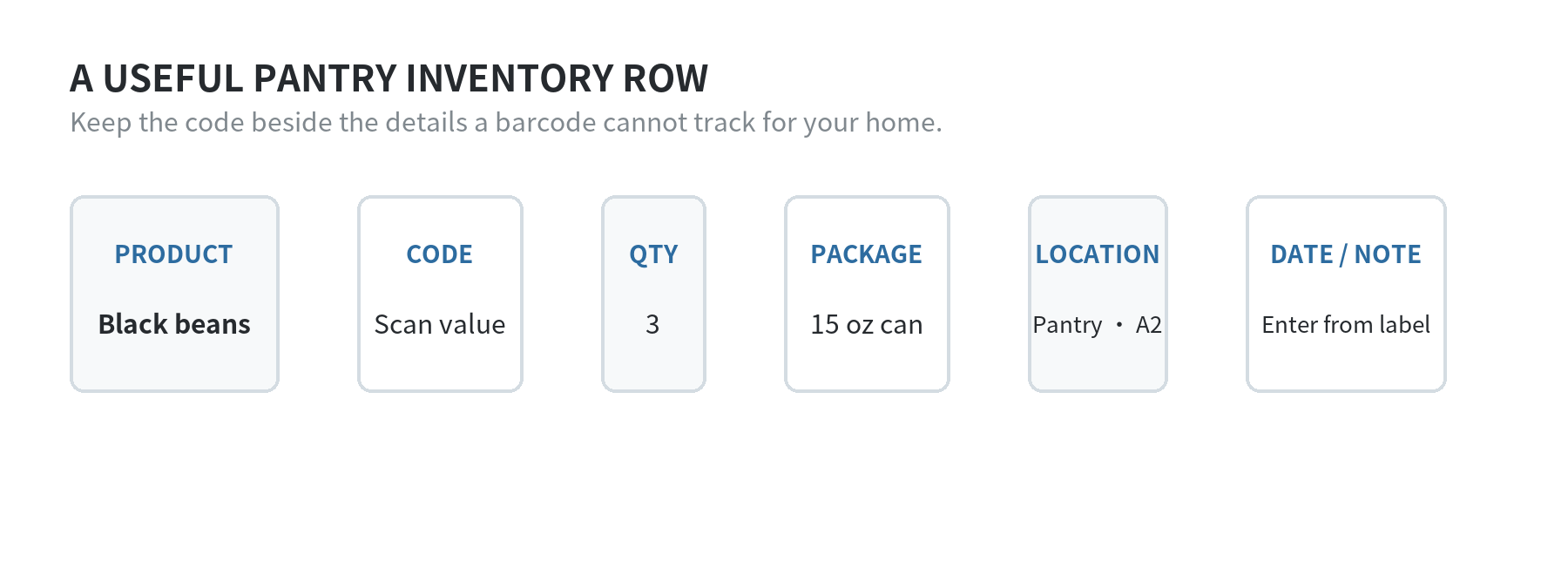
Choose columns that answer real household questions. A useful starting sheet has product name, barcode, quantity, unit or package size, location, and a notes field. Add a date field only if you plan to enter dates printed on packages. The barcode app may not recognize a product name or package size, so read the label and fill those cells yourself when the scan returns only a string of digits.
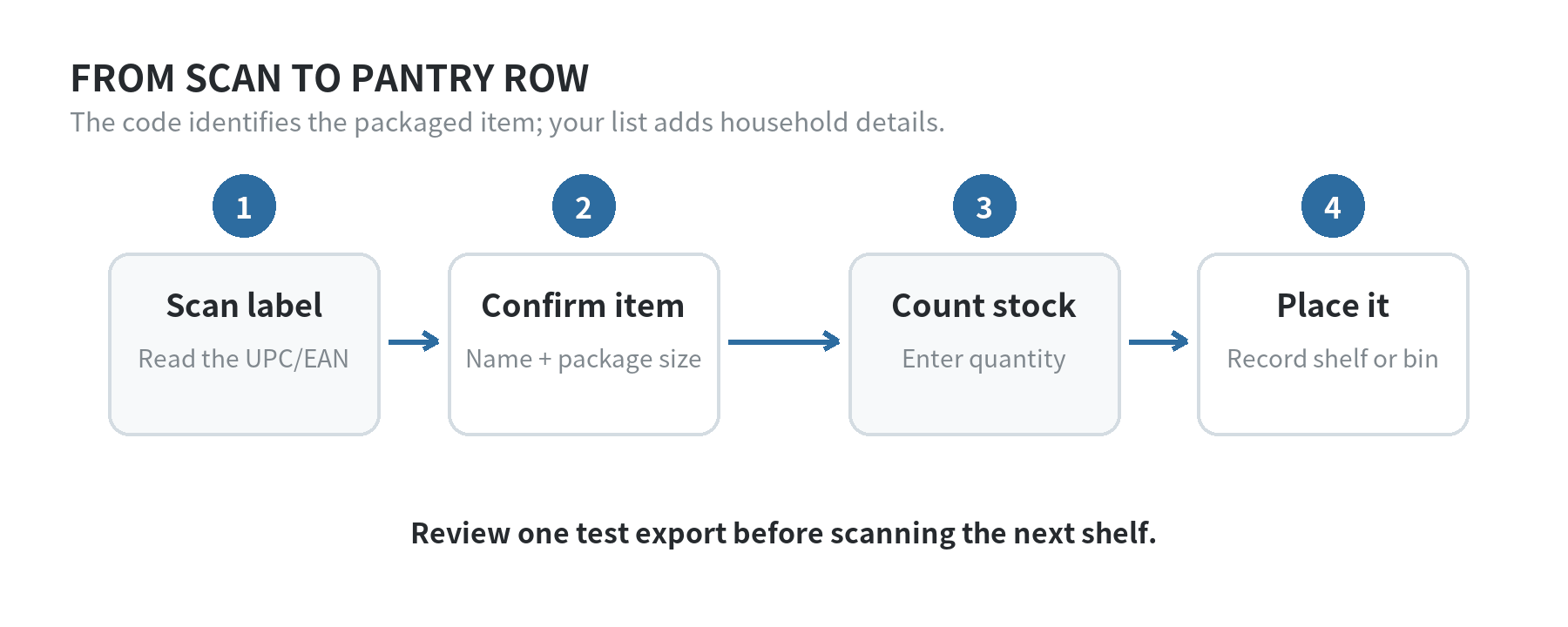
Decide how you will count before scanning. If the app has a quantity mode, confirm whether scanning the same code adds one, opens an existing record, or creates a duplicate row. If it has no quantity field, scan one package and type the total count into your sheet. For a mixed shelf, count each distinct package size separately; a family-size box and a single-serve packet should not share one quantity just because the food name is similar.
For example, picture a shelf with three matching cans and one larger can of the same food. Put the matching cans in one row with a quantity of three, then give the larger package its own row or size entry after checking how its code scans. Assign both rows to the same shelf location. If you open a package and move the contents to a labeled container, decide whether the list will track the remaining amount or simply mark the package as opened. Mixing full-package counts with partial amounts makes the next pantry check harder to interpret.
Keep the code column as text when you export or edit the data. GS1 US says UPC-A encodes a GTIN-12 and advises against adding or removing digits shown below the barcode. Spot-check a few codes after export so you can catch any changed formatting before adding more records.
Scan a small test batch before the whole pantry
Start with a few easy-to-reach packages whose labels are flat and readable. Scan each one, compare the displayed code with the printed digits, add a name and package size, and enter the count on the shelf. Include one duplicate product so you can see how the app handles a repeated code.
Then export or review the list. Check whether each row has the fields you expected, whether duplicate scans changed quantity or created another row, and whether the file opens in your spreadsheet. Google Sheets’ help documentation describes sorting and filtering data, which can help you group rows by name or location once your list grows.
If the test works, scan one shelf at a time. Keep the phone in your hand and move packages past the camera rather than repeatedly reaching into a crowded bin. Set each scanned item aside or return it to the same spot after recording it; that simple rhythm makes it easier to notice a missed package or accidental double scan.
What a barcode will not tell you
A product code identifies an item; it is not a live count of your pantry and does not describe which shelf in your home holds it. It also will not tell you how many packages remain or capture a date printed elsewhere on the label. Enter those details yourself, and leave a note when the package is open or split between locations.
Some codes will not scan cleanly. A curved can, a crumpled wrapper, glare, a small label, or a printed-over code can make camera reading harder. Move the package into even light, hold the phone steady, and try the printed digits as manual entry if the app supports it. The site’s guide to troubleshooting barcode scanners in low light covers camera setup in more detail.
Unpackaged foods and home-labeled containers need a different entry. Add a plain-language name such as “rice, open jar,” enter the amount in a unit you actually use, and assign a shelf or bin. Do not invent a barcode for a container unless your chosen app gives you a clear way to create and maintain custom codes; a typed name is enough for a household list.
Keep the list current without recounting everything
Make updates at the moment the item changes: increase the count when you put away a multipack, lower it when you finish a package, and move the location when you reorganize the shelf. If that feels too fussy, keep a shorter list for staples you routinely run out of and scan those products only.
Use the app or spreadsheet’s backup and export options deliberately. Check whether the file lives only on the old phone, in an account, or in a shared location, and keep a copy somewhere you can open if the device stops working. A dedicated phone is convenient, but the inventory should remain readable without that handset.
Keep the list limited to packaged foods and their home locations; that makes it easier to maintain than a catalog of every household belonging. If you also want the handset to show recipes while you cook, the site’s guide to an old phone as a recipe display covers a separate kitchen setup.
FAQ
Can I scan pantry barcodes without Wi-Fi?
Possibly, depending on the app. Some app listings describe on-device scanning and local records, while GS1 US explains that a UPC is not automatically linked to barcode-scanning apps’ product information online. Test a scan and export with Wi-Fi turned off, then check the app’s own description and privacy information for its data behavior.
Should two package sizes have the same pantry entry?
Keep them separate when the package size or barcode differs. GS1 identifiers distinguish product variations, and separate rows make it easier to count the size you actually have.
How do I inventory food in an unmarked container?
Add it by name and location, then choose a quantity unit such as cups, jars, or servings that makes sense for your household. A barcode is optional for a manual entry.