An old phone can serve as a simple home internet outage and speed log if it stays on your Wi-Fi, keeps a clock, and has a repeatable testing routine. Record when a connection fails, how long it lasts, and what a speed test reports; that gives you a timeline to compare with your provider’s service details.
Set up the phone as a stationary logger
Use a phone that can still connect to your home Wi-Fi and open a browser or a speed-test app. Remove the SIM if you want to avoid mobile data use, then connect the phone to the same home network you use for ordinary devices. Plug it in where it can remain powered, with the screen set to stay awake only if your chosen tool needs it.
Keep its position consistent. A phone moved between rooms can record a change in Wi-Fi conditions rather than a change in the internet service reaching the home. This article focuses on connection availability and speed over time; for room-by-room signal mapping, see the separate old-phone Wi-Fi dead-zone mapping guide.
Set the phone’s date and time automatically if that option is available. Give the log a clear timezone, such as “Eastern,” and keep it unchanged. A timestamp without a timezone can be hard to compare with provider notices or another household member’s notes.
Choose what counts as an outage
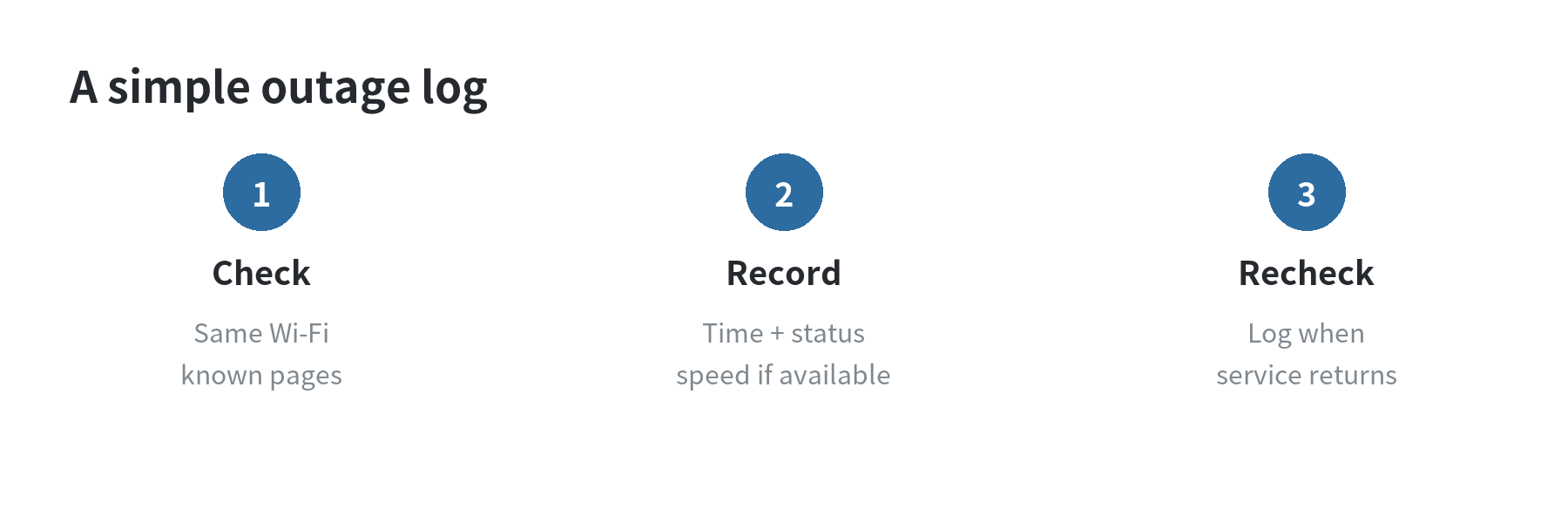
Write a simple rule before collecting entries. For example: mark an outage when the test phone cannot load a known website over home Wi-Fi, then mark recovery when the same check works again. A single failed page can be caused by that site, so try a second unrelated page before labeling the home connection down.
Separate “Wi-Fi connected, internet unavailable” from “phone disconnected from Wi-Fi.” They point to different parts of the path. If Wi-Fi itself drops, note that. If the phone remains connected to the router but pages fail, record that exact observation without guessing whether the modem, provider, or website caused it.
Use a small status vocabulary: “online,” “slow test,” “Wi-Fi disconnected,” and “internet unavailable.” Short labels make a paper notebook, spreadsheet, or notes app easier to scan later.
Keep speed checks comparable
Run a test from the same place, on the same Wi-Fi network, with the phone’s cellular connection off. The FCC’s Mobile Speed Test app can measure mobile or Wi-Fi performance, but its coverage-challenge tests are a separate process: the FCC says those tests must use mobile data rather than Wi-Fi. For a home-service log, use a Wi-Fi test and label it as such.
Record the download speed, upload speed, and latency shown by the test, along with the test time. Do not treat one reading as a verdict. A test result describes that moment and can reflect activity on the home network as well as the service reaching it.
Use a schedule you can maintain, such as a check at a chosen morning and evening time, plus an extra entry whenever a disruption happens. If you test repeatedly during a slowdown, write down the interval between readings and stop when the connection returns or the problem clearly continues. Avoid running tests every few seconds: the tests themselves use the connection and can make the log noisy.
Make a useful entry in under a minute
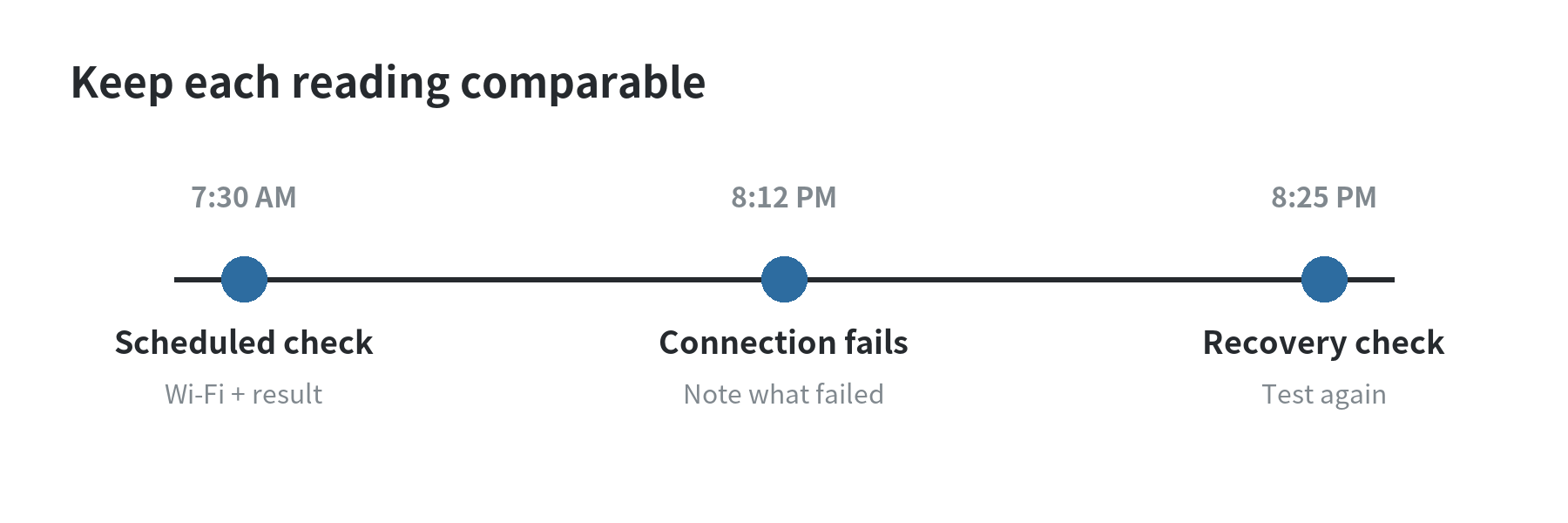
For each scheduled check, record the timestamp, status, and speed-test result. For an unscheduled incident, add when you first noticed it, what failed, and when service appeared to return. If the phone cannot connect at the time, write the time manually afterward and label it as an estimate.
| Time | Observation | Test result | Context |
|---|---|---|---|
| 7:30 a.m. | Pages load | Download / upload / latency | Wi-Fi, logger in fixed spot |
| 8:12 p.m. | Wi-Fi connected; pages fail | Test could not start | Second page also failed |
| 8:25 p.m. | Pages load again | Download / upload / latency | Recovery check |
Add context that could help explain a reading: a large download, a video call, a router restart, or a power interruption. Keep the note factual. “Two devices were streaming” is more useful than “the provider was overloaded,” which the phone cannot establish by itself.
Use a lightweight routine, not a constant test loop
An old phone can log checks when it is awake and connected, but do not assume it will run an app continuously in the background. Battery-saving settings, app permissions, operating-system limits, or a lost Wi-Fi connection can interrupt logging. Check the log occasionally and note gaps instead of filling them with guessed data.
If you prefer a manual method, create a recurring reminder on another device and tap the same speed-test tool on the logger phone. A spreadsheet can hold one row per check; a paper log works if it is kept beside the phone. Use the same units shown by the test and avoid mixing megabits per second with megabytes per second.
For any app, read its current privacy and data-use details before enabling automatic tests. The FCC explains that its app’s speed tests can measure Wi-Fi or mobile performance, and its help page notes that mobile tests may be submitted to the agency when a user agrees to share contact information. Keep a home log private if it includes your address, account details, or exact household schedule.
A useful weekly summary can stay brief: count the entries marked “internet unavailable,” list the longest observed interruption, and note whether the phone stayed connected to Wi-Fi. Do not turn the count into a claim about total downtime if the phone was not checking continuously. A logger that checks at set moments can show that service was unavailable at one check and available at another; it cannot reveal the exact minute service failed or recovered unless you recorded those times as they happened.
When a problem appears at a repeated time, add the surrounding details instead of assuming a cause. Note whether anyone was using a video call, downloading a large file, or restarting equipment. A later comparison can help you describe a pattern to support staff, while the provider can run its own diagnostics for network or equipment conditions.
If you share a log, include the test tool name and the phone’s connection type with the readings. Different tests can use different routes or methods, so mixing results without labels makes the numbers harder to interpret. Keep a copy of the original entries and make a separate short summary for the support conversation.
Turn the log into a clear support conversation
When contacting your provider, summarize the dates and times of disruptions, the duration you observed, and a few representative speed readings. Include whether the logger phone was connected through Wi-Fi or cellular data. Ask the provider what test method and equipment information it needs next.
The FCC’s internet complaint issue list treats speed problems, including advertised-speed and latency issues, as a distinct category; its list also separates equipment problems. That is a useful distinction for organizing your notes. If the phone shows Wi-Fi disconnects, mention that separately from slow test results.
For a phone that says it is connected but cannot reach websites, the site’s connected-without-internet troubleshooting article covers phone-side checks. Keep this logger’s record focused on what happened and when, so troubleshooting notes do not replace the outage timeline.
Save a copy of the log before resetting or repurposing the phone. A plain export or a second copy of the spreadsheet protects the timestamps if the device later loses power or its notes app is cleared.
FAQ
Can an old phone keep logging if the home internet goes down?
It can keep a manual note if it remains powered, but an internet-based test cannot report a fresh speed result while it is offline. Record the failure time and add a recovery entry when the connection returns.
Should I leave cellular data on during a home Wi-Fi test?
Turn cellular data off for a home Wi-Fi reading so the phone does not silently use a different connection. The FCC distinguishes Wi-Fi performance tests from mobile coverage challenge tests, which use the mobile network.
What should I send my provider from the log?
Share a concise timeline with dates, observed symptoms, representative readings, and whether each test used Wi-Fi. Keep passwords and unrelated personal details out of the message.