An old phone can handle a youth game scoreboard when one adult runs it, the display stays visible, and the league’s scoring rules are clear. Use a scoreboard app that supports your sport’s scoring and clock format, test it before the game, then keep the phone in one app during play.
Start with the league’s rules, not the app
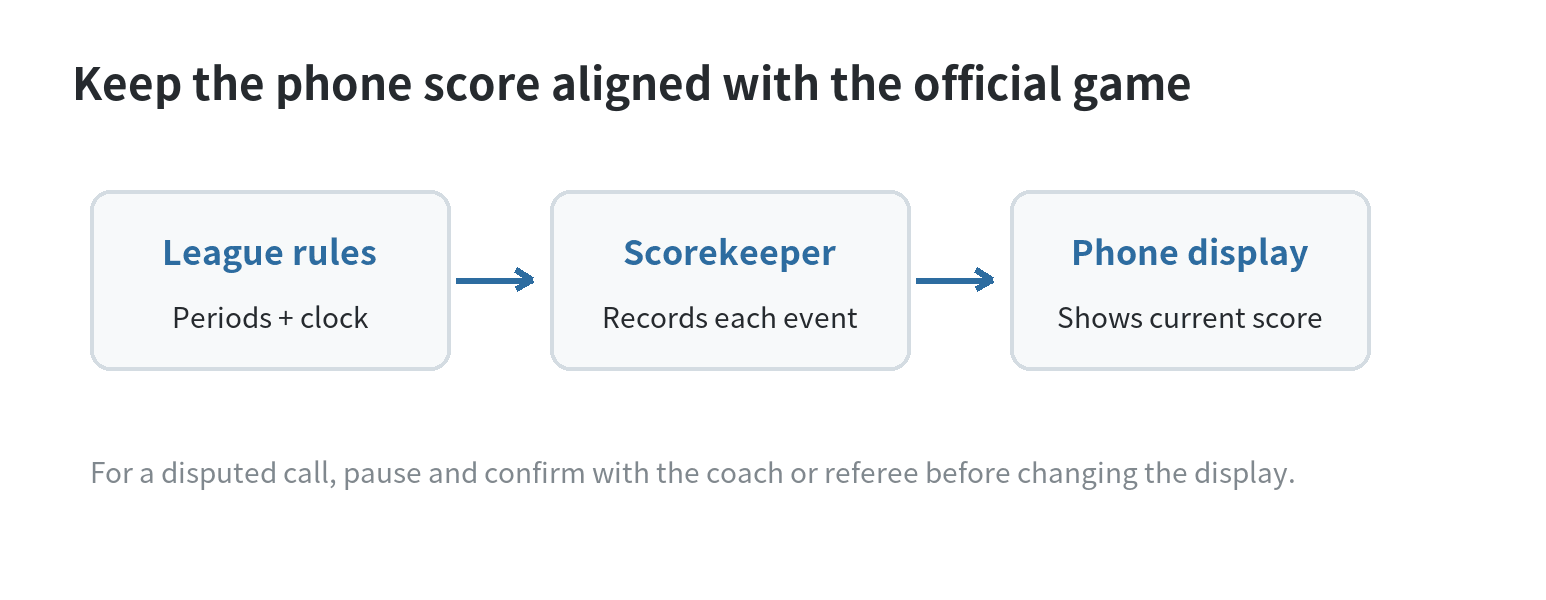
Ask the coach or league which person is keeping the official score, what the clock should show, and how the game is divided. A youth basketball game, a soccer match, and a baseball game do not use the same scoring fields or time controls. Your phone is a display and input tool; the league’s rules define what belongs on it.
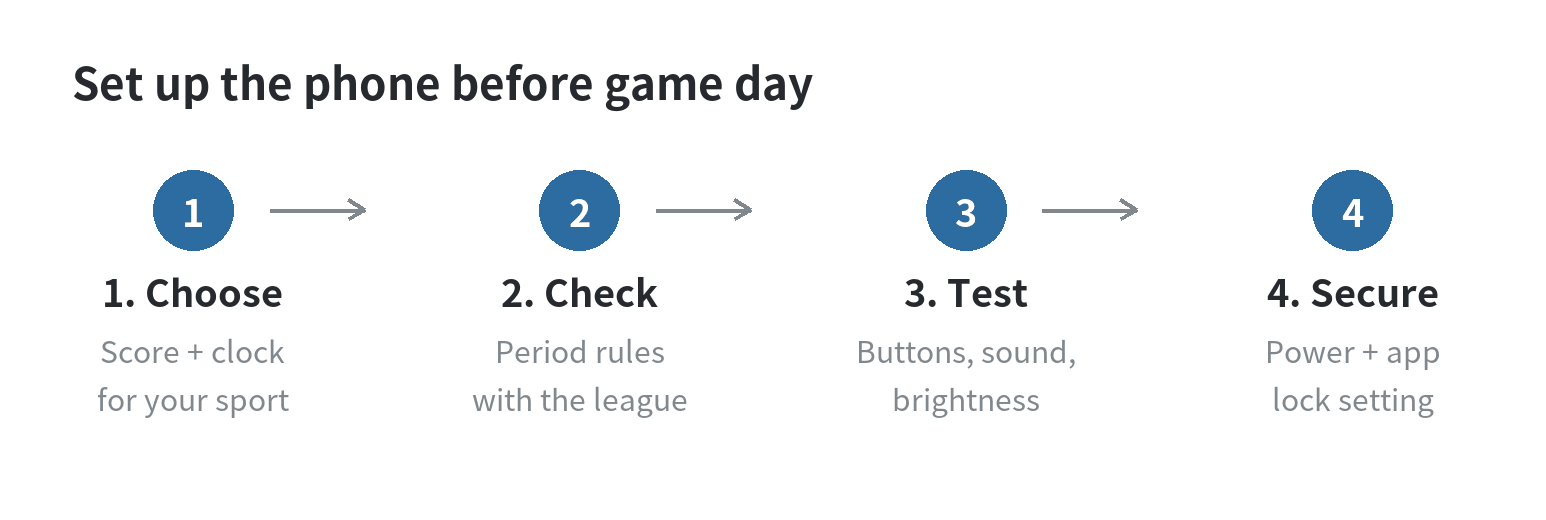
Write down the format before choosing an app: sport, team labels, period or inning structure, clock behavior, and any special scoring fields your league tracks. Check whether the timekeeper counts up or down, whether the clock stops during play, and who signals a stoppage. These are league decisions, not universal phone settings.
If you are covering the game alone, ask whether another adult can call out events while you operate the phone. A scoreboard is easier to keep current when one person watches play and another enters the changes. For a small sideline setup, agree on short calls such as “home, two” or “visitor, goal” before the opening whistle.
Choose an app by the controls you need
Search the app’s own description and help pages for the sport you are covering. Confirm that the app can show two team scores and the right clock or period layout. Check how it handles starting, pausing, resetting, undoing a score change, and moving to the next period. A large display is useful only if its controls are easy to operate from the sideline.
Test the exact workflow with practice values before game day. Add a point, take it back, pause the clock, resume it, and move to a new period. Then reset the practice game and confirm that the live display returns to its starting state. This catches a confusing button layout before spectators are watching.
Check whether the display requires a network connection after setup. If the app has online features, test what remains available with Wi-Fi and cellular data turned off. Do not assume a downloaded app will keep every feature available offline; the app’s own support page should say which functions need a connection.
Make the screen readable from the sideline
Set the phone in landscape only if the app’s scoreboard layout supports it. Increase text size inside the app when available, raise screen brightness for daylight, and position the phone where the scorekeeper can read it without blocking the field or court. A stable stand or clipboard mount keeps the device from sliding when someone taps a control.
Turn off notifications that could cover the score, and check the screen timeout setting before play. A screen that dims or locks mid-period slows the person keeping time. If the phone battery is worn, begin with a full charge and keep a compatible power bank nearby; avoid dangling a charging cable across a walkway or playing area.
Try the complete setup from the place where the phone will sit. Check whether glare washes out the display, whether the clock is visible at the viewing distance, and whether taps register with the case on. A phone can be perfectly usable in the hand yet hard for players and parents to read from across a gym.
Keep the phone in the scoreboard app
Restricting the device to one app can reduce accidental exits. Apple’s iPhone User Guide says Guided Access can temporarily limit an iPhone to a single app and lets the user set a time limit or adjust available buttons and screen areas. Google’s Android Help explains that app pinning keeps an app screen in view until it is unpinned; depending on the phone, a PIN, pattern, or password can be required to unpin.
Set up the relevant feature before the game and practice exiting it. Apple describes Guided Access under Settings, Accessibility, then Guided Access; the session starts from the chosen app using an accessibility shortcut. Google’s instructions note that app pinning may appear under Security or Security & location settings and that menu steps vary by device. If the setting is missing, check the phone maker’s help page.
These restrictions can prevent a stray swipe from taking the operator to another screen, but they do not run the clock for you or protect against a dead battery. Keep the phone with the assigned scorekeeper, and make sure that person knows how to leave the restricted session if the app freezes.
Run a simple scorekeeping routine
Decide how the operator will hear calls before play starts. A coach can point out a scoring event, while the designated scorekeeper confirms that it counts under the league’s rules. If spectators call out a different score, do not change the display from an unconfirmed shout; ask the person responsible for the official record.
Set a clear handoff for breaks. The outgoing operator should state the displayed score and period, and the incoming operator should repeat them before taking control. This small exchange helps when a volunteer needs water, leaves the sideline, or hands the phone to another adult.
- Before play, enter the team names and confirm the opening score, clock, and period with the coach or designated scorekeeper.
- During play, update the phone only after the scorekeeper confirms the event. Keep the phone in the agreed operator’s hands rather than passing it around.
- At a stoppage, compare the display with the league’s official score record. Correct a mismatch after the responsible adult confirms the change.
- At the end, record or share the final score in the league’s requested format, then close the game and clear the display before the next matchup.
For a sample, imagine a Saturday game where the home team scores and the scorekeeper announces the change. Enter the home score, wait for the coach or official to confirm it if there is uncertainty, and leave the clock alone unless the person assigned to timing calls a stoppage. Separating score entry from clock operation avoids two adults changing the same control at once.
Plan for common sideline problems
If the phone freezes, stop trying rapid repeated taps. Ask the assigned adult to call the score and time aloud while you reopen the app, then compare the display with the scorekeeper before resuming. If the app loses its data after closing, use the league’s record to restore the score rather than guessing from memory.
If glare or distance makes the screen hard to read, move it to a shaded, visible spot or use a larger tablet already available. Do not place a phone where a player could run into it or where a loose cable could trip someone. If the screen is too small for spectators, treat it as the operator’s record and use the venue’s official board when one is required.
An old phone also makes a useful dedicated timer away from game day; see the site’s guide to using an old phone as an alarm clock. If a child will handle the device, the site’s guide to setting up an old phone for a child without a SIM covers a separate setup question.
FAQ
Can an old phone run a scoreboard without a SIM card?
It can display an app that works without cellular service if the app supports offline use. Check the app’s help page and test it with Wi-Fi and mobile data disabled before relying on it at a field.
Should I use the phone as the official score record?
Use the record the league designates as official. The phone can mirror the scorekeeper’s entries, while a paper sheet or league system may remain the controlling record.
What should I do if the phone clock and the game clock disagree?
Pause phone updates and ask the designated timekeeper to confirm the correct time. Resume from the value the league recognizes, rather than trying to reconcile the clocks by guesswork.