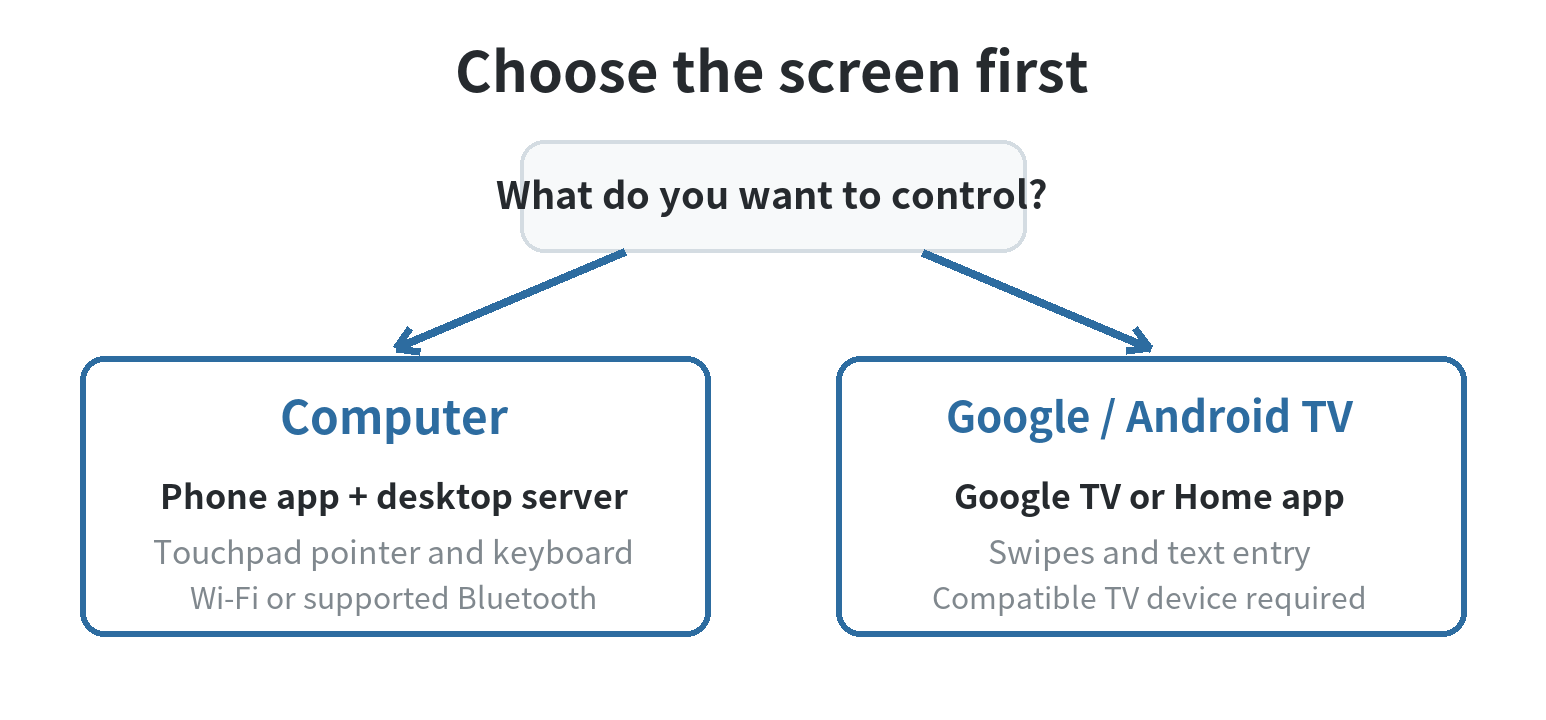
An old phone can act as a wireless trackpad and keyboard for a computer when a remote-input app runs on the phone and its companion server runs on the computer. For a TV, the built-in Google TV remote can swipe through menus and send text, but it does not turn every television into a PC-style mouse setup. Choose the path by the screen you want to control.
Choose the route by the screen
For a Windows, Mac, or Linux computer, Unified Remote pairs a phone app with a desktop server. The Unified Remote feature page, checked October 2, 2026, lists mouse, keyboard, and media controls, with Wi-Fi or Bluetooth connection options. Bluetooth support is limited to Windows; Wi-Fi is the documented route across its getting-started guide. The computer must be on and running the server when you want to send input.
For a Google TV or Android TV device, Google’s phone remote is a better fit for searching, selecting menus, and controlling playback. Google’s official TV help pages, checked October 2, 2026, describe phone swipes for navigating TV apps and phone keyboard entry for searches or sign-in fields. That is remote control inside the supported TV interface, not a pointer that can move across a computer desktop.
| Target | Phone role | What needs to be available |
|---|---|---|
| Computer | Touch gestures move the pointer; phone keys send text and commands | Unified Remote app, desktop server, and a Wi-Fi connection or supported Windows Bluetooth pairing |
| Google TV or Android TV | Swipes navigate TV apps; phone keyboard enters text | Compatible TV device, Google TV or Google Home app, and a connection the devices can use together |
| Other smart TV | Depends on the maker’s supported app and TV model | Check the TV maker’s own remote instructions; Google TV controls do not apply to every TV |
Set up the old phone for a computer
Unified Remote’s getting-started instructions, checked October 2, 2026, call for installing its app on the phone and its server on the computer, then connecting them on the same Wi-Fi network or through Bluetooth. The server runs in the background so the phone can send input. Keep both devices on the chosen connection while using the remote.
- Check the computer first. Confirm that you can sign in and install software on it. Install the official Unified Remote Server for that computer’s operating system.
- Prepare the old phone. Connect it to the same Wi-Fi network as the computer, or use Bluetooth if the computer runs Windows and you prefer that connection. The phone does not need to display the computer screen for basic pointer and keyboard control.
- Open the phone app and find the server. The app’s server list can show detected computers. Select the one you just prepared. If it is not listed, Unified Remote’s “How To Add a Server” instructions say to enter the computer’s IP address manually.
- Test a harmless action. Move the pointer over an empty area, then try typing a short phrase in a text editor. Confirm that the cursor and text appear on the computer, not in a phone field.
- Pick the right remote. Use the mouse control for pointer movement and the keyboard control for text. A touch surface is convenient from a couch, while a physical computer keyboard remains more suitable for extended typing.
If you want to see the full computer display on the phone too, treat that as a separate feature: Unified Remote lists Screen Viewer separately from basic keyboard and mouse input. Its feature page also lists password protection and encryption. Set a password before leaving a phone connected in a shared room, and close the remote session when you are done.
For the reverse direction, the site’s guide to using a keyboard and mouse with a phone covers sending input to the phone itself.
Use a phone remote with a compatible TV
Google’s instructions cover Google TV and Android TV devices, including Chromecast with Google TV and Google TV Streamer. They do not describe a universal remote for any television. Open the Google TV or Google Home app on the phone, select the TV device, and follow the pairing prompt shown in the app or on the TV. Google says the Google TV app can enter text, navigate with phone swipes, control playback, and access virtual buttons.
For the pairing flow in Google’s help page, checked October 2, 2026, open the Google TV app, choose the nearby-TV connection option, select the device, enter the on-screen code, and pair. Google’s help center says phone and TV need to share the same Wi-Fi network for the virtual remote. If the TV is on a guest network or a different router, check network settings on both devices before reinstalling the app.
For a TV outside Google’s supported family, start with the TV maker’s official remote app instructions. Some phones and TVs can send infrared commands, but the phone needs an infrared transmitter and the television must support the relevant commands. The site’s old-phone universal remote guide explains how network remotes differ from infrared control.
When the phone does not connect
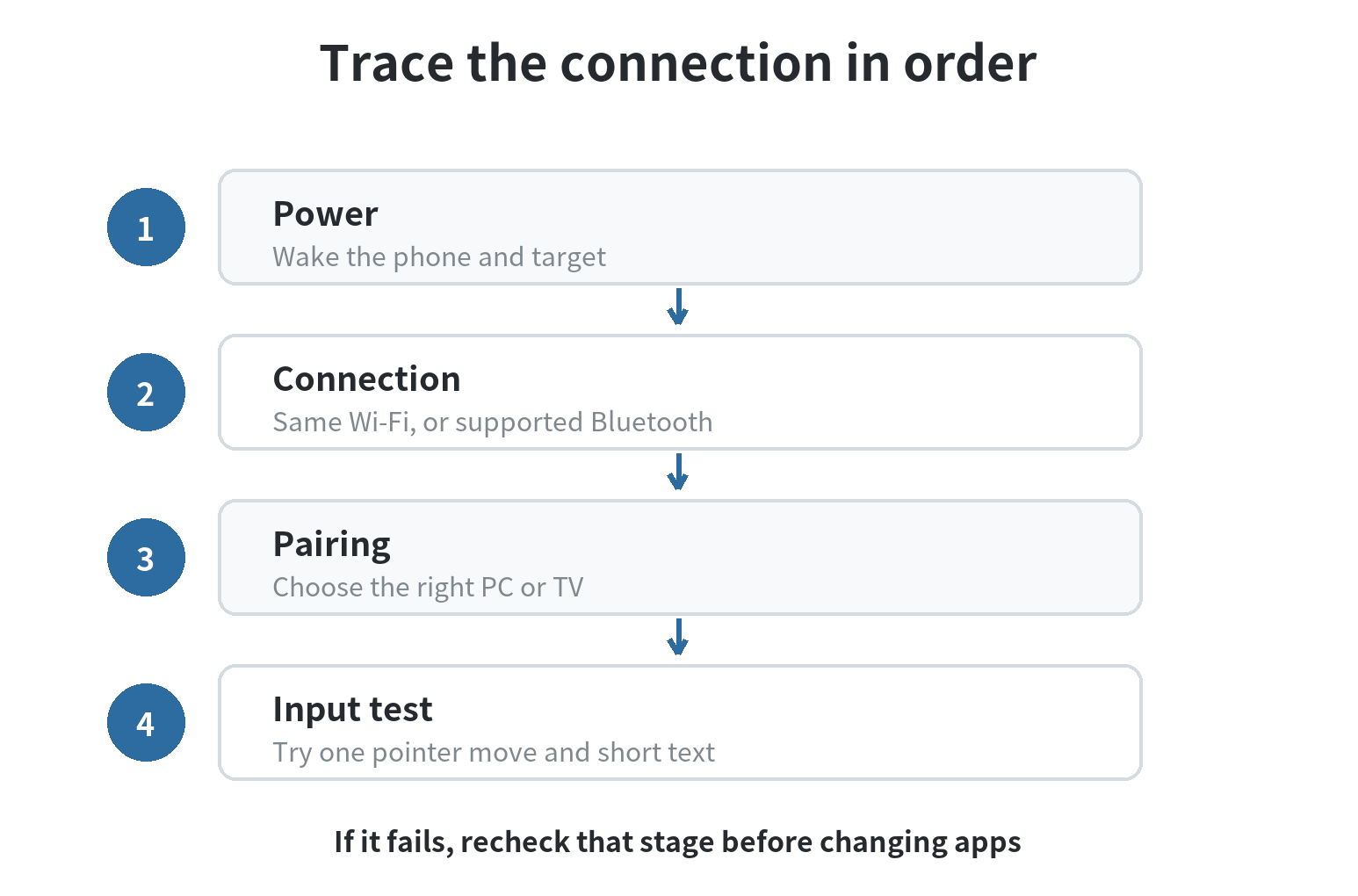
Start with the simplest checks: wake the target device, reopen the remote app, and confirm that both ends use the intended connection. For a computer, check that the server is running and that the phone has selected the right saved server. If discovery fails, compare the computer’s IP address with the address entered in the app. Unified Remote’s support instructions allow manual server entry when automatic detection does not find the computer.
For a Google TV remote, check Wi-Fi on both devices first. Google’s troubleshooting page, checked October 2, 2026, specifically requires the phone and TV to use the same Wi-Fi network. If they already do, Google suggests restarting the TV and setting up the virtual remote again. A pairing code belongs to the TV currently shown in the app, so reconnect if the phone is targeting a different device.
If typing works but pointer movement does not, switch to the mouse remote rather than the keyboard screen. If the computer responds but a TV app ignores text, try the TV’s search field or another supported text-entry screen; TV apps decide which input fields accept text. For a physical computer or television keyboard, that remains a separate input device rather than a function of the old phone remote.
Make the old phone a dedicated controller
Leave the phone with a clear home screen and the remote app easy to open. Keep it charged during long sessions, especially if its battery no longer lasts as long as it did when new. A stand or a fixed place near the couch helps you find the controller and keeps it from being buried under other devices. Use a screen lock that you can comfortably open without leaving the phone unattended while the remote is active.
Wi-Fi control depends on the local network remaining available; Bluetooth is an option for a computer only where the app and computer support it. If the old phone cannot join the home’s network, it cannot reach a computer through that Wi-Fi path.
Try the setup with the computer or TV in its everyday location before relying on it. A phone remote can handle pointer movements, short text entry, menu navigation, and playback controls. It does not replace a physical keyboard for long typing, guarantee compatibility with every television, or show the PC desktop unless a screen-view feature is separately available.
FAQ
Can an old phone control a computer after the computer screen turns off?
The computer needs to be awake for ordinary pointer and typing input. Unified Remote lists Wake on LAN as a separate feature, so waking a sleeping computer depends on whether that feature is supported and configured on the computer and network.
Can the Google TV phone remote change volume or turn the TV off?
Yes, Google’s TV help page says the phone remote can change volume and turn a supported TV on or off, alongside text entry and playback control.
Will a video keep playing if the phone battery dies while casting?
Google says a video already playing on Chromecast continues when the phone runs out of battery, but another device is needed to access its controls.
Does an old phone need a SIM card to act as a Wi-Fi remote?
No active cellular connection is part of Unified Remote’s documented Wi-Fi setup; the old phone and computer join the same Wi-Fi network. The phone still needs that local connection to reach the computer.
Last updated: 2026-10