An old phone can work as a dedicated white noise and sleep sound machine with its built-in audio settings or an audio app.
Choose a sound that works offline.
Set the phone to keep playing when locked. Test the setup before leaving it at your bedside.
The useful part is the phone you already have: a sound source, a speaker, and controls for playback.
A SIM card or active phone plan is not needed for local playback.
Apple describes its selected Background Sound as a downloaded file.
An Android app listing says its included sounds need no streaming.
A network connection is needed to stream a sound or download an app or audio file.
A downloaded sound can work without Wi-Fi or mobile service if the player supports offline playback.
Choose how the phone will make sound
Start with the simplest option that fits the phone.
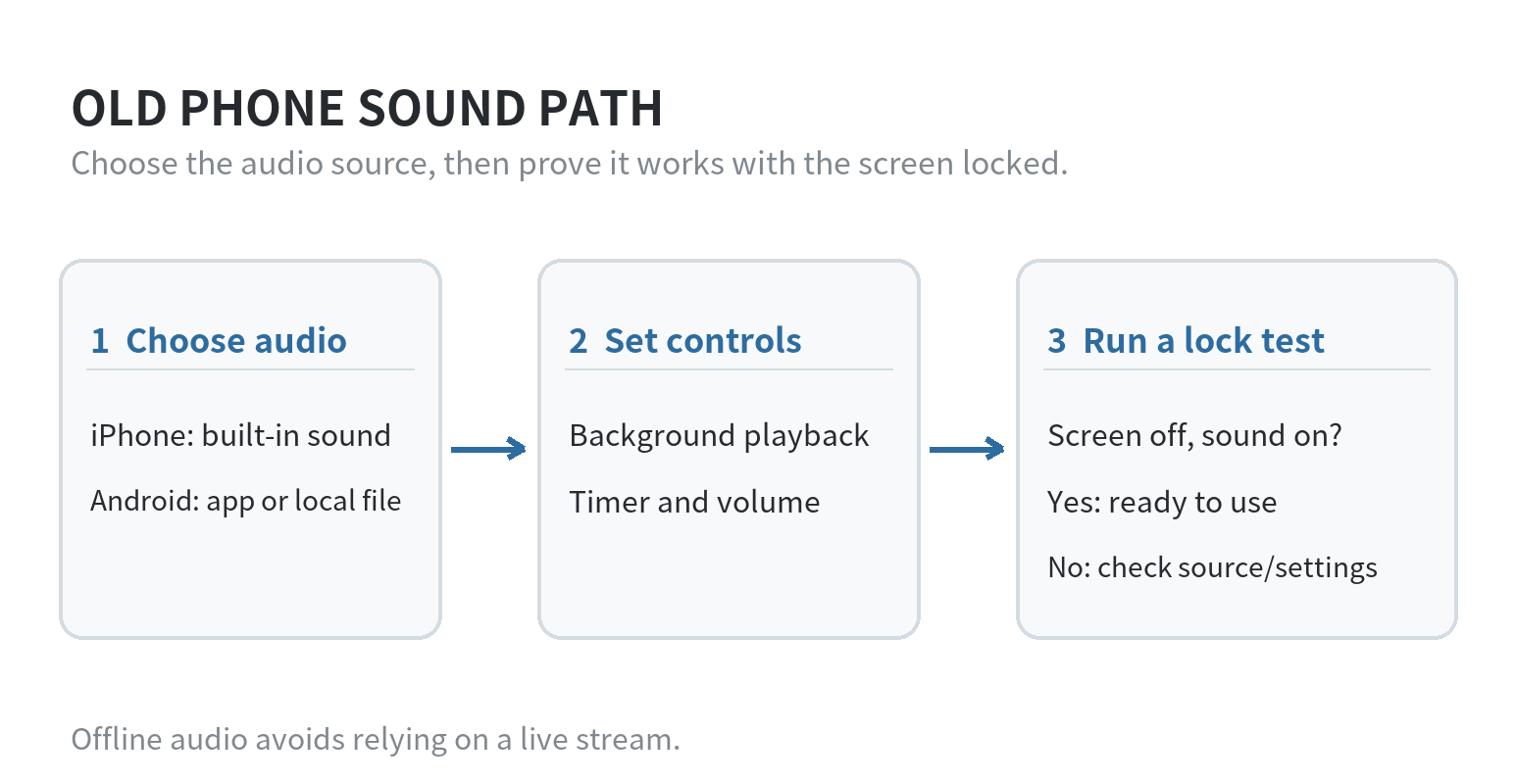
On an iPhone, check whether its built-in Background Sounds are available.
Apple’s iPhone guide says the sound file downloads to the phone and includes a timer.
That can avoid a separate streaming service for a basic ambient track.
On Android, look for an audio app with sound stored on the device, background playback, and a timer.
These labels matter more than a long sound catalog.
An Android app listing for White Noise Lite, checked October 2, 2026, says its included sounds need no streaming.
It also lists background audio and a timer. An iPhone app listing, checked the same day, lists offline playback, background audio, and a timer.
App listings describe developer-stated features. Check compatibility with the old phone before relying on one.
If you already have a downloaded recording, try it in the phone’s existing audio player first. A locally stored file avoids relying on a live stream.
Streaming can still work, but a lost connection or another app taking audio can interrupt it.
Prepare the phone for a quiet bedside job
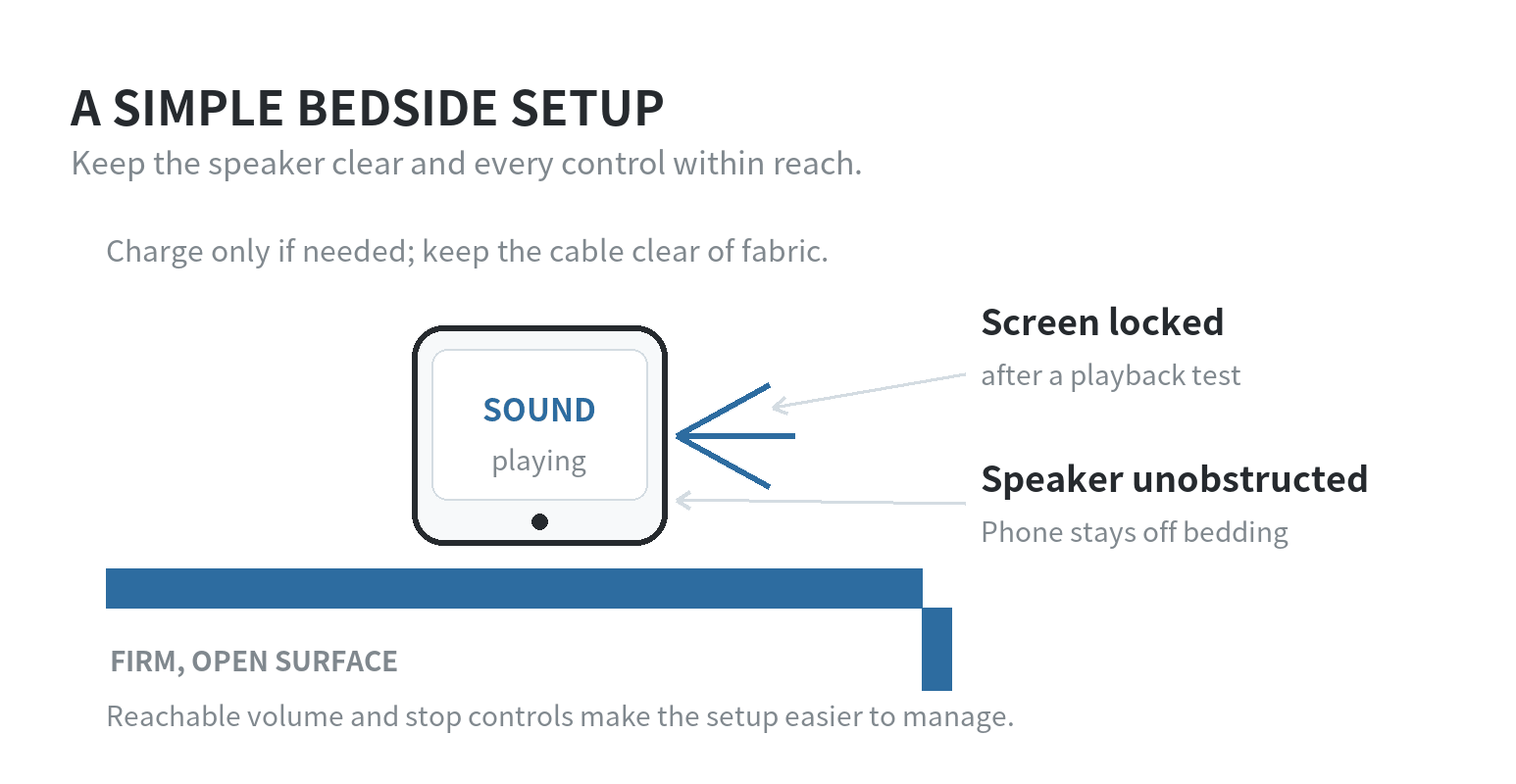
Remove the phone case if it covers the speaker. Keep the phone on a firm, open surface where its speaker is not pressed against bedding.
Put it close enough to reach the volume and stop controls without placing it under a pillow or blanket.
Check the battery and charging port before using an older phone for a long audio session.
The USFA battery guidance says to stop use if a lithium-ion battery changes shape, gets too hot, leaks, smells unusual, or makes odd noises.
Apple’s iPhone safety instructions say to discontinue use if you suspect damage to the phone or battery.
Do not leave a phone with those warning signs plugged in as a bedside sound source.
If the phone appears intact, charge it with a cable and power adapter suitable for that device.
A worn battery may run down during playback, so decide whether you want the phone plugged in or unplugged based on a daytime test.
Keep the phone and cable where neither can be pulled off a table or trapped under fabric.
Set up the sound and test the lock screen
Choose one sound and set its volume while you are in the room.
Begin low, listen from the place where the phone will sit, and raise the level only enough for the sound to be audible there.
The phone does not need to play loudly to function as a dedicated audio source. Next, start playback, lock the screen, and wait through a short test.
Confirm that the audio continues, the screen stays dark, and the volume buttons still behave as expected.
If playback stops, check whether the sound needs a network connection.
See whether the app supports background audio. Check whether power settings restrict it.
On iPhone, Apple lists Background Sounds under Settings, Accessibility, Audio & Visual.
Its guide says you can choose a sound, adjust volume, set “Stop Sounds with a Timer,” and control whether the sounds stop when the phone is locked.
Set the lock behavior intentionally: an enabled stop-when-locked option ends the built-in sound as soon as the screen locks.
On Android, notification controls can reduce unwanted alerts, but settings depend on the device and Android version.
Google’s Android Help describes Do Not Disturb filters for people, apps, alarms, and media.
The guide notes that settings can vary by phone.
Allow any alarm you still need, and verify that your sound app’s playback is not silenced along with notifications.
Decide whether you need Wi-Fi, a timer, or a speaker
A downloaded sound can play without a live network connection if the app or player supports local playback.
Wi-Fi is useful for downloading sounds and updates; it is not automatically required for every playback session.
If you plan to use airplane mode, test that exact setting first, because a streaming track will stop when its connection is unavailable.
A timer is useful when you want playback to end at a chosen point rather than continue until you stop it manually.
Set the timer in the sound feature or app, then confirm it ends the audio as intended.
Do not assume a phone’s general clock timer controls every audio app; check the app’s own playback controls.
Use a short test while you are awake to see how the phone behaves on your network.
Start a sound that is saved locally, turn Wi-Fi off, lock the screen, and listen for a few minutes.
Then repeat with a streaming sound if that is what you plan to use.
This separates an app or lock-screen setting from a connection problem without changing several settings at once.
The built-in speaker is enough for a small room if its placement works for you.
If you use a wired or wireless speaker, test the connection after locking the phone and check which device’s controls adjust the volume.
Keep the phone’s own stop control accessible in case the speaker disconnects or the wrong audio source starts.
Keep the sound setup separate from notifications and alarms.
Do Not Disturb can silence interruptions, but its filters may also affect alarms or media depending on the settings.
Check the phone’s notification settings and the audio app independently.
Place the phone where you can still hear an alarm you have chosen to allow.
Keep the setup simple to troubleshoot
If the sound stops, check the source before changing several settings at once.
Open the app or audio player and see whether playback is paused.
Confirm that the sound is downloaded if you expect it to work offline, then test again with the screen locked.
A timer that has finished, an incoming call, or another app taking audio can also change playback.
If you plan to give the phone away, follow our guide to wiping and recycling an old phone safely.
For other single-purpose ideas, see ways to repurpose an old phone.
This sound setup needs only a stable audio source and tested controls. Give the phone a daytime run before making it part of your nightly routine.
If it gets unusually hot, its case begins to separate, or playback drains the battery faster than expected, stop and inspect the device.
Do not leave it charging unattended with those warning signs. Keep the setup easy to stop after the screen locks.
FAQ
Can an old phone play white noise without Wi-Fi?
Yes, if the sound is stored on the phone and the player supports offline playback.
Apple says iPhone Background Sounds downloads its selected sound file.
An Android app listing says its included sounds need no streaming.
Streaming audio still needs a connection.
Will the sound keep playing when I lock the screen?
It depends on the sound feature and its settings. Apple’s Background Sounds guide includes a “Stop Sounds When Locked” control.
For an Android app, check for background playback support and test it with the screen locked.
Can I use the old phone without a SIM card?
Yes, a SIM is not needed for audio already stored on the phone.
A downloaded sound or local recording can play through the phone speaker without mobile service.
Streaming or downloading content requires a network connection.
Apple’s guide describes downloading the sound file.
An Android app listing describes playback without streaming.
Should I leave an old phone charging overnight?
First check its condition and run a playback test while you are awake.
Do not use or charge a phone with a battery that is swollen, leaking, unusually hot, or otherwise suspected of damage; the U.S.
Fire Administration lists shape changes, excess heat, leaks, unusual odor, and odd noises as warning signs.
Follow the phone maker’s safety instructions for that model.
Last updated: 2026-10