Connecting a keyboard and mouse to your phone can turn it into a compact laptop in your pocket. You can use wired USB OTG, Bluetooth, or wireless dongles, and both Android and iPhone devices are supported. This guide shows practical setups you can actually use for emails, editing documents, browsing, and light gaming.
If you’ve tried typing on glass for hours, you know the struggle ends when a real keyboard arrives. A mouse helps you navigate quickly, select text, and move between apps with precision. The goal here is simple: make mobile work feel more like a real workstation without adding tech jargon or heavy setup.
For most users, a quick USB OTG connection is the easiest path. Grab a USB OTG adapter, connect a keyboard and mouse, and your phone should recognize them right away. If your device is iPhone, you may need the right adapter to bridge to USB peripherals. Once paired or plugged in, you’ll type faster and browse with a cursor rather than tapping endlessly.
Bluetooth remains the most flexible option. Pair a keyboard and mouse once, then switch between apps with ease. This setup is ideal for long writing sessions or editing on the go, especially when you want to keep your pocket phone light and clutter-free. As you’ll see, the right mix of devices can make your smartphone feel like a compact workstation.
Connect a Phone to a Keyboard and Mouse: Wired, Bluetooth, and USB Dongles
Turning your phone into a productive workspace is easier than you think. You can use wired USB with OTG, Bluetooth pairing, or a 2.4 GHz wireless USB receiver. Each method has its own setup quirks, but the goal is simple: type, scroll, and click as if you were on a compact laptop. Below are practical, ready-to-use paths to connect a keyboard and mouse to your phone, with quick checks to ensure everything works smoothly.
Wired USB with an OTG Adapter
OTG stands for On-The-Go. It lets your phone act as a host for USB peripherals like keyboards or mice. You’ll need a USB OTG adapter and the devices you want to connect. Start by plugging the OTG adapter into your phone, then attach the keyboard or mouse. If you want to run multiple devices, a powered USB hub helps. Check that your phone supports OTG in Settings or the manufacturer’s specs, and confirm recognition by a cursor appearing or a keyboard input working in a text field. For more, see How to Connect USB Devices to your Smartphone with OTG adapter.
Bluetooth Pairing for Keyboards and Mice
Bluetooth pairing is the simplest, most flexible option. Turn on Bluetooth on your phone, then put your keyboard and mouse into pairing mode. When they appear in the Bluetooth settings, pair each device. You may see prompts to share contacts or permissions; accept what you’re comfortable with and proceed. If pairing fails, toggle Bluetooth off and back on, restart the devices, or try unpairing and re-pairing. A quick reference on this process is available in How to Use Your Android Phone as a Bluetooth Mouse or Keyboard.
Using a 2.4 GHz Wireless USB Receiver
Some wireless keyboards and mice use a USB dongle. To use this with a phone, you’ll need an OTG adapter to connect the dongle via USB. Keep the dongle connected while you use the devices, as removing it interrupts the connection. This setup is reliable for stable cursor control and fast typing, especially when you don’t want to deal with frequent re-pairing. For an outline of connecting USB devices to a smartphone using an OTG adapter, see the OTG guide referenced above.
Boost Productivity on Your Phone: Typing, Navigation, and Multitasking
Turn your phone into a mini workstation by pairing a keyboard and mouse. This section covers practical techniques to type faster, move around apps with precision, and manage multiple tasks without juggling screens. Each tip is designed for real people using real apps like email, notes, documents, and media players. You’ll learn quick methods you can apply today to save time and reduce finger fatigue.
Typing and Text Editing on Mobile Apps
Typing faster on mobile starts with a stable setup and smart shortcuts. Use a physical keyboard to keep your hands in a comfortable position and rely on copy/paste to move text efficiently. For accuracy, position the cursor with the mouse to place it exactly where you want, then use arrow keys to nudge it. Shortcuts like Tab to indent, Ctrl+C/Ctrl+V for copy/paste, and selecting text with a click-and-drag approach speed up email, notes, and document edits. For reference, see Apple’s guide on controlling iPhone with an external keyboard to unlock full keyboard access.
Efficient Navigation and App Control
Precision navigation comes from practicing cursor use and knowing core shortcuts. Hover over links or controls to preview actions before you click, then press Enter or click to activate. Use the mouse wheel or trackpad to scroll through long pages smoothly. When switching apps, rely on keyboard shortcuts to jump between destinations quickly, reducing the need to tap. For a detailed walkthrough, refer to guidance on navigating iPhone with a keyboard to control onscreen elements efficiently.
Multitasking and Quick Access
Multitasking on mobile becomes practical once you split attention between apps without losing context. On Android and iPhone, you can arrange apps side by side or use picture-in-picture to keep video on screen while you work. Keyboard shortcuts help you swap apps, close windows, or summon the app switcher with minimal taps. If you want a solid hands-on approach, explore how to use a dedicated remote mouse app to manage windows and quick actions on your phone.
Light Gaming and Media Control
A keyboard and mouse need not be reserved for work alone. In lightweight games and media apps, map essential actions like pause, play, volume, and menu to easy keys. Use keyboard shortcuts to navigate menus and adjust playback without reaching for the screen. This approach makes casual gaming and media viewing more fluid, especially during long sessions. For practical guidance, check out resources on using an external keyboard and mouse to control your iPhone or Android device.
OS Specific Setups for Android and iPhone
Connecting a keyboard and mouse to your phone is a practical upgrade for productivity. On Android and iPhone devices, you have wired, Bluetooth, or wireless USB options. This section covers the essentials you need to know to get typing fast, navigating with precision, and using trackpad features where available. The goal is to help you choose a setup that fits your workflow, then optimize it with quick tweaks and reliable shortcuts.
Android Basics: OTG, Shortcuts, and Gestures
Android devices commonly support USB OTG (On-The-Go), which lets your phone act as a host for keyboards and mice. Start by verifying OTG compatibility in Settings or your device specs, then connect via a USB OTG adapter. If you need to run multiple peripherals, a powered USB hub helps. Shortcuts like Ctrl+C, Ctrl+V, and arrow-key navigation work in many apps when you use an OTG keyboard; a mouse provides precise cursor control for text selection and scrolling. For deeper guidance, see resources on Android OTG setup and keyboard shortcuts. https://support.google.com/android/answer/14114879?hl=en
You can also enable and tailor shortcuts across apps by checking Settings for Physical keyboard and keyboard layouts. This ensures the keys map to actions you expect in your most-used apps. If you want to explore practical tips from real-world users, you can review discussions about OTG mouse and keyboard control. https://www.reddit.com/r/scrcpy/comments/17g9tmk/mouse_and_keyboard_control_activation_in_otg_mode/
In addition to wired options, many Android devices support Bluetooth keyboards and mice, offering a clean, cable-free setup. Look for pairing prompts in Bluetooth settings, then test cursor movement and text input in a text field. If a device uses a 2.4 GHz dongle, connect it via OTG and keep the dongle attached while you work. For a concise overview, see OTG keyboard shortcuts for Android. https://xdaforums.com/t/otg-keyboard-shortcuts-for-android.3193297/
Images can help you visualize the setup.
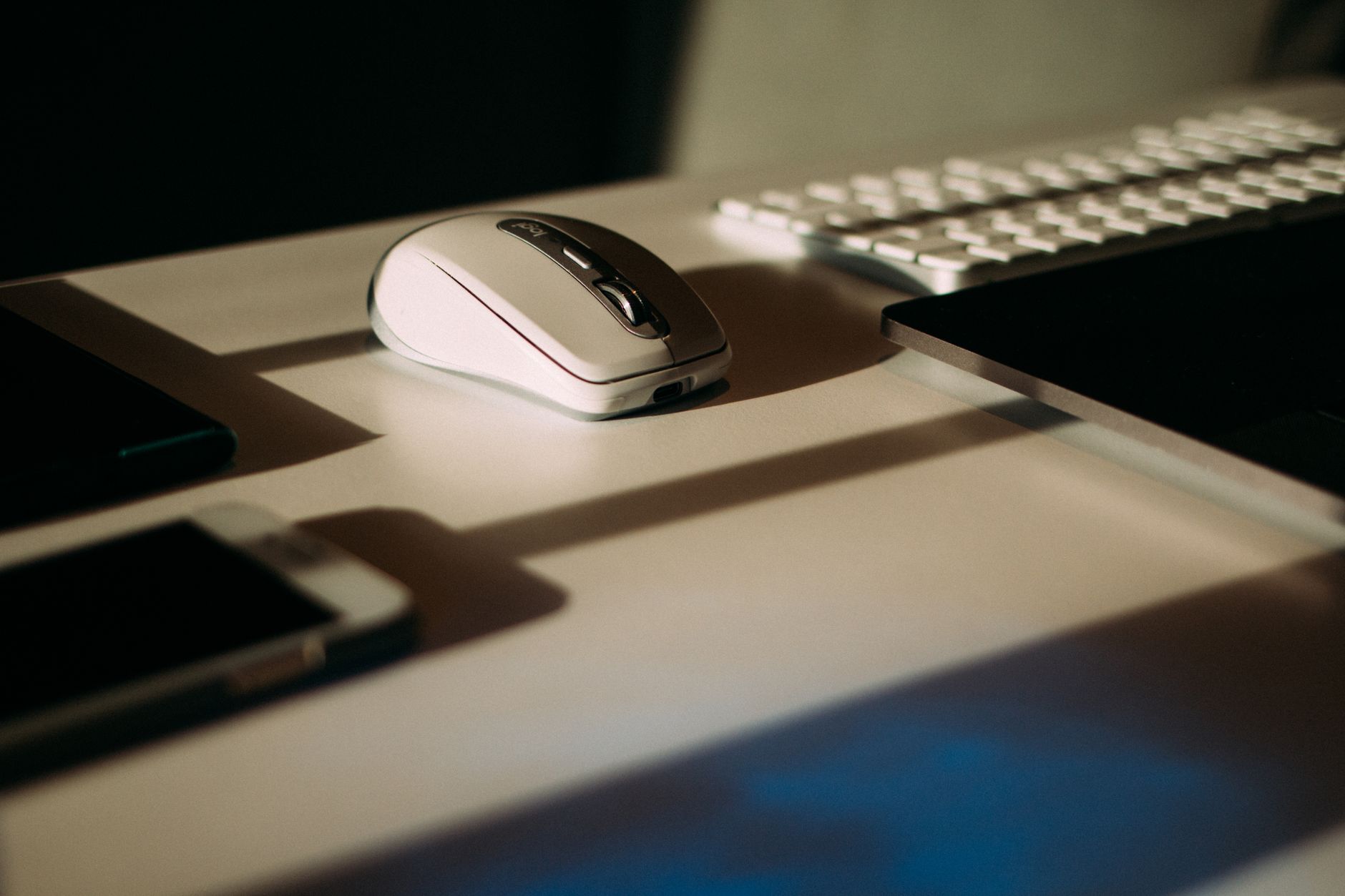
Photo by Maria Tyutina
iPhone and iPadOS: Pairing Tips and App Navigation
Pairing a keyboard and mouse with iPhone or iPad brings desktop-like input to iOS and iPadOS. For iPadOS, Bluetooth pairing is straightforward: put the devices in pairing mode, then select them under Bluetooth in Settings. Trackpad support on iPadOS expands navigation beyond tapping, with three-finger gestures and precise cursor control in many apps. If you’re using an iPad, you can adjust trackpad settings in Settings > General > Trackpad to tailor scrolling, dragging, and click behavior.
On iPhone, external keyboards are mainly used for typing efficiency, while mice can provide improved navigation in supporting apps and games. If you plan to rely on trackpad features, an iPad is the stronger choice due to broader support for pointer input. For official guidance on connecting a Bluetooth mouse or trackpad to iPad, see Apple’s setup articles. https://support.apple.com/en-us/108938
For general iPad trackpad settings, consult Apple’s guide on using a Bluetooth mouse or trackpad with your iPad. https://support.apple.com/en-us/105004
When you introduce a keyboard and mouse, keep expectations in line with app support. Some apps may not fully support cursor-based navigation or text selection, so test in your most-used apps first. If you encounter pairing issues, a quick toggle of Bluetooth off and on or a fresh re-pair often clears the problem. For broader tips from the community, you can review discussions about pairing multiple devices and trackpad usage on iPad. https://www.reddit.com/r/ipad/comments/13ybjip/can_you_connect_a_keyboard_trackpad_and_mouse_at/
Images fit well here too when you need a visual cue.
Photo by Maria Tyutina
Troubleshooting, Safety, and Best Practices
Using a keyboard and mouse with your phone can be a efficiency boost, but you’ll hit snags from time to time. The good news is most issues are quick to fix, safe to handle, and easy to prevent with a few best practices. Below are practical, ready-to-apply tips that cover common glitches, battery and temperature considerations, and privacy concerns when you connect external input devices.
Common Pairing Issues and Quick Fixes
Most pairing hiccups come down to a simple reset or a fresh connection. Try these steps in order: re-pair the device, toggle Bluetooth off and back on, or unplug and re-plug USB peripherals with a powered hub if needed. If the keyboard or mouse still won’t respond, forget the accessory in Bluetooth settings and pair again. Quick checks like confirming device compatibility and ensuring the peripherals have fresh power help a lot. For a practical troubleshooting reference, see tips on Bluetooth keyboard and mouse connection. https://support.apple.com/en-us/111804
Battery Life, Charging, and Device Warmth
External input devices draw power when connected, and long typing sessions can raise phone temperature. To extend battery life, consider using a wired setup when you’re near a charger, lower screen brightness, and close unused apps that run in the background. If you notice your phone or peripherals getting unusually warm, unplug and give the device a rest. Simple habits like scheduling charging and avoiding 100 percent charges for extended periods can help preserve health. Quick guidance on battery optimization for mobile accessories can be found here. https://www.pcmag.com/how-to/quick-fixes-extend-android-phone-battery-life
Privacy and Security When Using External Input Devices
Connecting a keyboard and mouse introduces new data and access considerations. Review app permissions and keep Bluetooth and USB access limited to trusted devices. Disable features you don’t need, such as sharing contacts or location with peripherals. Regularly unpair devices you no longer use and monitor for any unfamiliar connections. For a concise safety checklist and best practices, see Apple’s guidance on connecting Bluetooth accessories. https://support.apple.com/en-us/111804
Getting Started Today: Quick Setup Checklist
Ready to turn your phone into a portable workstation? This quick setup checklist helps you choose the right connection method, verify compatibility, and get typing, clicking, and scrolling in seconds. Keep this in mind: the simplest path is often the fastest. Start with a wired USB OTG setup for near-instant results, then explore Bluetooth for a cleaner, cable-free desk on the go. If you want the most reliable experience for larger tasks, a 2.4 GHz wireless dongle is worth a try. Below are practical steps to get up and running today.
1) Decide on your connection method
- Wired USB OTG: Fast, reliable, and universally compatible with many Android devices. It requires a USB OTG adapter and a USB keyboard or mouse. This approach minimizes pairing hassles and works well when you have a charger nearby.
- Bluetooth: Clean, cordless, and easy to move between spaces. Pair your keyboard and mouse once, then switch apps with minimal effort. This method shines for long writing sessions and travel.
- 2.4 GHz wireless dongle: Great for stable cursor control and fast typing when you prefer a dongle over Bluetooth. It requires a USB OTG adapter to connect the dongle to your phone.
If you want a quick, practical guide to each method, see resources like How to Connect a Mouse, Keyboard, or Controller to Android and the Android Help pages for using a physical keyboard with a tablet. These references offer step-by-step setup tips that map directly to real devices. https://www.howtogeek.com/164783/how-to-connect-mice-keyboards-and-gamepads-to-an-android-device/ https://support.google.com/android/answer/14114879?hl=en
2) Check device compatibility and essentials
- OTG support: Confirm your phone supports USB OTG, which lets it host keyboards and mice. If you’re unsure, check the manufacturer’s specs or Settings > About Phone.
- Power needs: If you’re plugging in multiple peripherals, a powered USB hub can prevent power issues.
- Battery and heat: External devices draw power. Plan for charging or short breaks to prevent overheating during long sessions.
For quick confirmation and setup ideas, see guides on Android OTG basics and keyboard shortcuts. https://support.google.com/android/answer/14114879?hl=en
3) Gather the right accessories
- USB OTG adapter or USB-C OTG adapter, depending on your phone’s port.
- A compact USB hub if you want to run more than one peripheral at once.
- A reliable keyboard and a precise mouse. If you’re on a tight budget, start with a basic wired setup to validate the workflow.
- Optional dongle (2.4 GHz) if you already own devices that use a dongle for a cleaner Bluetooth-free experience.
For practical demonstrations and real-world tips, explore guides and user discussions on OTG setups and external input devices. https://www.instructables.com/Using-KeyBoard-Mouse-on-Android/ https://www.reddit.com/r/scrcpy/comments/17g9tmk/mouse_and_keyboard_control_activation_in_otg_mode/
4) Establish a quick test run
- Open a text field and type with the keyboard. Ensure the cursor moves with the mouse and text inserts at the expected location.
- Try basic navigation. Use arrow keys to move the cursor, Tab to switch focus, and Ctrl/Cmd shortcuts for copy and paste.
- Switch between apps using keyboard shortcuts or the app switcher. Confirm scrolling with the mouse wheel or trackpad where available.
- If you’re using Bluetooth, complete the pairing early in the test and then keep it ready for rapid reattachments.
For hands-on tips about Android and iOS input setups, review structured how-tos and official guidance on external keyboards and trackpads. https://www.howtogeek.com/164783/how-to-connect-mice-keyboards-and-gamepads-to-an-android-device/ https://support.apple.com/en-us/108938
5) Optimize for everyday tasks
- Email and document editing: Rely on the physical keyboard for speed and accuracy. Place the cursor with the mouse for precise edits, then use common shortcuts for efficient editing.
- Web browsing: Use the mouse to hover over links for previews, then click to open. The trackpad or wheel helps you skim long pages without finger fatigue.
- Multitasking: Use the app switcher and window management shortcuts to keep multiple tasks visible. If your phone supports split-screen or picture-in-picture, try it with a productivity app and a media app to maximize your workflow.
For practical navigation and app control tips, consult guides that cover iPhone and Android external input usage in real-world apps. https://support.apple.com/en-us/105004
6) Safety and care during daily use
- Keep peripherals powered off when not in use to conserve battery.
- Unpair devices you no longer plan to use to reduce security risks.
- Be mindful of app permissions and how peripherals access contacts or location data.
Quick safety reminders and best practices are available in official guidance about Bluetooth accessories and external input devices. https://support.apple.com/en-us/111804
7) Quick troubleshooting checklist
- If a device won’t respond, replug the peripherals or re-pair via Bluetooth. A quick restart of the phone often resolves stubborn connections.
- Check for updates. A firmware or OS update can improve compatibility with external input devices.
- Test with a different keyboard or mouse if you have one on hand to rule out a faulty peripheral.
For reliable troubleshooting steps, see the official Bluetooth keyboard and mouse connection guide. https://support.apple.com/en-us/111804
8) Quick values to remember
- Wired OTG is fastest to set up and least prone to interference.
- Bluetooth offers maximum flexibility for travel and clutter-free desks.
- A USB dongle can provide stable, plug-and-play performance when you don’t want to deal with pairing.
As you start, keep a simple goal in mind: complete your task with less friction than tapping the screen. A well-chosen setup lets you type faster, navigate precisely, and keep your screen clean for focus.
https://www.instructables.com/Using-KeyBoard-Mouse-on-Android/
Conclusion
Using a keyboard and mouse with your smartphone turns it into a compact workstation you can carry anywhere. Wired USB OTG, Bluetooth pairing, and 2.4 GHz dongles each offer solid benefits, so pick the setup that fits your workflow. A well chosen combination boosts typing speed, navigation precision, and multitasking comfort, making daily tasks feel like work on a small laptop. Try one approach today, share your results, and explore additional tips as you go. If you want more ideas, stay tuned for future guides and quick setup hacks.