Use the old phone as a dedicated script screen and record with your current phone.
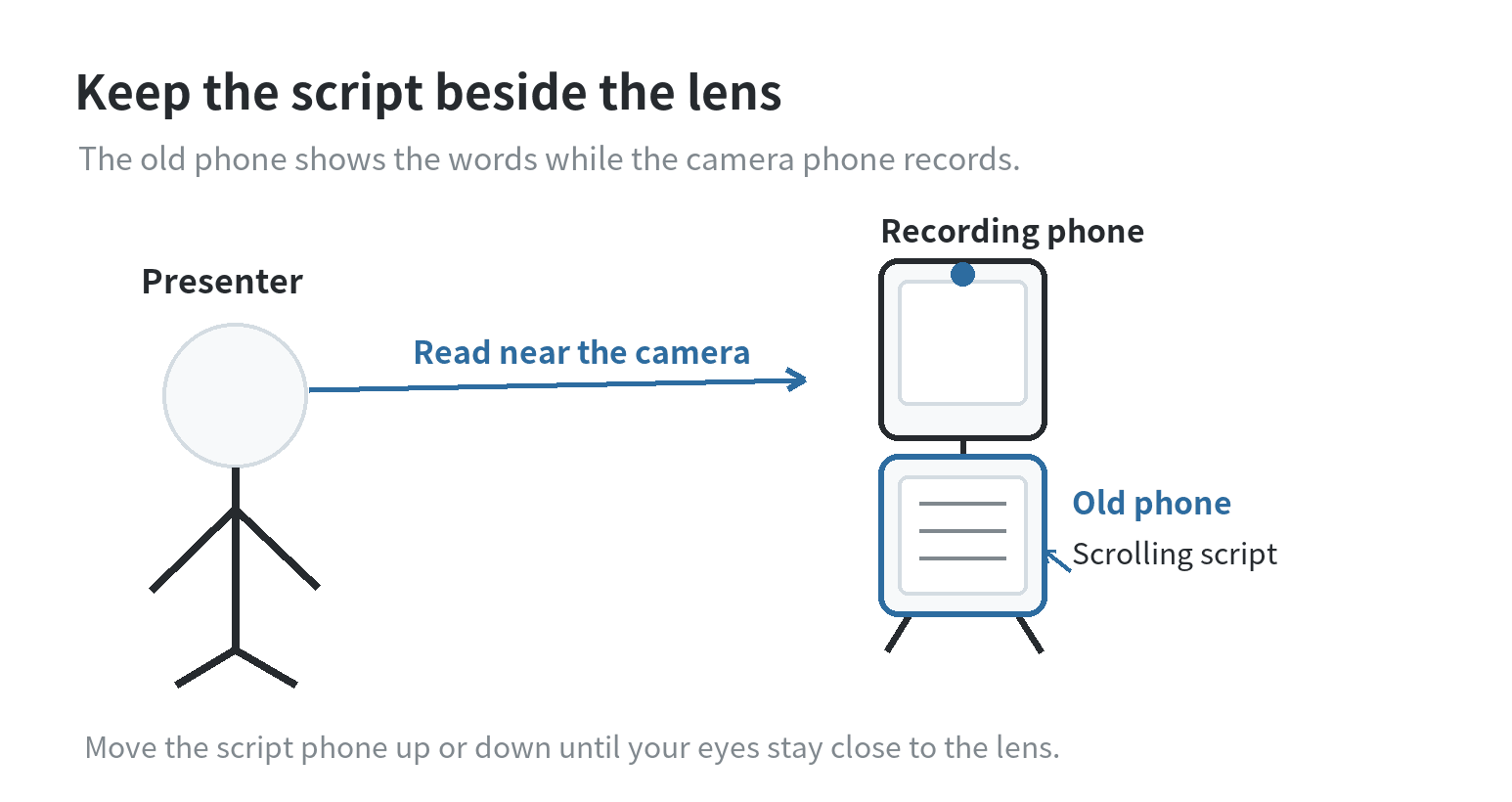
Put the script phone directly below or above the recording lens, load a teleprompter app, and adjust the text until you can read without looking far away from the camera.
This arrangement keeps the jobs simple: the old phone shows the words while your current phone captures the video.
Choose a setup that matches the phones
The simplest arrangement uses separate devices. Your old phone displays the scrolling script; your current phone records the video with its built-in camera app.
You do not need to pair the devices or send a live video feed between them. The old phone is just a small screen placed near the lens.
This keeps the camera controls separate from the script.
Apple Support describes recording in the iPhone Camera app’s Video mode, while Google Play’s TelePop listing describes an Android floating script above another app.
Check your own app’s listing before relying on a feature.
A same-device setup can work if its prompt app records while showing the script.
The App Store listing for Teleprompter describes adjustable scrolling and recording while reading, but the available combination depends on the app and device.
Using a separate script phone lets you keep using the camera app you already know.
On Android, a floating prompt may sit over a separate camera app. TelePop’s Google Play listing says its overlay requires “display over other apps” access.
If you do not want to grant that permission, keep the script on the old phone and record with the other phone.
If your goal is to use the old phone as another camera angle rather than a reading screen, see our guide to using an old phone for another camera angle.
For a computer-based call, the old-phone backup webcam setup covers a different job.
Put the script close to the recording lens
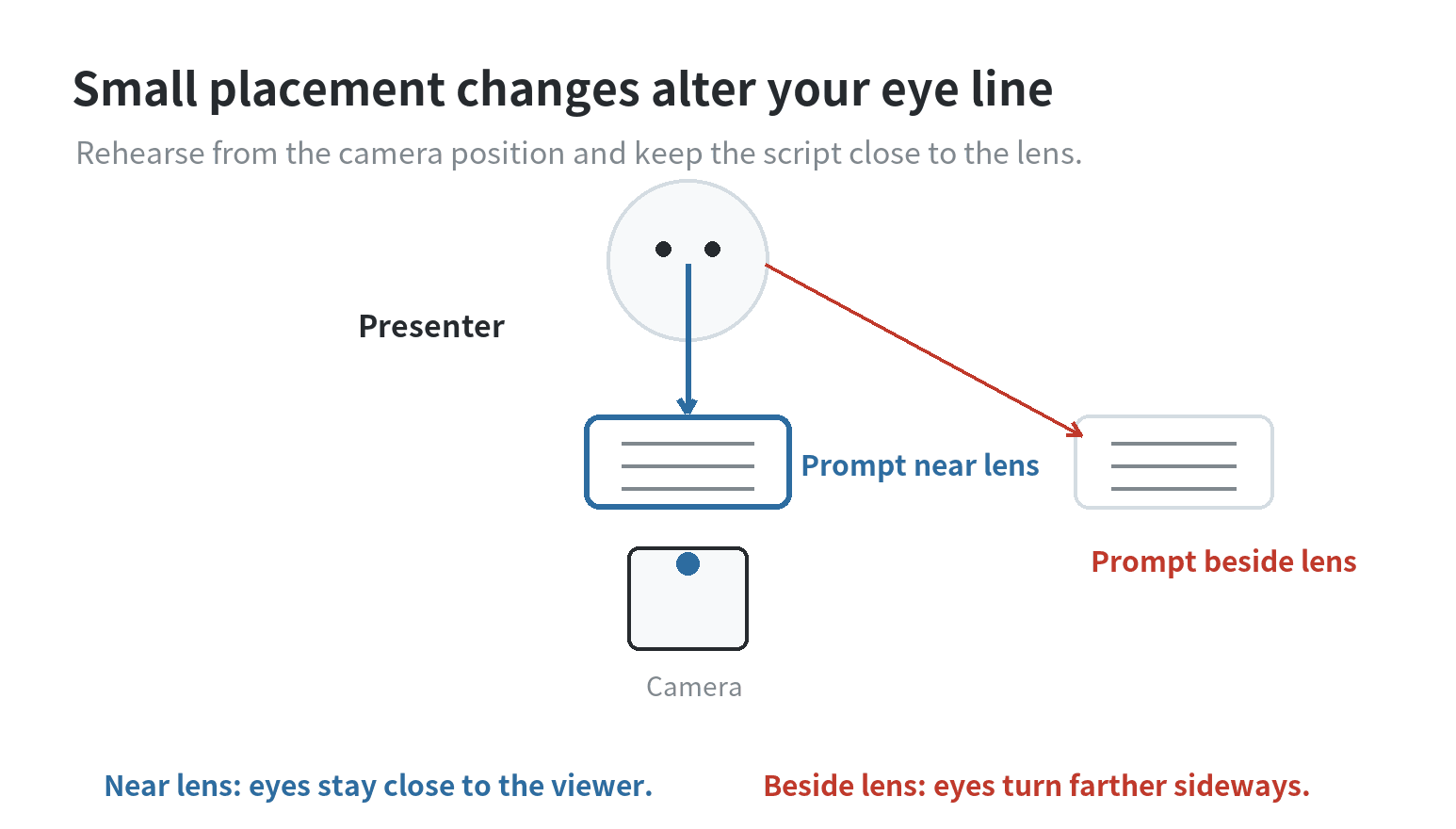
Eye movement is the visible giveaway of a badly placed prompt. A screen far below the lens makes you look down between lines.
A screen on the side makes your eyes travel sideways.
Set the recording phone at the height and angle you want, then place the old phone immediately beside the lens, just below it if the mount allows.
Mount both phones securely with a stand, clamp, or stable shelf.
Check that the script phone does not cover the lens or controls, and that neither device casts a shadow across your face. Remove a case if it makes a phone wobble.
Look at the lens, read a few lines, and watch the preview. Move the script closer if your eyes dart away.
Position depends on screen size, camera distance, and whether you film vertically or horizontally, so use the test recording to choose the spot.
Edit the script for reading aloud
Do not paste a dense page of prose and expect it to read naturally on camera. Rewrite the text as spoken sentences.
Keep each short paragraph focused on a thought, add a line break where you want to pause, and spell out a name or abbreviation if you tend to stumble over it.
A screen full of short blocks is easier to follow than a long paragraph.
Read the script aloud before loading it. If you run out of breath, split the sentence. If a sentence sounds like something you would write but not say, simplify it.
Add a blank line before a topic change so the next section is easy to spot while you keep your eyes near the lens.
Remove words you would not say aloud and replace long transitions with direct phrases. Mark pauses with punctuation.
Put any stage cue on its own short line so you do not accidentally read it as part of the script.
Open the script before positioning the phone and confirm the first line is visible.
If the app offers font, spacing, margin, or speed controls, adjust a setting and read a paragraph.
Larger text is easier to scan but shows fewer words; smaller text can tempt you to read silently instead of speaking naturally.
Manual scrolling can work for a short clip; automatic scrolling can reduce reaching for the phone during a longer read. App listings show that speed controls vary.
Choose a pace that lets you finish a sentence before the next lines move out of view.
Set the display and scroll before recording
Turn the old phone to match the final video orientation. Keep text easy to distinguish from its background and the reading area wide enough to avoid constant line breaks.
A reading guide or highlighted line can help you keep your place if the app offers one.
Check brightness in the filming room. The text should be readable without lighting your face from below.
If the display dims during rehearsal, check the app’s screen-awake option or the phone’s display settings; do not assume every app has the same feature.
Silence calls and notifications, and keep the recording phone’s microphone clear. Place the old phone’s pause control within reach without leaning into the shot.
If it is charging, route the cable so it cannot tug the stand or cross the frame.
If the prompt and camera share a device, confirm the script stays visible after recording begins.
Apple Support documents the Camera app’s Video mode, but that does not mean a separate prompt app can overlay Camera on every iPhone.
If the apps do not work together, use the old phone as the prompt screen.
Make a short test take and fix a clear issue
Record a short rehearsal from the position you plan to use, then watch it with sound on. Check whether your eyes stay near the lens and the scroll fits your speaking pace.
Confirm the framing leaves room for your face and gestures. A test shows how your gaze moves while you read.
If your eyes move too far, bring the script closer or narrow the text block. If you lose your place, enlarge the type, slow the scroll, or add line breaks.
Change a setting and record another sample.
Listen for missed words and room noise. If your voice sounds distant, move the camera closer if framing allows or test a microphone you already own.
Keep the script phone’s speaker and alerts off.
Review the test for framing, then listen for sound. This separates a screen-position problem from a recording problem.
If the framing is right but the voice is unclear, leave the prompt where it is and change only the audio setup.
If the voice is fine but your eyes keep dropping, adjust the prompt before changing the camera.
Check the battery on both phones before filming.
If one needs power during the take, secure its cable in advance and confirm that plugging it in will not move the screen or cross the frame.
Once the test looks right, leave the stands in place. Start recording, wait before speaking, then pause before reaching for either phone.
For another take, restart at a paragraph break rather than rebuilding the setup.
FAQ
Can an old phone show the script while a different phone records?
Yes. Open the script on the old phone, place its screen close to the recording phone’s lens, and record with the camera phone. This keeps the prompt and camera apps separate.
Does the teleprompter text need to be mirrored?
No for ordinary phone-screen reading. Mirrored text is for a beam-splitter setup, where glass reflects the display toward the reader.
The App Store listing for Teleprompter describes mirroring for that rig; use normal text when looking directly at a phone screen.
Can I use a tablet instead of an old phone?
Yes, if you can position it close to the camera lens and still read comfortably.
A larger screen may need to sit farther to one side, so check the eye line in a test recording before using it.
What if the old phone cannot install a current teleprompter app?
Use a browser-based document or text file that the phone can display, then scroll manually during the recording.
If the old phone cannot keep the text legible or stay powered for the session, a printed script placed beside the lens is a workable fallback.