An old Android phone can work as a wireless microphone for a Windows computer when an audio app sends its mic input to a desktop virtual microphone. With AudioRelay, you start the phone as the audio source, connect it from the PC, then choose the virtual mic in Windows or your call app. Keep both devices on the same local network, test the sound before a call, and expect some delay because the audio travels over a network.
Check that the phone and PC can run the setup
AudioRelay’s download page lists Android 5 or newer for its phone app and Windows 10 or newer for its desktop app. Its Windows microphone guide describes the virtual mic path for Windows 10 and later. If the phone is an iPhone, or the PC is on an older Windows release, this exact workflow does not match the documented setup.
The phone needs a working built-in microphone, and the PC needs permission to install and use the desktop audio device. Keep the phone unlocked for initial setup. A stand or a stable surface helps keep handling noise away from the mic; place it near the speaker, but not directly in front of a laptop fan or speaker output.
Connect the phone as the audio source
- Install AudioRelay on the Android phone and its desktop app on the Windows PC. The official download page lists the supported operating systems; use those requirements to confirm compatibility before troubleshooting connection issues.
- Open AudioRelay on the phone. In its Server tab, choose the microphone source. This tells the phone to send sound picked up by its mic rather than stream music or other app audio.
- Open AudioRelay on the PC. In the Player tab, set the output mode to Mic, then select the Android phone from the server list. The stream now feeds the desktop’s virtual microphone.
- In Windows sound recording settings, select “Virtual Mic,” or choose “Virtual Mic (Virtual Mic for AudioRelay)” in the input menu of the meeting or recording app. AudioRelay documents both options.
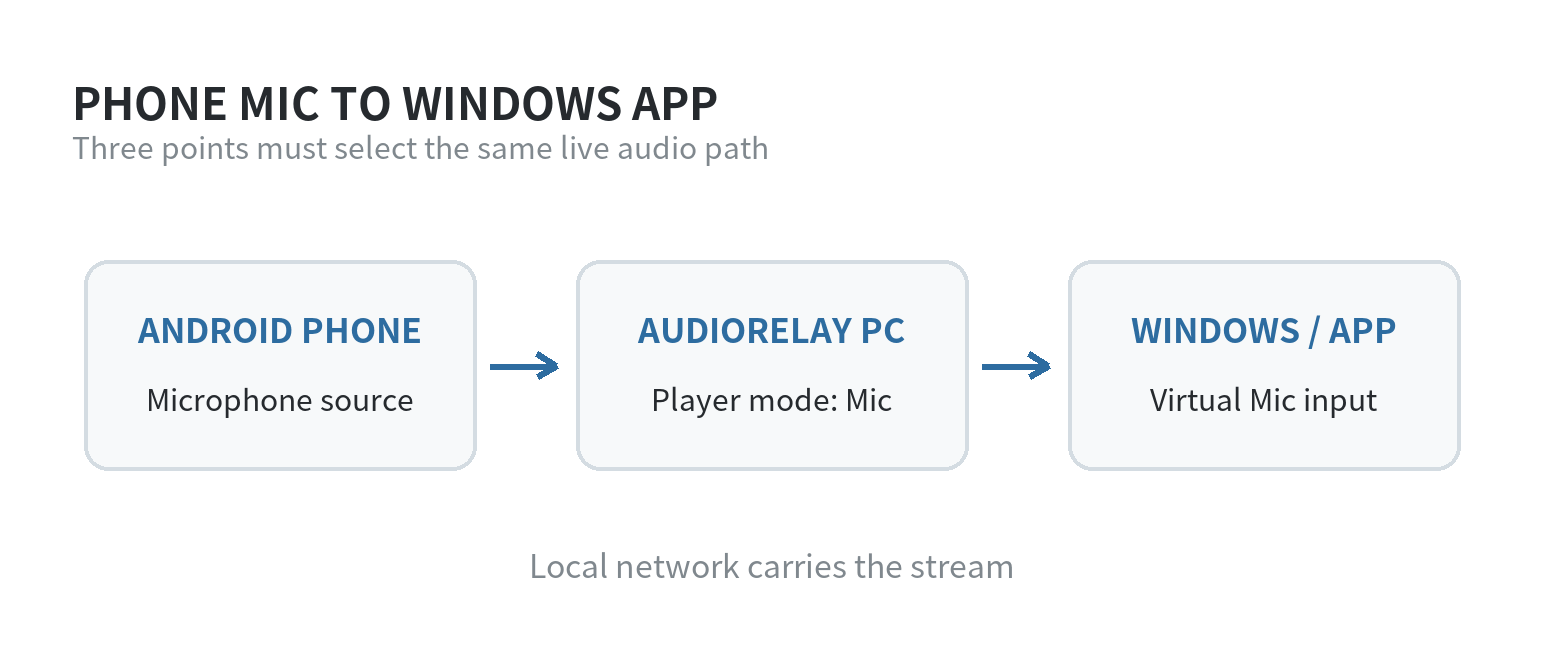
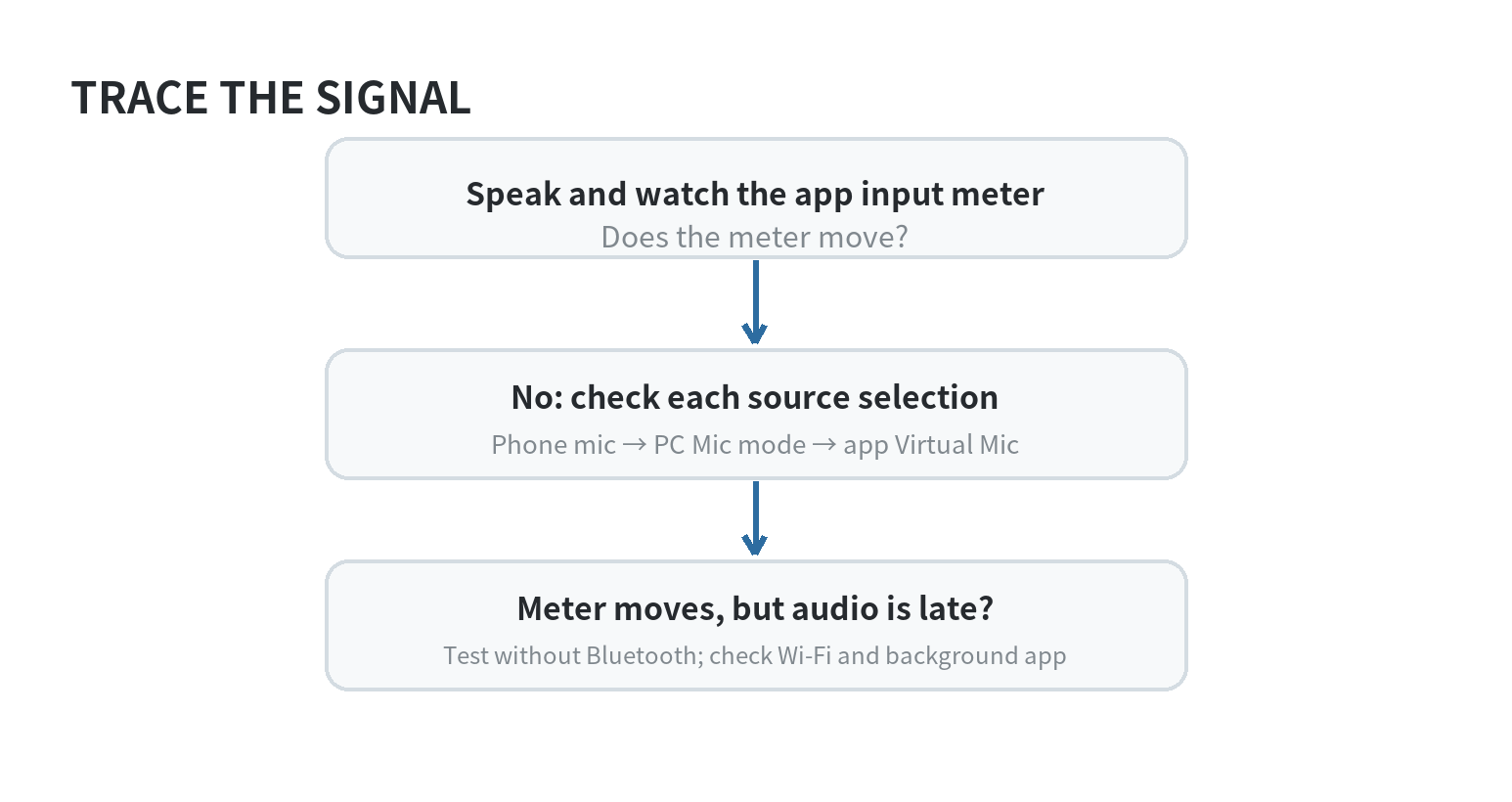
For a first test, open a voice recorder or the call app’s microphone preview and speak from the position you will use. Watch the input meter while you talk, pause, and move the phone slightly. If the meter stays flat, check the selected source on the phone, the selected server and Mic mode on the PC, and the input chosen by the app. Each layer must point to the same virtual mic path.
Choose where the virtual mic should be selected
Setting the virtual mic as the Windows default recording and communication device makes it available to apps that follow the system default. AudioRelay’s instructions use the Sound control panel’s Recording tab to set those defaults. This is convenient for calls, but it can also redirect other programs that rely on the Windows default input.
Choosing the virtual mic inside one app keeps the change local to that app. Open its audio or device settings and select the AudioRelay virtual microphone as the input. This is useful when you want the laptop’s built-in mic to remain the default for other tasks. If an app was already open during setup, close and reopen its audio settings so it can refresh its device list.
Use the app-specific choice when you only need the phone for one meeting or recording. Use the Windows default if several communication apps should receive it. Afterward, confirm the active input in the app itself; a system default does not override a different microphone explicitly selected there.
Reduce dropouts and distracting delay
Keep the phone and computer on the same trusted local Wi-Fi network and close to the access point. Avoid switching networks during a session. A weak or busy connection can interrupt the stream, while background power management can pause a long-running phone app. AudioRelay’s FAQ notes that some phone makers restrict background apps to save battery, so keep the app in the foreground for an important call and check the phone’s battery settings if the stream stops after the screen locks.
Listen for delay with a short recording or by speaking while watching the input meter. A small network delay may be acceptable for a call, but it can make monitoring your own voice feel like an echo. AudioRelay notes that Bluetooth playback itself adds latency. For monitoring, use the computer’s wired output or speakers at low volume instead of judging the mic through a Bluetooth headset.
If audio quality breaks up, AudioRelay’s FAQ suggests trying the Android app’s AudioTrack output; it cautions that this can increase latency. Change one setting at a time and repeat the same short recording, so you can identify which change helped. Do not lower every buffer setting at once: very small buffers can be unstable on a connection that fluctuates.
Fix the common silent-mic cases
- The PC cannot see the phone: Confirm both apps are open, the phone is running its microphone server, and both devices are on the same network. Restart the desktop server and reconnect if the list remains empty.
- The app shows no input: Check that the phone’s source is Microphone, the PC output mode is Mic, and the calling app is set to the virtual mic. Also check Windows microphone privacy settings; Microsoft Support says desktop apps need microphone access enabled. A mismatch at any one stage can leave the app listening to another device.
- The stream stops after a while: Keep AudioRelay active on the phone and review its battery or background restrictions. The phone manufacturer controls those power settings, so the menu names vary by device.
- The sound arrives late: First remove Bluetooth from the monitoring path and test again. Then check network stability and adjust AudioRelay’s audio output options only if needed.
AudioRelay’s FAQ says its server sends audio on the local network to connected devices. Treat that as a product-specific statement, not a guarantee about every app on either device. For a confidential conversation, check the app’s privacy information and the network you are using before routing microphone audio through it.
When a phone mic makes sense
This setup can reuse an Android phone for a desk call, voice note, or temporary recording when the built-in computer mic is inconvenient. It also gives you a way to position the mic separately from the keyboard. It adds software and a network hop, though, so it is less direct than plugging in a microphone and may not suit live performance or timing-sensitive monitoring.
Before relying on it, make a short test recording, listen through the computer’s wired speakers or headphones, and confirm the correct input in the actual app. If the connection is inconsistent, use the computer’s built-in mic for that session and return to the phone setup when you can test the network without a live call.
Frequently asked questions
Can an iPhone follow these steps?
No. The cited AudioRelay phone-as-mic instructions specify Android. Check the app’s current documentation for any platform-specific alternative.
Does the phone need to be connected by cable?
The documented workflow selects the phone from AudioRelay’s server list and carries the stream over the network. A cable is not part of those steps.
Can I use the phone as a mic on macOS or Linux?
AudioRelay lists separate instructions for macOS and Linux. Their setup steps differ from the Windows virtual-mic path above, so follow the documentation for the computer’s operating system.