An old phone can serve as a backup webcam if it still powers on, can hold a steady camera feed, and works with your computer’s camera system. First check the phone and computer pairing; then leave the phone mounted, charged, and ready to reconnect. A spare device only helps if you can switch to it before a call starts.
Check whether the old phone still fits your computer
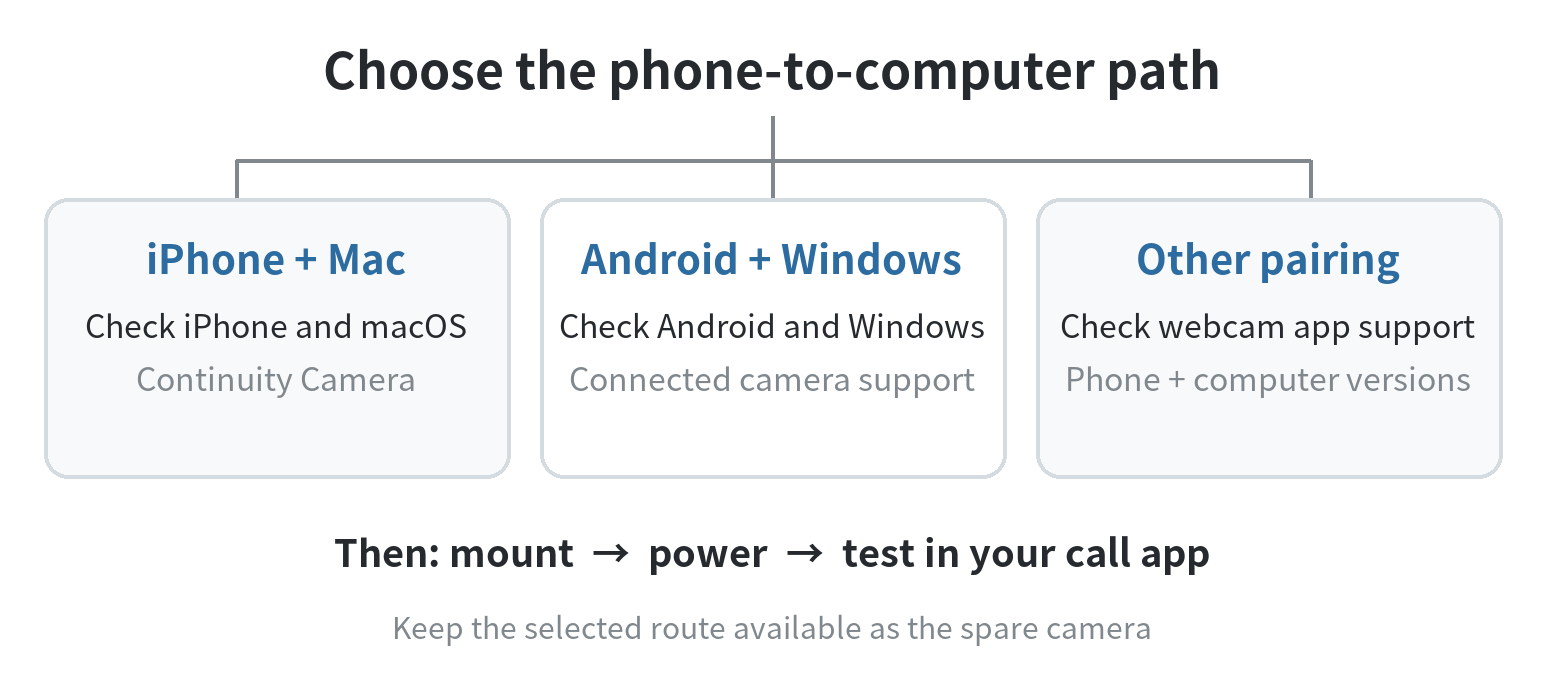
For a Mac, Apple’s Continuity Camera supports an iPhone XR or later running iOS 16 or later, paired with a Mac that supports macOS Ventura 13 or later. The devices need the same Apple Account with two-factor authentication, nearby Wi-Fi and Bluetooth, and a compatible connection. Apple says the devices should be near each other. An older iPhone outside those requirements needs another compatible webcam method; do not assume its camera will appear just because it can take photos.
For a Windows PC, Microsoft’s connected-camera feature supports Android 10 or later, Windows 11 or later, and Link to Windows app version 1.24022.0 or later. Once the Android device is linked, enable “Use as connected camera” under Mobile devices in Windows settings; it then appears as a camera choice in apps. Check the exact requirements in Microsoft’s setup page before you build your backup plan.
If your devices do not meet either native route, a webcam app may bridge the gap, but compatibility depends on the app’s current phone, computer, and operating-system support. Our separate guides cover phone webcam setup for Zoom on Windows and connecting a phone camera to OBS. Use those for the app steps; this page is about keeping the old phone ready as a spare.
Make one place for the spare camera
Choose a permanent spot near your computer instead of storing the phone in a drawer. A shelf or stand at eye level keeps framing repeatable. Aim the rear camera toward your seat, keep the lens clear of the case edge, and angle the screen so you can see whether the camera is active. A stable stand matters more than a complicated mount: a book stack can work if it cannot slide or tip.
Mark the phone’s position and the cable route with a small piece of removable tape. Keep the charging cable away from the chair wheels and walking path. If you use wireless pairing, leave the phone within the range required by the chosen system and on the same local network when that system needs it. Apple specifies nearby Wi-Fi and Bluetooth for Continuity Camera; Microsoft says the phone and PC must connect to Wi-Fi for its linked-device feature.
Keep the phone’s normal calling role in mind. If it still receives calls, an incoming call can interrupt the camera session. Apple documents that answering an incoming iPhone call pauses Continuity Camera video and audio; answering on the computer may also pause the session. Test your intended call setup so you know how to restore the camera if it pauses.
Choose a connection that is easy to restore
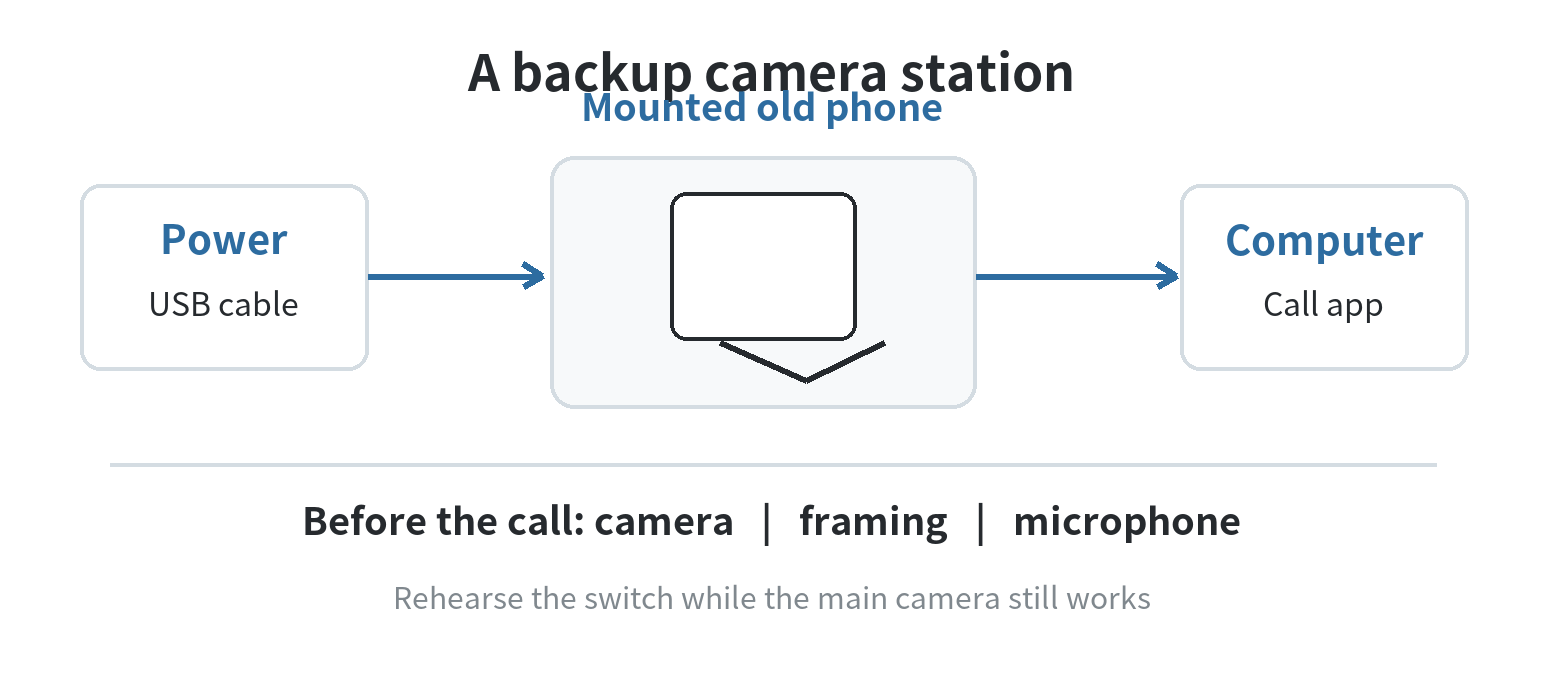
A wired setup is a useful default when the phone will stay beside the computer. It gives the phone a charging connection during calls and avoids relying on a wireless link for the camera feed. Apple recommends connecting an iPhone by USB when charging during Continuity Camera use, and Microsoft’s linked-camera steps use Wi-Fi. If you choose an app that supports both, check its current documentation for the wired and wireless requirements before treating either as your fallback.
Wireless is convenient when a cable would cross a desk or the phone needs to sit farther from the computer. It adds another dependency: the computer and phone must maintain the connection expected by the selected feature. Test the setup from the actual call location, with the same network and computer you plan to use. A phone that pairs in a different room or on a different network is not a dependable backup for the desk.
Run a short handoff rehearsal
Before relying on the phone, open the video app you actually use and confirm the spare appears in its camera list. Start a private preview or test call, check the framing, and make sure the audio input is still the microphone you intend to use. A camera can work while the computer continues using a different microphone, so inspect both device selections; Apple lists the iPhone camera and microphone as separate choices.
Then rehearse the failure you expect to handle. If the built-in webcam is unavailable, select the old phone’s camera. If the phone does not appear, reconnect the cable or check the wireless link, grant any camera permission prompt, and refresh the video app’s camera list. Microsoft says its linked Android camera may require camera permission for Link to Windows; Apple’s troubleshooting steps include checking Wi-Fi and Bluetooth, reconnecting USB, and confirming system requirements.
Write a tiny reminder beside the computer: “plug in, unlock if needed, open camera app, select spare.” Keep the cable and stand with the phone, not in another room. The goal is to make the switch memorable under time pressure, not to add a second full workstation to your desk.
Keep the phone ready without turning it into a project
Leave enough free storage for the camera app and its updates, and install updates when you have time to retest the connection afterward. Remove notifications or private items from the lock screen if they could appear in view. Keep the camera lens clean with a soft cloth and inspect the cable for looseness when the image cuts out. These are maintenance checks, not a guarantee that an aging battery or connector will keep working.
If the phone must stay plugged in during calls, use a cable and charger that fit the device, keep the phone uncovered, and place it where it can shed heat. An old phone can still lose the camera feed if it runs out of charge or its cable connection is loose, so include power in the rehearsal.
Once the old phone passes the rehearsal, leave it in its marked position and note the one action that restores its connection. If it fails that simple test, keep the computer’s built-in camera or another known camera as the actual backup. The old phone is useful only when the complete chain—from power and pairing to the selected camera in the call app—still works.
FAQ
Can I use an old phone as a webcam if it has no SIM card?
Yes, if the phone can connect to the computer through the selected webcam feature. A SIM card is not listed as a requirement for Apple Continuity Camera or Microsoft’s linked Android camera; the needed connection and system requirements still apply.
Should I use the phone’s microphone too?
Only if you want it to be the meeting microphone and the app exposes it as an input. Check the camera and microphone choices separately in your call app before the meeting.
What should I try if the backup phone disappears from the camera list?
Reconnect the cable or restore the Wi-Fi and Bluetooth link, approve a camera permission request, and reopen or refresh the camera selection. Confirm that the phone and computer still meet the feature’s system requirements.
Last updated: 2026-10