You can turn an old Android phone or iPhone into a simple voice-controlled speaker by leaving it plugged in, connected to Wi-Fi, and set up to answer a wake phrase. It will work best for music, timers, and quick questions; first check that its assistant still supports hands-free activation, because the menus and lock-screen behavior depend on the phone and software.
Think of the phone as a stationary assistant with a speaker, microphone, and internet connection. It does not become a standalone smart speaker: a weak battery, blocked microphone, lost Wi-Fi, or a request that needs an unlocked screen can interrupt it. Try the setup near the place you plan to keep it before deciding that the phone is ready for daily use.
Check the phone before setting it up
Unlock the phone and confirm that it can join your home Wi-Fi, play audio aloud, and open its built-in assistant. Check that it charges and that the cable reaches a stable surface away from spills.
On Android, find which digital assistant is active before following older instructions. Google’s Android Help explains that Gemini can replace Google Assistant as the primary mobile assistant on eligible devices, while some settings and features depend on language, country, account, and device. The Google Assistant name in an older tutorial may not match what appears on a particular phone.
On iPhone, open Settings and look for Siri or Apple Intelligence & Siri. Apple Support says the settings label can differ by iOS version, and Siri’s availability and features vary by language and region. If the phone no longer offers the voice-activation choice you need, a screen tap or button press can still start an assistant, but that is not hands-free operation.
Set up hands-free voice activation on Android
First check which digital assistant is active. Open Google Home to review Google Assistant settings, or open Gemini if it is the active assistant. If Google Assistant is active, look for Hey Google and Voice Match, turn on the wake phrase, and follow the prompts to teach the assistant your voice. Google Assistant Help says Voice Match may be required on some devices and gives these controls through assistant settings.
If the phone uses Gemini, open Gemini’s settings and check its hands-free option and Voice Match instead. Google’s Android Help says “Hey Google” with Gemini depends on Voice Match, and the wake phrase is not available in every language. If the setting is missing, test the assistant by opening its app or using the phone’s available activation control; do not assume the microphone is broken just because a menu differs.
For a phone that should answer while locked, turn on the assistant’s lock-screen responses. Google’s Assistant Help says lock-screen access has separate controls, and personal results require additional settings. Some requests still ask you to unlock the phone, so test a basic timer or weather question with the screen locked before choosing a permanent spot.
Set up Siri on an iPhone
In Settings, open Siri or Apple Intelligence & Siri, then find Talk & Type to Siri. Select the available spoken wake option and complete the voice setup. Apple Support describes these labels in its current help guidance and notes that the exact choices vary with language and region. Use a simple spoken request, such as asking for the time, to confirm that Siri hears the phone from the distance where it will sit.
If the iPhone should respond while locked, review the passcode settings for Siri access when locked. Apple lists Siri among the features that can be allowed from the lock screen. That convenience also means someone nearby may be able to make requests without unlocking the phone, so keep personal information and account access in mind when deciding which responses to permit.
Apple says Siri requires an internet connection for the setup described in its troubleshooting guidance. Connect the iPhone to the home Wi-Fi and try a request that needs an answer from the internet. If Siri hears you but cannot complete a request, check the connection and spoken-response setting before changing the microphone placement.
Give the phone a steady place and power source
Choose a stable stand or shelf where the phone’s microphone openings are uncovered and the speaker faces the room. Avoid setting it inside a drawer, behind a cushion, or directly beside a noisy appliance. The charging cable should reach without pulling the phone toward an edge, and the display should remain easy to reach when a request needs a tap or unlock.
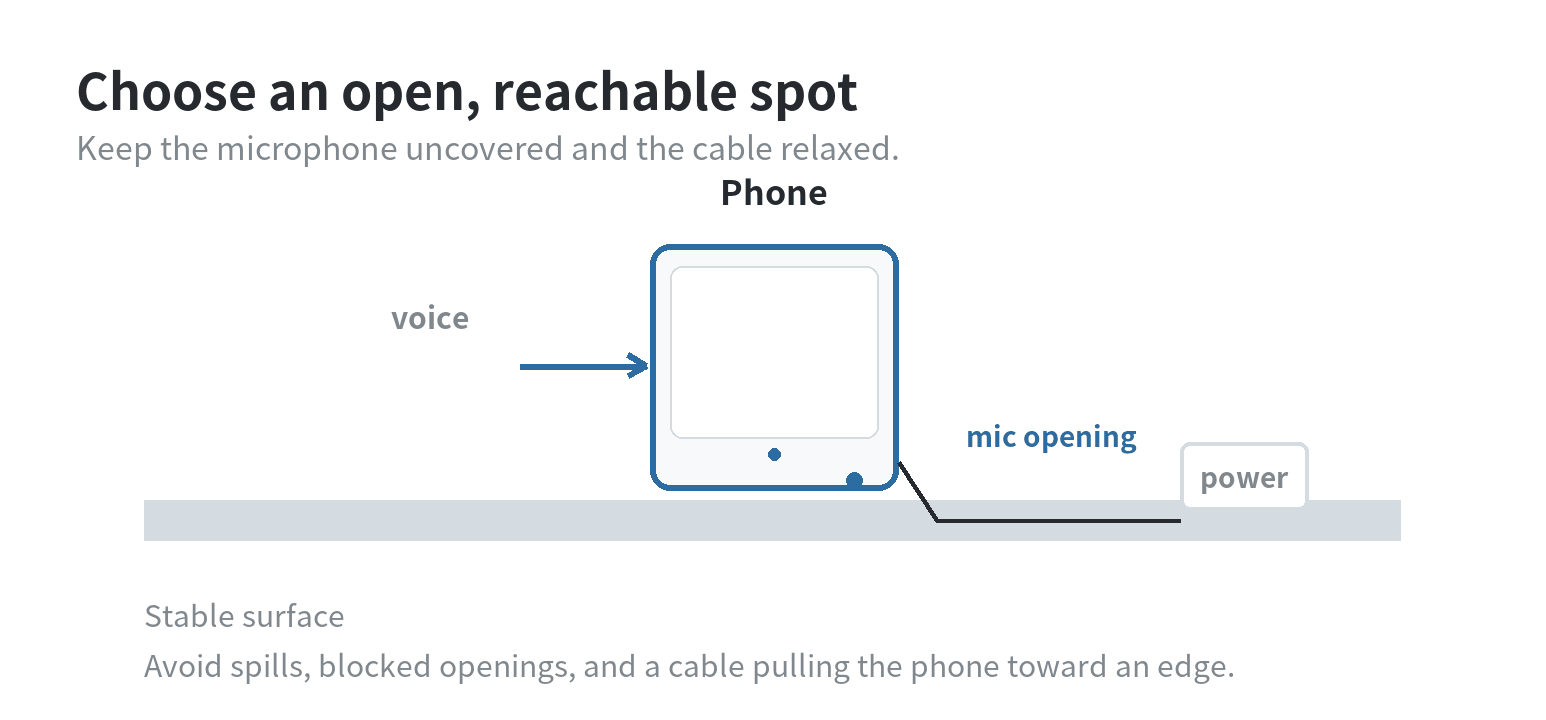
Leave the phone on a charger for the first listening test, then speak from the spot where you expect to use it. Check whether it hears the wake phrase, answers at a useful volume, and stays connected to Wi-Fi. Google documents a screen-saver option for some Android devices while charging; availability varies by device, so treat an always-visible clock or photo screen as optional rather than required.
Keep the screen awake only if you need visible controls or a clock. A display that turns off does not necessarily prevent voice activation, but a locked screen may restrict personal results or app-opening requests. If the assistant responds inconsistently, try moving the phone into the open, reduce nearby background sound, and repeat the same short request from the same position.
Run a small real-room test
Test the phone where it will live, not only while holding it. Ask for a timer, a simple spoken answer, and audio playback. Then lock the screen and repeat the request you expect to use most. This separates three questions: can the phone hear the wake phrase, can it answer while locked, and can its speaker reach the room at a comfortable level?
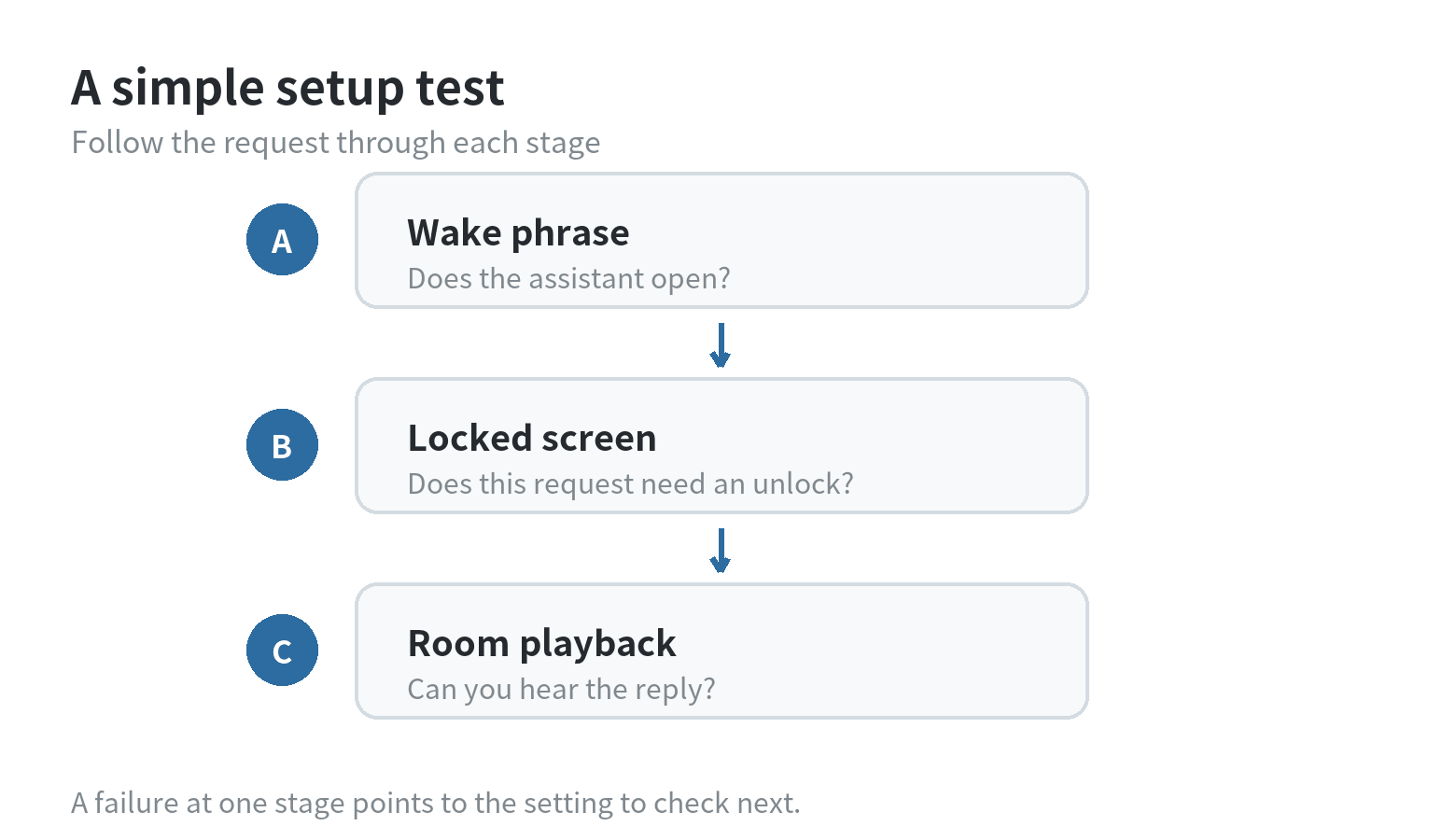
If voice activation works only with the screen on, check the wake-word and lock-screen settings again. If the wake phrase triggers the assistant but the reply asks you to unlock, that is a lock-screen permission or request limitation, not a failure to hear you. If no voice request starts, test through the on-screen assistant and verify Wi-Fi before retraining voice recognition.
If the assistant will not respond at all, see the site’s guide to troubleshooting a phone voice assistant. If you want to stop wake-word listening instead, use its steps for turning off Hey Google and Hey Siri.
What this setup can and cannot replace
A phone can provide a wake phrase, voice requests, and audio from its built-in speaker when its software and connection allow those features. It remains a phone running an assistant app, though, so it may need a screen tap, passcode, account sign-in, or working network for a particular task. Treat it as a convenient room device, not as a substitute for testing what you need before relying on it.
If it is an Android phone and the assistant setting is available, leave it on a charger with the microphone uncovered and test it both awake and locked. For an iPhone, check Siri’s wake phrase and lock-screen access, then run the same room test. A short trial tells you whether this specific phone, software version, network, and placement fit the job.
FAQ
Can an old phone work as a voice assistant without a SIM card?
It can use Wi-Fi for assistant requests that need an internet connection, so a cellular plan is not the deciding factor. Connect the phone to Wi-Fi and test the specific requests you plan to use.
Will Google Assistant answer when an older Android phone is locked?
It depends on the Android version and lock-screen settings. Google says Assistant lock-screen features require Android 8.0 or later, and some requests still require unlocking.
Can Siri respond when an iPhone screen is off?
Siri can be allowed on the lock screen, but the available voice activation and response options depend on iOS settings, language, and region. Test a spoken request with the phone locked.
Should the old phone stay plugged in all day?
Keep it plugged in during setup if you want to use it as a stationary device, then test the wake phrase with the screen locked. The display does not need to stay on just to run that test.
Last updated: 2026-10