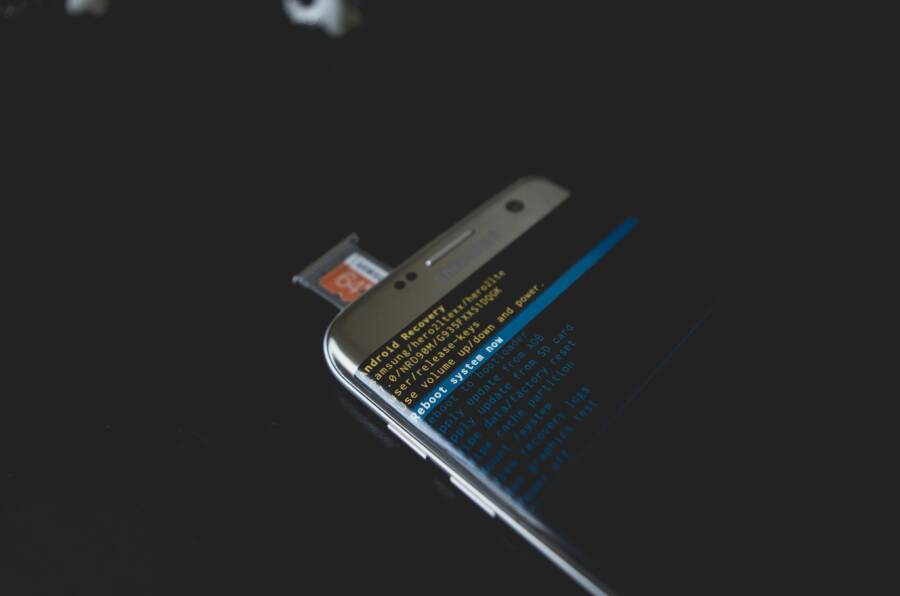
Ever tried to ask your voice assistant for help during a busy day and heard nothing but silence? It happens on both Android and iPhone, and it’s frustrating when you expect a quick answer from your trusted assistant.
This guide breaks down why a voice assistant might not respond on your phone and how to fix it fast. You’ll learn common culprits like connectivity, microphone permissions, and settings that can shut off wake words. The goal is to get you back to hands free control with minimal fuss.
We’ll cover quick checks you can do right away. Simple steps like ensuring a data connection is active, testing the microphone, and turning off Do Not Disturb can make a big difference. I’ll also show you Android and iPhone specific routes so you don’t waste time chasing problems that don’t exist on your device.
Next, you’ll get a clear, step by step troubleshooting path. From adjusting wake word settings to refreshing app data, these moves are designed to restore normal response times without heavy tech jargon. You’ll see where to look for permission flags and how to update software to avoid future glitches.
Finally, we’ll share practical tips to prevent future hiccups. Small habits like keeping your app and OS up to date, managing background activity, and choosing reliable voice settings will help your smartphone stay responsive. By the end, you’ll know exactly what to try when your voice assistant stops listening, and you’ll have confidence in keeping it ready when you need it most.
Why Your Voice Assistant Suddenly Stops Working
Struggling with a voice assistant that won’t respond can throw a wrench in your day. The fix is usually simpler than it seems, and you can often solve the issue with a few quick checks. In this section, we focus on the most common Android and iPhone culprits and how to address them so your device starts listening again.
Top Causes on Android Phones
When your Android phone stops hearing your commands, the reasons usually fall into a few predictable buckets. Start by checking battery optimization, as aggressive power saving can mute background activity like wake words. It’s common for Google Assistant or Bixby to be throttled to save juice, especially on older devices or those with heavy loads. Another frequent disruptor is Bixby interference, where competing wake words or apps steal mic focus. Finally, voice match settings can drift out of sync, so your device no longer recognizes your voice reliably.
- Battery optimization: Disable or white-list the voice assistant apps to keep them responsive in standby.
- Wake word interference: Ensure only one assistant is set as the default wake word.
- Voice match: Re-record or re-train your voice model so it recognizes you again.
To dive deeper into Google’s guidance, see their steps for fixing “Hey Google” on mobile devices. If you’re using a Pixel or another Android phone, a quick check of the Google app updates can also revive a stubborn assistant. Learn more about updating and troubleshooting here: Fix issues with “Hey Google” on a mobile device.
Photo by cottonbro studio on Pexels
Common Siri Issues on iPhone
Siri not responding on iPhone often boils down to permissions, power settings, or system glitches. Start by confirming the mic and camera access permissions for Siri are allowed; without mic access, Siri simply can’t hear you. Low Power Mode can curb background activities, including voice processing, so turning it off while you test can reveal the culprit. If iOS glitches crop up after an update, a quick restart or reset of network settings can clear stubborn issues.
- Mic permissions: Check that Siri has permission to access the microphone.
- Low Power Mode: Disable temporarily while testing Siri.
- iOS glitches: A reboot or a quick network settings reset can fix stubborn hiccups.
If you’re running into persistent problems, you can explore several practical fixes from experienced voices in the community and expert tips. For a broader set of symptoms and fixes, see resources like Siri not working on iPhone guidance and user-reported remedies. For extra context, you can review explanations and fixes from Quora on Siri troubleshooting, which can help when common steps don’t resolve the issue: Siri on my iPhone stopped working. What are things I can do to fix it.
Photo by cottonbro studio on Pexels
Basic Checks to Try Right Now on Any Phone
When a voice assistant stays silent, the first steps are usually simple and quick. These checks work whether you’re on Android or iPhone, and they can restore responsiveness in minutes. Think of them as the quick triage for your smartphone’s listening ability. Start with the easiest fixes and move to slightly deeper adjustments if needed.
1) Verify Your Internet Connection
A strong data or Wi‑Fi connection is the backbone of voice assistant performance. Without it, prompts may go unanswered or lag badly. Do a quick sanity check:
- Switch between cellular data and Wi‑Fi to see if one path improves responsiveness.
- Open a web page or stream a short clip to confirm internet stability.
- If you’re on a weak signal, try moving closer to a router or use a mobile hotspot.
If the connection is flaky, the assistant may still hear you but won’t process requests. A solid network often resolves many “not responding” problems.
For more details on keeping your assistant connected, see Google’s guidance on fixing issues with “Hey Google” on a mobile device. Fix issues with “Hey Google” on a mobile device
2) Test the Microphone and Mic Access
The microphone is the gateway for every command. A blocked or malfunctioning mic will mute the entire experience.
- Make sure no case or screen overlay covers the mic grills.
- Check app permissions so the assistant can access the microphone.
- Try a quick voice memo or call to confirm the mic is working outside the assistant.
If the mic is fine but the assistant still doesn’t hear you, consider a temporary reboot of the device. A fresh start often clears mic glitches.
If you’re troubleshooting on iPhone or Android, ensure the assistant app has mic permission and that there are no system-level mic-hogging apps running in the background. For Android users, you can revisit Voice Match settings to ensure the correct wake word is active. For iPhone users, confirm Siri has microphone access in Settings.
Learn more about mic permissions and related steps from iPhone and Android resources, including official troubleshooting guidance.
3) Confirm Wake Word and Language Settings
Wake words and language settings are common culprits when an assistant won’t respond.
- Check that the correct wake word is enabled (for example, “Hey Google” or “Hey Siri”).
- Ensure the language matches how you speak. A mismatch can keep the assistant from triggering.
- Re-train or re-record Voice Match or voice configuration if available.
If you recently updated your device or the assistant app, a quick re-check of these settings can fix mismatches that slipped in after an update.
If you need detailed, device-specific steps, Google’s support guide on fixing issues with “Hey Google” on a mobile device is a solid reference. Fix issues with “Hey Google” on a mobile device
4) Review Do Not Disturb and Notification Settings
DND can silence notifications and some background processes, including voice processing. It’s easy to overlook.
- Check that Do Not Disturb is off or configured to allow interruptions from the assistant.
- Verify notification permissions for the voice assistant app.
- Look for any focus modes or screen time restrictions that mute wake words.
With DND disabled for a test period, you’ll often see a quick bounce in responsiveness.
5) Update Software and Apps
Outdated software can hide or mute a functioning feature. Updates fix bugs, improve performance, and tighten compatibility.
- Update the voice assistant app to the latest version.
- Install the latest OS updates for your device.
- If you rely on a specific add‑on or integration, check for updates there as well.
After updating, restart the phone and test the wake word again. If updates aren’t available, at least ensure you’re on the most current version supported by your device.
For a broader set of fixes including device‑specific tips, you can review general troubleshooting guides from Android Authority. Google Assistant not working? Here’s how to fix it
6) Clear App Data and Re‑Link Your Account
Sometimes data corruption or a misconfigured account prevents the assistant from responding.
- Clear cache and data for the assistant app (note that you may need to sign in again).
- Re‑link your Google, Apple, or other account in the assistant settings.
- Rebuild your Voice Match or voice model if available.
This step is straightforward but can resolve stubborn issues that simple toggling won’t fix.
7) Check Background Activity and Battery Settings
Background restrictions can mute the assistant’s listening capability, especially on Android.
- Ensure the app is allowed to run in the background.
- Review battery optimization settings; exclude the voice assistant from aggressive power saving.
- Close or disable apps that might compete for microphone or CPU time.
After adjusting these settings, give the assistant a test run to confirm the issue is resolved.
8) Consider a Quick Reset of Network Settings
If nothing else works, resetting network settings can clear stubborn configuration glitches without wiping personal data.
- On iPhone, go to Settings > General > Transfer or Reset iPhone > Reset > Reset Network Settings.
- On Android, find Network settings reset in the system or reset options.
Reboot after the reset and connect to your network again before testing the wake word.
9) When to Move to More In‑Depth Troubleshooting
If basic checks don’t fix the issue, it’s time to explore deeper causes like app conflicts, factory settings, or hardware problems.
- Look for conflicts with other voice or automation apps.
- Consider a fresh reinstall of the voice assistant app.
- If possible, test the same assistant on another device to determine if the problem is device‑specific.
For persistent issues, consulting official support resources or customer service can prevent time wasted on futile steps.
Quick Visual Aid

Photo by Kelvin Valerio
This image conveys the idea that sometimes the simplest checks are enough to bring things back to life. After you complete these steps, you should have a clearer sense of whether the problem lies with connectivity, mic permissions, or software.
Putting It All Together
- Start with the basics: network, mic, and wake word settings.
- Move to permissions, DND, and updates.
- If needed, clear data or reset network settings.
- Keep a small checklist handy so you don’t skip a step in future troubleshooting.
If you want more precise steps for your specific device, explore the official guides for Google Assistant and Siri. They offer step by step instructions that align with your smartphone model and OS version. For quick reference, see the Google and iPhone resources linked above.
Step-by-Step Fixes for Google Assistant on Android
If you rely on Google Assistant to handle quick tasks on the go, a silent wake word is more than a small annoyance — it slows you down. This section walks you through practical, step-by-step fixes that target the most common Android causes. Follow these moves in order, and you’ll usually regain fast, hands-free control on your smartphone without heavy tech talk.
Retrain Your Voice and Check Settings
Voice Match helps Google Assistant recognize you and respond with personalized results. Over time, your voice model can drift, especially if you’ve updated your OS or the app. Start by re training Voice Match so the assistant hears you clearly again. On most Android phones, open the Google app, go to Settings > Voice Match, and re-record phrases in a quiet environment. Make sure the option to “Unlock from this device” is enabled if you want on-device recognition. Also review mic permissions for the Google app to ensure it can access the microphone.
If you manage multiple devices, repeat the process on each one so the wake word remains effective across your phone and any connected speakers. If the issue persists, check language settings because a mismatch can prevent a proper trigger. A quick re‑check after an update often solves misfires caused by minor config shifts. For more detailed guidance, see Google’s instructions on turning on Voice Match and managing personal results. https://support.google.com/assistant/answer/9071681?hl=en&co=GENIE.Platform%3DAndroid
In addition, verify that no third‑party apps are hijacking the mic or altering permissions. A clean mic setup is essential for reliable smartphone voice control. If you run into stubborn quirks, a fresh restart after re training can seal the fix and return you to normal, hands‑free use.
Handle Battery and Update Problems
Power saving and stale software are frequent culprits behind a non responsive helper. Start by ensuring the Google Assistant app is whitelisted from battery optimization. On many devices, you’ll find this under Settings > Apps > Special access > Battery optimization. Set Google Assistant to “Not optimized” or “Allow background activity” so it can listen for wake words continuously. Next, focus on updates. Open the Google Play Store, find the Google app, and update if a newer version is available. A fresh build often includes important fixes for microphone handling and wake word detection.
Software updates aren’t the only place to look. If your device’s battery saver is overly aggressive, it can mute background tasks that keep the assistant ready. Temporarily disable it to test responsiveness. Also check for OS updates, as system fixes can improve microphone access and app stability. After applying updates, reboot and test the wake word again. For a broader perspective on battery and app performance, consider guides from reputable tech sources that address Android battery life and app optimization. https://support.google.com/assistant/answer/9795643?hl=en&co=GENIE.Platform%3DAndroid
If you notice the issue only when the phone is under heavy load, try closing unused apps and removing background processes that consume CPU cycles. In some cases, a factory reset is overkill, but a clean start can clear stubborn conflicts between the Google app and other voice tools. Keep a simple habit of checking for updates every few weeks to prevent reoccurring delays.
Samsung Bixby Interference Fixes
If you own a Samsung phone, Bixby can sometimes grab microphone priority or collide with Google Assistant. Start by setting a single default wake word to avoid competition for mic access. Disable any Bixby routines or quick commands that might fire inadvertently when you try to wake Google Assistant. Confirm that Google Assistant is set as the default assistant in the device’s settings, rather than Bixby, and ensure both apps have the necessary mic permissions.
Next, check Bixby’s settings for any features that run in the background and could steal attention from Google Assistant. If necessary, temporarily disable Bixby to test whether Google Assistant responds more reliably. If the interference is subtle, you can leave Bixby enabled but restrict it from using the microphone during the wake word. These adjustments are typically enough to restore smooth, single‑focus voice control on most Samsung smartphones.
For device specific steps, look at Samsung support articles that address app conflicts and mic permissions. This can help you tailor the fixes to your exact model and One UI version. https://support.google.com/assistant/answer/7394306?hl=en&co=GENIE.Platform%3DAndroid
If you still encounter issues, consider re linking your Google account and refreshing Voice Match after removing Bixby competition. A clean slate often yields noticeable improvements in response time and accuracy.
Restore Siri on Your iPhone Fast
When Siri stops listening or responding, it can throw a wrench into a busy day. The fix is usually simple and quick. This section focuses on practical, device–level steps you can take to bring Siri back to life on your iPhone without a lot of tech talk. By retraining Siri, checking permissions, and ensuring your software is current, you’ll often restore reliable voice control in just a few minutes. A healthy Siri means faster hands-free actions and less frustration when you’re on the go with your smartphone.
 Photo by Jess Bailey Designs
Retrain Siri and Fix Permissions
If Siri isn’t hearing you correctly, start by refreshing the voice model and checking mic access. Retraining helps Siri recognize your speech patterns again, especially after OS or app updates. On iPhone, go to Settings > Siri & Search and initiate a fresh set of voice prompts. Re-record phrases in a quiet room and aim for a clear, steady pace. This process rebuilds the on-device model and can reduce misfires.
Next, verify permissions and access. Make sure Siri has microphone permission in Settings. If you’ve recently tweaked privacy settings or installed a new app, mic access can be blocked inadvertently. Ensure there are no system-level mic hogs running in the background.
If problems persist, a quick reset of Siri’s settings can help. Temporarily disable Siri, reboot the device, then re-enable Siri and run through the setup again. For detailed, device-specific steps, Apple’s official guide on changing Siri settings is a reliable reference:
- Change Siri settings on iPhone. https://support.apple.com/guide/iphone/change-siri-settings-iphc28624b81abc/ios
Through these steps, you’ll often restore accurate voice recognition and a responsive wake word. A well-tuned microphone and updated voice model make your smartphone feel instantly more capable.
Power Mode and Software Updates
Power modes and software versions can quietly mute voice processing. Start by turning off Low Power Mode and rechecking Siri’s responsiveness. Low Power Mode can curb background tasks, including the processing needed for wake words. If Siri responds after turning it off, you’ve found one culprint.
Next, check for updates. Install the latest iOS version and any available updates for the Siri settings. Software updates fix known bugs, improve microphone handling, and reoptimize wake word detection. After updating, restart the iPhone and test “Hey Siri” again.
If you manage tasks that rely on background activity, ensure the system isn’t restricting background app refresh for the Siri container. In most cases, enabling background activity back will restore quick answers and hands-free control. For broader guidance on iPhone updates and Siri tweaks, see Apple’s resources on Siri settings and iOS updates, which are designed to align with your device model and OS version:
- Change Siri settings on iPhone. https://support.apple.com/guide/iphone/change-siri-settings-iphc28624b81abc/ios
Keeping your iPhone current prevents nagging issues from piling up. Pair updates with a quick restart, and you’ll often reclaim fast, reliable voice responses. And if you use smart home routines or third‑party integrations, a quick verification of compatibility after an update helps you stay productive with your smartphone.
For additional reference on Siri troubleshooting and iOS maintenance, consider these practical resources:
- How to fix Siri not working after iOS 18.4.1 update. https://discussions.apple.com/thread/256053206
End of section.
Advanced Fixes and How to Prevent Future Issues
If the quick taps and spoken prompts aren’t bringing the results you expect, it’s time to go beyond the basics. This section dives into more refined fixes that address deeper software conflicts, misconfigurations, and hardware quirks. You’ll learn practical, repeatable steps to restore reliable voice control on your smartphone and keep problems from creeping back.
Fine-tune voice models and permission ecosystems
When wake words fail, the root can be a drifting voice model or a permission mismatch. Recalibrating your voice models helps the assistant recognize you again, while confirming microphone permissions ensures there’s no silent mic block.
- On Android, refresh Voice Match and re‑train phrases in the Google app. Make sure the Google app has microphone access and that no other app is hijacking mic input in the background.
- On iPhone, re‑train Siri in Settings > Siri & Search, then verify that Siri has microphone access under Privacy settings. A quick reboot after re‑training often cements the changes.
- Confirm that only one assistant is allowed to listen at a time. If another app or service frequently takes mic focus, it can starve your primary assistant of input.
This approach is especially helpful after OS updates, when small changes to permissions or background processing can shift how the wake word is detected. For reference, Google’s official guidance on Voice Match and mic permissions provides a solid framework to start from. Fix issues with “Hey Google” on a mobile device
Tweak power management and background activity
Background restrictions are meant to save battery, but they can mute the listening capability of a voice assistant. The trick is to let the assistant run in the background just enough to hear your wake word without draining the battery.
- Whitelist the assistant app from battery optimization on Android. Set it to “Not optimized” or “Allow background activity” so it can listen for wake words.
- On iPhone, disable Low Power Mode when you’re testing voice responses. If you rely on background refresh, ensure Siri or the relevant app is allowed to run in the background.
- Keep an eye on other battery-hungry apps that could intermittently steal CPU time or microphone access.
These adjustments tend to improve reliability when you notice stuttering or intermittent silence during typical use. For further context on Android battery optimization and related fixes, see Android Authority’s guides on Google Assistant troubleshooting. Google Assistant not working? Here’s how to fix it
Resolve conflicts on multi‑app ecosystems (Android)
On devices with multiple voice tools, conflicts can arise when two apps compete for the same mic resource. Is Bixby stealing the mic on a Samsung device? Is a third‑party automation app intercepting wake events? The fix is often to simplify to a single trusted wake word and check app permissions.
- Set a single default assistant in system settings.
- Disable or constrain background actions for any competing voice tools during testing.
- Re-link your account after removing or re‑installing the primary app to refresh the permission graph.
If you’re using a Samsung phone, a period of testing with Bixby disabled can reveal whether mic competition is the culprit. For device‑specific guidance, Samsung support articles on app conflicts and mic permissions are useful. Fix conflicts between Google Assistant and Bixby
Deep dive: in‑app data and re‑linking strategies
Corrupted cache data or misconfigured account tokens can block the assistant from responding even when the mic and wake word are fine. A deeper clean can reset these subtle problems.
- Clear the assistant app’s cache and, if needed, its data. You’ll sign back in afterward, so have your account credentials handy.
- Re-link your Google, Apple, or other account within the assistant settings. This ensures your personalization, preferences, and voice model stay in sync.
- Rebuild Voice Match or voice model from scratch if the option is available.
This approach is straightforward but powerful for stubborn cases where simpler toggles fail. If you want a broader view of how to address persistent issues, check out more general guides from credible outlets that compile multiple fixes. For Google Assistant, this official resource is a reliable starting point. Fix issues with “Hey Google” on a mobile device
Hardware awareness: mic hardware health checks
Sometimes the issue is hardware rather than software. A blocked or dusty mic grill, a loose case, or a damaged microphone can mute the voice input at the source.
- Inspect the microphone openings for dust or debris and clean gently if needed.
- Remove any thick cases or screen protectors that cover mic openings.
- Test the mic with a simple voice memo or call to confirm it captures sound clearly outside the assistant.
If the mic hardware checks out but you still have problems, a software reset can help distinguish between hardware and software faults. In some cases, hardware issues may require professional service or a repair.
Proactive maintenance: preventive habits that pay off
Prevention is simpler than repair. Build habits that keep your voice assistant responsive and accurate over time.
- Set a regular update cadence for your OS and the voice app. Updates patch bugs and improve wake word handling.
- Periodically retrain voice models, especially after long-term changes in your voice or routine.
- Keep a concise troubleshooting checklist handy. A quick, repeatable sequence saves time during busy days.
A steady maintenance routine reduces the chances you’ll face silent wake words when you need help most. When you want a quick reference, you can rely on official guides and trusted tech sites for device‑specific steps. For example, Google’s help center covers core fixes for Android devices, while Apple’s support pages guide Siri adjustments. Fix issues with “Hey Google” on a mobile device | Change Siri settings on iPhone
Quick visual reminder
- Re-train voice models and verify mic permissions.
- Review wake word and language settings.
- Check Do Not Disturb and background activity.
- Update software and clear app data if needed.
- Test on another device if possible to isolate device‑specific issues.
If you want more device‑specific tips, the official guides for Google Assistant and Siri are reliable references that align with your smartphone model and OS version. For quick reference, see the Google and iPhone resources linked above.
Conclusion
A responsive voice assistant on your smartphone comes down to a simple, repeatable checklist. Start with the basics: verify a solid internet connection, test the microphone, and confirm the correct wake word and language settings. If a quick toggle fixes the issue, you’ve saved time and kept your smartphone habits smooth.
Next, check permissions and background activity. mic access, app permissions, and power saving can quietly mute wake words. Keep Do Not Disturb and focus modes in mind, as they often mute alerts and processing activity. If needed, update the app and the OS, then restart to apply changes cleanly.
If these steps don’t restore responsiveness, dive into deeper tweaks. Re train voice models, re link accounts, and clear app data when necessary. On Android devices, ensure only one assistant listens at a time and look for any mic hogging apps. On iPhone, confirm Siri has microphone access and that background refresh is allowed. In stubborn cases, a reset of network settings or a clean reinstall of the voice app can seal the fix.
Share your experience in the comments with the exact steps that worked for you. If you found this guide helpful, subscribe for more smartphone tips and troubleshooting tricks. With steady care and a short checklist, your voice assistant stays reliable, making hands free control a true everyday convenience.