Use a compatible HDMI adapter for direct connection, or a receiver for casting.
Wired setup needs phone video output. Casting needs a receiver, Wi-Fi, and a supported app.
Choose between a cable and a Cast receiver
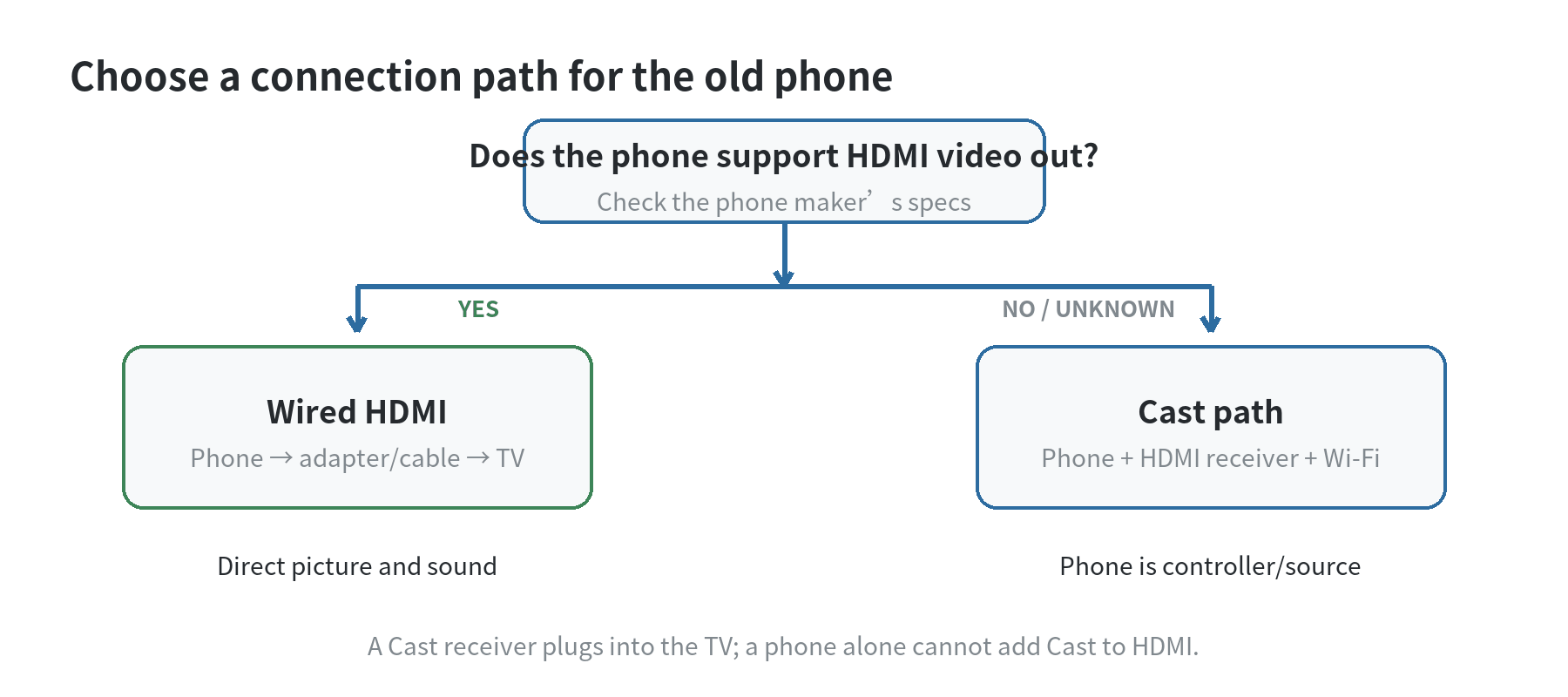
Check the phone model, not only its charging-port shape. Some phones send video over USB-C; others use that connector only for charging and data.
Apple Support lists matching Lightning or USB-C adapters for wired iPhone connections (checked October 2, 2026).
Samsung’s DeX support page lists Galaxy models that support HDMI output (checked October 2, 2026).
If the phone has no supported wired video output, a USB-C-to-HDMI adapter will not add it. Use a streaming receiver in the TV’s HDMI input instead.
Your phone can browse or control compatible apps while the receiver handles playback.
| What you have | Connection path | What to check |
|---|---|---|
| Phone supports HDMI video out | Phone → matching adapter or cable → TV | Correct phone connector, TV HDMI input, protected-video support |
| Phone has Wi-Fi but no verified video out | Phone → Wi-Fi → HDMI streaming receiver → TV | Supported casting app, same network, receiver power and TV HDCP support |
Check the phone and TV before connecting
Find the exact phone model in Settings or on its label. Search the manufacturer’s support page for HDMI, video out, or display support.
A USB-C connector by itself does not confirm that the phone can send a picture to a TV.
For an iPhone, Apple says the adapter must match the phone’s connector. Digital AV or HDMI carries picture and sound.
VGA does not carry audio (checked October 2, 2026).
Choose the connection type that matches the TV’s input.
For Android, read the model-specific help page before using a wired adapter.
Samsung publishes a DeX compatibility list and supported HDMI models (checked October 2, 2026).
The list is model specific. For a different make, check its own support page.
Note the HDMI input label on the TV. A basic HDMI adapter will not convert the signal to composite or component video.
Apple warns that format converters may not work with its digital AV adapters.
For casting, confirm that the receiver supports the phone’s casting system and can connect to Wi-Fi.
Google Cast setup requires an HDMI display, compatible mobile device, and secure Wi-Fi (checked October 2, 2026).
Apple’s AirPlay instructions require a compatible receiver on the same Wi-Fi (checked October 2, 2026); AirPlay and Google Cast are different systems.
Keep the phone’s charging cable nearby for a long viewing session. Wired output can use the phone’s battery while the display is active.
If the adapter has a charging input, confirm that its port and power arrangement work with the phone before placing it near the TV.
Set up a wired HDMI connection
Match the adapter to the phone.
Use a digital AV or HDMI adapter made for the phone’s port and confirmed video output.
For Android, check the exact model’s support instructions before using USB-C video.
Connect the TV end.
Plug an HDMI cable into the adapter and into a TV HDMI input. If the adapter has an integrated cable, connect it as its instructions specify.
Select the TV input.
Use the TV’s Input or Source control and choose the HDMI label used for the cable. Match the label beside the port.
Unlock the phone and test a basic screen.
Check that the home screen or a local video appears with TV sound. This separates connection problems from app restrictions.
Open the streaming app.
Sign in if the service requires it, then test the title you plan to watch. Some apps do not support playback through every adapter.
Connect power if needed.
If the adapter supports pass-through charging, connect the phone charger to its power input. Keep the cable clear of walkways.
The TV acts as a screen and speaker in this arrangement. The phone still runs the app and needs internet access for online video.
Home Wi-Fi can supply that access; the HDMI cable carries the picture and sound between devices.
Set up casting with a separate receiver
A basic TV cannot receive Cast or AirPlay by itself. Plug a compatible receiver into the TV’s HDMI port, connect its power, and complete the receiver’s network setup.
Google says its streaming devices need a power outlet or a non-service USB port on the HDMI display (checked October 2, 2026).
Check the receiver’s own power instructions, too.
Join the receiver to Wi-Fi.
Follow its setup using the supported control app. Choose the home network the phone will use and keep the password available.
Put phone and receiver on the same network.
Google says both must share Wi-Fi for app casting. A guest network or AP isolation can block discovery (checked October 2, 2026).
Open a casting-enabled app.
Choose the Cast button and receiver, then start playback. The receiver plays the stream; the phone acts as a controller.
Mirror only when supported.
Mirroring sends the phone screen to the receiver. App casting sends playback from a compatible app; some apps offer only one method.
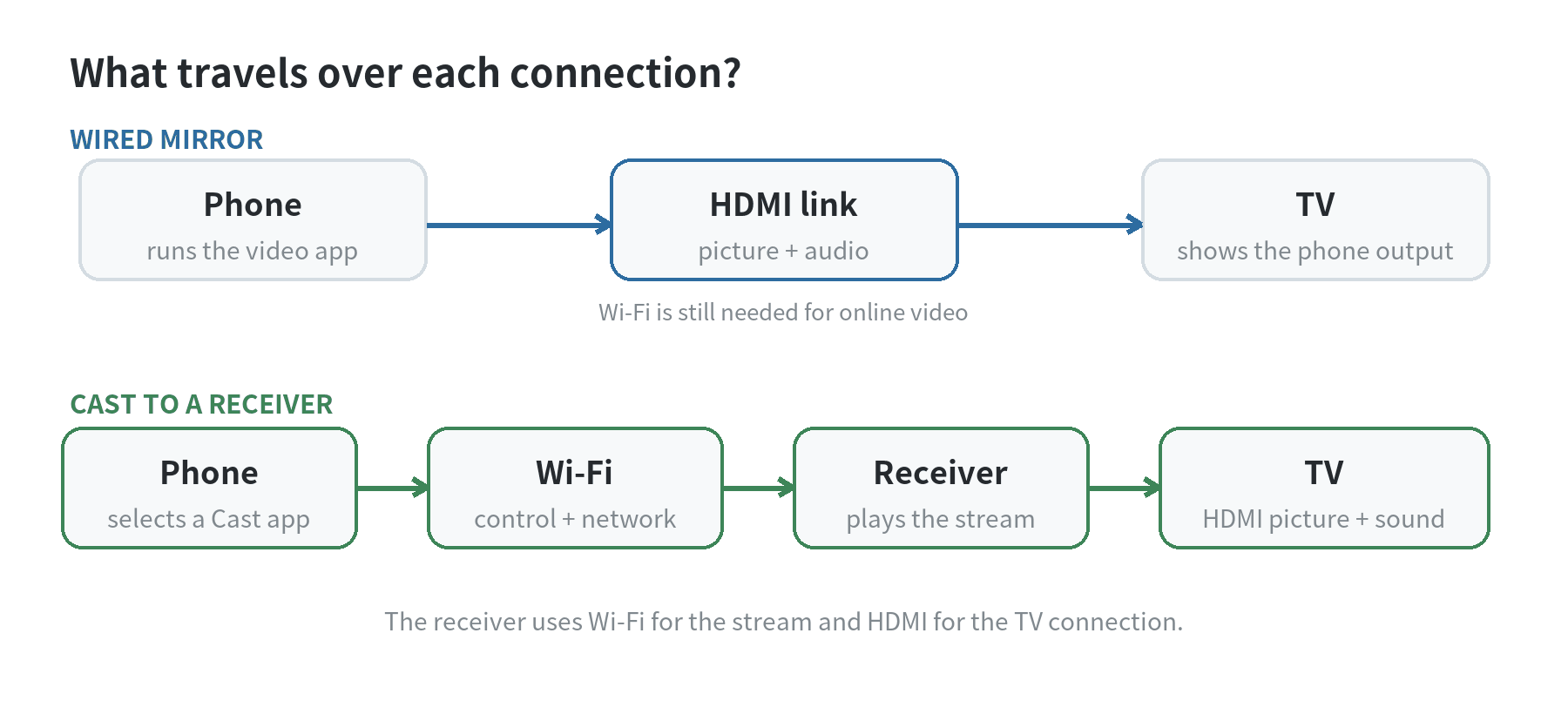
Choose mirroring for a photo, browser page, or screen with no Cast button. Mirroring shows what is on the phone.
Close private messages and turn on Do Not Disturb before putting the screen on the TV.
For a streaming app with a Cast button, app casting sends playback to the receiver while the phone works as a controller. The TV remote still changes the TV input and volume.
For more single-purpose phone ideas, see our guide to repurposing an old phone.
To control the TV or receiver after setup, our old-phone remote guide covers network and infrared controls.
When video is black or sound is missing
If the home screen appears but a show turns black, check content protection.
Apple says some streaming content requires HDCP, a copy-protection system (checked October 2, 2026).
Google requires HDCP 1.3 or higher for its streaming devices, and HDCP 2.2 for 4K playback (checked October 2, 2026).
Test the cable and adapter directly between phone and TV. Then check the manufacturer’s support page for that model.
Apple warns that format converters may be incompatible with its digital AV adapters (checked October 2, 2026).
If picture works but audio does not, check that the connection uses HDMI rather than VGA. Apple says VGA does not carry audio (checked October 2, 2026).
Check the TV volume and phone playback controls, then reconnect the cable to rule out a loose plug.
If the receiver does not appear, confirm both devices use the same Wi-Fi name.
TP-Link’s access-point manual says SSID isolation blocks device communication (checked October 2, 2026).
Check the TV manual or input specifications for the port. The 4K requirement does not determine support for lower-resolution playback.
Make the phone easier to use as a TV source
Move the streaming app and any remote-control app to an easy-to-reach home-screen location. Turn on Do Not Disturb if notifications would cover the picture.
If you want controls visible on the phone, adjust its screen timeout and test a short clip before settling in.
Before leaving the phone beside the TV, test charging, Wi-Fi, volume, and the app login. Confirm that the app opens and plays on the phone.
If it does not, a receiver that runs the app directly may fit better than relying on phone display output.
Use the phone’s built-in stand or a stable holder so the charging cable does not pull it down. Leave enough slack that moving the phone does not tug on the adapter.
Last updated: October 2026.
FAQ
Can I use an old phone as a streaming box without a SIM card?
Yes, if the phone can connect to Wi-Fi and run the app you want. A cellular plan is separate from the HDMI or casting connection; online playback still needs internet access.
Will any USB-C phone work with a USB-C-to-HDMI adapter?
No. The phone model must support video output over its port. Check the phone maker’s documentation before choosing an adapter.
Can my phone cast to a TV with no HDMI streaming device?
Only if the TV itself supports the same casting system. A non-smart TV needs a compatible receiver connected to HDMI for Cast or AirPlay reception.
Why does the home screen show but a streaming video does not?
The adapter, app, or display path may not support the title’s HDCP requirement. Test another app and check the specifications for each device in the HDMI chain.
Last updated: 2026-10