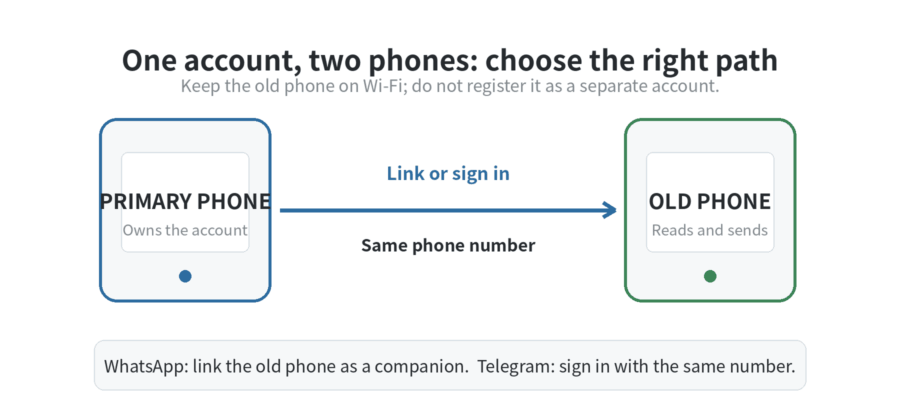
Yes—an old phone can become a second messaging device, but the setup differs by app. For WhatsApp, link the old phone as a companion device; its SIM does not need to be moved. For Telegram, sign in on the old phone with the same mobile number and complete Telegram’s sign-in check. Keep the phone that already holds the account as the primary phone, and use the companion phone on Wi-Fi where a spare message screen helps.
Choose the right setup before you start
The two apps solve the two-phone problem differently. WhatsApp supports up to four linked devices. The primary phone is still used to register the account and add a linked device. On the companion phone, choose the option to link this phone as a companion device; do not enter the number as though you are moving the account.
Telegram’s FAQ says the same mobile number can sign in on multiple devices at the same time, and cloud chats sync across them. The companion phone is another active session, not a separate Telegram identity.
What you need on the companion phone
Start with a charger, reliable Wi-Fi, and enough free space to install or update the app. Install system updates that the phone still supports, then install the official messaging app. Before setup, confirm that the phone supports the operating-system version the app requires.
Check the screen lock and charging cable before linking. A phone with an unknown passcode, unreliable battery, or damaged charging port becomes hard to maintain once it is part of daily messaging. Remove unrelated notification-heavy apps if other people also use the phone, so their alerts do not mix with private message previews.
For WhatsApp companion mode, you do not need to move the account SIM card to the companion phone. Keep the SIM in the primary phone or otherwise keep the phone number available. Telegram may ask for a code or another sign-in check when the companion phone signs in, so complete the prompt Telegram shows.
Set up WhatsApp as a companion phone
- Update WhatsApp on the primary phone and the companion phone.
- Open WhatsApp on the companion phone and choose the option to link this phone as a companion device rather than entering your number for a fresh registration.
- On the primary phone, open Linked Devices, choose the action to link a device, and scan the code shown by the companion phone.
- Wait for chats to load, then send a low-stakes message from the companion phone before leaving it as a spare device.
The key distinction is linking versus transferring. Linking keeps both phones available. If the goal is to replace the primary phone, use the separate WhatsApp phone-transfer guide. A transfer workflow is for moving to a replacement phone, while linking adds a companion phone.
Decide what the companion phone is for before you arrange its home screen. Put a desk phone in a private place and enable only the notifications you need. A kitchen phone can be a quick place to read group updates while the primary phone stays in a bag. If the companion phone travels with you, keep the primary phone charged, signed in, and available for account changes.
Before clearing or giving away the primary phone, confirm that you can manage the account’s linked devices or active sessions. WhatsApp uses the primary phone to add another linked device, and Telegram uses the mobile number for sign-in. Keep both phones under your control until those checks are complete.
Set up Telegram on the companion phone
- Install Telegram from the official app source on the companion phone.
- Enter the same mobile number that belongs to your existing Telegram account.
- Complete the code or other sign-in check shown by Telegram.
- Open a cloud chat and confirm that current conversations are present before relying on the companion phone.
Do not judge Telegram’s second-phone setup by a Secret Chat. Telegram says Secret Chats are device-specific and are not part of the Telegram cloud, so a Secret Chat started on one phone is not a test of whether cloud chats synced to the other.
How the two options differ
| App | Companion phone’s role | Account control | Important limit |
|---|---|---|---|
| Linked companion device | Primary phone links new devices | Up to four linked devices | |
| Telegram | Another signed-in session | Same mobile number signs in on multiple devices | Cloud chats sync across devices |
Both approaches work best when the companion phone has one job. Put it by a desk, in a kitchen, or in a room where messages should be available without carrying the primary phone. Turn off notifications for chats you do not need there, but leave alerts enabled for the messages that matter.
Secure the companion phone before you leave it out
A second messaging device is another access point to your conversations. Set a screen lock that other people in the home do not know, and use any app-level security settings available to you. Telegram’s FAQ recommends a passcode for a shared device, two-step verification, and removing the old session from Settings > Devices if the phone is lost or no longer yours.
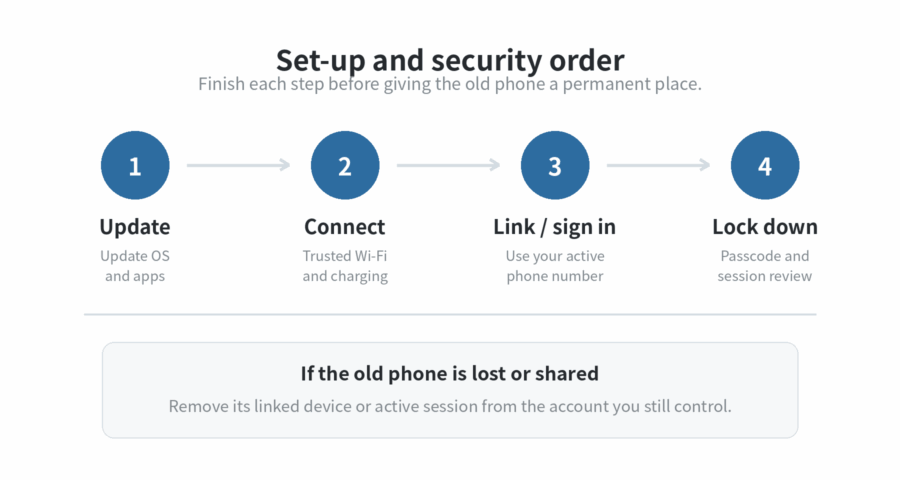
Review the linked devices or active sessions list after setup and again whenever you hand the companion phone to someone else. If the phone is being retired rather than reused, sign out or remove it first. If you are trying to recover a missing conversation, follow the separate WhatsApp backup recovery guide; a linked device is not a substitute for a backup plan.
Make the companion phone easy to live with
Give the companion phone a fixed charging spot and a clear name in the app’s device list. Use a stand if it will stay on a desk, and keep the screen brightness low enough for indoor use. The practical win is one reliable place to check messages when the primary phone is charging or in another room.
If messages stop arriving, first check Wi-Fi, battery level, and whether the session still appears in the primary phone’s device list. Check Telegram’s active sessions or WhatsApp’s linked devices list before taking further action. Then follow the app’s displayed process if it asks you to restore a link or sign in again.
FAQ
Can I use a companion phone for WhatsApp without putting my SIM card in it?
Yes. Link the companion phone from the primary phone’s Linked Devices screen. WhatsApp uses the primary phone to register the account and link new devices, so keep that phone available for account control.
Will Telegram chats show on a companion phone after I sign in?
Cloud chats will sync when you sign in with the same mobile number, while Secret Chats remain device-specific.
What should I do if the companion messaging phone is lost?
Remove its linked device or active session from a phone you still control. Telegram directs users to Settings > Devices or Active Sessions to terminate the session on an old device, and two-step verification adds protection for a future sign-in.
Should I transfer WhatsApp to the companion phone instead of linking it?
No, not if you want both phones to keep working. Transfer is for replacing a phone; linking is for using the same account on an additional device.
Last updated: 2026-09