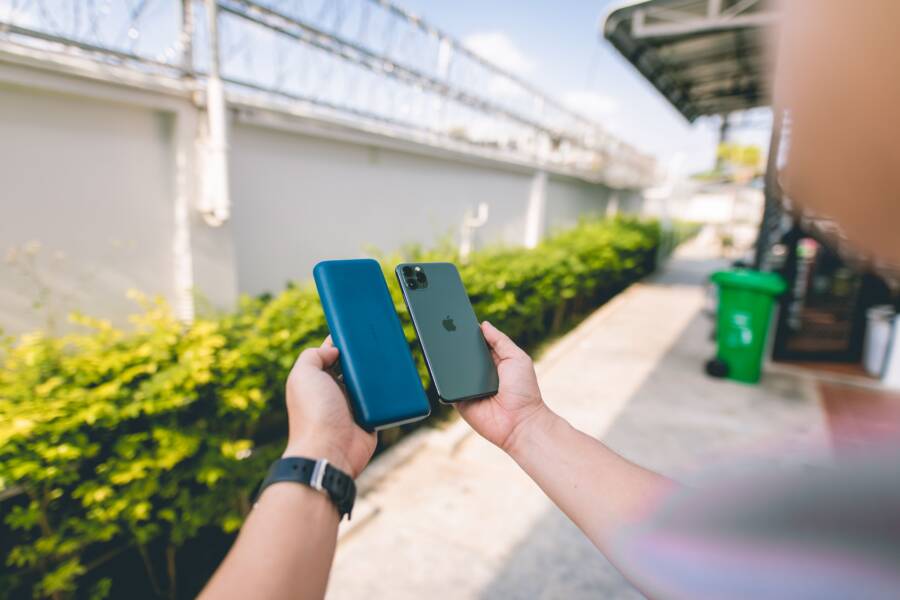
A phone that keeps turning on battery saver by itself usually has an automatic power setting, a low-battery trigger, a stuck app, a software glitch, or a battery health problem. On a smartphone, that can make the screen dim, background apps pause, and performance feel slower even when you didn’t change anything.
The fix usually starts with checking the battery saver schedule, power mode settings, and any apps that may be forcing low-power behavior. If those settings look normal, the next step is to look at battery health and software issues so you can find the real cause instead of guessing.
This guide shows you how to track down the setting, change the right options, and tell when the battery itself may be failing.
What is actually causing battery saver to turn on by itself?
Battery saver usually turns on by itself because a setting, app, or battery condition is telling the phone to protect power. On many devices, that behavior is normal, but it can feel random if the trigger is buried in another menu or tied to battery health. The key is to separate a real system rule from a hidden automation or a failing battery.
Automatic battery rules and power-saving schedules
Many phones can switch battery saver on automatically when the charge drops to a set level. Some devices also let you turn it on by schedule, so it may activate at certain times without any warning. If your phone keeps doing this, the trigger is often already built into the battery settings.
The menu name changes by brand, which is why it gets missed so often. You may find it under Battery, Battery Saver, Power saving, Power mode, or Adaptive Battery depending on the device. On an Android phone, the setting may also sit inside a broader battery optimization page, so it helps to check more than one menu.
A quick example:
Low-battery trigger: Battery saver turns on at 20% or 30%.
Schedule: Battery saver turns on during specific hours.
Adaptive behavior: The phone changes power use based on how you usually charge and use it.
If the phone is a smartphone you use every day, these rules can feel invisible until they kick in. That is why the first step is to open the battery settings and look for any automatic switch, schedule, or power mode rule.
An app, shortcut, or routine is triggering it
Automation tools can also flip battery saver on without much notice. On Samsung phones, Modes and Routines or Bixby Routines can change power settings when a condition is met, such as time of day, location, or battery percentage. On iPhone, Shortcuts or Focus-related automations can trigger actions that affect battery behavior. Third-party battery apps can do the same if they have the right permissions.
Some apps can even modify system settings if you allowed battery optimization, device admin access, or accessibility access. That makes the change feel mysterious, but it usually comes from a rule you approved earlier. If you installed a cleaner, saver, or device management app, check whether it has power-control permissions.
A simple way to narrow it down is to review recent changes. Look at:
Any automation you created.
Any battery or cleanup app installed recently.
Any app with access to system settings, accessibility, or device admin features.
If battery saver turns on at the same time every day, a routine is more likely than a hardware problem.
Removing or disabling the rule often fixes the issue right away. If the phone stops switching modes after that, the cause was software, not the battery itself.
Battery health or temperature is pushing the phone into low power mode
An aging battery can also force battery saver on more often. As batteries wear out, they hold less charge and may drop voltage faster under load. Your phone reads that drop as low power, even when the percentage still looks decent. That can make battery saver appear to trigger for no clear reason.
Temperature matters too. Heat can stress the battery, and very cold conditions can make the voltage dip fast. In both cases, the phone may protect itself by reducing performance and entering low power mode. You may notice it after gaming, long camera use, navigation, or being outside in cold weather.
Common signs point in this direction:
The battery percentage falls fast.
The phone shuts down before reaching zero.
Battery saver turns on after heavy use.
Performance gets worse when the device is warm.
If this happens often on a smartphone, battery health becomes a serious suspect. The phone is reacting to what it sees as an unstable power source, not just a setting glitch. Once the battery weakens enough, automatic low power behavior becomes much more common.
A good first check is the battery health screen, if your phone offers one. If it shows poor condition, the issue is likely physical rather than a hidden menu setting.
Check the battery saver settings that most people miss
Battery saver often keeps turning on because a hidden trigger is still active in the background. The setting may be tied to a percentage threshold, a schedule, or a smart power feature that overrides manual changes. Start there, because this is the fastest way to stop the phone from switching modes on its own.
Turn off automatic activation and raise the trigger level
Open the battery settings and look for any option that turns battery saver on automatically at a set percentage. On many phones, that setting sits inside Battery, Power saving, or Battery Saver, and it may be easy to miss because it’s tucked under a second menu. If you see a trigger at 20%, 30%, or another low value, either turn it off or lower the trigger so it only activates when you actually want it.
Also check for any schedule tied to battery saver. Some phones let you set low-power mode for certain hours, while others connect it to bedtime or sleep routines. If your smartphone keeps dropping into battery saver overnight or in the morning, a schedule is often the reason.
Do the same for adaptive power features. Depending on the brand, this may appear as Adaptive Battery, Adaptive Power, optimized charging, or a similar name. These tools can change power behavior based on your habits, and they sometimes override a manual choice you made earlier.
A quick pass through these settings can clear up the problem:
Check the battery saver trigger percentage.
Look for any daily or weekly schedule.
Review bedtime mode, sleep mode, or Focus settings.
Turn off adaptive power features if they keep forcing low-power behavior.
If battery saver keeps returning at the same time or charge level, a hidden rule is usually involved.
Review battery optimization and background restrictions
Strict battery optimization can create side effects that feel like battery saver is stuck on. When a phone limits background activity too aggressively, it may push the system into a more restrictive power state. That can happen after a software update, a settings change, or when a new app requests deeper power control.
Check the battery optimization screen and see which apps are allowed to run freely. If a device management app, launcher, or battery tool has special access, it may be controlling the setting behind the scenes. Some cleaner apps and device care tools are designed to save battery, but they can also keep reapplying their own rules after you change them manually.
Pay close attention to apps that affect system behavior. These often include:
Device management apps used for work or school phones
Third-party launchers with power-saving tools
Battery booster or cleaner apps
Security apps with device admin or accessibility access
If one of these apps is active, open its settings and look for battery, optimization, or power mode controls. On a smartphone, one permission is enough to keep restoring low-power behavior after you turn it off elsewhere. Removing that control often fixes the issue faster than changing the battery settings again and again.
Reset only the power-related settings if your phone has that option
If the menus still look messy, use the device’s reset options before you jump to a full factory reset. Many phones offer a reset for battery, network, or system preferences, and that can clear a broken power setting without wiping your photos or apps. This is the safer move when the problem seems tied to power management, not the whole phone.
Look for a menu named Reset settings, Reset system settings, or Reset network and battery settings. The exact label varies by brand, but the goal is the same, clear the stored power preferences and let the phone rebuild them. If your device gives separate reset choices, start with the one that affects battery or system settings first.
Use this path carefully and in order:
Save anything important first.
Try the battery or system settings reset.
Recheck battery saver, schedules, and optimization menus.
Use a full factory reset only if the power issue stays after everything else.
A full reset is a bigger step, so save it for last. If the problem is limited to a corrupted power setting, a lighter reset may fix it without extra cleanup. That keeps the process simple and reduces the chance of losing settings you still want.
Fix software problems that can make battery saver stick
If battery saver keeps turning on, software is often the reason. A stuck power mode, an outdated system file, or a bad app permission can keep forcing low-power behavior even when the battery is fine. Start with the simplest fixes first, then move to apps that may be overriding your settings in the background.
Restart the phone and test it again
A restart can clear a temporary glitch that leaves power mode stuck. When the phone boots back up, it reloads system services, battery controls, and background tasks, which can clear a setting that got caught in a loop.
After restarting, use the phone normally for a few hours and watch for the battery saver icon, dimming, or slower performance. If it stays off, the issue may have been a one-time software hiccup. If it turns back on again, you know the problem is still active and needs a closer look.
A quick restart is especially useful after a crash, a freeze, or a recent settings change. On a smartphone, even one small system bug can act like a switch that keeps flipping back on.
Update the operating system and problem apps
Old software can make power settings behave strangely. That matters after a recent app install, an app update, or an OS update, because one version may conflict with another. Battery saver problems often show up when the system is missing bug fixes or when an app was built for a newer software version.
Check for both system updates and app updates. Then focus on the apps you use for battery control, device cleanup, launchers, or automation, because those are the ones most likely to interfere with power mode.
Use this order:
Install the latest operating system update.
Update apps from the App Store or Google Play.
Reopen battery-related apps and review their permissions.
Remove any app that started the problem after it was installed.
If the problem began right after an update, the new software is one of the first places to look.
This step matters because a patch can fix the exact bug that keeps reactivating battery saver. In many cases, the phone is fine, but the software around it is out of sync.
Boot in safe mode or remove suspicious apps
Safe mode helps you test whether a third-party app is causing the issue. In safe mode, the phone loads only essential system apps, so any battery saver problem tied to a downloaded app usually stops there. If battery saver stays off in safe mode, the cause is probably an app you added.
If your phone does not offer safe mode, remove recent apps one by one. Start with battery apps, cleaner apps, launcher apps, automation tools, and task manager apps, because they often have permission to change system behavior. On a smartphone, one app with the right access can keep forcing low-power mode without asking again.
Pay close attention to apps that manage performance or background activity, including:
Battery saver or battery optimizer apps
Phone cleaner or junk file apps
Third-party launchers
Automation or shortcut apps
Task killer or memory booster apps
Uninstall one app, then test the phone again before removing the next one. That makes it easier to spot the exact trigger instead of wiping out useful apps that are not part of the problem. If battery saver stops turning on after a specific app is gone, you found the source.
When the battery itself is the real problem
If battery saver keeps turning on at random, the battery may be failing instead of the settings. A worn-out battery can lose capacity, heat up faster, and trigger low-power behavior even when the charge level looks normal. In that case, no amount of menu toggling will fix the root cause.
Once a battery starts to age or damage shows up, the phone often starts acting inconsistent. It may work fine one minute, then drop power fast the next. That pattern matters more than a single glitch, because repeated symptoms point to hardware trouble.
Signs your battery is worn out or damaged
A failing battery usually gives more than one warning. Fast drain is one of the clearest signs, especially when the percentage drops sharply during light use like texting, web browsing, or checking email. Sudden shutdowns are another red flag, particularly if the phone turns off before the battery reaches zero.
Heat is also a strong clue. If the phone gets hot during simple tasks, or if battery saver turns on right after a short video call or a little camera use, the battery may be struggling under load. Slow charging can point in the same direction, especially when the charger and cable are known to work well.
Watch for these signs:
Fast battery drain even with normal use
Unexpected shutdowns while the battery still shows charge
Overheating during light tasks or charging
Slow charging or charging that stops and starts
Swelling in the back cover, screen, or frame
Battery saver turning on at unusually high percentages, such as 30%, 40%, or higher
Swelling needs immediate attention. If the screen lifts, the case bulges, or the phone no longer sits flat, stop using it and get it checked. That is more serious than a software bug.
Repeated battery warnings matter more than a one-time glitch. If the same symptoms keep coming back, the battery is likely the source.
Check battery health tools built into the phone
Many phones show battery health information right in the settings. On iPhone, open Settings > Battery > Battery Health & Charging to see Maximum Capacity and battery performance status. A lower capacity number means the battery holds less charge than it used to, and a message about service means Apple sees a problem worth replacing.
Some Android phones also include battery health or battery information screens. You may find them under Settings > Battery, Device Care, Phone Care, or Support pages, depending on the brand. Samsung, Pixel, and a few other models may show battery condition, cycle info, or charging status, but the details vary a lot by device.
A simple way to read the results:
Not every phone shows detailed battery health data, so a missing menu does not clear the battery. In that case, look at the symptoms and the phone’s behavior under light use. If a smartphone keeps losing power too fast, the hardware still deserves attention.
Know when a battery replacement is the safest fix
Stop troubleshooting and move to replacement when the battery shows clear physical or safety problems. A swollen battery, repeated overheating, or shutdowns during light use are all signs that the battery is no longer reliable. At that point, more resets won’t help much, and continued use can make the problem worse.
A repair shop or manufacturer service center is the right next step if:
The phone swells or the screen lifts.
The device gets hot during normal use or charging.
Battery saver keeps turning on because the phone cannot hold stable power.
The phone shuts off even with plenty of charge left.
Charging becomes erratic after you have tried a known-good cable and charger.
If the battery is removable, replace it with the correct model from a trusted source. If it is sealed inside the phone, let a trained technician handle it. Battery repair is one area where guessing is risky.
A weak battery can make a phone feel haunted, but the pattern usually points to a clear fix. Once you confirm the battery is worn or damaged, replacement is safer and more effective than more setting changes.
Stop battery saver from coming back after you fix it
Once you turn battery saver off, the next job is to stop another setting or app from turning it back on. That usually means removing duplicate power tools, reducing heat stress, and keeping track of when the problem started. Those three steps help you catch the real trigger instead of chasing the same setting over and over.
Avoid conflicting power apps and duplicate automation
If you have more than one battery optimizer, cleaner app, or automation tool, they can fight each other. One app may disable battery saver while another turns it right back on, which makes the phone look unstable even when the real problem is just overlap.
Keep only the tools you actually use. A smartphone does not need three different apps trying to manage battery life, background activity, and performance at once.
A simple cleanup helps:
Remove duplicate battery saver or booster apps.
Keep only one automation tool if you use routines or shortcuts.
Check for work profiles, device management apps, or security apps that also control power settings.
Revisit accessibility, device admin, and system-setting permissions for any app you trust less.
If an app only repeats a feature your phone already has, delete it. The fewer power managers you keep around, the less chance battery saver has of coming back on its own.
Keep your phone cool and charge it the right way
Heat can make the phone protect itself by switching into low-power behavior. Leaving it on a hot car dashboard, charging it under a pillow, or using it while it overheats can push it into battery-saving mode again. Cold weather can cause similar stress, since low temperatures can make battery voltage drop fast.
Charge with a quality cable and charger that match your phone. Cheap adapters often cause unstable charging, which can confuse the battery system and trigger power-saving behavior.
A few habits help a lot:
Keep the phone out of direct sun and hot cars.
Remove thick cases if the phone gets warm while charging.
Avoid gaming or video calls during fast charging.
Let the phone return to a normal temperature before heavy use.
If the phone keeps heating up, battery saver may keep returning as a protective response. Cooling the device down is often the difference between a temporary warning and a recurring problem.
Watch for repeated glitches after app installs or updates
If battery saver came back after a new app install, system update, or settings change, write down the timing. A simple note often reveals the pattern faster than memory does. You may notice the problem starts right after a launcher update, a new cleaner app, or a battery-related permission change.
Track the details in plain language:
When the issue first appeared
Which app or update was installed last
Whether the phone got hotter than usual
Whether the problem happens after charging, restarting, or opening one specific app
That record makes troubleshooting easier because you can connect the trigger to a clear change. If battery saver starts acting up right after one app lands on the phone, remove that app first. If the problem follows an OS update, check for a follow-up patch before changing more settings.
A clear timeline matters more than guesswork. The closer the cause sits to the first symptom, the faster you can stop battery saver from returning.
Conclusion
If a phone cannot keep battery saver from turning on by itself, the fix usually starts with the settings, not the battery. Check automatic battery rules, look for app-based routines or shortcuts, and update the software before you assume the device is failing.
If the problem keeps coming back, the battery health matters. A weak or damaged battery can push a smartphone into low-power mode again and again, and repeated resets won’t solve that.
The main path is simple, check the battery schedule, remove any app or automation that triggers power saving, update the phone, then judge the battery itself if the symptom stays. If you see swelling, heat, or sudden shutdowns, repair is the better choice.